

Here’s a surprising fact: despite being the world’s most popular streaming service, Spotify still doesn’t have a built-in remove duplicates button. You’ll find plenty of community posts asking for this feature. Spotify now just warns you of adding the same song to the same playlist. If you add the same tracks by accident, you will hear the same song continuously.
Luckily, there are ways to remove duplicates from Spotify, whether it’s just a few repeated tracks or hundreds spread across large playlists. Let’s divide into more details now.
How to Find and Remove Duplicates from Small Spotify Playlists
Playlists with fewer than 200 songs. Beyond this size, manual cleanup will feel slow.
If your playlist isn’t massive, say somewhere around 50 to 200, Spotify’s own sorting features are effective enough for you to delete duplicates, especially on desktop. The idea is simple: line duplicates up next to each other, then remove them in one pass.
Steps on Spotify Desktop
Spotify desktop lets you sort items properly and select multiple songs at once, which is exactly what you need here.
Step 1. Open the playlist you want to clean from Your Library.
Step 2. Now look at the top-right corner and click the Sort by option. Choose Title.
This is the key move. Sorting by Title forces Spotify to line up tracks alphabetically. When two or three copies of the same song exist, they suddenly sit right next to each other. You don’t have to hunt anymore — duplicates basically expose themselves.
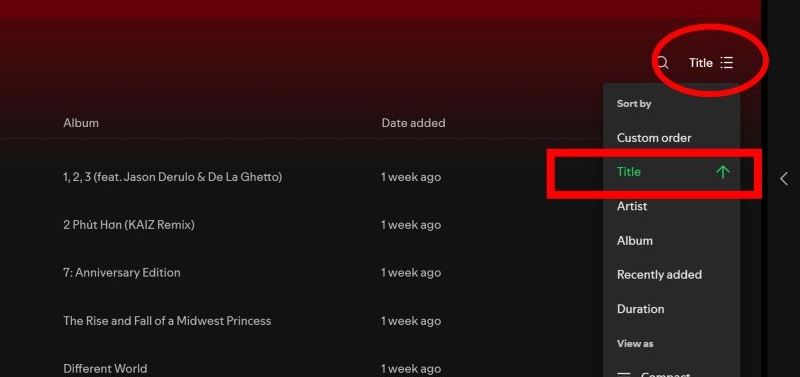
Step 3. Once you spot the repeats, select them. Hold Ctrl (or Cmd on Mac) and click each duplicate you want gone.
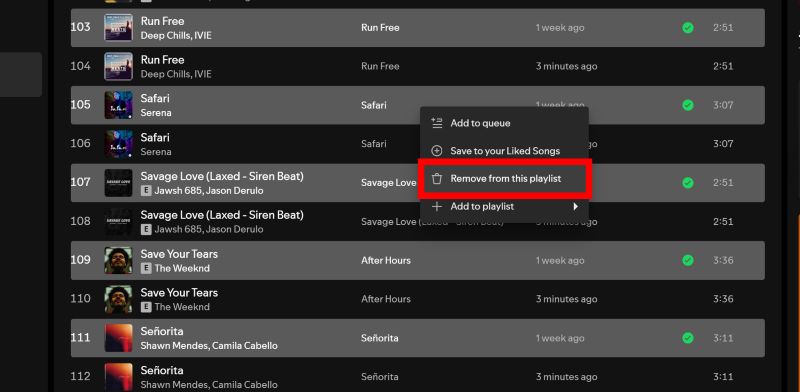
Step 4. Right-click on any one of the highlighted songs. Choose Remove from this playlist. The duplicate song will disappear.
Steps on Spotify Mobile
The mobile app is more limited. It still works for smaller playlists, if you don’t mind a bit of manual work.
Step 1. Open Spotify and enter the playlist you want to clean.
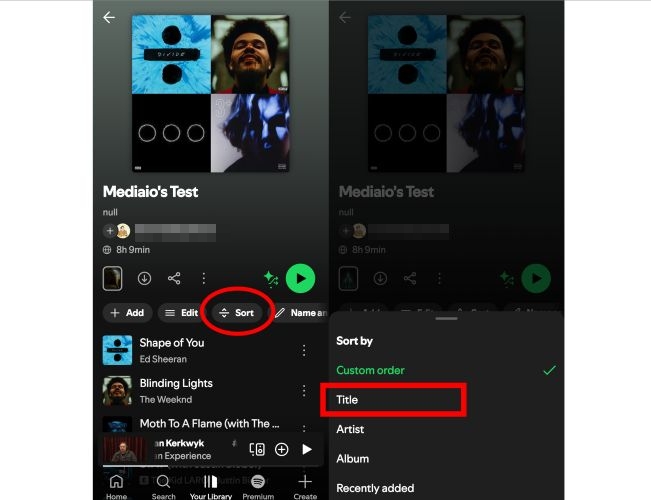
Step 2. Just below the playlist title, tap Sort. A menu appears.
Step 3. Set Sort by to Title. This places duplicate tracks next to each other, similar to desktop.
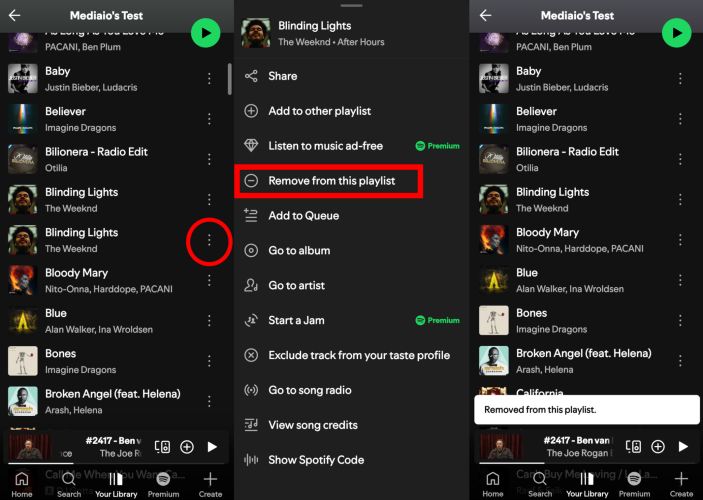
Step 4. Scroll through the list. When you find a duplicate, tap the three dots beside the extra copy. Select Remove from this playlist.
Repeat the same steps for any remaining duplicates.
How to Find and Remove Duplicates from Large Spotify Playlists
Playlists with 500+ songs, including large playlists with 1,000–2,000 tracks.
Manual cleanup isn’t realistic for long or mega playlists (500+ songs). At this scale, it makes sense to use a script-based or automation-based tool. Finding the right tool matters. As if you search online, you’ll find plenty of options. You can use the recommended tool in this guide because it is one of the most trusted and widely used solutions for removing Spotify duplicates accurately.
What You Need: Spotify Dedup
Spotify Dedup is the industry standard for this job. It’s widely considered the go-to tool for cleaning large Spotify playlists. The tool is free, browser-based, and was created by JMPerez, a former Spotify engineer, specifically to solve the duplicate problem that Spotify itself never fully addressed.
Unlike random mobile apps or shady “playlist cleaners”, Spotify Dedup focuses on one thing only: identifying duplicates accurately and giving you control over what happens next. What really sets Spotify Dedup apart is how it understands Spotify’s data. It doesn’t blindly treat repeated song names as duplicates. Instead, it works at the song ID level, which allows it to separate exact duplicates from fuzzy duplicates.
For example:
- If the same song ID appears twice in a playlist, Spotify Dedup flags it correctly.
- If two albums share a track with the same name but different IDs—like a remaster, deluxe version, or compilation, it does not automatically delete them.
Is Spotify Dedup Safe to Use
Yes. Spotify Dedub is completely free and runs without ads, which already tells you a lot about its intent. Still, here’s why you can consider this tool safe to use:
First, it uses Spotify’s official OAuth login system. That means you’re not giving it your password. Spotify issues a temporary access token, just like it does for any trusted third-party connection.
Second, the project is open source. The full code is public on GitHub, and the community has reviewed it for years. So there’s nothing malicious hidden running in the background.
Third, it only touches the playlists you explicitly select. And it cannot modify anything you don’t approve of.
That said, a simple precaution never hurts.
Many Spotify users recommend backing up your playlist once before running any bulk cleanup, especially if the playlist matters to you. You can do that by saving your playlist offline as local files using a tool like Mediaio Audio Converter. This gives you a copy of your music on your computer, with the original order and metadata preserved. Once that backup exists, you can clean your Spotify playlist without any anxiety.
How to Remove Spotify Duplicates with Dedup
Step 1. Visit the Spotify Dedup website and click Log in with Spotify on the homepage.

Step 2. A Spotify authorization screen appears. Select Agree to let Spotify Dedup review your playlists and liked songs.
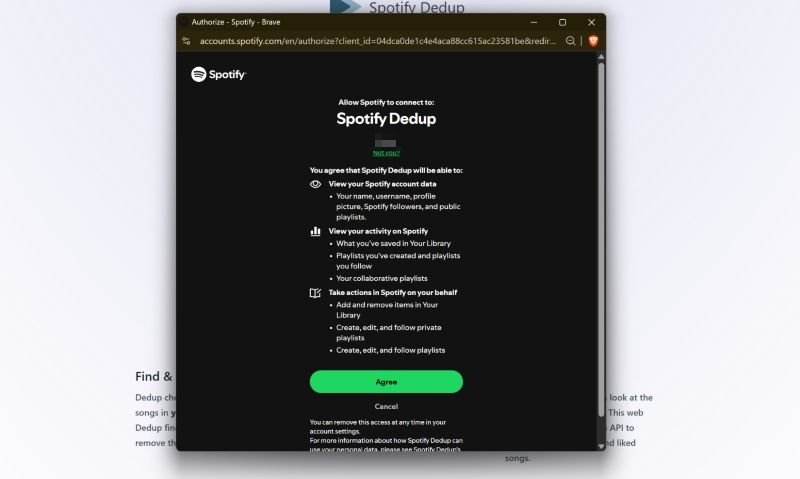
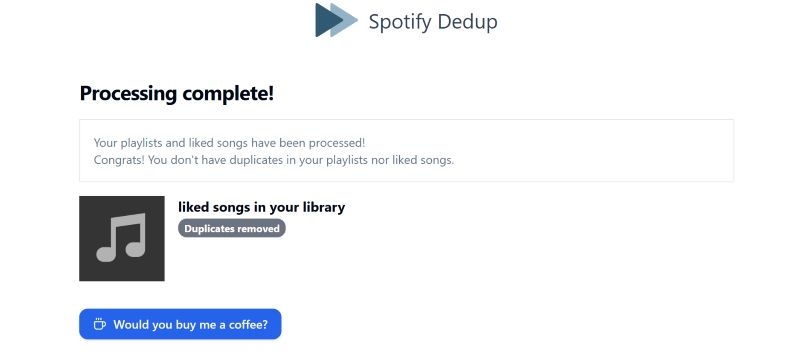
Step 3. Approval triggers the scan instantly. A progress bar shows as your playlists and liked songs are checked for duplicates.
Step 4. When the scan completes, duplicates are displayed clearly—showing track name, artist, and version.
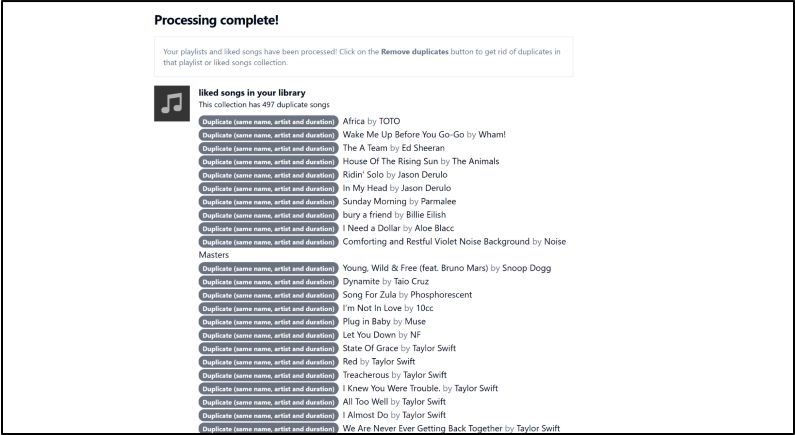
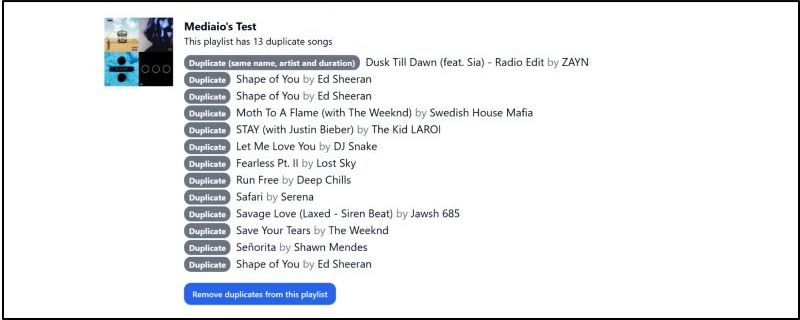
Step 5. Below that, results are grouped by playlist. Each playlist containing duplicates is listed separately, along with the exact tracks causing the issue.
Select Remove duplicates from this playlist to clean only that playlist. Once cleaned, it disappears from the results list.
Finally, open Spotify and revisit the same playlist. The duplicates will be gone.
FAQ 1: Will Spotify Notify You If You Add the Same Song to a Playlist?
It depends on the device you’re using.
On mobile (Android and iOS users)
Spotify now actively prevents accidental duplicates. For example:
- Tap the three dots next to a song.
- Choose Add to playlist.
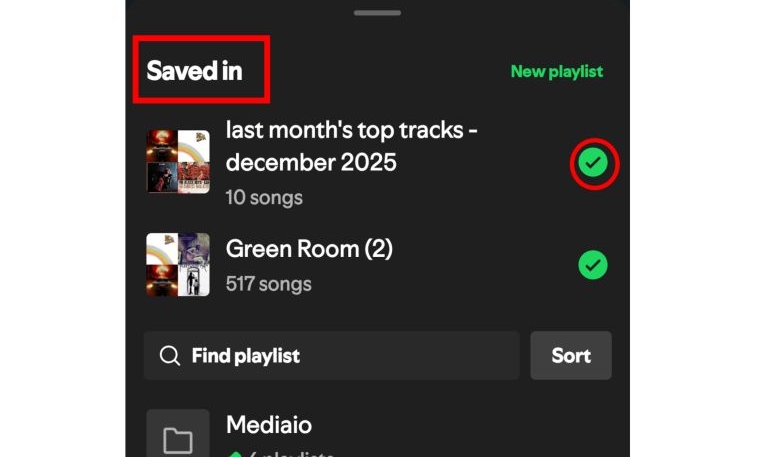
You’ll see a menu split into two parts. At the top, Spotify shows Saved in. Any playlist that already contains the song appears here with a green check mark. These playlists can’t be selected again. Below that, you’ll see all other playlists. These are the only places where the song can be added. You can also use the New playlist option if needed. So on mobile, duplicates don’t happen by accident anymore.
Desktop is more flexible and still allows duplication in certain cases.
When you use drag and drop:
- Adding a single song into a playlist, Spotify will show a small prompt saying it’s already in the playlist, with two options: Add anyway and Don’t add.
- Adding multiple bunch of songs (using Cmd or CTRL) which are duplicates, Spotify will create a new playlist of the songs.
Right-click behavior is more straightforward:
- Choosing Add to playlist shows the same duplicate warning.
- You’re again given Add anyway or Don’t add.
So on the desktop, duplicates are allowed, but only if you confirm them.

FAQ 2: How to Make Spotify Stop Repeating the Same Songs?
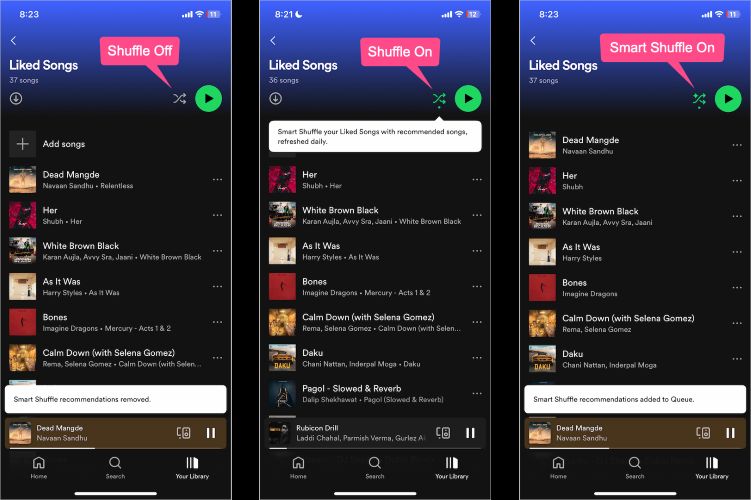
This usually comes down to how Spotify handles shuffle. Spotify’s shuffle is algorithmic. It is not truly random, like most offline media players. That means even a 500-song playlist can feel like it’s rotating the same 20 tracks.
Here’s what actually helps.
1. Avoid Shuffle
On free accounts, Spotify often forces Smart Shuffle. So, you can’t turn it off. If you’re on Premium, switch back to regular shuffle or turn shuffle off entirely.
2. Turn Off Automix
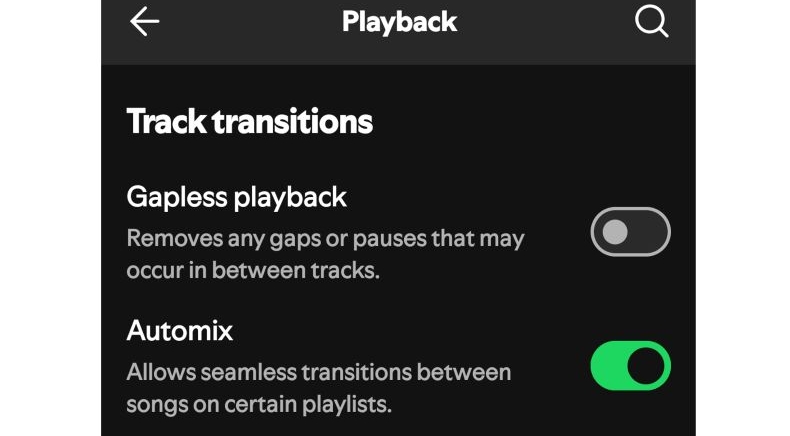
Automix groups similar songs together to create smooth transitions. That kills randomness. To disable it:
- Open Settings
- Go to Playback
- Toggle Automix off
This is one of the most recommended fixes in Spotify community threads.
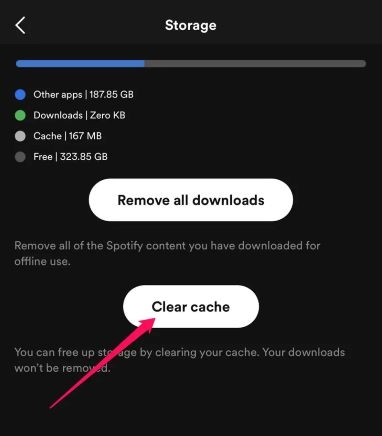
3. Clear Spotify Cache (Mobile)
Over time, Spotify’s cache reinforces repeated patterns.
On mobile:
- Open Settings
- Go to Storage or Data savings & offline (Android)
- Tap Clear cache
This won’t delete downloads or playlists.
If You Want True Randomness
Spotify can’t do this reliably. If you really enjoy shuffle:
- Download your Spotify playlists as local files
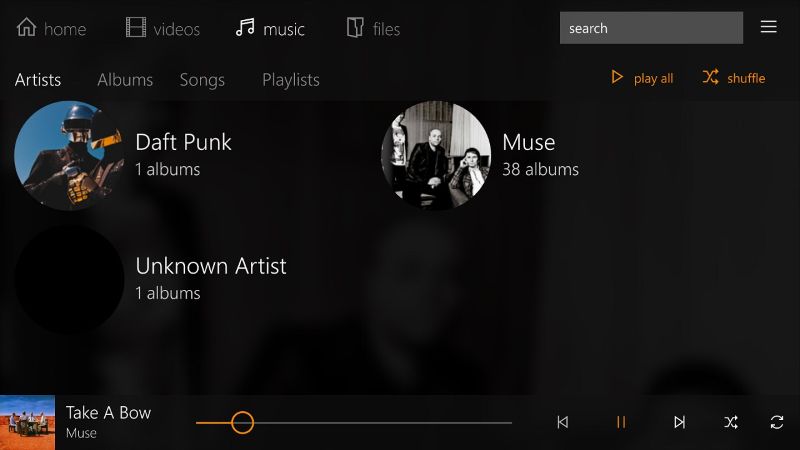
- Play them in VLC or Foobar2000
- Use shuffle there
Local players use actual random shuffles, not listening history or engagement data.
Conclusion
That’s really all there is to remove duplicates on Spotify.
If your playlist is small, manual cleanup is enough. It gives you hands-on control and lets you remove not just exact repeats, but also deluxe versions, remasters, and re-released tracks that Spotify treats as separate songs. Once playlists get large, Spotify Dedup makes more sense. It scans your entire library, identifies true duplicates using song IDs, and shows you exactly what it plans to remove. You can always make a backup of the playlists using Mediaio Audio Converter. Mediaio lets you save your Spotify songs as local MP3s on your computer. Plus, you can even manage duplicates offline in players like Foobar2000 or MusicBee.