

Steel Century Groove is a rhythm-based combat game, so how well your Tenzerk’s fight depends entirely on the music. And the 31 built-in songs are great for this, but they start to feel repetitive after a few Arcade runs. Fortunately, Steel Century Groove lets you import your own songs and completely customize your battle rotations. The process, though, isn’t straightforward.
So here is a complete step-by-step guide on how to put your own music in Steel Century Groove. We will also look at how to choose the right songs for more responsive mecha-dance battles.
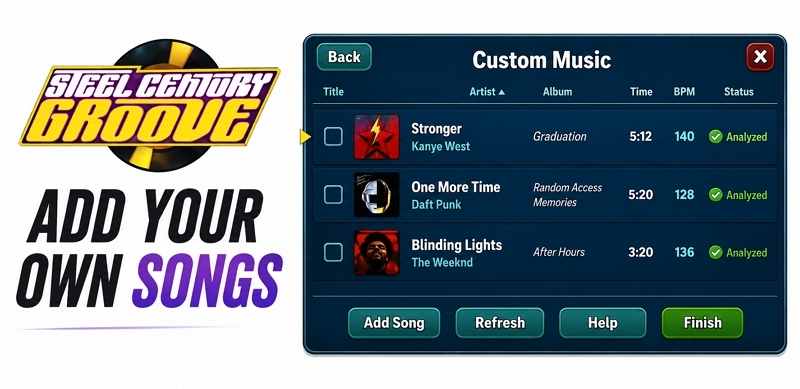
How to Put Your Own Music in Steel Century Groove
Even as a rhythm-based game, Steel Century Groove does not require you to prepare your songs into a special format like Clone Hero does. It has only one strict requirement: the imported music must be in .mp3, .wav, or .ogg format.
Additionally, before uploading folders, keep licensing in mind.
- For solo offline dance battles, you can practically use any song already sitting on your hard drive. Copyright status is not a concern in this context.
- On the other hand, if you plan to broadcast your Endless Arcade runs on Twitch, you have to be careful. In those cases, it is better to use only copyright-free music for your sessions. Otherwise, your stream will be muted or flagged.
Here is exactly how to add custom music into Steel Century Groove and even mix it alongside the default soundtrack.
Steps to Add Custom Song to Steel Century Groove
You can add custom music to Steel Century Groove in two ways:
- Gather all your songs inside one dedicated folder. Then, copy that folder directly into Steel Century Groove’s custom music directory,
- Or simply link to any existing folder on your computer.
Both methods do the exact same thing. Here’s how you can proceed with either option.
Step 1. Enter any game mode: Story Mode, Endless Arcade, or Free Play.
It does not matter whether you load an old save or start fresh. Once music is added, Steel Century Groove remembers that library globally across the game, so your songs will be available no matter where you play.
Step 2. Press L on your keyboard to open the in-game menu. From there, move to the Menu. Then, select Setup Custom Music.
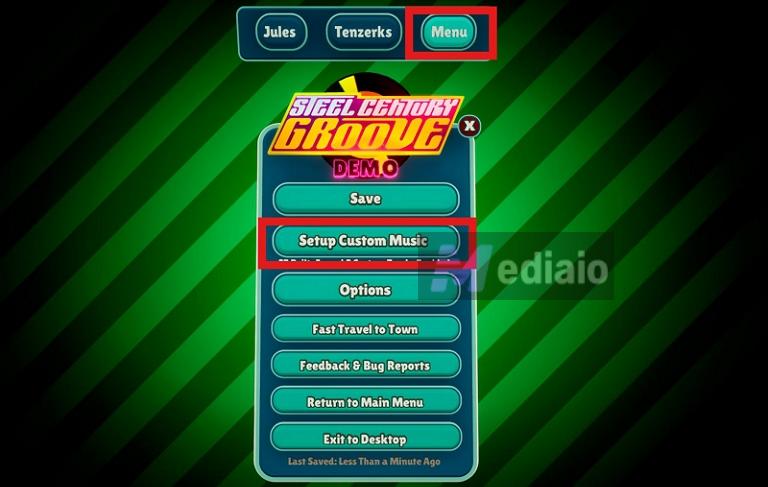
The Custom Music window will now open. Here, you have two options for adding songs:
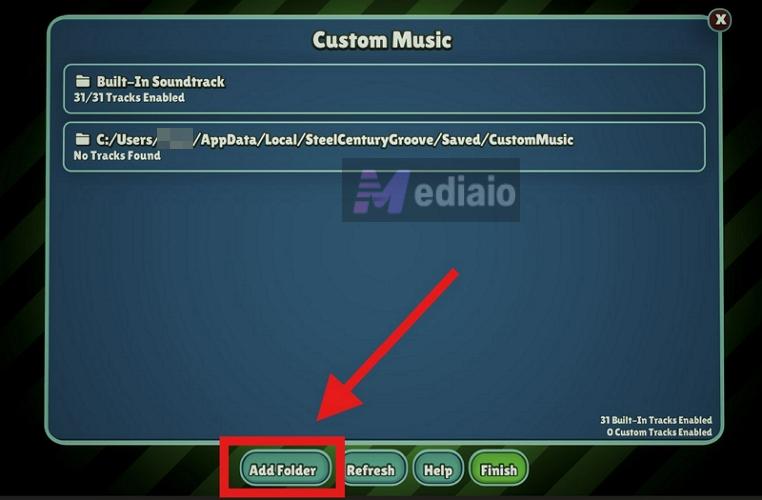
Option 1. Use the Add Folder Button
- Click the Add Folder button at the bottom of the Custom Music window.
- A File Explorer window will open.
- Navigate to the folder already containing your songs.
- Select the folder and confirm it.
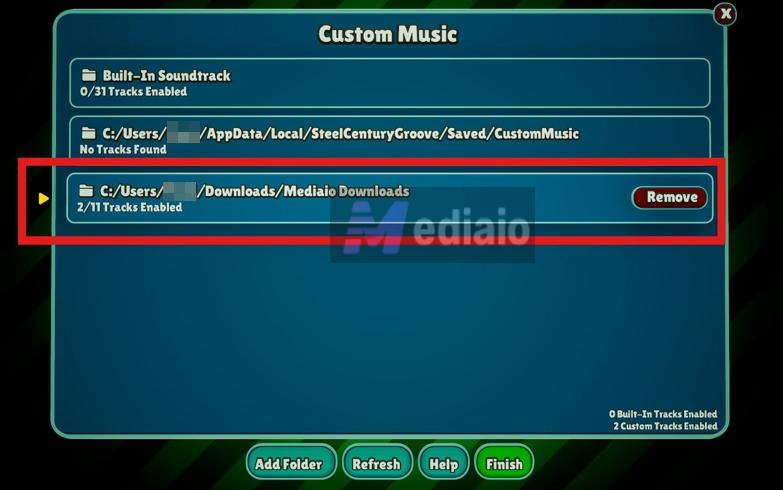
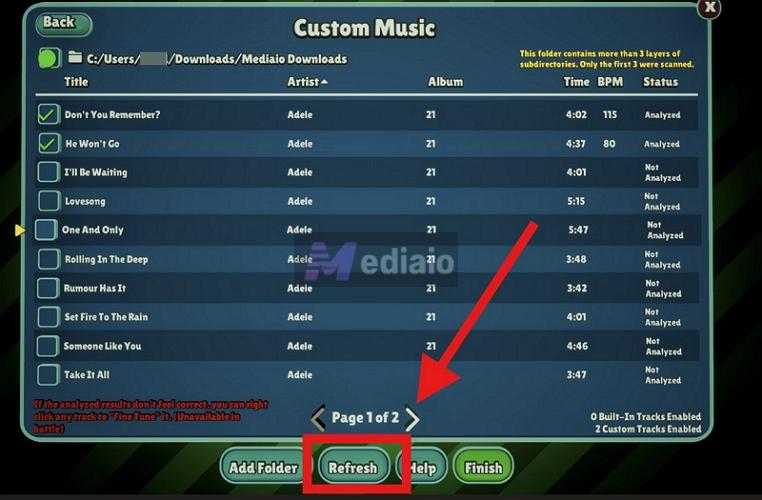
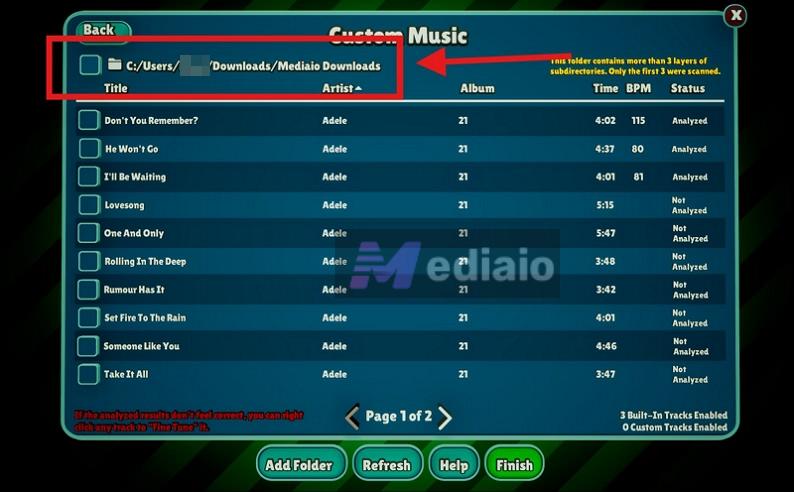
- After confirming, press Refresh. The folder path and track count appear immediately in the Custom Music section.
Option 2. Move Songs Directly into Steel Century Groove’s Custom Music Directory
- Exit the game temporarily.
- Copy or cut the exact music folder containing your songs into this directory: C:\Users\YourUsername\AppData\Local\SteelCenturyGroove\Saved\CustomMusic
- Launch the game again.
- Once you’re back in the game, return to the Setup Custom Music screen.
- Then press Refresh. Your new folder and its tracks are visible.
Step 3. Open the imported music folder path. All supported MP3, WAV, and OGG tracks in that folder will appear in a full track list with their details.
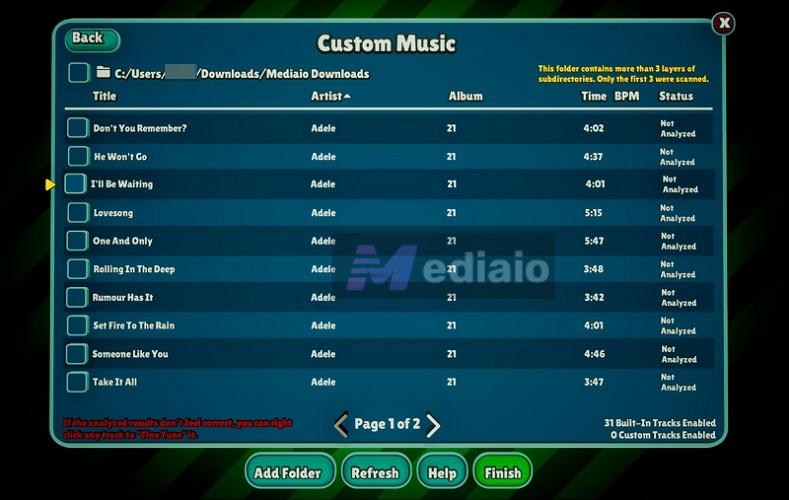
However, simply importing the folder does not automatically activate the songs for gameplay. By default, every imported song will remain unchecked. So you will need to select tracks for use.
At this point, you have two choices:
- Use the master checkbox at the top to enable the entire folder,
- Or manually tick only the specific songs you want to make active for the current gameplay session.
Once you select a track, its status will switch to Pending.
You will have to select a song and hit Finish. Then, the game will start analyzing BPM, rhythm structure, beat timing, and transition patterns to automatically generate choreography and sync combat movement flow.
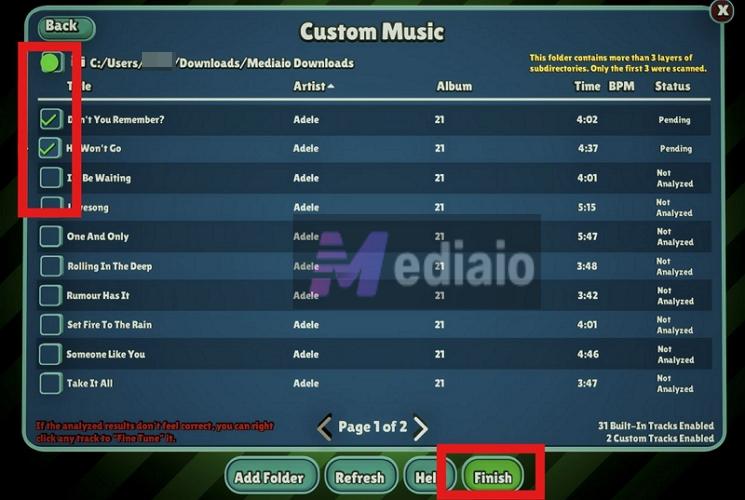
You will see a live Analyzing progress indicator—wait until the analysis completes.
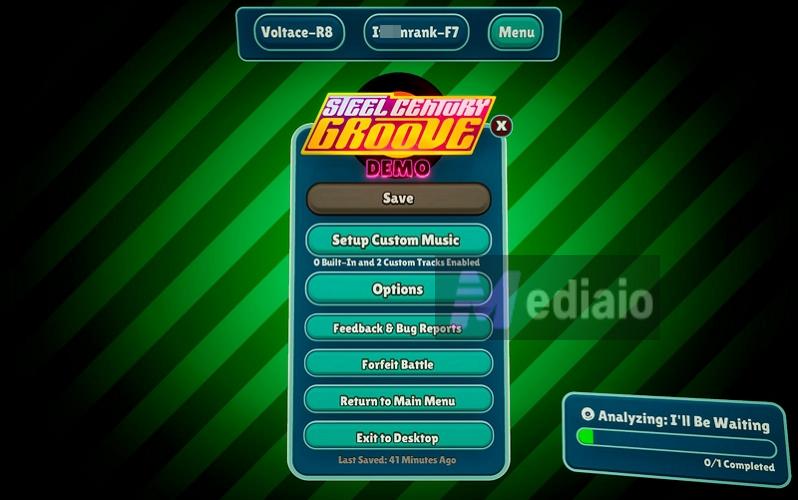
Step 4. Finally, return to your game. Your imported tracks will now start appearing during combat battles.
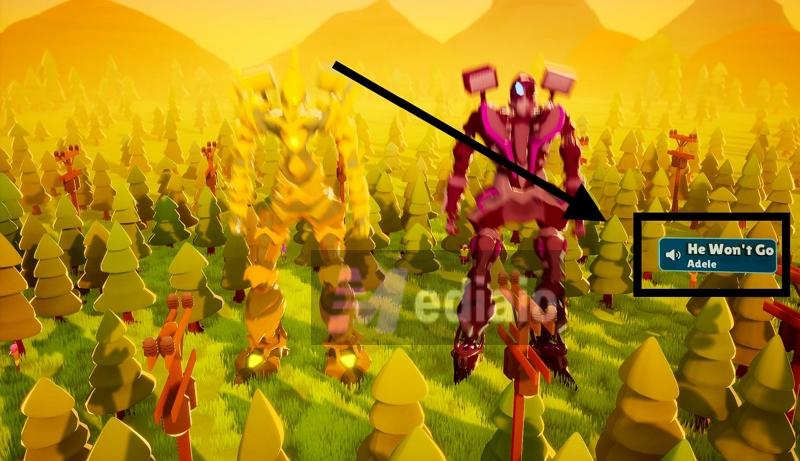
One good thing here is that you only have to go through this setup process once. The next time you want to add newer songs and remove old tracks, you do not have to relink everything again. Simply make changes directly in the linked folder or the custom music directory on your computer. After that, return to Steel Century Groove and hit the Refresh button from the Custom Music screen. The game will automatically rescan the directory and update the song list on its own.
Pro Tip
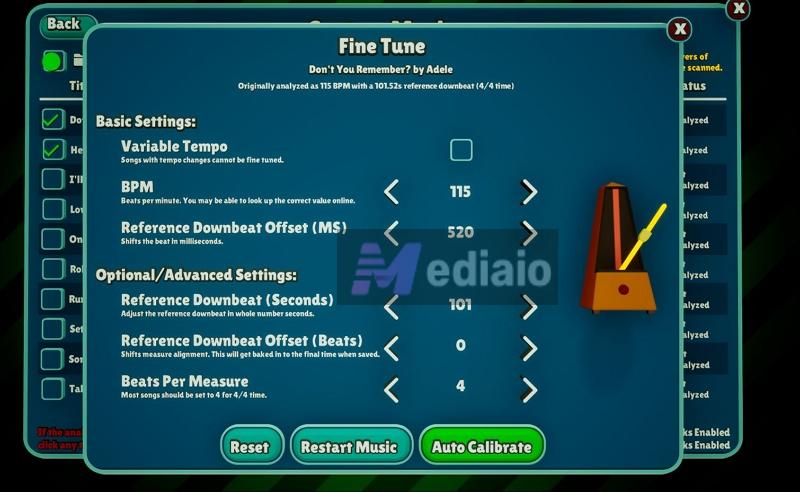
If you do not like how Steel Century Groove automatically analyzed a particular track, you can manually recalibrate it. For this:
- Simply right-click any song from the imported track list.
- This will open the Fine-Tune menu. From there, you can manually adjust BPM values, tempo sections, etc.
You can even force Steel Century Groove to auto-calibrate the track again from scratch if the generated choreography or rhythm mapping feels off during combat.
Tip: Download Music for Steel Century Groove
Obviously, the built-in Steel Century Groove soundtrack won’t match everyone’s taste. Sometimes you just don’t have the perfect battle tracks or a large local music collection. But if you already have playlists on Spotify, Apple Music and YouTube Music, you can export them. For that, you can just use Mediaio Audio Converter.
Mediaio lets you log in to your music accounts on major platforms like Spotify and Apple Music. From there, you can convert playlists, albums, and saved songs to Steel Century Groove-compatible formats, such as MP3 or WAV. The exported audio quality remains high. As a result, Steel Century Groove can analyze BPM patterns, beat transitions, and rhythm structures more accurately, allowing it to generate choreography more precisely during combat.
Mediaio also preserves all original metadata, such as the song name, artist name, and album title, making your soundtrack library much cleaner and easier to read. This helps you select tracks quickly during gameplay.
How to Mix Default Music Playback with Custom Tracks in Steel Century Groove
Steel Century Groove gives you a surprising amount of flexibility with how the soundtrack system behaves during battles. You are never locked into using only one type of music.
For instance, you can:
- play battles using only the built-in 31 soundtrack songs,
- completely disable the default soundtrack, so only your imported tracks appear during dance combat,
- Or mix both libraries together, so Steel Century Groove can naturally shuffle your custom songs alongside the original soundtrack during battles.
And the flexibility does not stop there. Even after importing your custom music, you can temporarily disable it anytime during a gameplay session. This will let you use only the default soundtrack again, which is useful when streaming and avoiding copyrighted songs. Here is exactly how to control all of that.
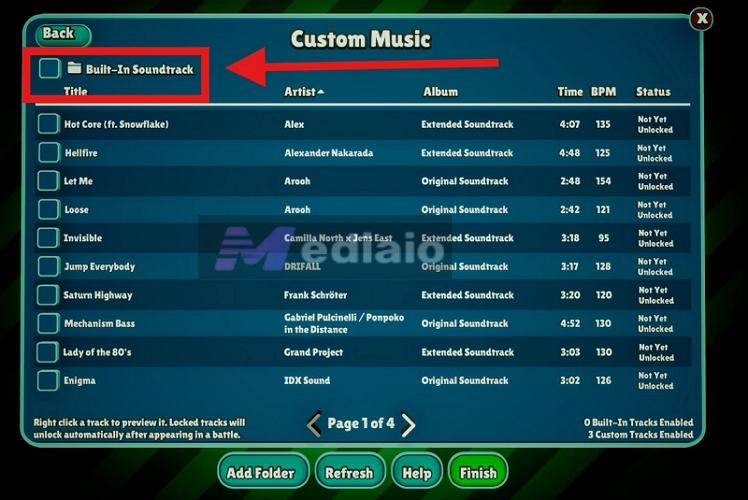
Step 1. Return to the Setup Custom Music screen again. You will now see two separate music libraries:
- the Built-In Soundtrack section,
- and your imported custom music folders below it.
Each section has its own checkbox controls.
Step 2: Leave the Built-In Soundtrack option enabled. Then, check your imported custom folders or songs.
Now Steel Century Groove will naturally shuffle both soundtrack pools together during combat.
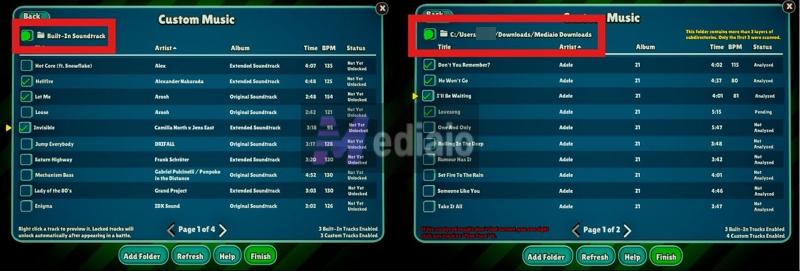
You can also enable only a handful of imported tracks, or enable entire folders, or simply use the master checkboxes if you want everything active together.
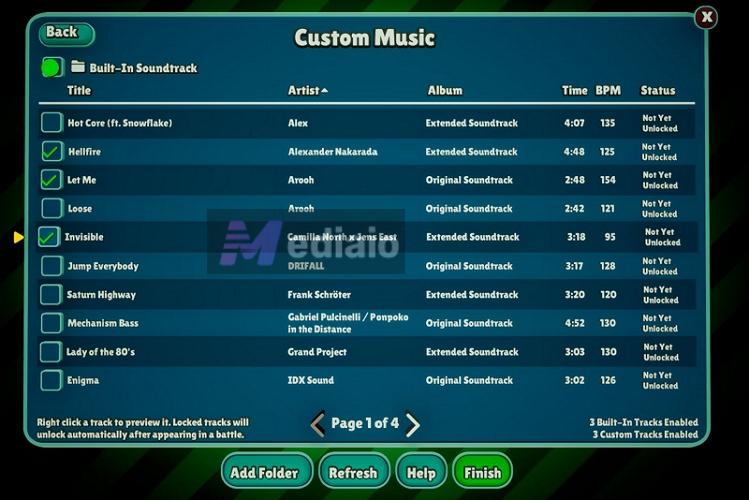
The game does not follow a strict playback order here. Tracks are selected dynamically during battles, so your imported music and Steel Century Groove soundtrack songs will appear naturally throughout gameplay.

If You Want to Use Only the Built-In Steel Century Groove Soundtrack:
- Leave the Built-In Soundtrack option checked.
- Then uncheck all imported custom tracks or folders below it.
Now Steel Century Groove will only use the original built-in soundtrack during combat battles.
If You Want to Use Only Your Imported Songs
- Return to the same Custom Music screen. This time, uncheck the Built-In Soundtrack option itself.
- Now only the imported custom tracks you selected earlier will appear during gameplay.
- Steel Century Groove will completely ignore the original soundtrack pool for that session.
Best Practices for Adding Custom Music in Steel Century Groove
Steel Century Groove will choreograph your Tenzerk battles depending on the rhythm and quality of the music you feed into it. Here are the best practices that make the biggest difference.
Use High-Quality Audio Files
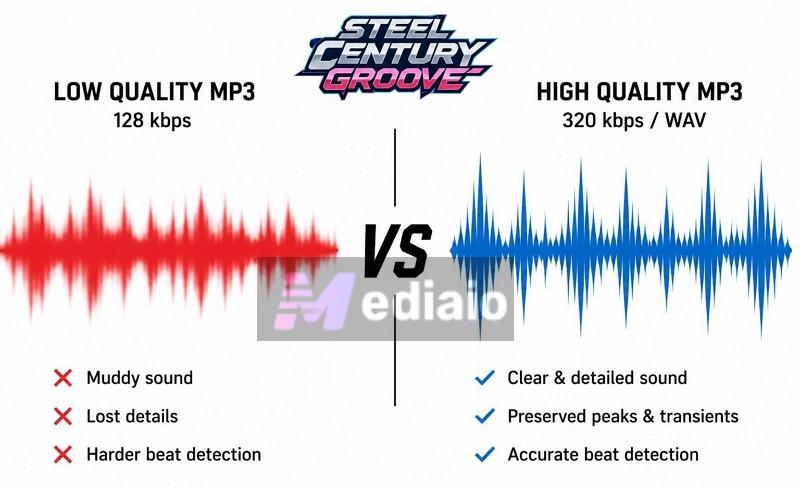
Steel Century Groove’s beat-mapping algorithm listens to every sharp kick drum, snare hit, bass drop, rhythmic peaks, and transition timing to map attack windows and combat flow. So if you feed it heavily compressed, low-quality MP3 rips, the engine will generate awkward off-rhythm choreography.
For best results, stick to high-bitrate MP3s (320kbps) or lossless formats like WAV whenever possible.
Choose Songs with Strong and Consistent Rhythm
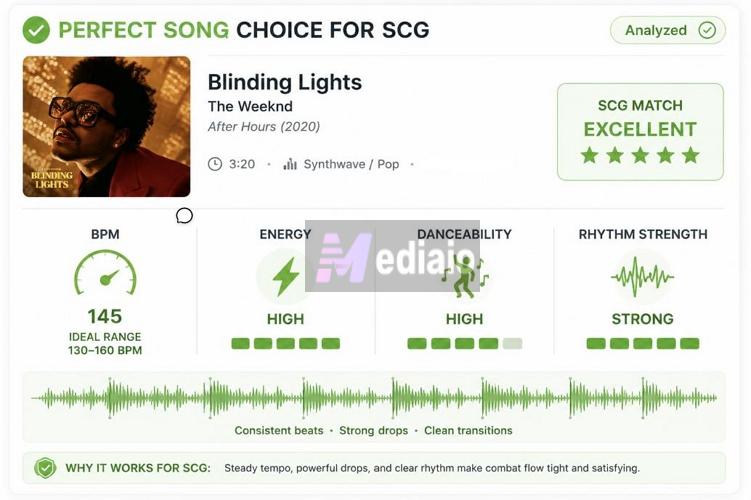
Steel Century Groove performs much better when songs have clearly defined tempo structures and energetic rhythm patterns.
So use BPM analyzers like Chosic to scan your playlists on Spotify and Apple Music and filter tracks by BPM, energy level, danceability, and rhythmic intensity. For instance, playlists around 130–160 BPM usually create the tightest and most satisfying combat pacing.
Once done, you can export the songs in high-quality WAV or MP3 using Mediaio Audio Converter.
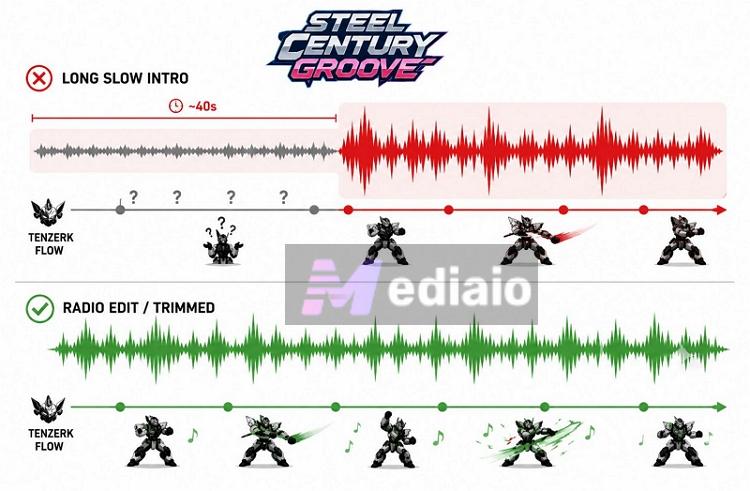
Avoid Songs with Long Slow Intros
Tracks with 40-second cinematic intros or slow ambient openings will create awkward battles because there is no strong beat structure for Steel Century Groove to sync attacks against.
Your Tenzerk will still move and attack, but the choreography can feel disconnected from the actual soundtrack. Radio edits usually work much better here. You can also manually trim dead air using Audacity before importing the track.
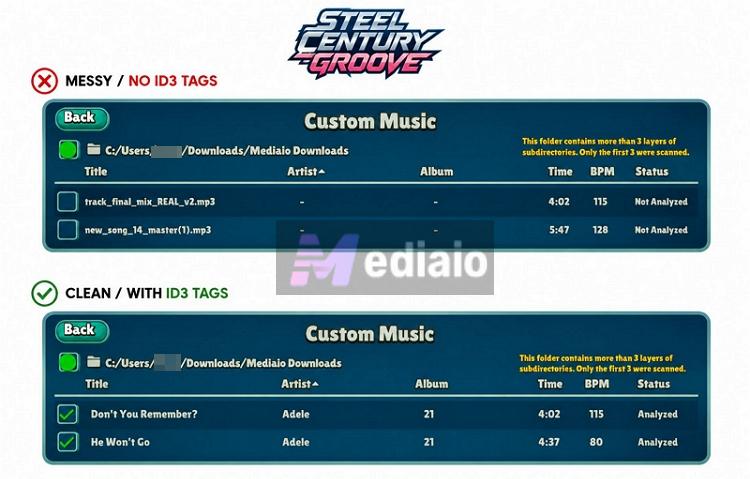
Keep Your Music Library Organized
If your imported songs look like track_final_mix_REAL_v2.mp3, it will become impossible to select the desired song during gameplay. So import songs that have proper ID3 tags.
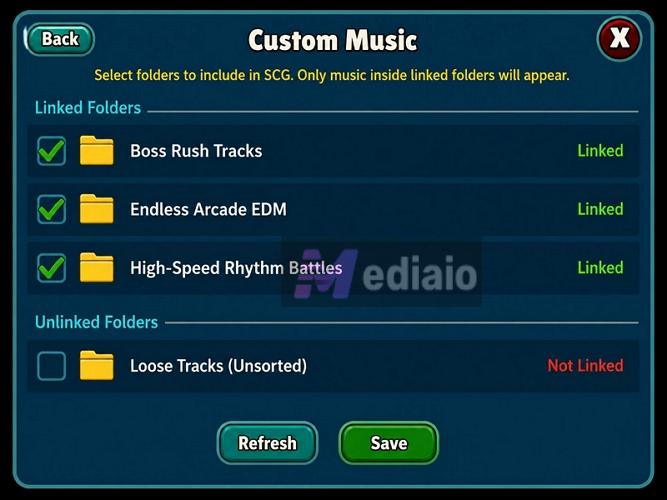
Create Folders for Different Battle Styles
As shown, you can link specific folders to Steel Century Groove. So instead of throwing 500 songs into one massive directory, build smaller folders based on gameplay style. For example, your folders could look like: Boss Rush Tracks, Endless Arcade EDM or High-Speed Rhythm Battles.
This will make it much easier to switch combat styles instantly, depending on the type of session you want. And if your playlists are already organized properly in Spotify or Apple Music, you can export using Mediaio. It can even preserve those playlist structures during export, too.
Final Words
So there you go! You now know exactly how to put your own music into Steel Century Groove. You have also seen how to pick the right songs for tighter and more responsive Tenzerk battles. If you don’t have the perfect battle tracks, you can first build one on Spotify or Apple Music, like high-energy electronic tracks, rhythm-heavy EDM, or synthwave, DnB. Then, you can use Mediaio Audio Converter to export those playlists as high-quality MP3 or WAV files with proper metadata. This will make it look organized inside Steel Century Groove.