

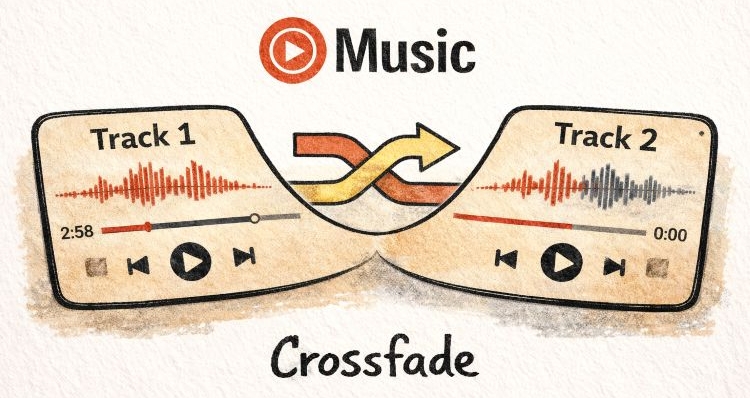
That tiny pause between songs is enough to break the mood. Crossfading fixes this. It blends the end of one song into the start of the next. However, not every music streaming service supports this transition feature and YouTube Music is not one of them.
No worries, you can still set it up yourself. In this guide, you’ll learn how to crossfade YouTube Music tracks on the web player, your phone, or your computer and you don’t need Premium to do it.
How to Crossfade YouTube Music on Computer
You have to rely on external options to crossfade when listening to YouTube Music on the computer. For this, you have two options.
- You can continue using YouTube Music on the web with crossfade-enabled extensions.
- Or take a different route: use MedVioo Audio Converter. It lets you first convert YouTube Music tracks into local files, so you can play them via a media player that comes with crossfade.
Here’s how each option works.
Way 1. Use Browser Extension
Using an extension is the simplest way on a computer. You install it once, leave it in your browser, and it works whenever you play music on YouTube or YouTube Music.
One of the few extensions that actually does this well is YouTube Playlist Converter.
What it does is simple. As your current song nears the end, it will quietly load the next track in a hidden tab. At the transition point, it will lower the volume of the current track while bringing in the next one. Once this switch is done, it will close the old tab on its own. So, the result will feel continuous.
However, there is a limitation. On free YouTube Music, ads will interrupt this flow. A video ad loading in the background tab can break the transition. So it works best when ads are not in the way.
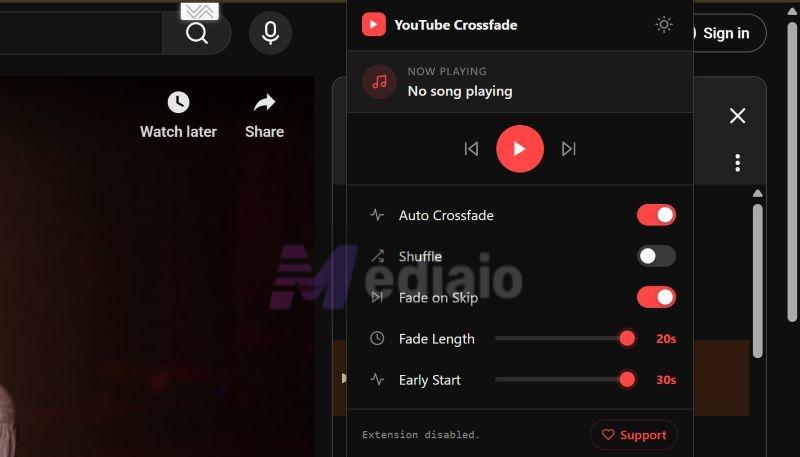
In terms of features, it keeps things simple. It’s free and detects the current track automatically. You can set crossfade length from 2 to 20 seconds. It also applies the same smooth transition when you skip tracks. There’s a basic shuffle and a small progress bar that shows the transition in real time.
Steps to Crossfade YouTube Music via Extension
Step 1. Head to the Chrome Web Store. Add YouTube Playlist Crossfade extension that works on all Chromium-based browsers.
Step 2. Open YouTube or YouTube Music and then start any playlist.
Step 3. Click the extension icon from the toolbar. Pin it if needed so it stays visible.
Step 4. Turn on the crossfade toggle. Then adjust these sliders:
- Fade Length — this controls how long the overlap lasts (2 to 20 seconds).
- Early Start — set how early the next track should load (5 to 30 seconds before the current one ends).
You just have to set this once. The transitions between your YouTube Music tracks will happen on their own next time.
Way 2. Use WMP (Windows)
Using Windows Media Player or any other third-party player like Foobar2000 or VLC, is another option. These players give advanced crossfade settings, so you can create a true DJ-like overlap between songs that browser extensions simply cannot achieve.
However, for this to work, you first need to convert YouTube Music into files so your YouTube Music songs be recognized by these players. This is because the local players have no direct connection to YouTube Music by default. That’s where MedVioo Audio Converter comes in. It lets you save YouTube Music locally. Here’s how this setup works.
Step 1. Save YouTube Music as MP3
What MedVioo Audio Converter does is simple—it can export any YouTube Music song, playlist, or album as local files like MP3, M4A, FLAC, WAV, etc. The beauty of MedVioo lies in its intelligent downloads. All songs preserve album art, artist details, and track information. Plus, it organizes playlists and albums into dedicated folders, so Windows Media Player can display them properly, just like YouTube Music.
MedVioo is easy to use either. Inside its interface, you’ll find an embedded YouTube Music view. So you can sign in to your account directly and convert it into open formats and there’s no need to switch tabs or copy links.
Step 2. Crossfade YouTube Music Songs on WMP
MedVioo converted tracks are DRM-free and stored locally. You can play them with any player. Even the Windows Media Player works well, as it already includes a built-in crossfading option that lets you create up to a 10-second overlap between tracks. Let’s see how it works in Windows Media Player.
Step 1. Open MedVioo tracks folder with Windows Media Player. They will appear neatly arranged.
Step 2. Start playing any album or playlist where you want the transition effect to apply.
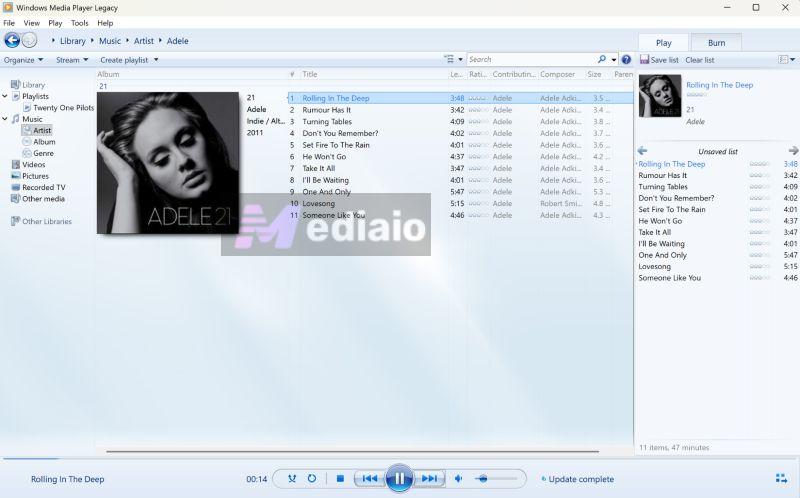
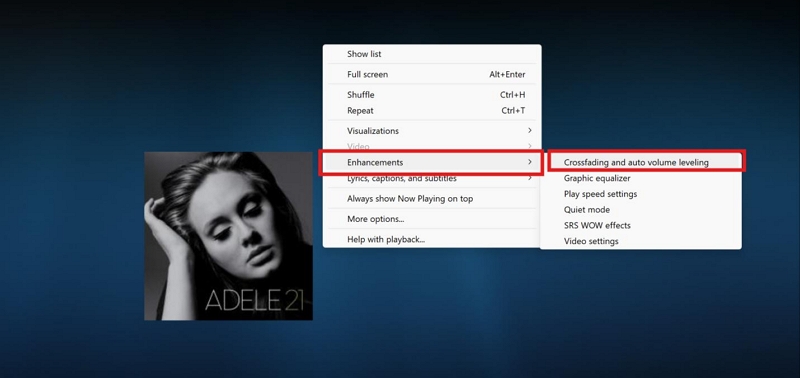
Step 3. Expand the player view. Then right-click anywhere on the playback screen. Move toward Enhancements and choose Crossfading and auto volume leveling.
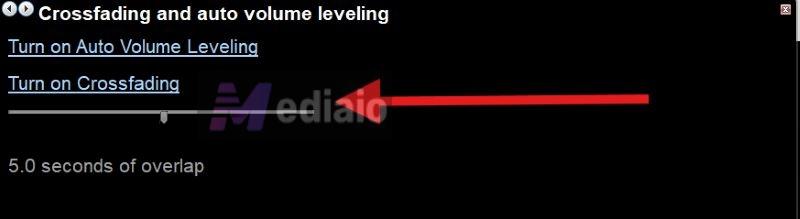
Step 4. A small settings panel will open. Click on Turn on Crossfading option. You can adjust the slider to control how much overlap you want: 1-10 seconds.
Way 3. Use Apple Music (Mac)
You can download MedVioo Audio Converter on your Mac as well. After converting YouTube Music playlists there, you can open them with the Music app. It supports up to 12 seconds of crossfade. The MedVioo converted files also carry proper tags, so when you add them to Apple Music, they will appear neatly arranged as albums and artists.
You can get this running in a moment:
Step 1. Launch the Music app on your Mac. This works even without any subscription.
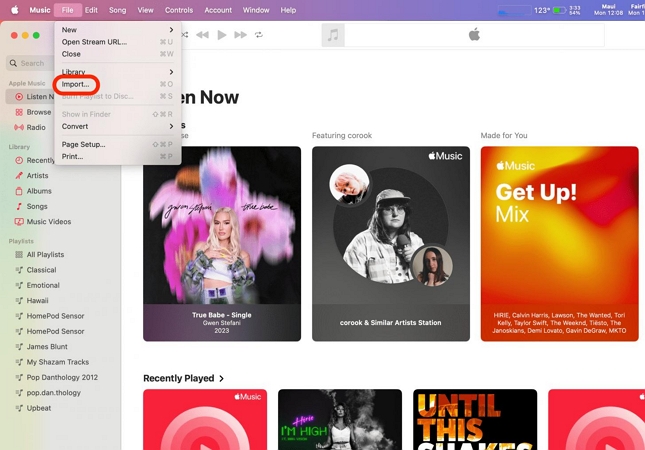
Step 2. From the top menu bar, head into File. Choose Import.
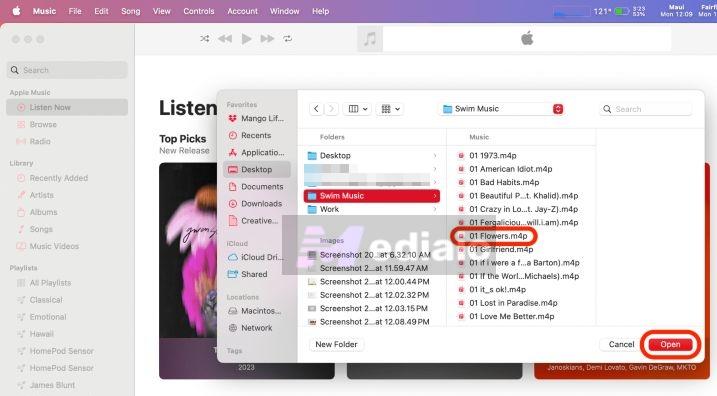
Choose the converted songs or even entire folders and bring them into your library.
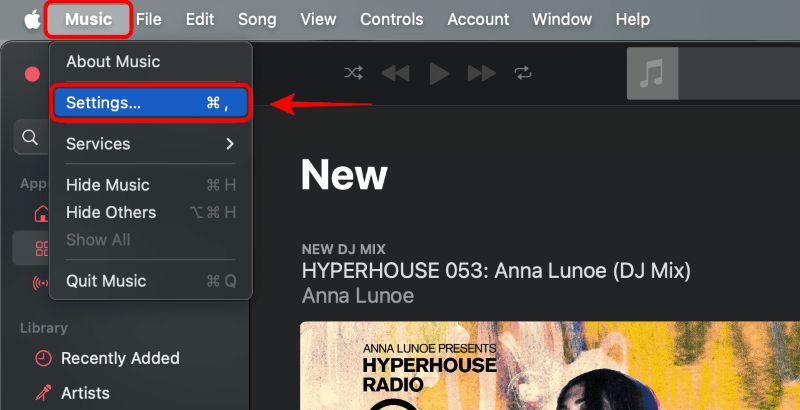
Step 3. Once they appear in the library, move back to the top menu and open Music. Then, select Settings.
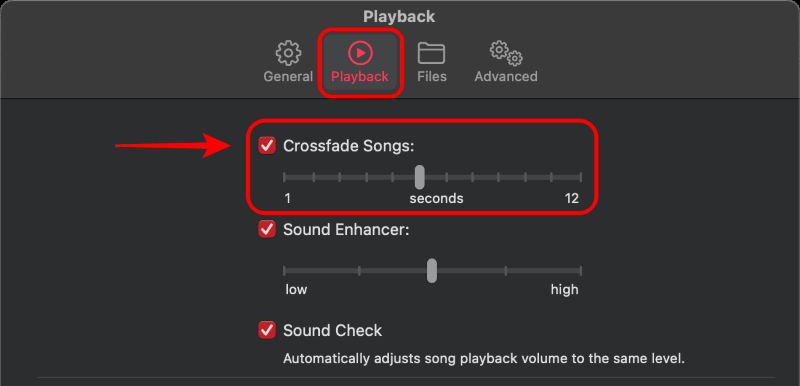
Step 4. Switch to the Playback tab. Turn on Crossfade Songs and slide it anywhere between 1 and 12 seconds to set the overlap.
How to Crossfade YouTube Music on Phone
Even the YouTube Music app on the phone doesn’t offer any real crossfade control. And there’s no system-level option either that can fix this inside the app.
So the only way around it is the same—convert the YouTube Music tracks first using MedVioo on your Windows or Mac, then move them to your phone. Once the tracks are on your device, you can either use native players or third-party players that give crossfade controls.
You’ve already seen how the MedVioo part works. Just follow the same steps to convert your songs. After that, the process depends on your device—transfer the tracks first, then adjust the crossfade settings.
And we’ll look at how this works on iPhone and Android.
Option 1. Apple Music (iPhone)
On iPhone, you don’t need anything extra. Just bring the converted tracks onto your device (sync via USB or Wi-Fi) and they will show up inside Apple Music automatically.
Apple Music already gives you a clean crossfade control, anywhere from 1 to 12 seconds. That range is more than enough for most listening.
Follow these steps to enable crossfading in Apple Music
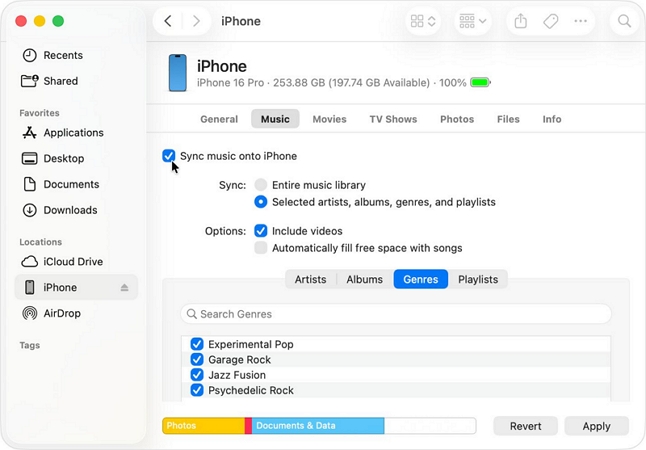
Step 1. Connect your iPhone to the Mac. Select it from the sidebar.
Step 2. Land on the Music tab. Pick the converted YouTube Music tracks and hit Apply to move the tracks over.
Step 3. Switch to your iPhone and open Settings (not the Music app).
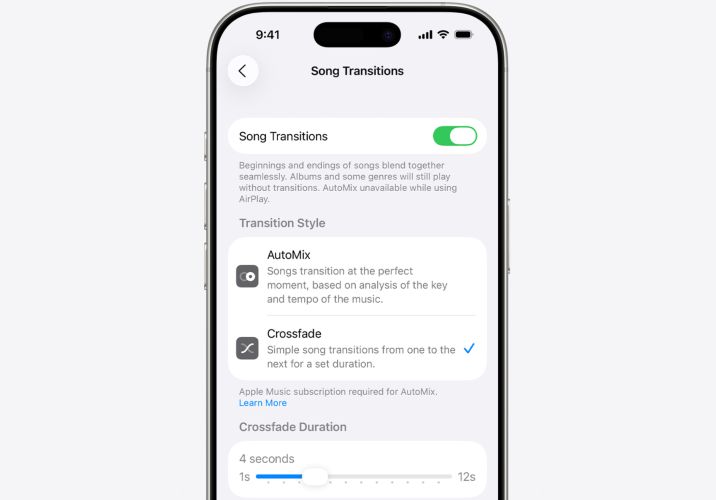
Step 4. Scroll until Music shows up, open it. At the top, you will see the Song Transitions toggle. Turn it on.
Step 5. Once enabled, two options will appear. AutoMix and Crossfade.
- AutoMix handles everything on its own. It blends songs at the right moment based on tempo and key.
- Crossfade gives you control. You can set the duration yourself and decide how long the overlap should be—anywhere between 1 and 12 seconds.
Option 2.Poweramp (Android)
The iPhone has Apple Music built in, but it is limited. Android lets you use any player you want. You can go with Foobar2000, AIMP, Oto or something more advanced like Poweramp. The first three are free and flexible.
Poweramp gives deeper control. However, it does cost a small one-time fee (less than US$ 2), but if you have a large offline library or plan to convert a large number of YouTube Music tracks using MedVioo, it will fit better. This is how it looks inside Poweramp.
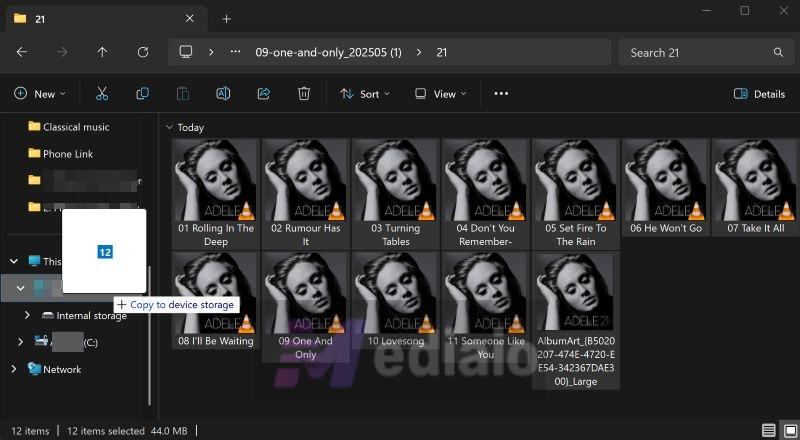
Step 1. Transfer the converted YouTube Music tracks to your Android phone. Connect it to your computer. Then, select the device from the side panel and drop the files into any folder. (Make sure USB mode is set to file transfer.)
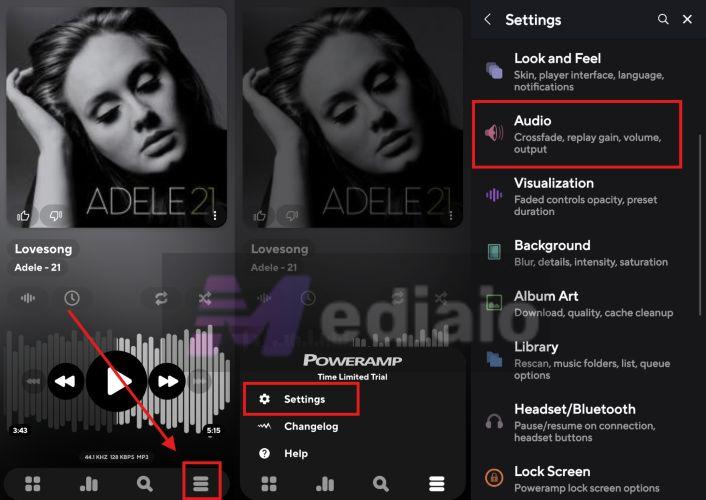
Step 2. Open Poweramp on your Android phone. It will scan the storage on its own and list your songs.
Step 3. Use the bottom menu, enter Settings and move into Audio.
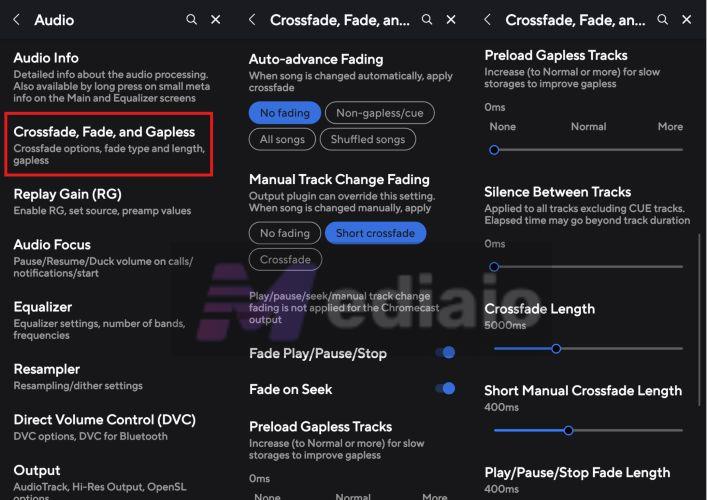
Step 4. Open Crossfade, Fade, and Gapless.
Step 5. Adjust the Crossfade Length. You can keep between 3000ms to 8000ms (3–8 seconds).
You can try other options like short manual crossfade or silence between tracks if needed.
All good to go. Your YouTube Music tracks will now play with smooth transitions on Android and they will even play without internet or ads.
Which Music Streaming Services Offer a Crossfade Feature?
Here’s a simple comparison of a few streaming services that include built-in crossfade and transition controls.

(751 million) Crossfade (1–12 sec slider on Android & iOS).
AutoMix (smart DJ-style transitions on select playlists). US$12.99/mo Up to 320 kbps (Ogg Vorbis).

(95 million) Crossfade (1–12 sec slider across iPhone, Mac and Android).
AutoMix (dynamic blending between tracks). US$10.99/mo Lossless & Hi-Res Lossless (up to 24-bit/192 kHz).
Spatial Audio support.
 (Millions of Audiophiles)
Crossfade(basic support).
(Millions of Audiophiles)
Crossfade(basic support).DJ-style tools (via compatible software). US$10.99/mo Hi-Res FLAC (up to 24-bit/192 kHz).
Dolby Atmos.

(16 million) Crossfade (slider on iOS). Experimental feature on Android for now. US$10.99/mo FLAC Hi-Fi tier.
320kbps.
Conclusion
It’s hard to predict whether Google will ever add a proper crossfade feature to YouTube Music. Although users have been asking for it for years, nothing has really changed. So it’s not something worth waiting for.
You can work around it with the help of MedVioo Audio Converter. It lets you convert your YouTube Music tracks and play them through any music player that comes with advanced crossfade features.