

Thinking about canceling Spotify Premium? Maybe your subscription is renewing soon, but you barely use Spotify anymore. Or perhaps you signed up for Premium to enjoy ad-free listening and offline playback, but now you don’t feel it’s worth the monthly cost. You might also want to switch from an Individual plan to a Family or Duo plan, or simply take a break from your subscription for a while. Whatever your reason, you can cancel Spotify Premium and continue using your Spotify account with the Free plan. In this guide, we’ll show you how to cancel Spotify Premium on your phone or computer with simple, step-by-step instructions.
FAQs About Canceling Spotify Premium
Wondering if you will lose your Spotify playlists after canceling your subscription or whether you will receive a refund if you cancel your Spotify premium early? Find the answers in the following content.
What Do I Lose If I Cancel Spotify Premium?
Post-cancellation, you will still be able to enjoy the Premium benefits till the end of your billing date. Once your billing date is arrived, you will lose access to some features and content as follows:
- All your saved playlists will automatically be removed and you’ll lose the ability to download new content. This rule excludes podcasts.
- Other advanced features like audio quality and ad-free music listening will no longer be available.
The good news is your playlists, Liked songs, activities, and saved podcast episodes on your Spotify library still stay untouched just like before.
Note: If you are ending a free trial of Spotify premium, your account will switch over to Spotify free service immediately.
What Happens If You Cancel Spotify Subscription Early?
You can still enjoy your Spotify Premium features, like music downloads and Smart Shuffle, until the billing cycle ends. However, you won't receive a refund from Spotify.
Do I Get a Refund If I Cancel My Spotify Subscription?
No, you won't receive a refund from Spotify. However, you can still enjoy your Spotify premium features like music download and smart shuffle until your billing cycle ends.
How to Cancel Spotify Premium on Phone and Computer
In most cases, you’ll need to cancel your Spotify Premium subscription through the same platform where you signed up. For example, if you subscribed directly through the Spotify website, you can manage your subscription there. If you subscribed through the App Store or Google Play, you’ll need to cancel it through the corresponding platform. Below, we’ll walk you through the steps for each option so you can quickly find the right way to cancel your Spotify Premium subscription.
Way 1. Through Spotify Account Page
This is the common way to unsubscribe from Spotify premium. Simply open a browser on your device and then follow the steps below.
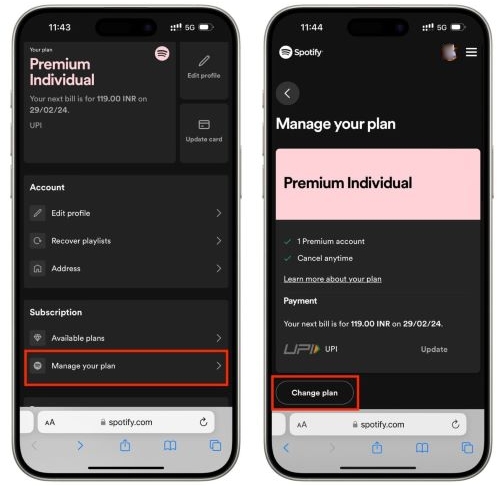
Step 1. Go to spotify.com/account and log in to your account. Navigate to Subscription heading, choose Manage your plan. Then, choose the Change Plan option.
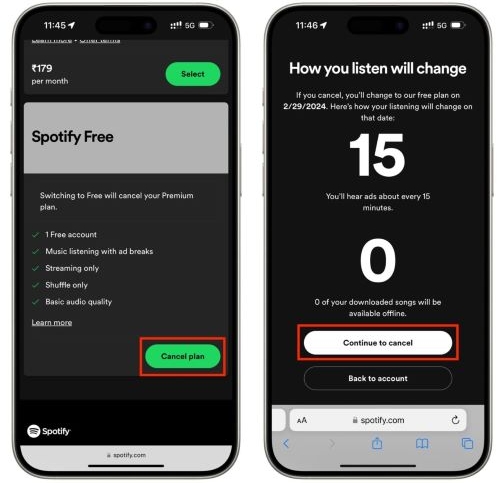
Step 2. Scroll down to the bottom page and tap Cancel Plan. On the summary page, choose Continue to Cancel.
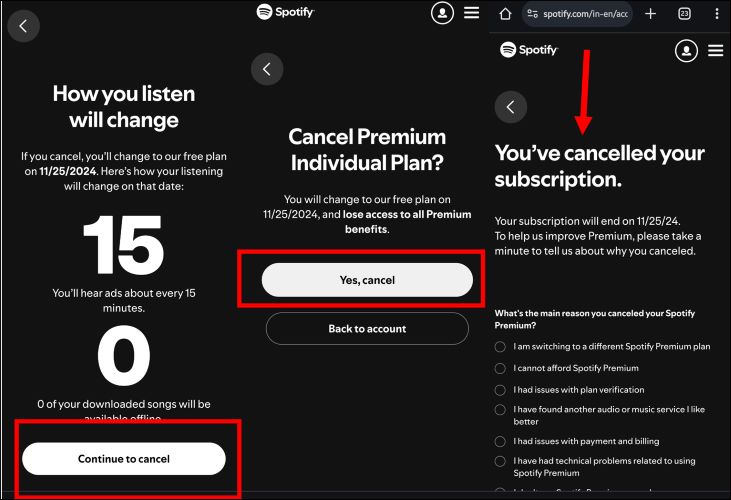
Step 3. Confirm your operation by selecting Yes, Cancel when prompted on the next screen. Once you see You’ve canceled your subscription message, you can be rest assured that your Premium membership is officially terminated and you won’t incur any further charges.
Way 2. By Third-Party Providers
If you subscribed to Spotify via third-party services like Google Play Store before, there are specific ways for you to cancel your Spotify subscription. To find where you subscribed to Spotify Premium, simply tap the [Your Current Plan] button on the Accounts page. You will usually see the "You've used [This method] to subscribe" message. Once you find it, appropriate cancellation steps based on the method to cancel your Spotify Premium successfully.
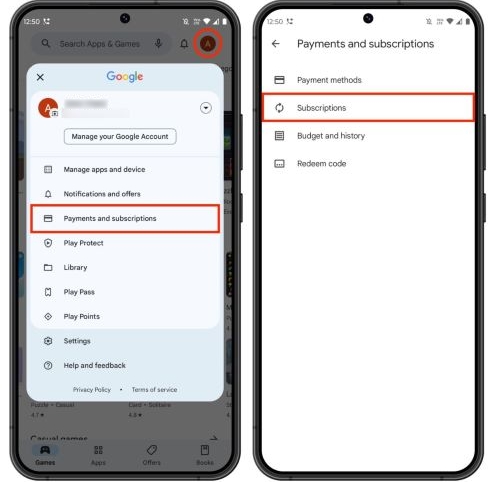
Unsubscribe from Google Play Store
- Open the Play Store app on your Android device.
- Tap your profile picture from the top.
- Go to Payments and subscriptions and choose Subscriptions.
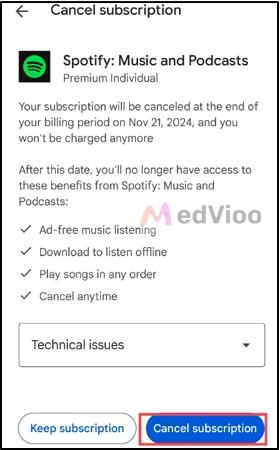
- Select Spotify and follow the on-screen steps to cancel.
Unsubscribe from iPhone App Store
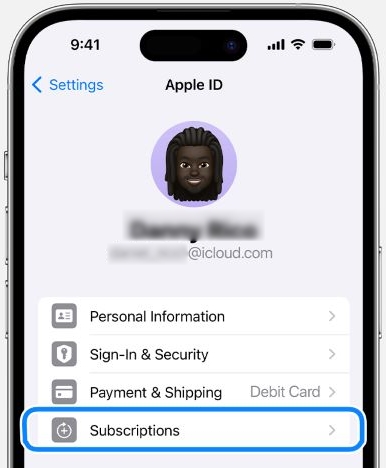
- Go to the Settings app on your iPhone and tap your name.
- Tap Subscriptions to see all your active subscriptions.
- Select Spotify from the list.
- Tap Cancel Subscription and confirm when prompted.
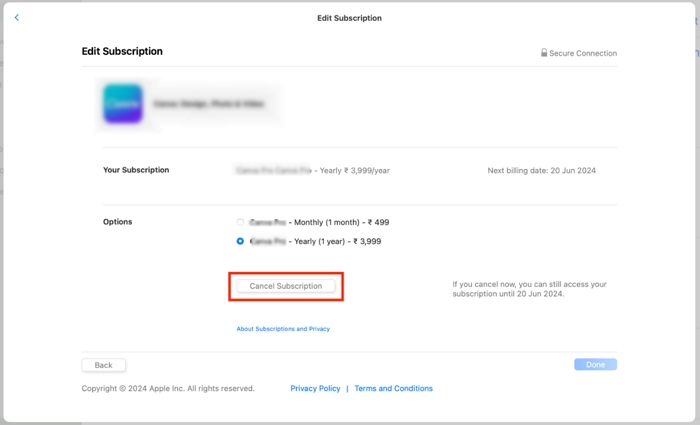
Unsubscribe From App Store on Mac
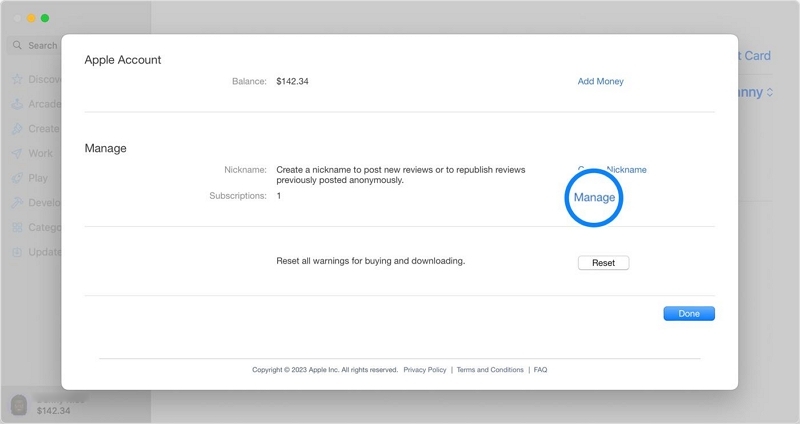
- Open the App Store app.
- Click your name.
- Click Account Settings.
- Scroll to Subscriptions, then click Manage.
- Select Spotify. Then, choose Cancel Subscription.
If you get your subscription through your mobile provider, you can directly contact the service and ask to unlink your account from the offer. Spotify will automatically knock down to Free tier.
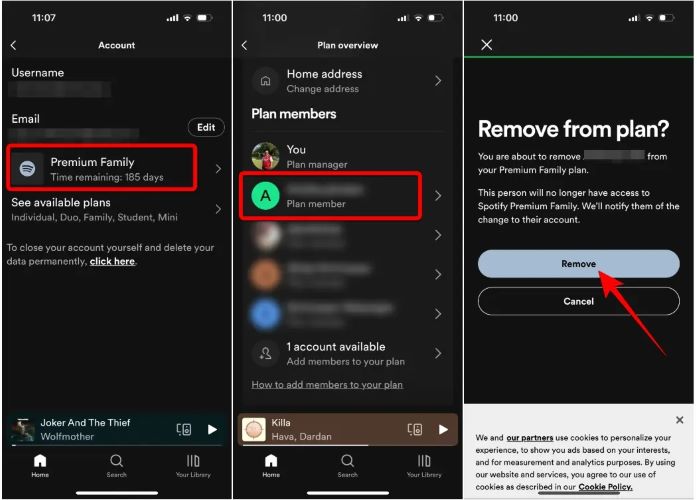
If you're tied to a Duo Plan or Family Plan, note that only the Plan Manager (the person who set up the subscription) has the authority to make changes. You can simply ask the Plan Manager to remove you. Or you can ask them to cancel the subscription from their end: the steps which are the same as those discussed earlier.
Fixed: Can't Cancel Spotify Premium
Some users have reported that they can’t find the cancel subscription button. If you’re experiencing the same issue, don’t worry. There are two ways to contact Spotify Support to cancel your subscription. Neither method requires you to log in to your Spotify account, but you’ll need to provide some account information like the corresponding email and password to verify your subscription.
Fix 1. Cancel Spotify Premium Without Logging in Via Form
Simply, go to this official form page and fill in the required fields on the form. This will include your email, subscription type, and cancellation reason (for simplicity, selecting Normal works well). And tap Cancel Now to submit.
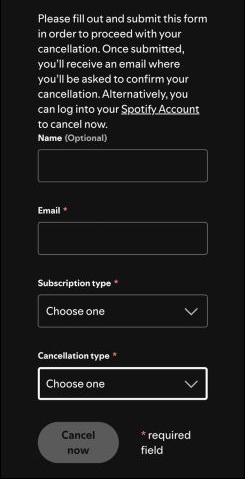
Note that filling up the details and opting for Cancel Now alone won’t cancel Spotify Premium. Spotify will send you a confirmation email. Go to your inbox, find the email, and make sure to to click on the Confirm Cancellation label to stop being further charged.
Fix 2. Cancel Spotify Premium Without Logging in Using Spotify Support Bot
Whether you subscribed to Spotify premium via the Spotify site, mobile carrier, App Store, or Google Play Store, you can follow this method to terminate your Spotify subscription.
Step 1. Navigate to Spotify’s Message Support page and login it with your account. Then, choose Start Messaging.
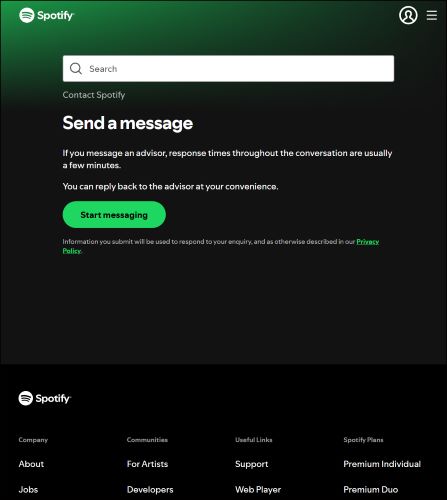
Step 2. Type Cancel Subscription and wait for the bot to verify your details.
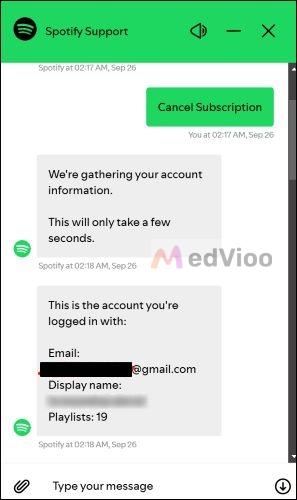
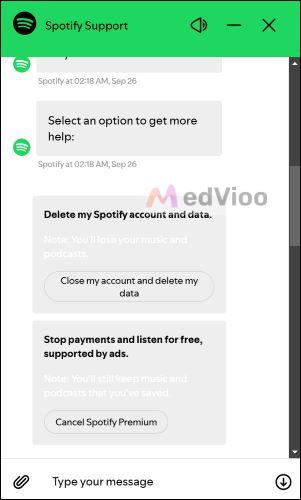
Step 3. Type Yes and wait. You’ll have two options: Close my account and Delete my data (choose this if you wish to permanently close your Spotify account). To only cancel your subscription but keep your account active, select the Cancel Spotify Premium button.
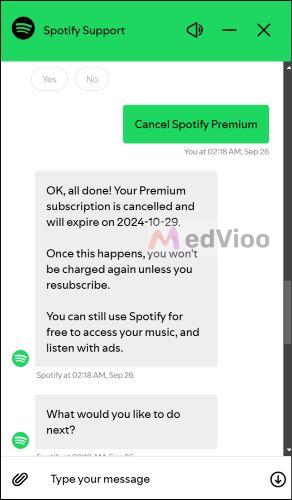
Step 4. Select Cancel Spotify Premium and your subscription will be immediately suspended. You can also see the details like when your benefits will end.
Can You Download Spotify Music Without Premium
Yes, but for personal use. You can still download Spotify music with a free account using MedVioo Audio Converter. Besides saving your favorite songs for offline listening, MedVioo lets you save Spotify songs as local MP3 or other formats, including WAV, FLAC, and M4A, while maintaining high sound quality (up to 320 kbps or lossless) and complete song metadata. You can then transfer the downloaded files to devices such as your iPhone or Sony NW-A105 Walkman for offline listening. Since the songs are saved as local files, they remain accessible, unless you manually delete them.
Step 1. Open MedVioo Audio Converter on your PC or Mac. On the main dashboard, select Spotify.
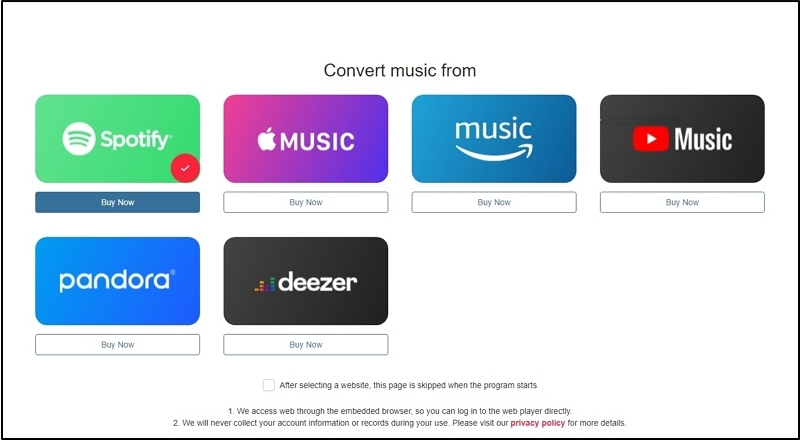
Step 2. On the following screen, you will find the familiar Spotify interface. Click on the Log in button and enter your Spotify credentials to access your music library within MedVioo.
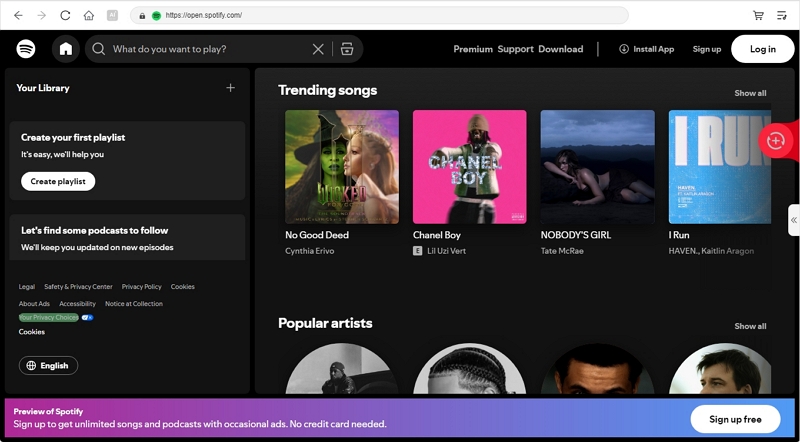
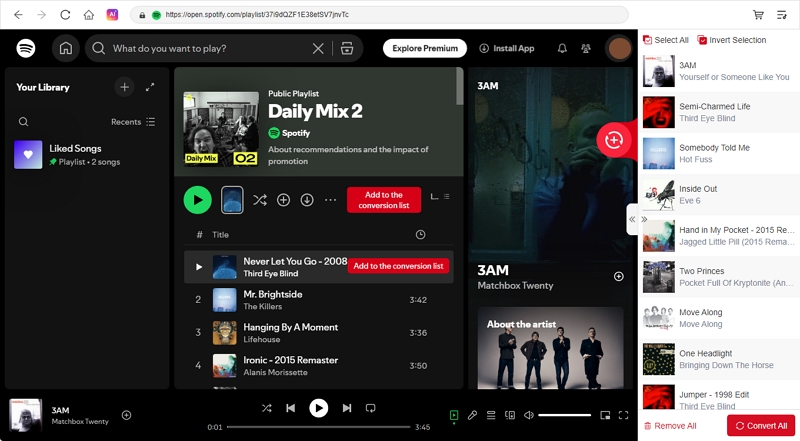
Step 3. To add songs, albums or playlists for conversion, simply click the Add ribbon. They will be listed in the conversion pane.
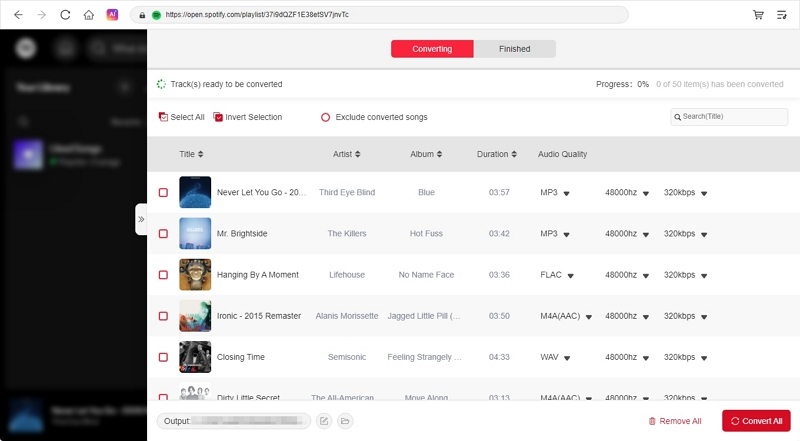
Step 4. In the Converting window, set a desired audio format, output quality and storage location. Finally, choose Convert Now to begin exporting the Spotify tracks to your local storage.
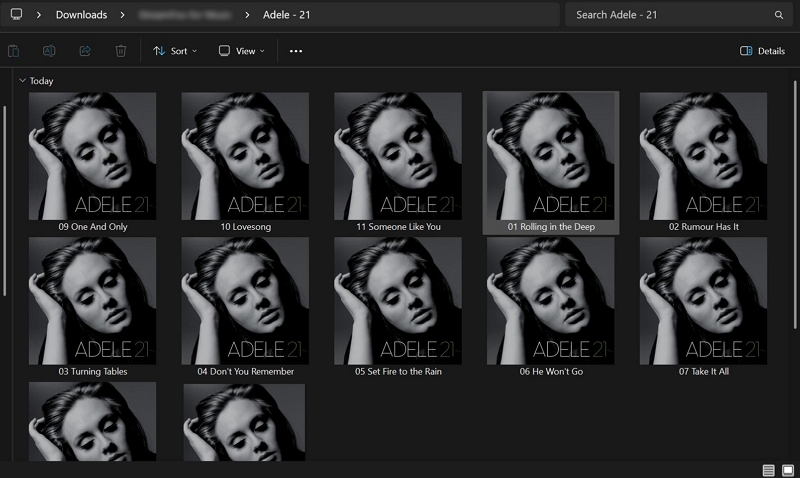
You can view the downloaded music via the Local Library tab by clicking the folder option. Alternatively, you can navigate to the Downloads folder on your computer, where MedVioo creates a dedicated folder containing the converted tracks. You can play them via any music player and even transfer them onto your other devices.
Wrap Up
That’s a conclusion now! You should always aim to cancel Spotify Premium via Spotify website. However, you can use a third-party service if the common way doesn’t work. You will receive a confirmation email, regardless of the way you apply. If not, reach out to Spotify to know the current status of your plan. Besides, you don’t have to miss enjoying your Spotify music offline after cancelling premium. You can use MedVioo Audio Converter and download all your favorite music from Spotify to your local computer directly with your free account.