

Want to burn a CD from Spotify for your car stereo, home audio system, or portable CD player? Spotify doesn’t provide a direct option to burn its music to a disc, but that doesn’t mean you can’t enjoy your favorite songs on a CD. If you prefer physical media or need your music to work with a CD-only device, you still have a practical way to do it. In this guide, we’ll show you how to burn a CD from Spotify on both Windows and Mac. We’ll cover what you need and walk you through the process step by step.
What You Need for Burning a CD from Spotify
Since Spotify songs are protected with DRM encryption, you cannot directly burn them to CDs, you’ll need the right tools and the right setup. Here’s what you need to burn Spotify music to a CD:
A Blank CD
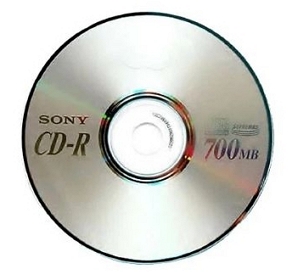
Before anything else, you’ll need a blank CD. There are two main types for storing music:
Tips: PCM means “Lossless”.
Note: For best compatibility with old CD players, it is best to opt for CD-R (Recordable). Some older CD players don’t support CD-RW and MP3 CDs. Make your choice depending on the player.
A Network-connected Windows PC or Mac
Spotify tracks need to be converted into standard audio formats before they can be burned to a CD. This will require your Windows or Mac computer to have an active internet connection to process and download the files.
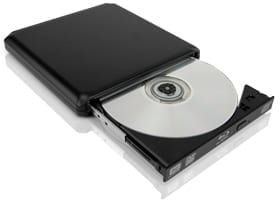
An External CD Drive(Optional)
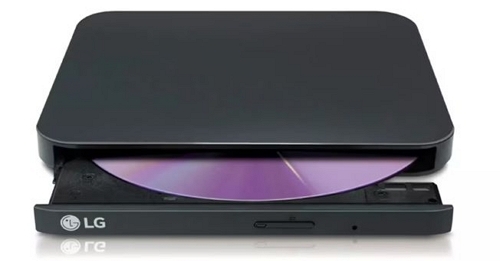
Most modern laptops lack built-in CD drives, so an external CD burner will be necessary. If your device doesn’t have a built-in drive, consider options like:
- LG Slim Portable DVD Writer
- Rioda External CD Drive
Spotify Playlists in CD-compatible Formats
You can save Spotify songs locally in one of the two following ways:
- Use MedVioo Audio Converter: A music converter that allows you to save Spotify songs and playlists as MP3, FLAC, WAV or other formats on your computer.
- Buy songs individually from Amazon or iTunes.
We’ll break down both methods step by step in the next section.
CD Burning Tool
Finally, you need software to transfer your downloaded music onto the disc.
- Windows users: You can use Windows Media Player (comes pre-installed).
- Mac users: Use Apple Music (comes pre-installed).
Both let you burn music without installing anything extra.
Step 1. Save Spotify Songs as Local Files
There are two ways to get Spotify songs in formats compatible for CD burning. Both methods work on Windows and Mac, but they differ in process and cost. Let’s explore them in detail.
Way 1. Use Spotify Music Converter (MedVioo Audio Converter)
A music converter is a cost-effective and convenient option for downloading music in bulk when burning Spotify music to multiple CDs. For example, MedVioo Audio Converter costs $59.95 per month, which allows you to download unlimited Spotify playlists and songs. Plus, dedicated converters like MedVioo are also efficient, so you can save multiple playlists with less time and efforts.
Why Is MedVioo Audio Converter Recommended
MedVioo Audio Converter can convert Spotify music to open audio formats on Mac and Windows computers. You can choose the converted Spotify song’s output format as MP3, FLAC, M4A, WAV and more. The local Spotify songs can be fully recognized by both CD-burning software and standalone CD players. Moreover, you can transfer them to other devices, such as MP3 players or flip phones, for offline listening.
MedVioo makes the conversion process seamless as well. There is an integrated Spotify browser that allows you to log into your account and directly drag and drop the songs, albums or playlists you want for download. And there are no download limits: you can grab multiple playlists at once, or even your entire library, depending on your needs.
Steps to Download Spotify Music Locally Using MedVioo Audio Converter
Step 1. Download and install MedVioo Audio Converter on your Mac or Windows computer, then open the software and select Spotify from the main interface.

Step 2. Click on Log In and sign in to your Spotify account (free or premium).
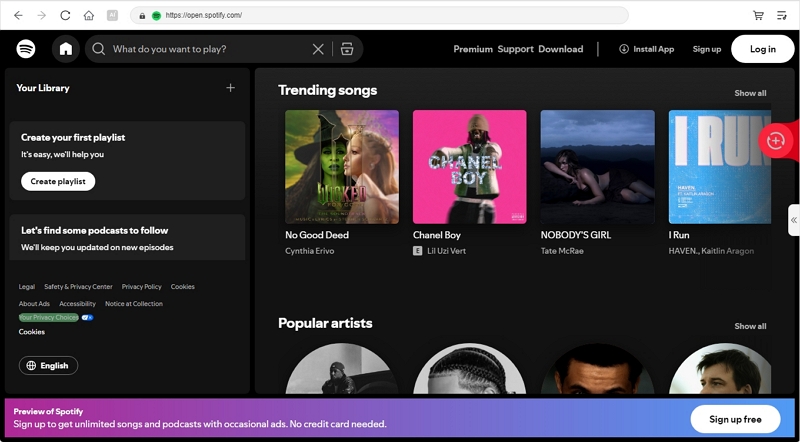
Step 3. Locate any track, playlist or album you want on your CD and click the Add to Convert button to add songs for conversion.

Step 4. Change the output format and quality. After settings, simply hit Convert Now to start the conversion.

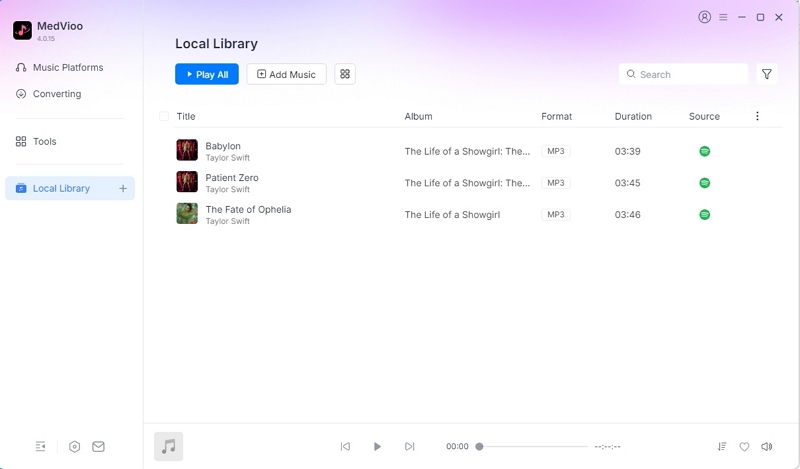
Step 5. Once converted, switch to the Local Library tab from the left pane. Then, click the folder icon next to each song to see where it's saved on your computer.
Way 2. Purchase Songs from Amazon
Purchasing songs from online stores like Amazon makes sense when you're looking to own just a few select tracks for CD playback. Note that individual albums cost around US$15 and a single song is about $2. For bulk downloads for multiple CDs, this will become costlier.
Online platforms like Amazon.com provide a direct way to purchase music. The songs, though not sourced from Spotify, are DRM-free. You can burn them to a CD without restrictions on Windows and Mac. You need to search for each song manually, buy them one by one, and then oraganzie them before burning them to the CD. This makes the process tedious and time-consuming.
That said, here are the steps to buy and download the desired music from Amazon:
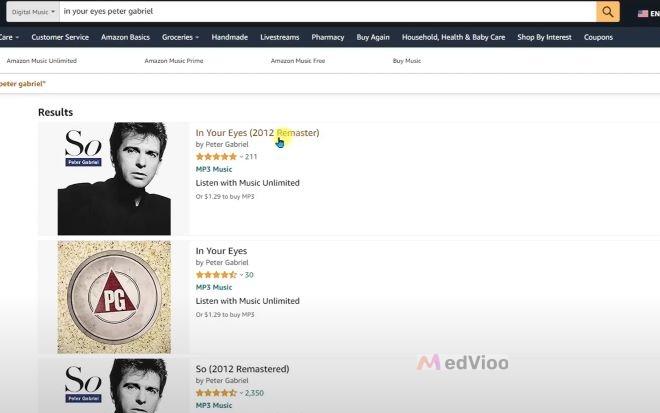
Step 1. Open Amazon.com and search for the song or album you want to download. Click on the desired track or album to open its purchase page.
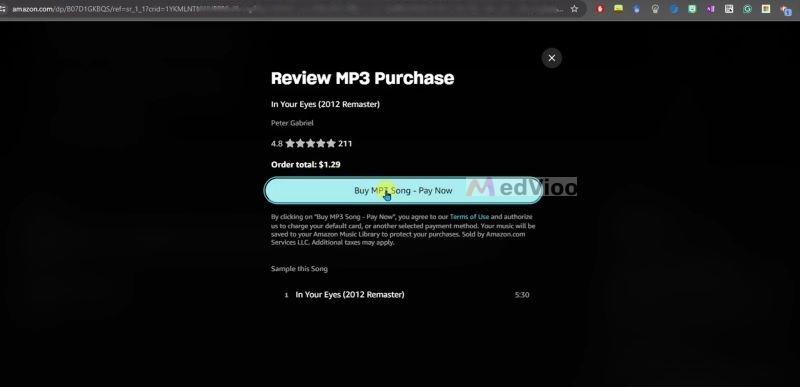
Step 2. On the MP3 purchase page, select the Buy MP3 Song-Pay Now button to proceed with the purchase. Enter the necessary payment details and confirm your order.
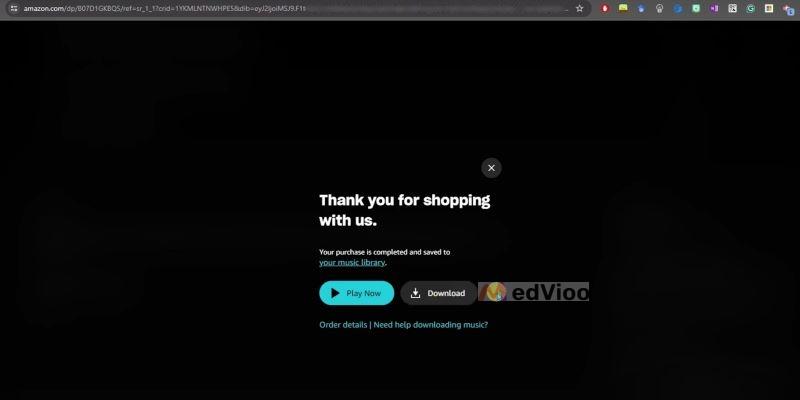
Step 3. Once the payment is processed, click on the Download button to save it onto your computer. The purchased file will be saved in MP3 format, which is compatible with CD-burning software on both Mac and Windows.
Step 2. Burn the Local Spotify Files to a CD
Once your Spotify songs are saved as local files, you can burn them to a CD using built-in or commonly available media players. Below, we’ll show you how to do it with Windows Media Player on Windows and Apple Music on Mac.
On Windows
The pre-installed Windows Media Player comes with a built-in option to burn songs to a CD-disk. Follow these steps:
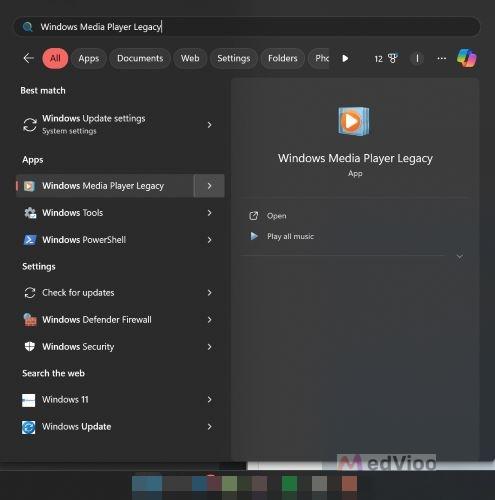
Step 1. Click on Start and type Windows Media Player Legacy in the search bar. Select it from the results to open the classic Windows Media Player (WMP).
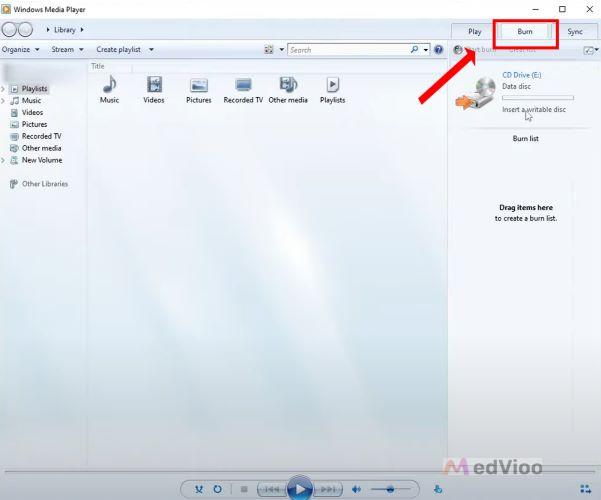
Step 2. Once the player is open, click on the Burn tab in the upper-right section of the window. This will activate the CD-burning interface.
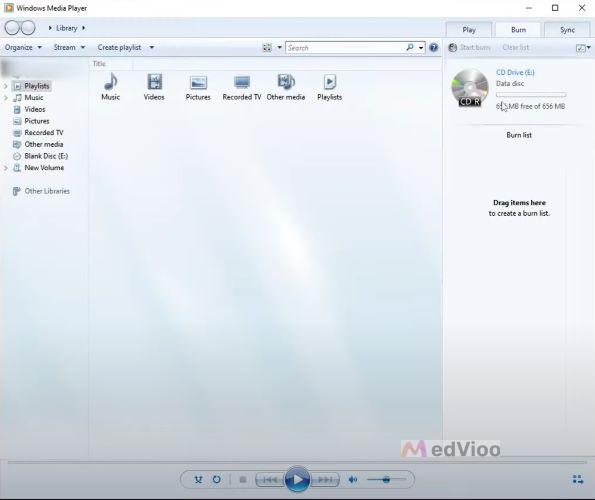
Step 3. Insert the blank CD into your computer’s CD drive or the external drive. You will see the CD name and available storage appear in the Burn section once WMP recognizes the inserted disc.
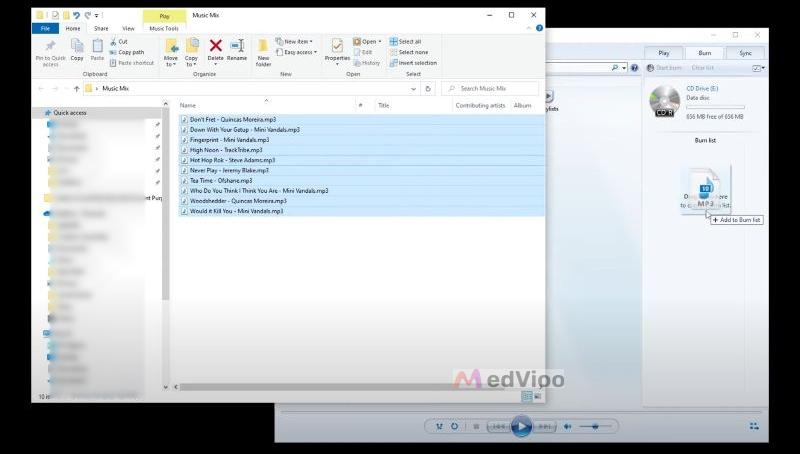
Step 4. Open File Explorer and navigate to your MedVioo downloads folder or the location where your purchased Amazon MP3 files are stored. Select the songs you want to burn.
Step 5. Drag the selected files to the Burn list on the right side of Windows Media Player. A storage indicator will update below the list, which is an indication that the added songs are recognized by WMP.
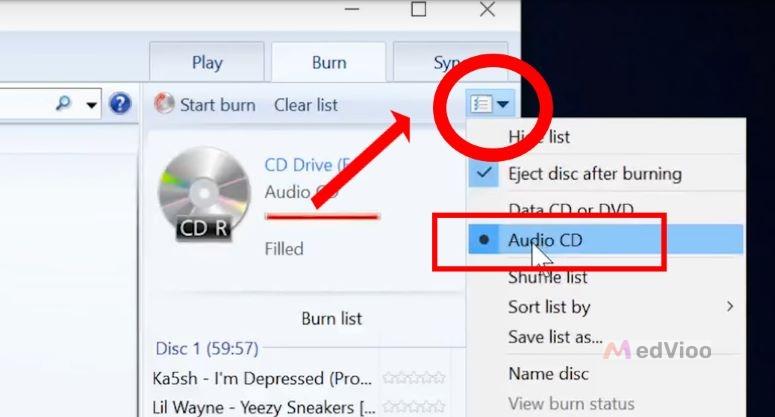
Step 6. Click the Burn Options drop-down near the Start Burn button. Choose Audio CD from the list to ensure the CD will be playable on all standard CD players.
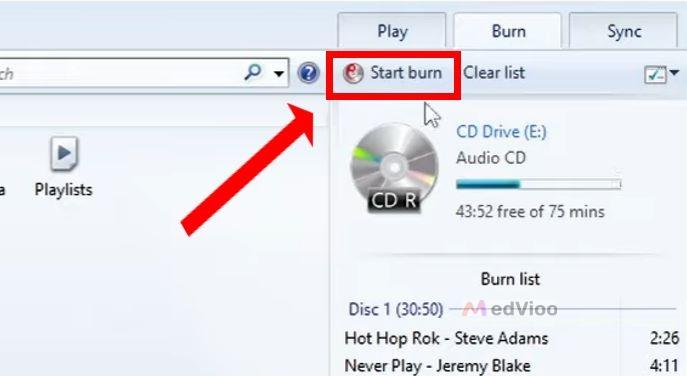
Step 7. Click Start Burn. Windows Media Player will begin transferring the songs to the CD. A progress bar will appear next to the CD name, showing the burning process.
Step 8. When the burn process reaches 100%, the CD will automatically eject. The CD is now ready for playback on any compatible CD player.
On Mac
Apple Music on the macOS has built-in burning capabilities, meaning you don’t need extra software. However, the songs must first be added to Apple Music. Once added to Apple Music, they can be transferred to a CD. Follow these steps carefully to import the songs, create a playlist, and burn the disc:
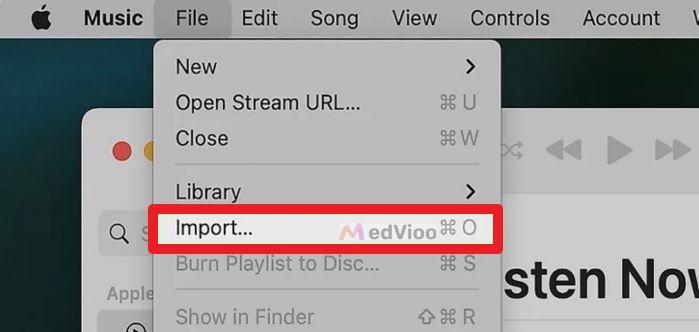
Step 1. Open Apple Music on your Mac. Click File in the menu bar at the top. From the drop-down list, select Import.
Step 2. A window will open. Navigate to the MedVioo downloads folder or the Amazon MP3 purchase folder. Select the desired songs and click Open. The imported files will now appear in Songs under the Library in Apple Music.
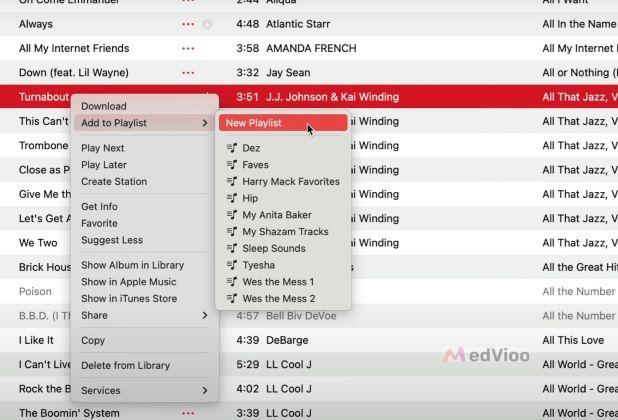
Step 3. You will need to conclude all wanted songs into a playlist before burning them. In the Library section, click Songs to see the imported tracks. Find the ones you want. Right-click the desired song, choose Add to Playlist, then click New Playlist.
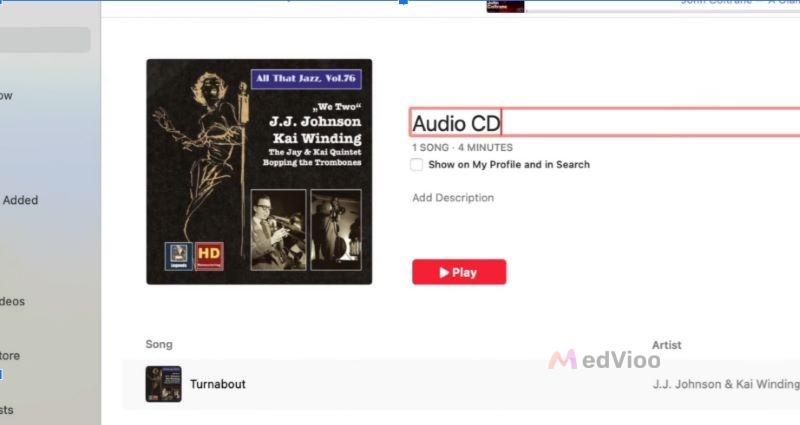
Step 4. Name the new playlist as Audio CD and press Save. To add more songs, right-click each one and select Add to Playlist > Audio CD.
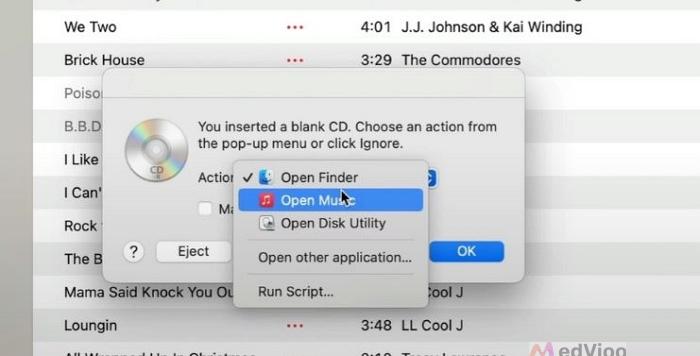
Step 5. Insert a blank CD into your Mac’s built-in CD drive or an external CD one. A pop-up will appear on the screen, asking you what action to take. The default option is Open Finder, but select Open Music instead and click OK.
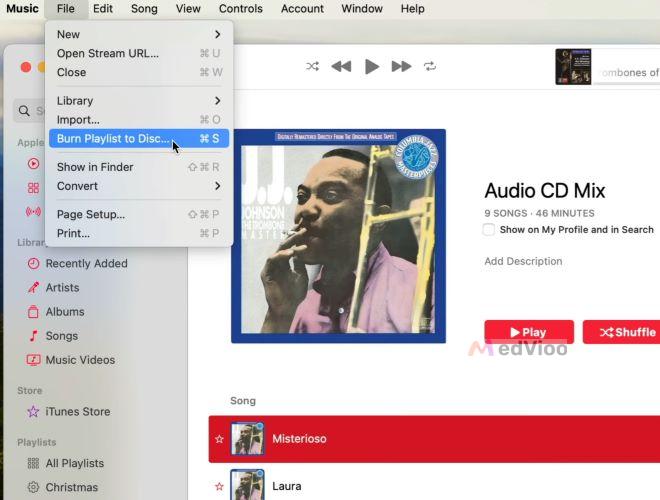
Step 6. In Apple Music, click on the Audio CD playlist in the sidebar to highlight it. Then, go to File > Burn Playlist to Disc.
Note: If the option is grayed out, it means some of the tracks are DRM-restricted. These could be Apple Music streaming songs or unlicensed tracks. Remove those and the option will work.
Step 7. A Burn Settings window will appear.
- Under Disc Format, choose Audio CD to ensure it works on all CD players.
- Set the gap between songs if needed.
- And ensure to not change any advanced settings.
Once ready, click Burn.
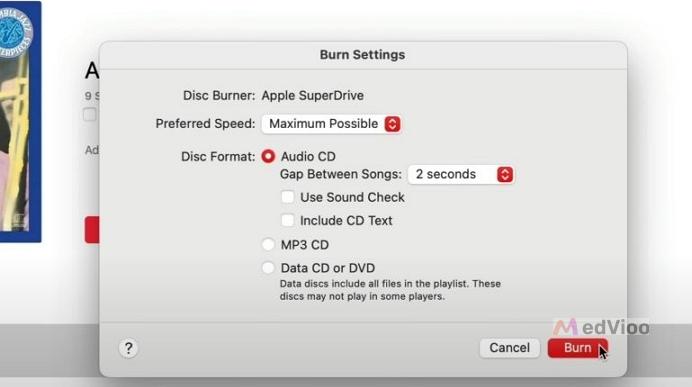
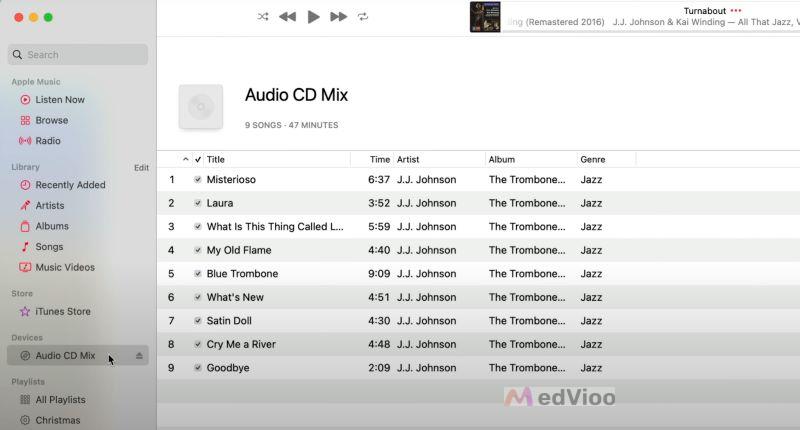
Step 8. Wait for the burn process to finish. Once completed, the CD will show up under Devices inside Apple Music. Click on it to see the burned songs. Lastly, press the Eject icon next to the disc name to remove it from your Mac.
Where Can You Play CDs
There are plenty of ways to enjoy your burned Spotify music on a CD. Even if you’re burning them for a specific purpose, you’ll likely find other ways to make use of them. Here are some options:
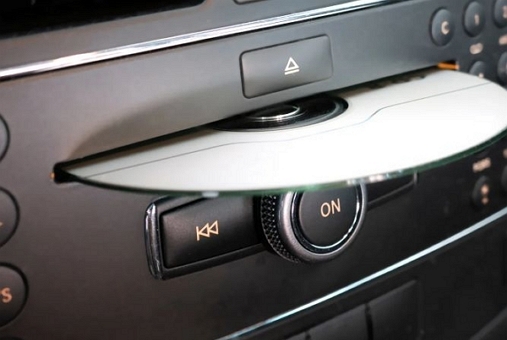
- Car CD Players: The most common use case. Many older and even some newer vehicles still include built-in CD players, making it an easy way to bring your Spotify songs on the road.
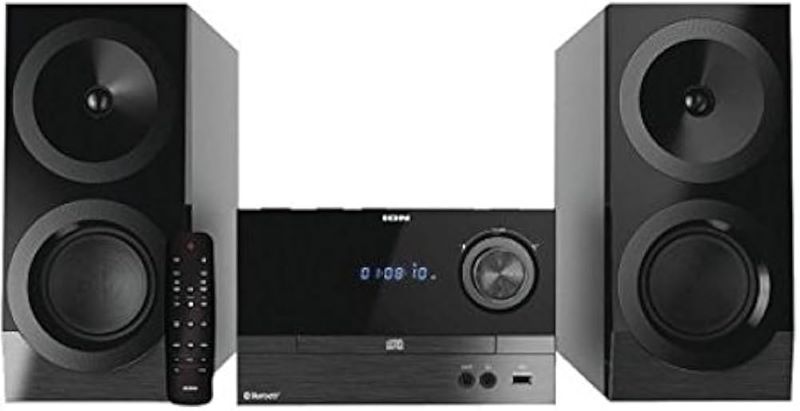
- Home Audio Systems & Studios: Standard audio CDs work in home entertainment systems, Hi-Fi setups, and older stereo systems. So, if your home studio has a CD deck, you can play your converted Spotify tracks without any issues.
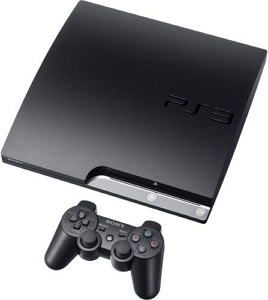
- Gaming Consoles: PS1, PS2, PS3, and early Xbox models recognize and play audio CDs just like they did back in the day.
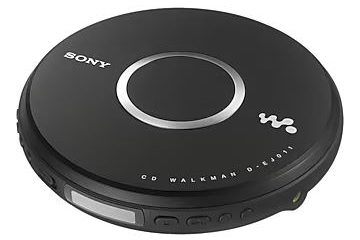
- Portable CD Players – Devices like the Sony Walkman DE-J011 let you enjoy your music anywhere, free from streaming limitations.
Final Words
You now know everything required to successfully burn a CD from Spotify: from what tools are required to the step-by-step process of exporting Spotify playlists as open formats to burning them onto a CD. While everything remains same, the only choice you have to make is how you source your Spotify songs or playlists:
- Purchasing individual songs from Amazon or iTunes: It's recommended if you only need a few songs for CD burning.
- Using MedVioo, which is a faster, more convenient option that lets you save unlimited songs in high-quality directly from Spotify. You don’t have to pay per song, so it is very cost-effective for burning music to a few CDs.