

Seeing your songs listed as “Track 01” by “Unknown Artist,” with no cover art, can be frustrating, especially if you care about your music collection. Yes, the song will still play, but missing details simply look strange in your music player and you want it properly tagged for easy identification.
This is where an MP3 tag editor can help. Here, you’ll find seven free tools to choose from. You can use them to tag one song at a time or your whole library, whether you’re on your computer, using your phone, or just want a quick online solution for a few tracks.
3 Best Free Software to Edit MP3 Tags on Windows/Mac
MP3 tag editors for computers are great when you want to fix entire folders of songs. You can quickly rename many songs at once or add cover art to all of them in one go.
We tested all three tools using the same playlist to keep things fair. Here are three choices, depending on what you need and whether you use Windows or Mac.
1. Mp3tag
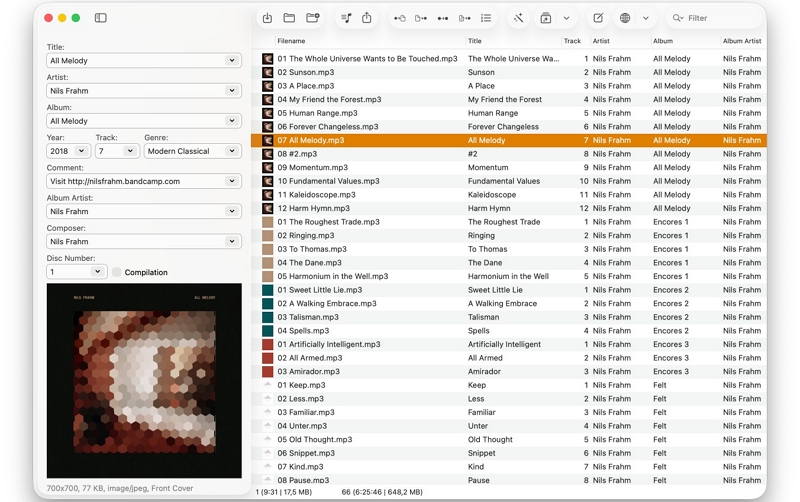
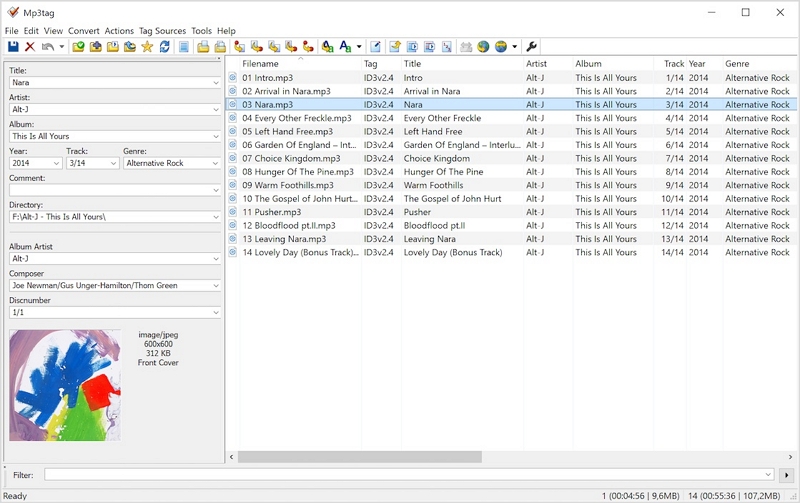
Mp3tag is one of the oldest and most advanced tag editors available. The same developer offers two versions, but they are on different websites. The Windows version is on Mp3tag.de, was first released in 1999, is still free, and is supported by donations. The paid Mac version was released in 2021 and can be found at mp3tag.app.
As for editing, both versions let you add songs in batches. They show your songs in a spreadsheet-style view, displaying each file name and its tags, so you can edit them easily.
Mp3tag also can search online song databases for full metadata. It looks up information from Discogs and MusicBrainz, so it usually finds the right tags.
Basic Information
• The Mac version adds OPUS, MPC, and WV, and even videos like MP4 and MKV
• US$24.99 one-time on Mac, after a 7-day free trial
Experience
Both versions of Mp3tag have strong features and similar interfaces. The Mac app costs money after seven days, but it looks a bit cleaner. Keep in mind that Mp3tag can feel technical at first because its window is full of small icons, menus, and fields, so it takes some time to get comfortable with it.
2. MedVioo Audio Converter
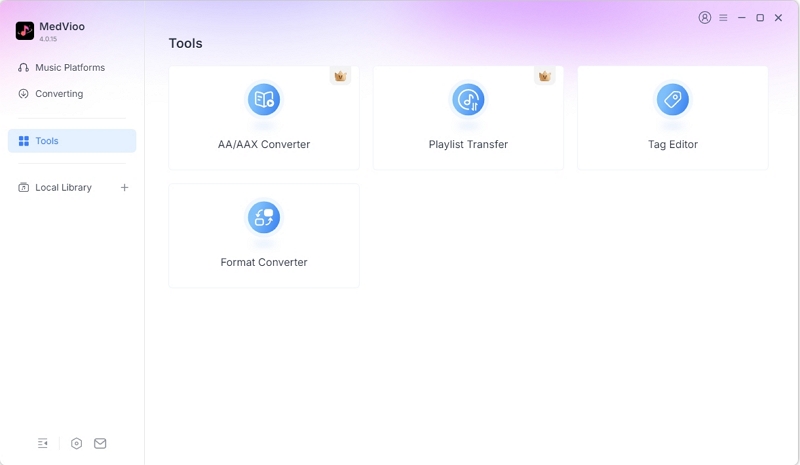
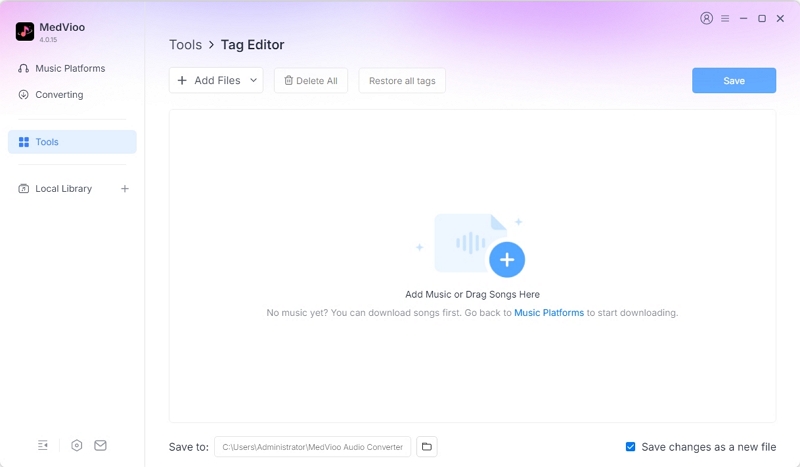
MedVioo Audio Converter is mainly known for converting high-quality songs from Spotify, YouTube Music, and other streaming services into local formats like MP3s. But its Tools section also includes a free Tag Editor that is one of the most efficient for small jobs and manual edits. You don’t have to fix every song one by one. You can select several songs, remove the same watermark from all of them, and set their cover art at the same time. You can also apply the same changes to an entire album. Plus, it gives you all the fields you need to fill in every metadata tag, from song title to HD cover art.
Basic Information
• Every field stays open for hand edits too
Experience
MedVioo’s tag editor is great if you want something simple but useful. You fill in the usual fields: Title, Artist, Album, Genre, Year, Track Number, Disc, and a Description box. The edits are manual, but you can apply one change to an entire album.
By default, MedVioo saves your changes as a new file. This means your edits go to a new copy and the original file stays untouched. You can keep your older versions as backups or compare them later.
3. MusicBrainz Picard
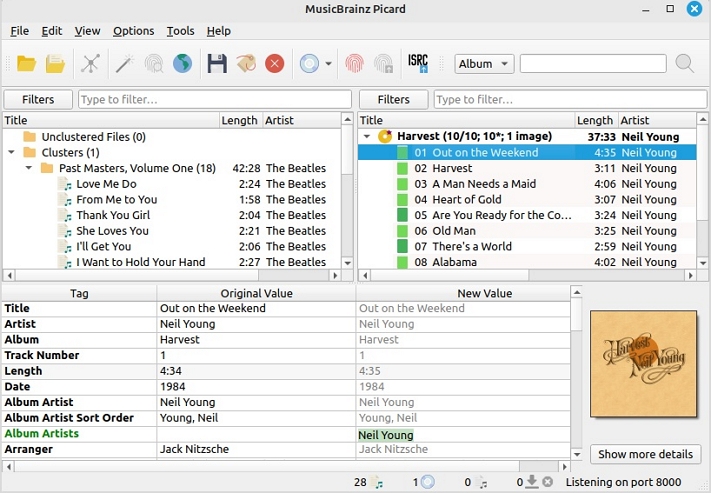
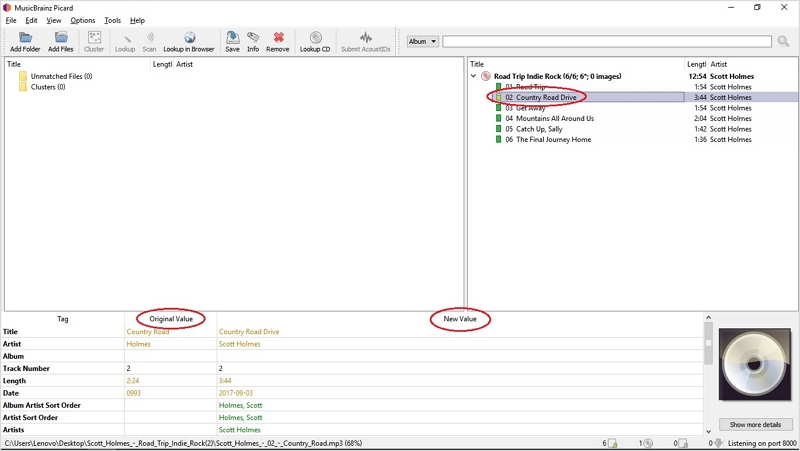
MusicBrainz Picard works differently from the other options and most regular MP3 tag editors. You don’t have to type anything or pick from a list. Instead, it can tag your songs with a simple scan using AcoustID technology. That is, Picard reads the song's fingerprint on your computer and matches it to the MusicBrainz database. If it finds a match, it will apply the correct tags, including cover art, artist, and album. The best part is that it’s free, open source, and works on Windows, Mac, and Linux.
However, Picard has some limitations. It works best with full albums and songs that are already in the MusicBrainz database. It doesn’t do as well with singles.
Basic Information
Experience
Of all the tools we tested, Picard was the only one that could identify and tag songs by sound alone. Even if your songs have no tags, like old CD rips, a simple scan can restore full titles, track numbers, and cover art.
However, Picard can miss tagging live versions or rare tracks that aren’t in its database. Besides, many singles we tested were grouped into compilations instead of their own albums, and fixing this took manual work.
2 Best Free Software to Edit MP3 Tags on Android/iPhone
Songs on your Android or iPhone often have wrong or missing tags, and sometimes even watermarks, especially if you downloaded them using a shortcut or an online converter.
The two apps below let you edit the file directly on your phone. We used the same test playlist as with the computer tools. Here’s what you need to know.
1. Music TagEditor (Android)
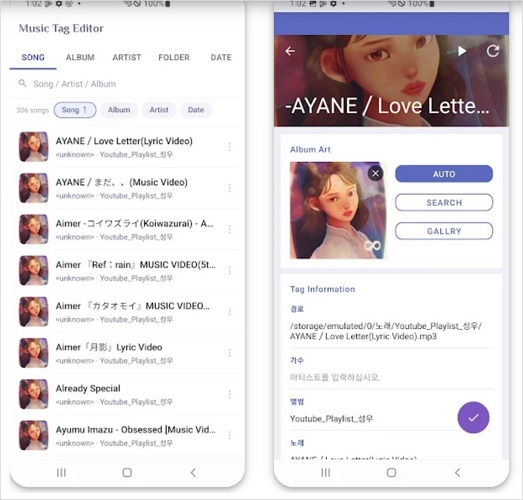
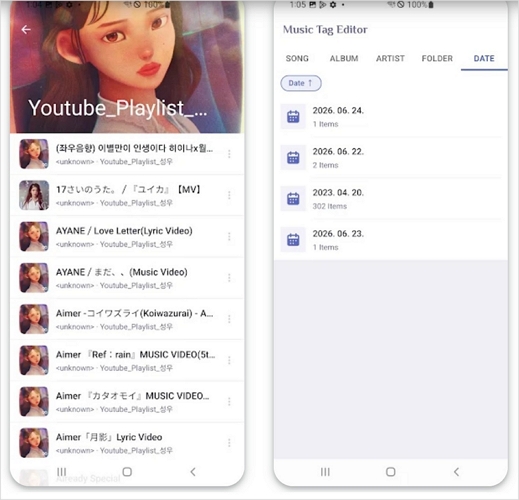
Music TagEditor is one of the most popular choices on the Play Store, and for good reason. It scans all your songs on Android with just one tap. You can pick any song or audio file and see its tags, like title, album, artist, lyrics, and cover. It also has helpful features, such as finding cover art online, so you don’t have to search for the right image yourself.
It also supports more formats than most Android tag editors. Besides MP3s, you can edit tags for audiobook files, high-resolution DSF files, and even older RealAudio files.
Overview
• The tags themselves are typed in by you
Feedback
Editing a song in Music TagEditor is fast. A common complaint is that music players don’t update the cover after you change it, and people often blame Music TagEditor. But this is just how Android works. Music players save a copy of each cover, so the new one only appears after the player rescans your library.
2. Tunetag Editor (iPhone/iPad)
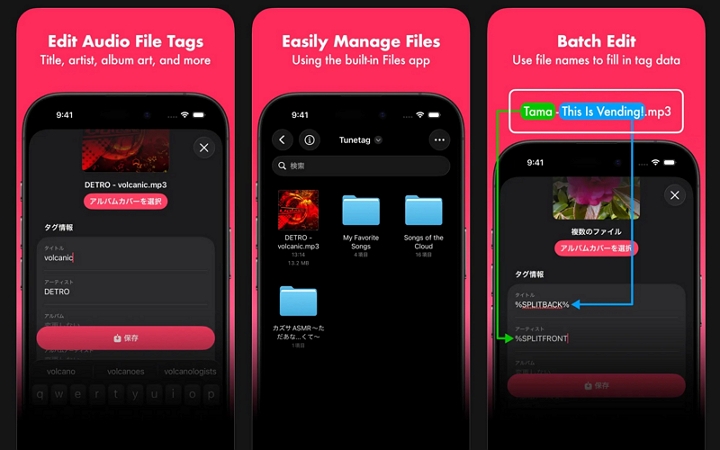
Tunetag Editor works right through the Files app. You don’t need to import your songs into a library. Just open the app, pick songs from any folder in Files, edit them, and your changes are saved to the same file.
Many tag editors on the App Store are made for iPad first, but Tunetag works well on iPhone too (iOS 18 and above), and it’s completely free. It’s made by an independent developer, which sometimes means updates are rare, but from what we’ve seen, it gets regular updates.
Overview
• Can read a song’s file name and turn it into artist and title tags
Feedback
Tunetag is a nice surprise on the iPhone. It’s especially helpful when your songs are named like “Artist - Song.mp3,” which is common with many converters. In these cases, you don’t have to type each tag. You can let Tunetag read the file name. In the batch editor, you can use rules like %SPLITFRONT% for the Artist field and %SPLITBACK% for the Title field. This way, you can quickly fix the artist and title tags for a whole folder of songs.
But one of its main drawbacks is that it can’t search for cover art online.
2 Best Free MP3 Tag Editors Online
An online editor is a fast way to fix one or two songs, especially if you’re on a borrowed computer or don’t want to install software. Both tools here are free. The main difference is where your file goes. One uploads your song to a server, while the other can edit the tags without your file ever leaving your device. Here’s what you need to know about each one.
1. TagMP3.net
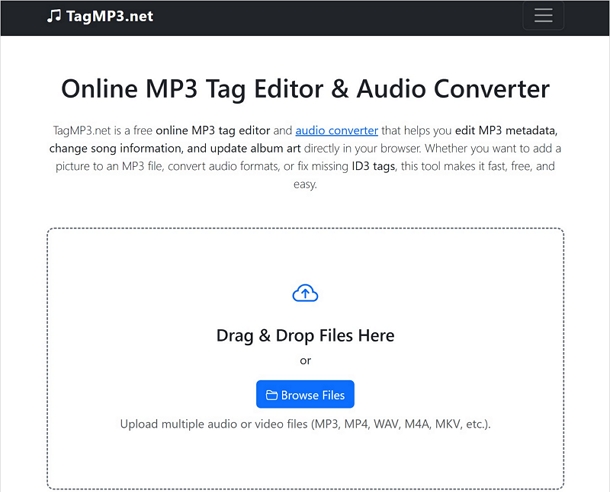
TagMP3.net is one of the oldest online tag editors, with a counter showing over 18.5 million files updated. Like other online editors, you need to upload your songs to its servers. The good thing is that if your file isn’t an MP3, like an M4A or a video, the site will convert it to MP3 first. This helps if you want to change the song’s format at the same time.
When editing, you can fill in details like title, artist, album, and cover, as well as extra fields like Composer, Publisher, Track Number, and Comment.
Details
Review
Uploading is the slowest step. A single song took some time to load before the form appeared. The form is clear and keeps any tags the file already had, so you only need to fix what’s wrong.
There’s one detail that’s easy to miss: TagMP3.net fills the Encoded By field with its own name. To keep your MP3 files clean, clear that field before clicking Update Tags.
2. mp3tag.js Editor
mp3tag.js Editor is a small open-source editor on GitHub. It started as a demo for a free code library, but you can use it as a tag editor too.
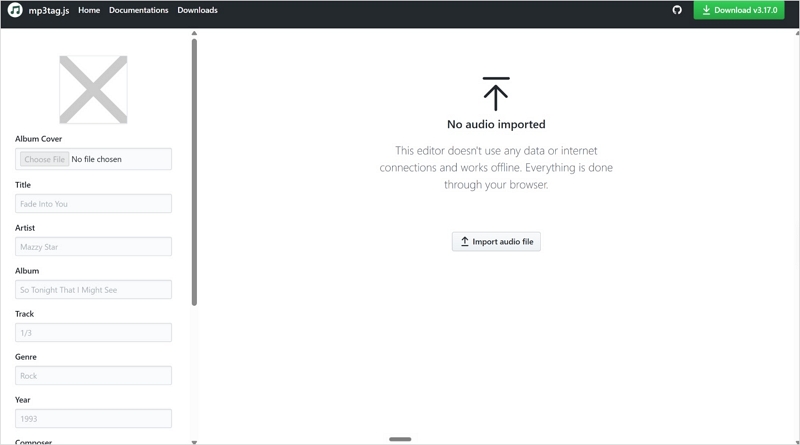
Its biggest difference from TagMP3.net is privacy. It is designed to edit your songs inside the browser without uploading or even needing an internet connection. The steps are simple: click Import audio file, pick your song, fill in the fields, then click Save and Download to get the edited file.
Details
• Covers must be JPEG images
Review
The best thing about mp3tag.js Editor is that your song loads instantly because there’s nothing to upload. Its form is shorter than TagMP3.net’s, with fields for Album Cover, Title, Artist, Album, Track, Genre, Year, Composer, and Lyrics. The trade-off is that it can only open MP3 files.
How to Save Streaming Music as MP3 with Full ID3 Tags
The tag editor is just one feature of MedVioo Audio Converter. It’s also a powerful music converter that connects directly to streaming services like Spotify, YouTube Music, Apple Music, and SoundCloud. So you can pick your favorite playlists and convert desired song to MP3. When you save songs on Mac or Windows, MedVioo keeps their original ID3 tags. That is, every song you convert comes properly tagged, with its original cover art and no watermarks. And it doesn’t stop there. MedVioo also gives you plenty of options to customize how your songs will be tagged.
Steps to Save Spotify Songs as MP3 with Complete Metadata
Step 1. Launch MedVioo Audio Converter. Click the Spotify tile and log in to your account.

Step 2. Open the playlist or album you want and click Add to the conversion list.

Step 3. Click the three-line menu at the top and choose Preferences. There you can set the rules for your metadata and file names before converting.
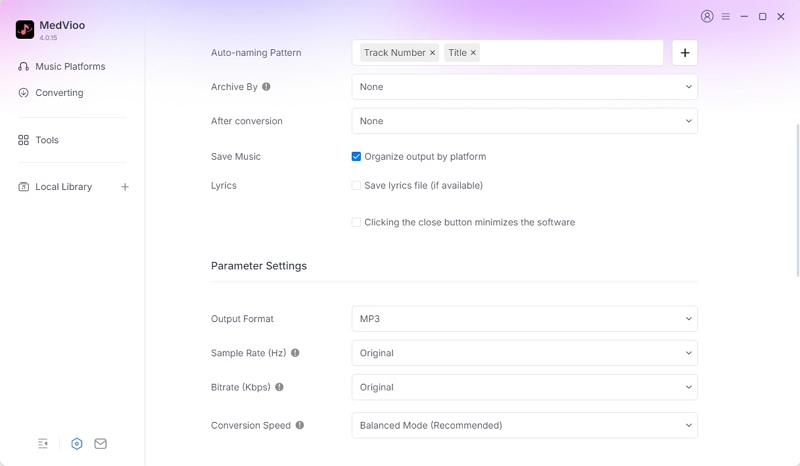
Step 4. Select MP3 as the output format and 320kbps as the bitrate, then hit Convert All. The songs will land in your output folder, sorted into their album or playlist folders.

To Sum Up
That’s the best software to edit MP3 tags. Now you can ensure your songs are properly tagged, whether they came from an online downloader or an old CD. If you want higher-quality or lossless audio with full ID3 tags, MedVioo Audio Converter is a great option.