

Apple Music gives you several ways to customize playlist covers. It even lets you use your own images. Yet many users still want one thing back: the classic four-album artwork grid. The reason is simple. The gradient covers Apple introduced with iOS 17.1 never really clicked with everyone.
The good news is that you can still bring the traditional artwork layout back. And in this guide, we'll walk you through all the methods to change Apple Music playlist covers to 4-album artwork. Better yet, these workarounds aren't limited to iPhone users. You can use them across Apple Music on iPhone, Android, Windows, and macOS.
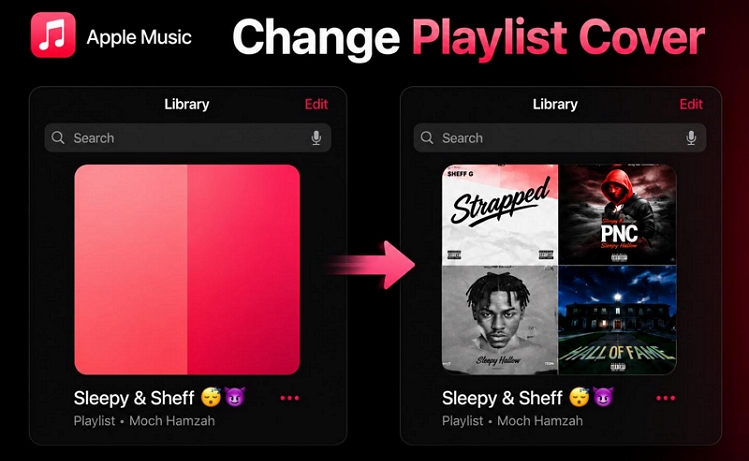
How to Change Apple Music Playlist Covers to 4 Album Artwork
Here are all the methods that reliably work to restore the classic four-album artwork style to your playlists. Some methods are available while using Apple Music on any device, while others are only available to Apple users. You can pick the one that matches your setup.
One thing to keep in mind: these methods to change playlist artwork will only apply to your own playlists. You cannot use them to modify the cover art on Apple-generated collections, such as Favorites or Recently Added.
Way 1. Copy Old Playlist
This method is for Apple Music users with playlists using the old 2×2 album artwork grid.
The workaround is straightforward: just duplicate one of your old playlists with the collage-style artwork. Apple Music will apply the same artwork layout to the duplicate. Next, delete all the old songs—this will remove the 4-album-styled cover and revert to the default blank. You don’t have to adjust the cover art here. Instead, you can start adding new tracks. And as you add songs from different albums, Apple Music will automatically refresh the artwork while keeping the four-cover grid layout.
While not the simplest method here, it works across Apple Music on iPhone, Android, Mac, and Windows. And there’s no need for extra Shortcuts or photo-editing apps for this. The only requirement is an older playlist with the classic album artwork grid.
Steps to Use 4 Album Artwork as Apple Music Playlist Cover via Old Playlist
You can follow this method in the Apple Music app on Windows, macOS, Android, and iOS:
Step 1. Head to the Library tab and open Playlists. Find an older playlist that still displays the classic four-album collage and open it.
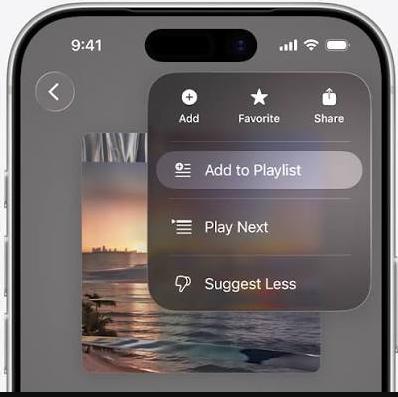
Step 2. Tap the three-dot menu in the upper-right. Choose Add to Playlist. Then, select New Playlist.
Step 3. Name the playlist and tap Done. Leave the cover area untouched.
Note: On macOS or Windows, Apple Music will prompt you to choose a cover design before copying. You can just click directly inside the Playlist Title field and type a name. Then, hit Create to continue.
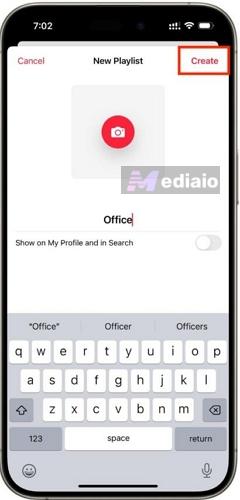
Apple Music will then create a copy that carries over the same collage-style cover.
Step 4. Return to your playlist list. Open the newly created playlist. Tap the three-dot menu again and select Edit.
Step 5. Remove the existing tracks by choosing them and tapping Trash button. You can even clear the playlist.
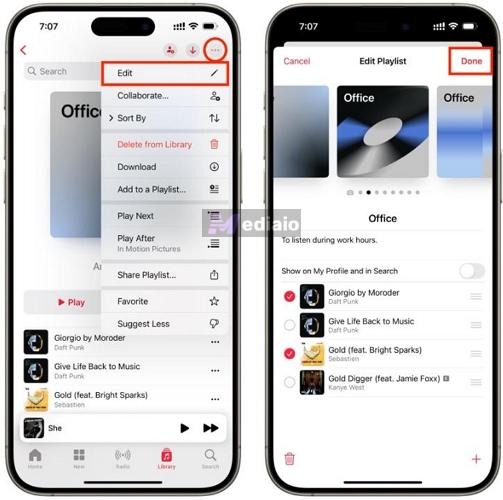
Tip: While editing, avoid touching the artwork field. Doing so can replace the inherited 4-album artwork grid with Apple's newer gradient-style cover.
Step 6. Start adding the tracks you want. Once music from at least four albums is added, Apple Music will automatically rebuild the cover and generate a fresh four-panel album collage based on those albums.
You now have a new playlist with its own songs, while its artwork retains the classic 2×2 album layout.
Way 2. Create a New Playlist on macOS
The previous method will not work if you don’t have an older playlist. But what if you’re a new Apple Music subscriber? Fortunately, there is another way.
Apple Music has the old 4-album grid system in its code. You can take advantage of it while creating a new playlist via the desktop apps. The catch is that Apple Music will force the gradient style while trying to do this on the iPhone and Android. So, for this method, it is better to use the Apple Music app on Windows or macOS.
Steps to Apply 4 Album Artwork as Apple Music Playlist Cover via Mac
Step 1. Launch the Music app on your Mac. You can start in two ways.
- Create a new list from File > New > Playlist.
- Or find the first song you want. Open its menu options, choose Add to Playlist and select New Playlist.
Step 2. The creation window will appear with a title field and a cover section at the top.
Apple Music will usually display its newer gradient-style templates first. Move all the way to the first cover option using the left arrow on the keyboard. At the very first position, you will see a plain blank tile with a + button in the middle (without any gradients or geometric designs).
Leave the cover art field exactly as it is.
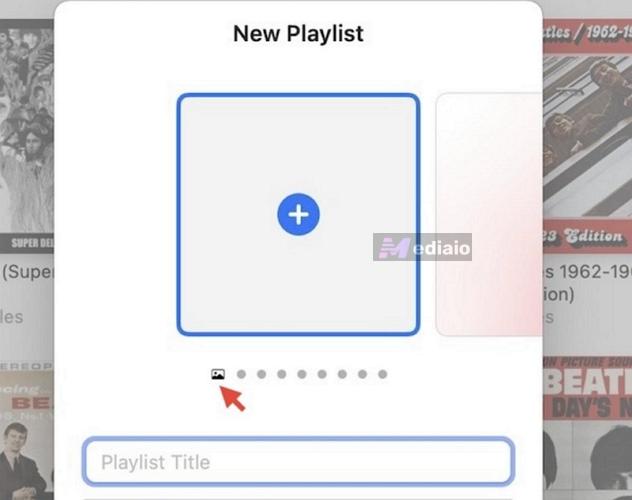
Step 3. Give the list a name and create it.

Now start adding songs normally.
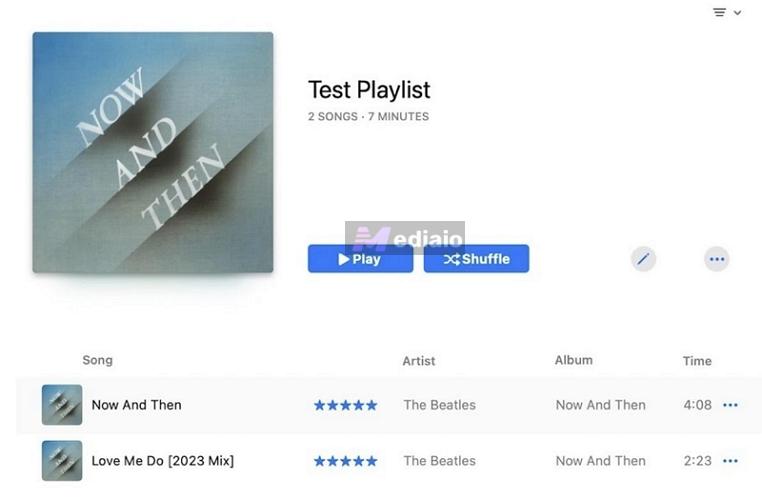
As soon as tracks from four different albums are present, Apple Music's older artwork system will take over. It will automatically replace the blank cover with the classic 2×2 album-cover collage.
After iCloud Music Library syncs, the same artwork grid will appear on your other Apple Music devices.

Way 3. Use iOS Shortcuts
You can also use a community-made Shortcut that automatically generates the artwork mosaic for any playlist in your library.
The benefit of using a Shortcut is that you don't have to duplicate playlists or edit images. You can just create your playlist normally, run the Shortcut, and it will build the artwork for you.
Now, you can get your hands on several Playlist Artwork shortcuts online. Some can even generate larger collages using 9 or even more album covers. But if your goal is recreating the four-cover layout Apple Music used for years, this Shortcut does the job well: Create Playlist Artwork. It was created by ArcFarad, a Reddit user, looking to solve the same problem.
Steps to Set 4 Album Artwork as Apple Music Playlist Cover with Shortcuts
Step 1. Open the Shortcut link on your iPhone and tap Add Shortcut to install Create Playlist Artwork.
Step 2. Launch the Shortcuts app and tap Create Playlist Artwork.
Step 3. Once you tap the Shortcut, the list of all playlists in the Apple Music library appears. Pick the one to apply the four-cover artwork.
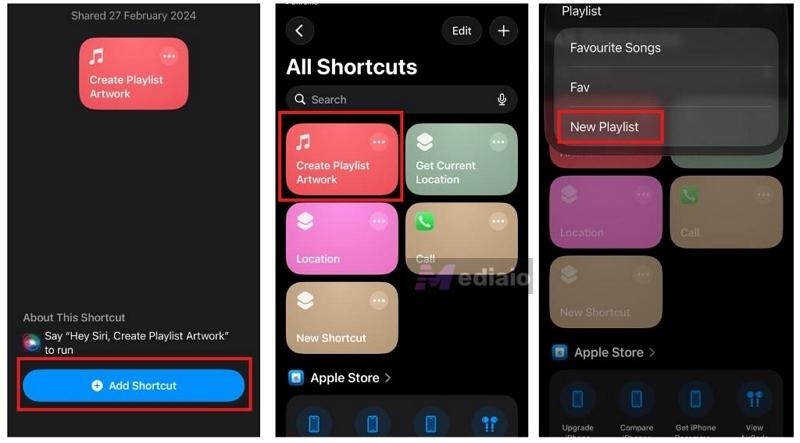
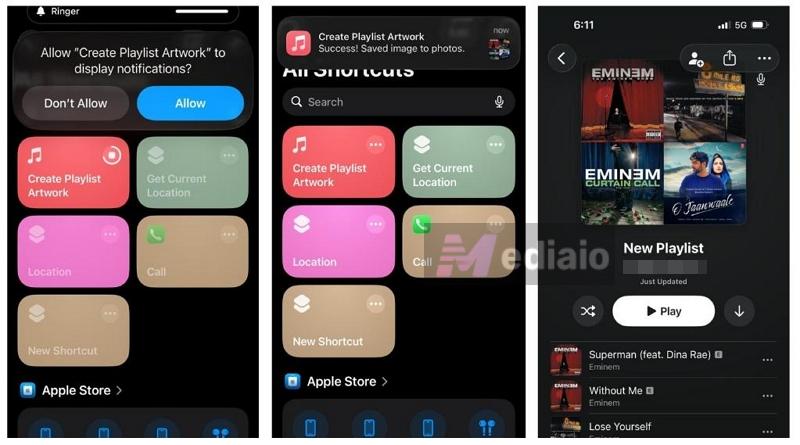
Step 4. Wait a few seconds. You’ll receive the confirmation message.
Note: The Shortcut requires songs from at least four different albums. Otherwise, it will return an error instead of creating the artwork.
Step 5. Return to the Apple Music app and open the playlist again. The new artwork will be applied.
Way 4. Create Playlist Cover Manually
Another way to bring back the classic four-artwork playlist cover is to create it yourself.
Unfortunately, most online Apple Music cover makers don’t offer features for creating the classic 2×2 album art layout. They usually focus on gradient designs or AI-generated artwork instead.
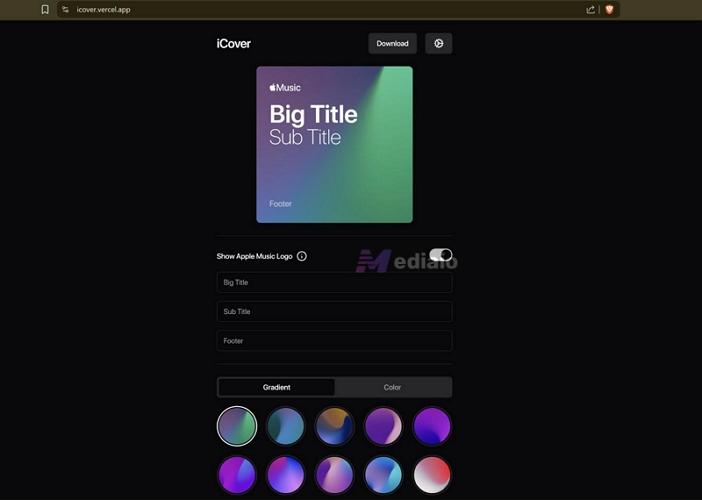
However, you can try online collage makers. If you want more creative layouts, apps like Mixoo are worth a look. The downside is that many of them place watermarks on free exports.
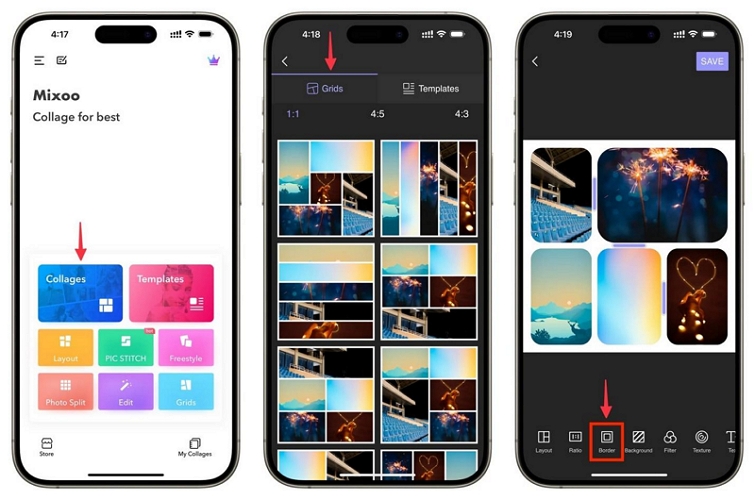
So in many cases, it is easier to build the four-cover artwork yourself using apps you already have, such as Keynote or Freeform.
The advantage here is complete control. The automatic methods (Way 1, Way 2, and Way 3) generate the artwork using the first four tracks. But what if you want the cover to feature the album images for the 3rd, 17th, 28th, and 45th tracks in the list? Well, this is the method that lets you decide that.
But the most tedious part about this is gathering the artwork. Don’t worry, the steps will show how to gather high-res album art.
How to Create a 4-Album Playlist Cover and Apply It as an Apple Music Playlist Cover
Step 1. Gather the artwork for the four albums you want on the cover.
- You can search for the album artwork online. Just make sure to download a square image (1000 × 1000 pixels).
- Or, you can pull the artwork from Apple Music itself. That is, you can play the song, go to the Now Playing screen, and take a screenshot. Then crop the square album artwork via screenshot preview and save the cropped image to the Photos app.
Repeat the same process for the other three album covers.
Step 2. Combine the four images. You can use almost any tool for this. But if you want to avoid online tools and paid apps, Keynote is one of the easiest options.
Inside Keynote:
- Start with a new presentation using the Basic theme.
- Delete any text boxes.
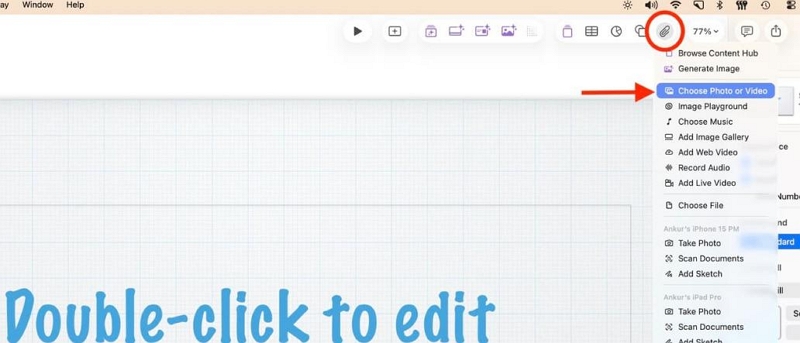
- Tap the paperclip button. Then, select the Choose Photo or Video tab.
- Insert all four album covers.
- Drag the corners of each image and scale it down, so they’re of the same size.
- Arrange the four equal-sized squares into a clean 2 × 2 layout.
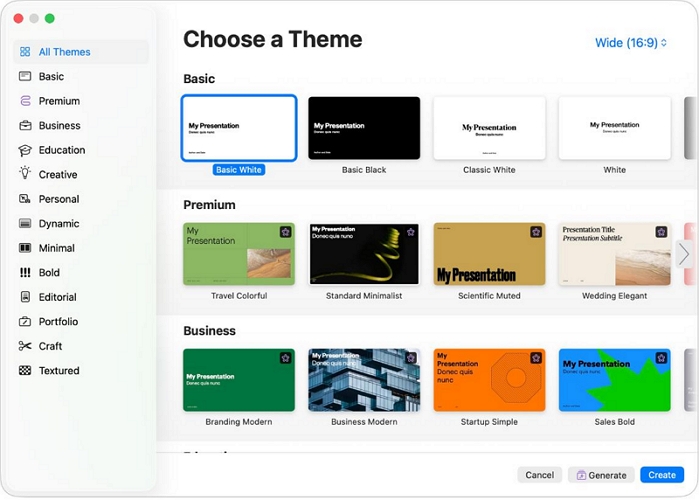
Step 3. Export the finished artwork. For this, zoom in until the four-cover arrangement fills as much of the screen as possible and take a screenshot. Once again, crop out everything except the artwork itself. Then, save the square four album cover to the Photos app.
Step 4. Apply the artwork inside Apple Music.
On iPhone or iPad:
- Open the playlist.
- Tap the three-dot menu.
- Choose Edit.
- Tap the cover area. Swipe until the camera icon appears.
- Select Choose Photo. Then, pick the collage image you just created.
- Tap Done.
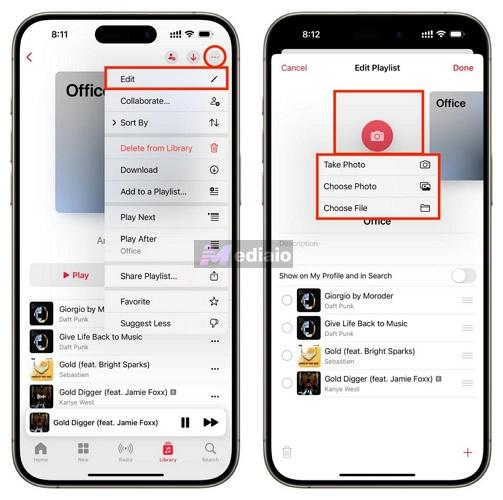
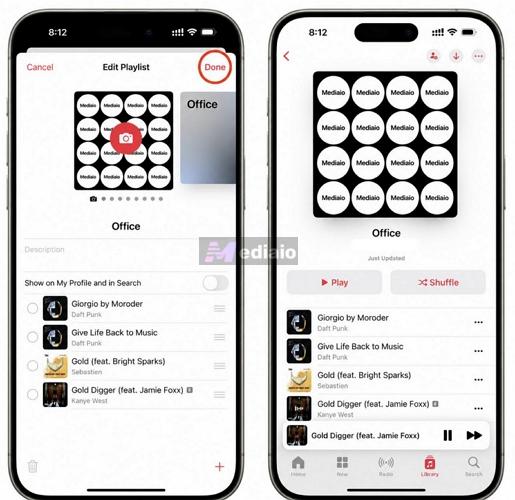
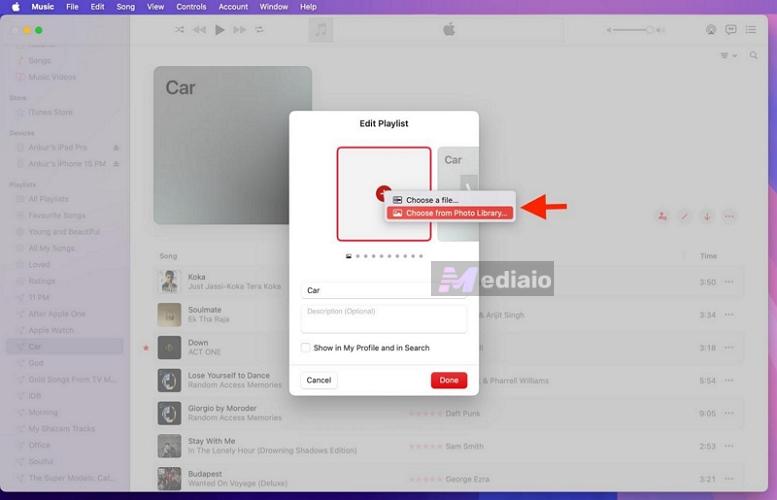
On Mac:
- Open the playlist.
- Click the three-dot menu and choose Edit.
- Click the artwork area.
- Select Choose from photos library.
- Upload the collage image and save the changes. Apple Music will instantly substitute the existing artwork with your custom four-cover design.
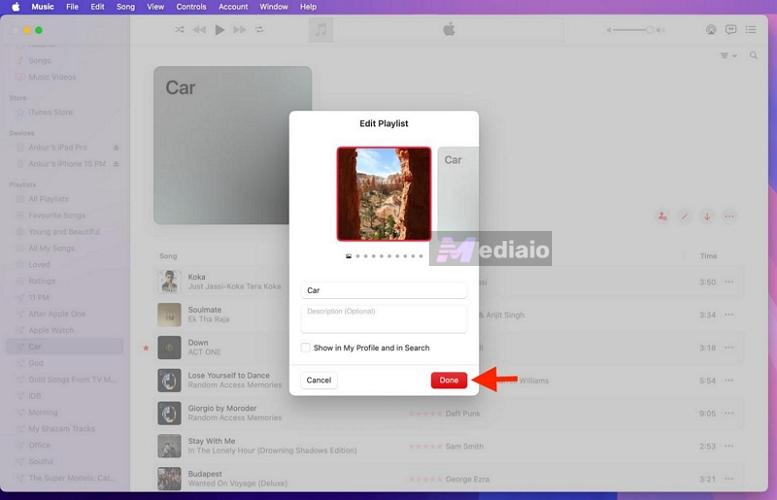
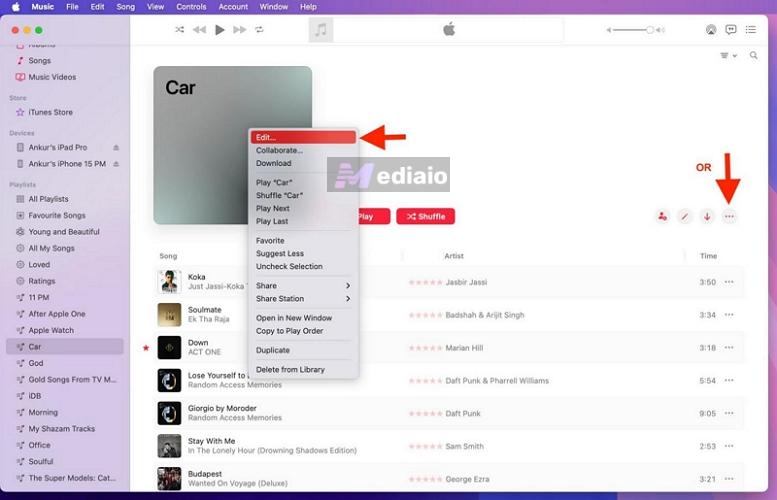
How to Save Apple Music Playlist with Cover Art Locally
Want to save the actual songs offline and use them outside Apple Music? The benefit is simple: you can play the exported Apple Music tracks with any offline music player. Mediaio Audio Converter makes this process straightforward.
Mediaio comes with built-in support for Apple Music. So you can sign in to your own account and export entire playlists in local formats. It even preserves all the metadata, including the original high-resolution cover art.
So when you import those playlists into local players like Evermusic or Plexamp, the ID3 tags and artwork will be attached to every track. And offline players can use that information to organize your library properly and even automatically build a four-cover playlist artwork.
Steps to Export Apple Music Playlist with Cover Art with Mediaio
Step 1. Download Mediaio Audio Converter on your Windows PC or Mac using the buttons above. Choose Apple Music from the supported platforms.

Step 2. Sign in with your own Apple Music account.
Step 3. Find the playlist and albums you want to export. Drag them onto the floating + button to add them to the conversion queue.
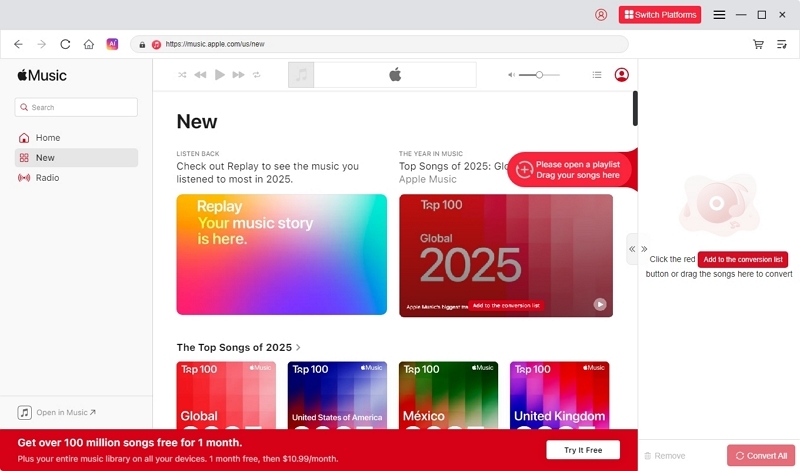
Step 4. Expand the conversion window. Select the output format: MP3, M4A, FLAC, or WAV. Adjust quality settings if needed.
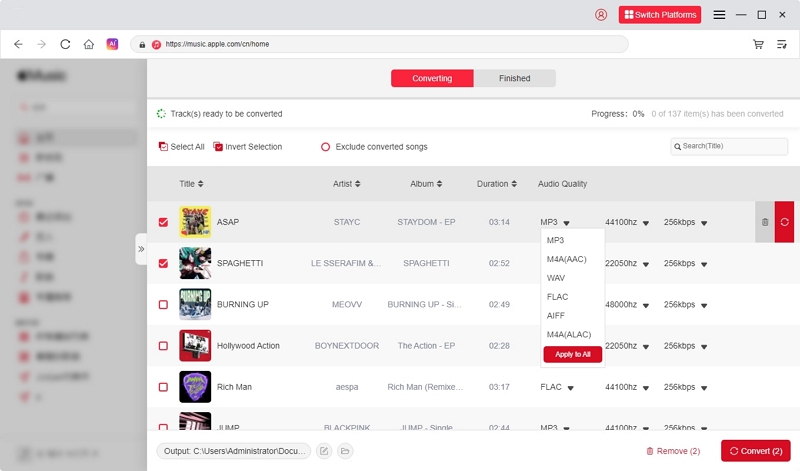
Step 5. Hit Convert All.
That’s it! The songs will be saved locally with original artwork. You can import them into players like Foobar2000 where it automatically applies a four-album-cover grid style. Plus, you can even transfer them to your iPhone and play them via apps like Evermusic or Plexamp.
Final Words
That covers how to change Apple Music playlist cover back to the classic four-album style. Playlist art is one of the few parts that you can still personalize, so it is worth setting it up the way you want.
And if you want more control over your playlists, you can use Mediaio Audio Converter. It lets you save Apple Music playlists with their artwork and metadata intact in local formats. So you can keep your playlists in the way you want.