

Playlisting is one of the best ways to fully enjoy your experience on Apple Music. You can add and edit playlists to curate a unique mood as per your tastes.
There might be cases where you could accidentally delete an Apple Music playlist. Or, it might disappear on its own for a number of reasons. You might be wondering, “Can you recover a deleted Apple Music playlist?”
Thankfully, this is possible, and we will cover all the methods to restore your deleted playlist in this article.
Can You Recover a Deleted Apple Music Playlist?
Yes, a deleted playlist on Apple Music can be restored, but the method depends on a number of factors, as mentioned below:
- Whether the Apple Music playlist was deleted recently
- Whether Sync Library was turned on
- Whether you still have the playlist cached on other devices logged into the same Apple ID
- Whether you have an iPhone or a Mac backup
- Whether Apple Music removed it after your subscription expired
What You Can Recover vs. Cannot Recover
Why Did My Apple Music Playlist Get Deleted? (Most Common Reasons)
Now, you might be asking yourself, “Why did my Apple Music playlist get deleted?” And there are a number of potential reasons why. Here is a short list of possible causes behind this:
- Your Apple Music subscription might have expired, causing your playlist to get deleted.
- You might have created the playlist on another device with Sync Library turned off.
- There might have been an Apple ID mismatch on your device.
- The song/album might have been removed from Apple Music's database.
- You might have deleted the playlist accidentally.
Method 1. Recover a Recently Deleted Apple Music Playlist via iCloud Sync (Official)
If your Apple Music playlist disappeared recently, the issue is often caused by iCloud Music Library sync delays rather than permanent deletion. In many cases, refreshing the iCloud sync can restore the playlist automatically.
Apple Music does not offer a dedicated “Recently Deleted” folder for playlists. The recovery steps below rely entirely on Apple’s official iCloud syncing mechanism.
On iPhone / iPad
Step 1: Refresh Apple Music Account Connection
- Open Settings and tap your Apple ID name at the top.
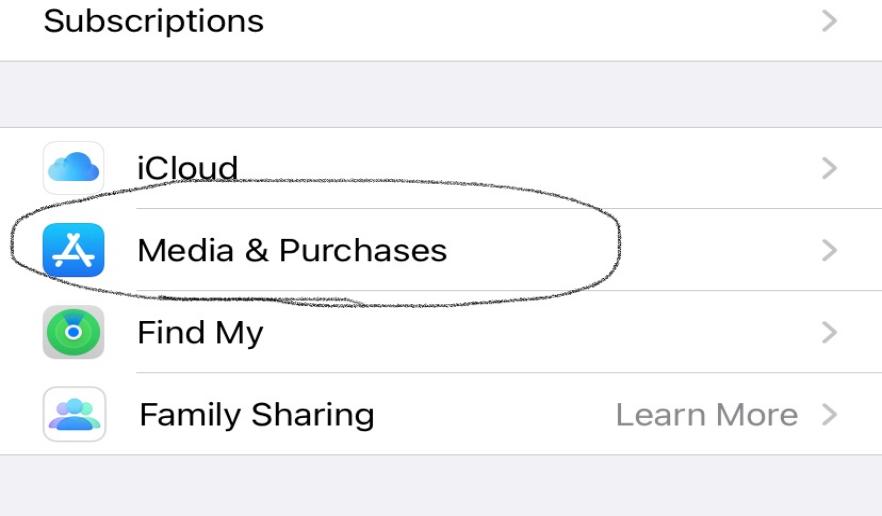
- Select Media & Purchases → View Account.
- Wait for the account page to load completely.
This step helps re-establish the Apple Music account connection and prepares the library for re-syncing.
Step 2: Ensure Sync Library Is Enabled
- Go to Settings → Music.
- Turn Sync Library ON.
- Keep your device connected to Wi-Fi and power.
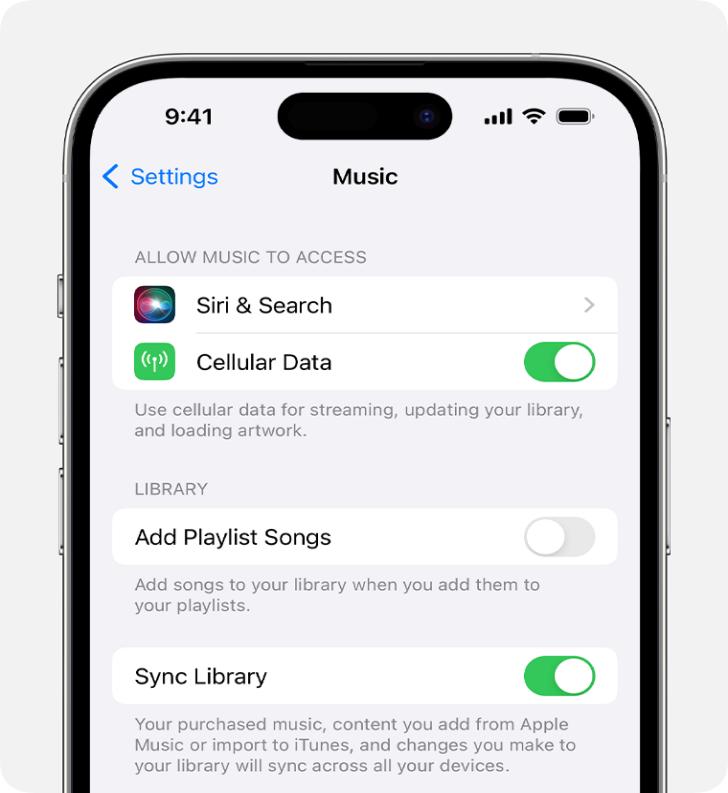
If Sync Library is already enabled, keep it turned on and allow a few minutes for your Apple Music library to refresh and resync.
Step 3: Restart Apple Music and Check Your Library
Open the Music app and check your playlists again.
If the playlist disappearance was caused by a temporary sync issue, it should reappear automatically.
On Mac (Music App)
On macOS, Apple Music playlists can sometimes be restored through iCloud re-syncing or local backups.
- Make sure you are signed in with the same Apple ID
- Keep Sync Library enabled
- Allow sufficient time for iCloud to finish syncing
Advanced recovery options such as Time Machine backups will be covered in later sections.
On Windows (iTunes)
Apple Music playlist recovery on Windows depends on iCloud syncing and local library availability.
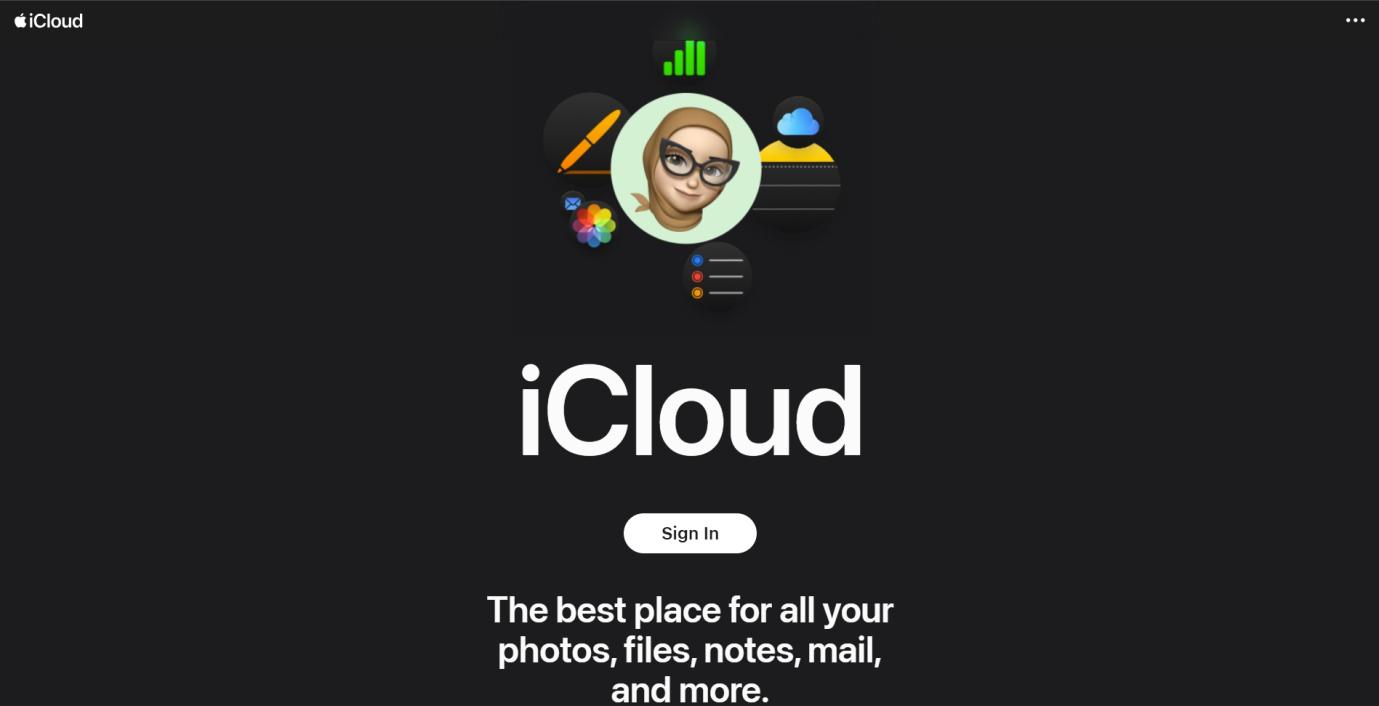
Step 1: Go to iCloud.com on your browser and sign in using your Apple ID.
Step 2: Enable Sync Library in iTunes settings
Step 3: Keep iTunes open and connected to the internet to allow sync completion
iCloud.com currently does not support restoring Apple Music playlists, because playlists are not treated as standard iCloud files.
Method 2. Recover Deleted Apple Music Playlist by Refreshing iCloud Sync
If the playlist does not return immediately, performing a manual iCloud sync refresh can often resolve the issue.
Note: Make sure Sync Library is enabled before proceeding.
On Mac:
Step 1: Launch the Music app on your Mac.
Step 2: From the menu bar, click File → Library → Update iCloud Library.
Step 3: Wait for the syncing process to complete.
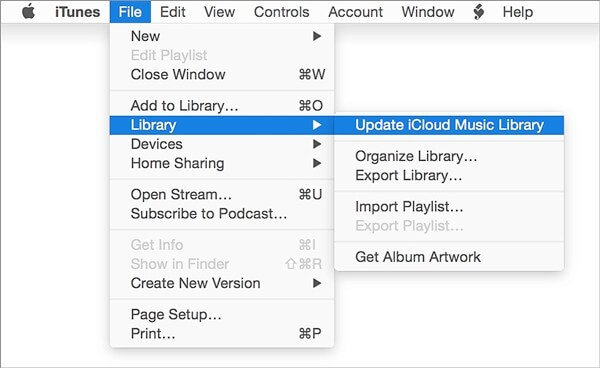
For iPhone/iPad
Simply toggling Sync Library will automatically trigger a refresh.
- Go to Settings → Music.
- Turn Sync Library OFF.
- Restart your device.
- Turn Sync Library back ON and wait for the library to reload.
Turn Sync Library ON/OFF (Full Refresh)
On iPhone/iPad:
Step 1: Go to Settings > Music.
Step 2: Find the Sync Library option and use the toggle switch to turn it on or off.
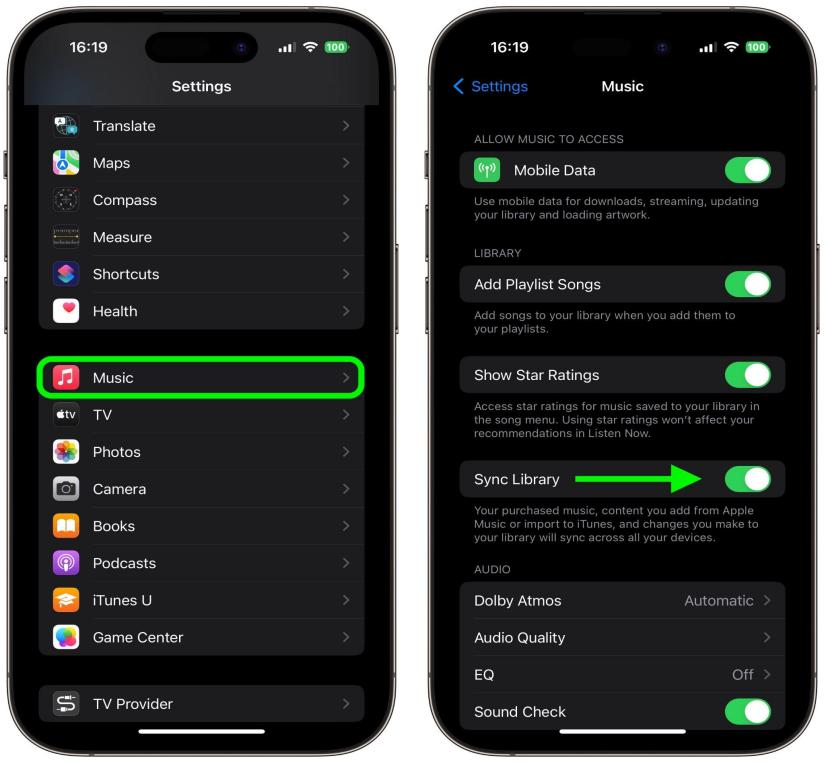
On Mac:
Step 1: Open the Music app and go to the menu bar.
Step 2: Head to Settings and find the General tab.
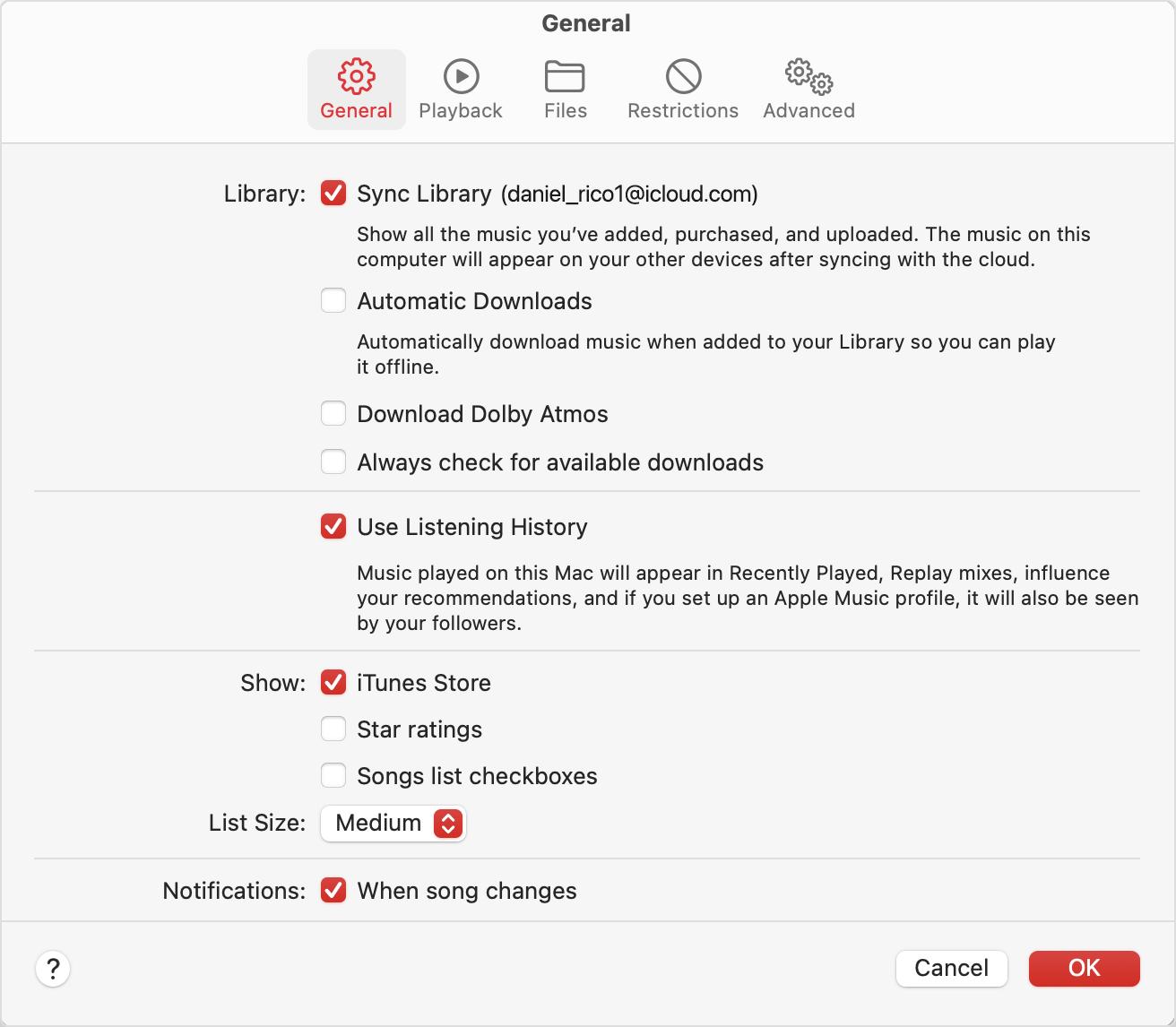
Step 3: Check or uncheck Sync Library to refresh the connection.
This method is particularly effective when Apple Music playlists disappear due to sync conflicts or delayed synchronization.
Method 3. Recover a Deleted Apple Music Playlist Using Another Device
Apple Music does not always sync deletions instantly across all devices. If you act quickly, another device may still contain the missing playlist.
How This Works
- You accidentally delete a playlist on your iPhone
- Your Mac or another device has not yet synced the deletion
- The playlist still exists locally on that device
Steps to Recover
Step 1: Immediately disable Wi-Fi and cellular data on the device that still has the playlist.
Step 2: Open the Music app and confirm the playlist is still visible.
Step 3: On a Mac or iTunes:
- Export the playlist as an XML file
- Or manually recreate a duplicate playlist

Step 4: Re-enable internet and import the playlist back into Apple Music.
Note: iPhone and iPad cannot export playlists directly. This method requires a Mac or Windows PC with iTunes.
Method 4. Recover a Deleted Apple Music Playlist Using an iPhone Backup
If the playlist was deleted some time ago and no longer reappears through iCloud syncing, restoring an iPhone backup may help — but only in specific scenarios.
This recovery method is not guaranteed. An Apple Music playlist can only be restored from a backup if the playlist data still existed locally on your device at the time the backup was created.
Recover Deleted Playlist Using an iCloud Backup
Step 1: Go to Settings → Apple ID → iCloud → iCloud Backup.
Step 2: Review the backup dates and confirm there is a backup created before the playlist was deleted.
Note: If the playlist had already been removed from iCloud Music Library before the backup was created, restoring the backup will not recover it.
Step 3: Go to Settings → General → Transfer or Reset iPhone.
Step 4: Tap Erase All Content and Settings.
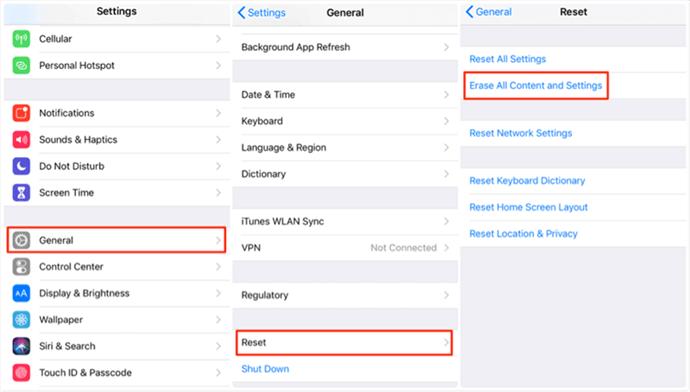
Step 5: During the setup process, select Restore from iCloud Backup.
Step 6: Choose a backup dated before the playlist deletion occurred.
Step 7: Allow the restoration to complete and sign in with your Apple ID.
After setup, open the Music app and wait for iCloud Music Library to finish syncing.
Recover Deleted Apple Music Playlist Using a Finder or iTunes Backup
Step 1: Connect your iPhone to a Mac or Windows PC. Open Finder (macOS Catalina or later) or iTunes (Windows / older macOS).
Step 2: Select your iPhone in Finder or iTunes. Click Restore Backup.
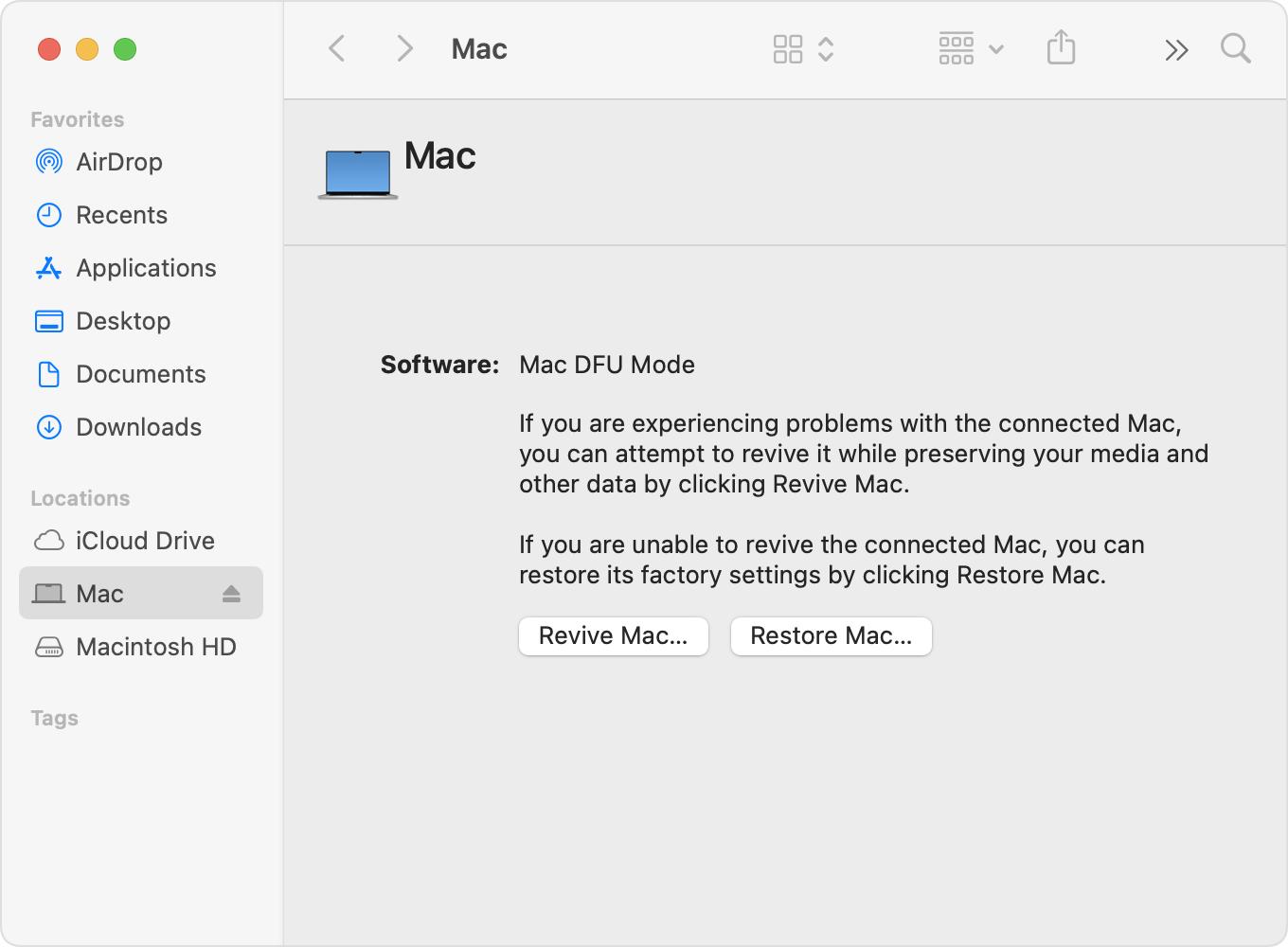
Step 3: Choose a backup that was created before the playlist was deleted.
Reminder: Restoring a backup will overwrite current data on your iPhone. Make sure important files not included in the backup are saved elsewhere.
Method 5. Recover via Mac "Library Database" Rebuild
This advanced method can sometimes recover deleted playlists by restoring an earlier version of the Apple Music library database on macOS.
This method is recommended for experienced users only. Time Machine must have been enabled before the Apple Music playlist was deleted.
Step 1. Quit the Music app on your Mac. Turn off Wi-Fi to prevent automatic iCloud syncing.
Step 2. Open Finder. Navigate to ~/Music/.
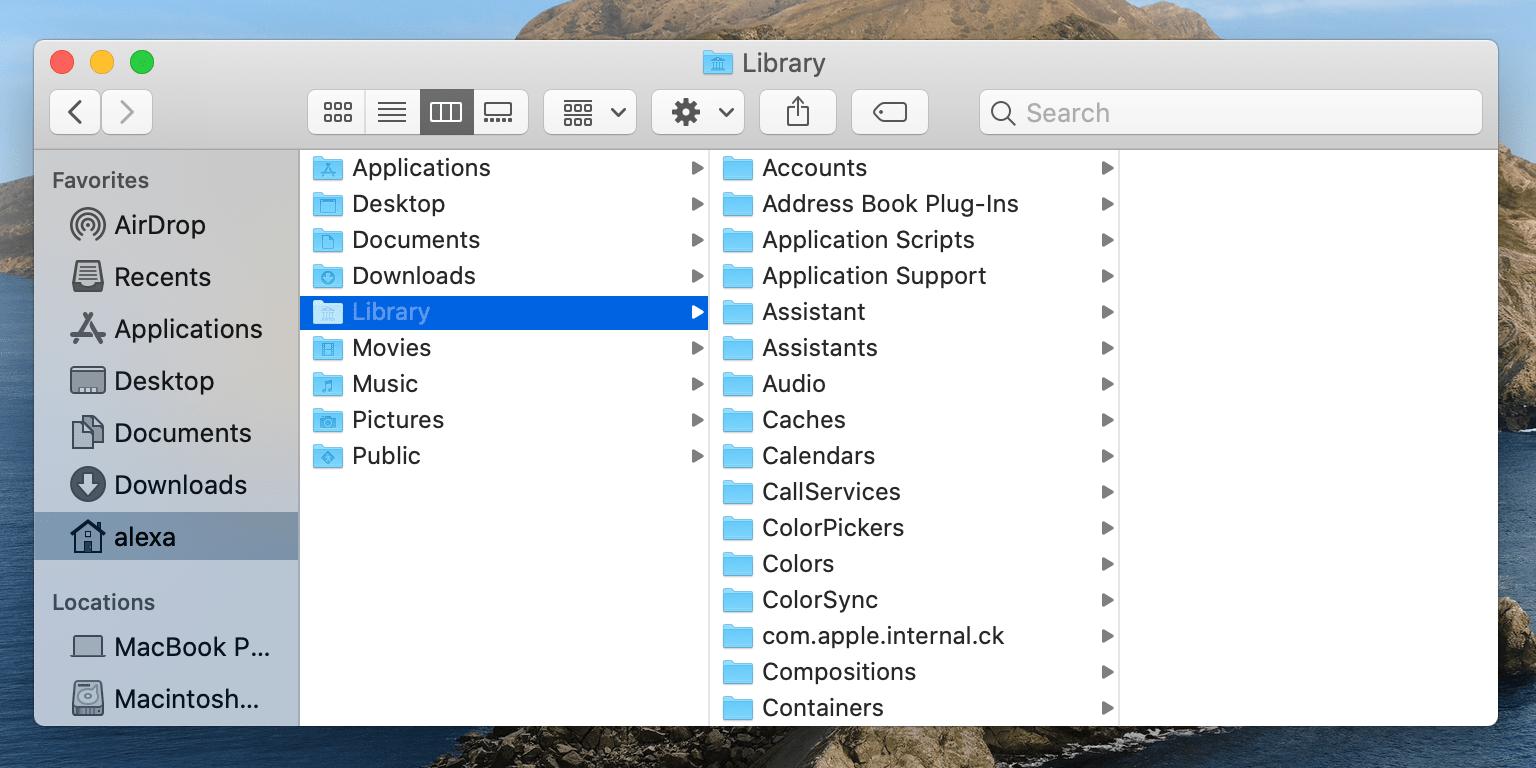
Step 3. Locate Music Library.musiclibrary.
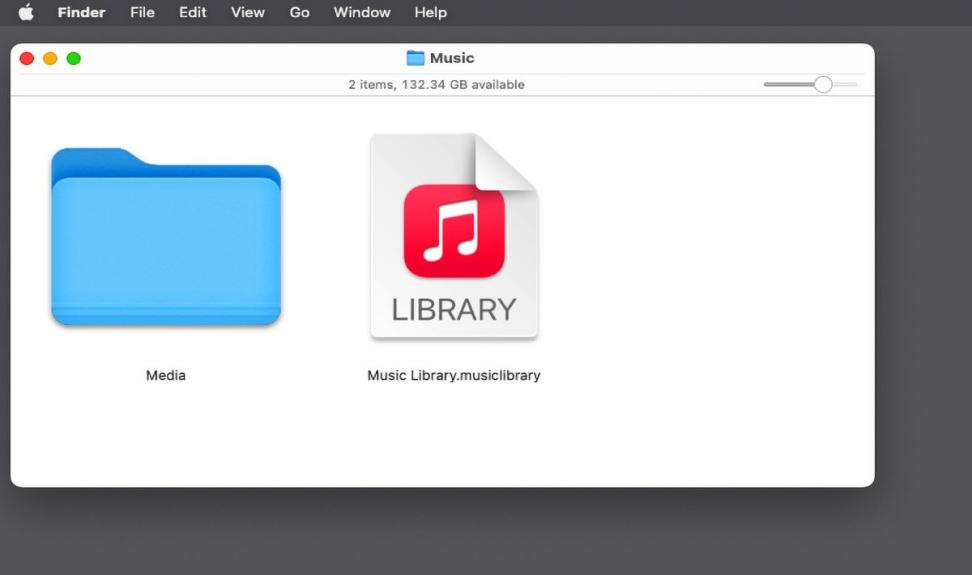
Step 4. Rename it (for example, Music Library_backup.musiclibrary) as a safety measure.
Step 5. Open Time Machine.
Step 6. Restore Music Library.musiclibrary from a date before the playlist was deleted.
Step 7. Open the Music app (keep the internet disconnected).
Step 8. If the playlist reappears, go to File → Library → Export Playlist.
Step 9. Save the playlist as an XML file.
Step 10. Quit the Music app again.Restore the originalMusic Library.musiclibrary file you backed up earlier.
Step 11. Open the Music app and import the playlist using File → Library → Import Playlist.
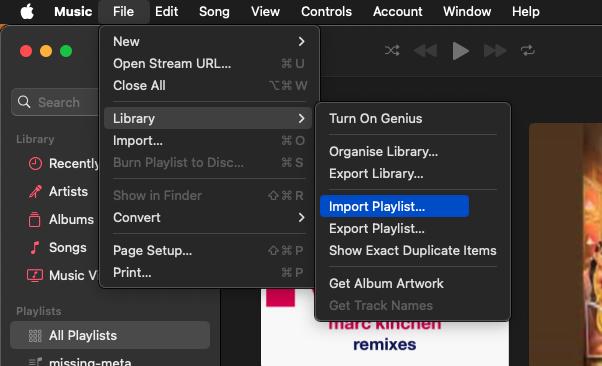
Turn Wi-Fi back on and allow iCloud Music Library to sync. The recovered playlist should now be preserved.
Method 6. When an Apple Music Playlist Becomes Unavailable (Not User-Deleted)
In some cases, a playlist may appear missing even though it was not intentionally deleted. This usually happens due to account, region, or licensing changes, rather than user action.
Common Reasons a Playlist Becomes Unavailable
- Your Apple Music subscription expired
- You changed regions or Apple IDs
- Some tracks were removed due to licensing or copyright restrictions
- Explicit content restrictions were enabled
- iCloud Music Library experienced a sync conflict
How to Fix Apple Music Playlist Availability Issues
- Renew your Apple Music subscription
- Switch back to the original account or region
- Allow Explicit Content in Apple Music settings
- Enable Sync Library and allow the library to fully refresh
- Sign out and sign back into Apple Music if syncing remains stuck
Final Notes on Playlist Recovery
- Apple Music does not offer a permanent “Recently Deleted” playlist feature
- Recovery success depends heavily on sync timing and backups
- The sooner you act, the better the chance of restoring your playlist
Extra Method: Use Mediaio Audio Converter to backup playlists permanently.
Why Backup Helps Prevent Future Losses
Backing up your songs offline is perhaps the safest way to ensure that your playlists don't get lost. On Apple Music, your playlists could get deleted due to any number of reasons. The best way you can protect yourself in this scenario is by taking your music offline using a reliable tool such as Mediaio Audio Converter.
FAQs
To avoid losing Apple Music playlists, make sure your subscription does not expire. You can also duplicate important playlists or download them for offline use to keep a backup.
Apple Music does not offer a “Recently Deleted” feature for playlists. However, a deleted playlist may still be recoverable as long as it hasn’t been fully synced across devices. You need to act immediately to restore it.
If the playlist was created or stored on another device, turning off Sync Library may cause it to disappear. To prevent this, you can duplicate the playlist before disabling Sync Library.
No. Apple Music playlists are stored locally within your account, and Apple Support does not have access to restore playlists once they are deleted.
Although it’s uncommon, changing regions may cause some Apple Music playlists to disappear. This happens because music availability and licensing differ between regions.
Unfortunately, no. Once you unsubscribe from Apple Music, your playlists can no longer be accessed, duplicated, or restored unless you reactivate your subscription.
Conclusion
As you can see, recovering a deleted playlist on Apple Music is possible. But, it requires immediate action. It is also a bit more achievable if you have an Apple device such as an iPhone or Mac.