

Extending a song used to mean repeating a chorus, looping a section, or manually stitching parts together. Now AI can do it in seconds, but the truth is that most AI tools don’t get it right. You’ll either get something that drifts off beat, adds random instruments, or sounds artificial the moment the extension starts. And when vocals are involved, it gets even worse.
So instead of relying on claims, we tested a large set of AI music extenders ourselves. From that, we narrowed it down to seven tools that actually hold up — ones that can extend music without breaking the flow, vocals, or overall quality. You can use them on any genre and extend your track from a few seconds to a few minutes. But getting good results isn’t just about clicking a button — you have to use them the right way. So we’ve also included the exact steps to help you use them properly.

7 Best AI Music Extenders Online: How to Pick Among Them
The seven tools in the list are not built the same. Some are fast. Some are designed for more control. And a few try to balance both. So here’s a quick breakdown — you can see what each tool is actually good at, pick one that fits your need, and jump straight to its detailed section to see how it works in practice.
 Automatic continuation that feels natural, not stitched.
 Can build tracks for several minutes with chaining.
Also gives manual control with Studio-like editing options.
 Works great for extending vocal songs.
 Precisely maintains vocal alignment (has features for structural tags).
Deeper control with advanced settings.
Longer carryover — can extend up to 8 minutes with chaining.
 Focuses on machine learning — not AI generation.
 Rearranges beats instead of creating new sections.
You will get natural and seamless loops, no artificial feel.
 Quick and simple tool.
 No complex controls.
Only short extensions (up to 30 seconds).
 Top-grade control with prompts.
 No quick presets or toggles to define your needs.
Good for basic customization.
 Deep control with advanced settings.
 Fine-tune style, creativity, and consistency.
Good for experienced users.
 Works best for extending vocal tracks.
 Helps you generate lyrics easily.
Simple interface with guided inputs.
7 Best AI Music Extenders Online: Intro, Usage and Review
Now let’s get into the tools themselves. We’ll go through each one in detail — what it does, how to use it, and how it actually performs when you try to extend a track. But before that, it’s important to understand how we tested them, so let’s start there.
How We Test Each AI Music Extender
We tested over 30 AI music extenders and only kept the ones that actually held up. To keep things fair, every tool was tested with the same two tracks.
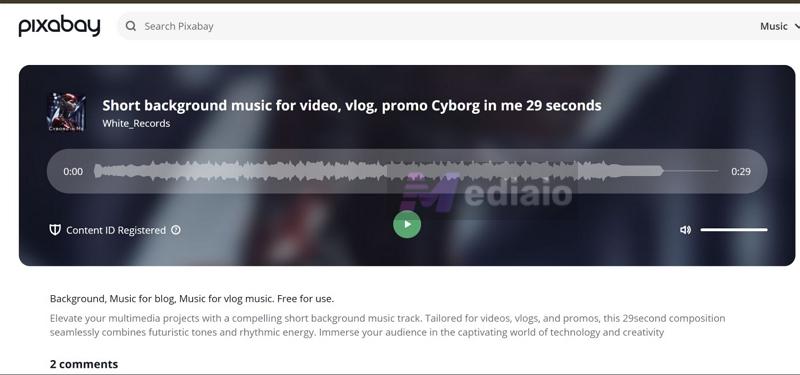
The first song: “Cyborg in Me” by White Records (a fancopy from Pixabay).
This 30-second electronic promo track was a deliberate choice. Electronic tracks have strict BPM and layered synths, so it's easier to spot issues. For instance, it’s instantly noticeable if the tool goes off-beat or adds the wrong instruments.
The second track: “I’m on a Roll” by Grace Mesa — from PremiumBeat
This one focuses on female lead vocals. Here, the goal was different. We wanted to see if the tools could continue a real human voice without breaking tone, accent, or natural breathing.

Each output was judged on a few key things:
- Does it stay on beat?
- Does it introduce random or incorrect sounds?
- Does the audio feel compressed or artificial?
- And most importantly, does the vocalist still sound like the same singer?
A lot of tools didn’t pass. Some broke the rhythm and started sounding artificial as soon as the extension kicked in. Others changed the sound too much, added random instruments, and didn’t keep up with audio quality.
The seven tools in this list are the ones that held up. They still differ in how much control they offer and how consistent they stay across different tracks. So going through each one in detail will help you pick what fits your needs.
1. Suno AI Music Extender

Suno AI is best when you want both — automatic song extension using AI and manual controls to refine the result. It behaves more like a full music studio while doing all of this. For starters, it gives you multiple ways to begin. You can upload your own track and extend it directly, or record something on the spot, even your own voice and let the AI build from there.
Once your audio is in, Suno will read the exact DNA of the track (the precise tempo, vocal tone, mood, and overall feel), and then extend it using its v5.5 engine. The output can go up to 48 kHz, so the generated portion blends cleanly — instruments sound stay crisp and vocals don’t feel robotic or stitched in.
What really makes it stand out is the level of control you get over how the AI generates the extension. You can let it be consistent or take a slight creative turn. That includes choices like vocal type (including gender), style influence, and even lyrics.
And then there’s the Studio Mode (available on higher plans). You can use it to tweak the AI extended track. You can work closely with each layer of the music like vocals, instruments, and overall balance and adjust each element to better fit what you had in mind.
Simple Steps to Use Suno AI Music Extender
Step 1. Create an account on Suno AI.
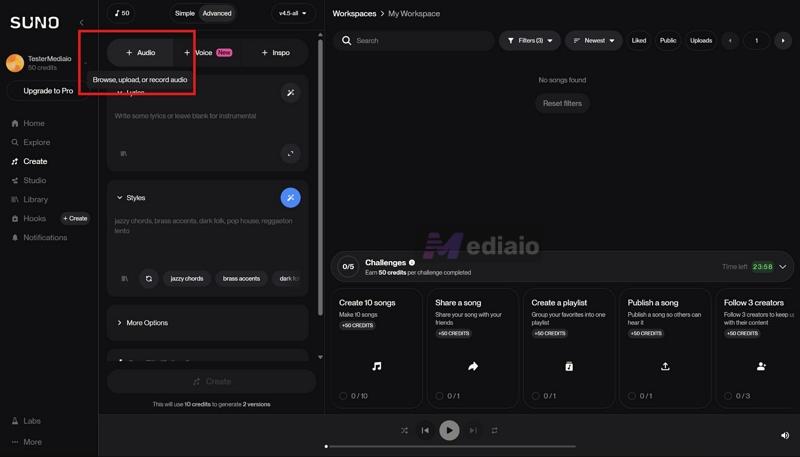
Step 2. On the main dashboard, head to the top-left area and click the + Audio button. Then, choose the file you want to extend.
Keep in mind that Suno does not allow you to extend copyrighted or popular songs. You can only work with your own audio or original creations.
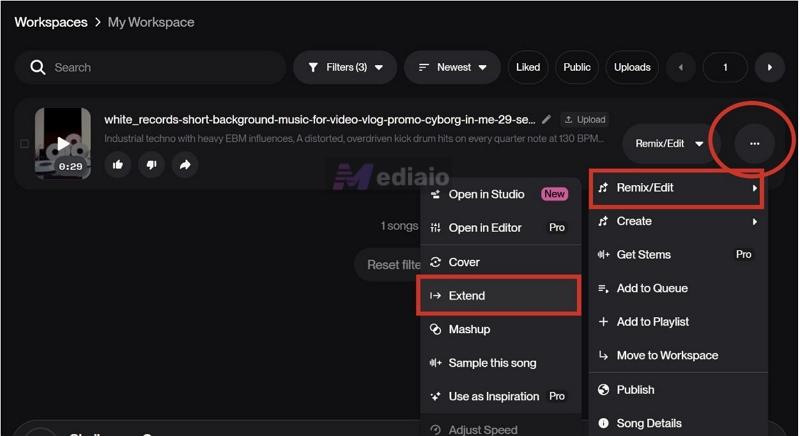
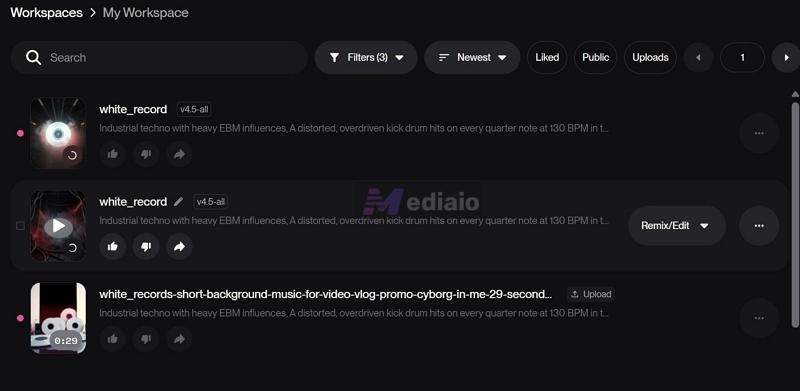
Step 3. Move to the Workspace section. Click the three dots next to the uploaded track. Hover over Remix/Edit and select Extend.
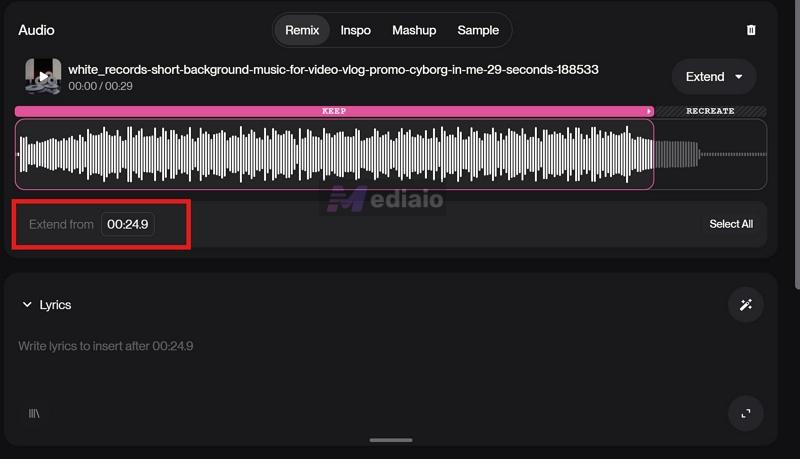
Switch to the editing screen on the left. Use the slider to decide exactly how much of the original song you want to keep and from where the extension should begin.
Step 4. Scroll down and shape how the extension should behave:
- Add lyrics or let the AI generate them.
- In the Style section, describe the genre, instruments, or vibe you want (up to around 200 characters).
Inside More Options:
- You can tweak things like vocal type (including gender).
- Switch between manual or auto lyrics.
- Adjust sliders, like style influence, weirdness, or audio influence to control how closely the extension follows the original track.
Step 5. Once everything is set, hit Create.
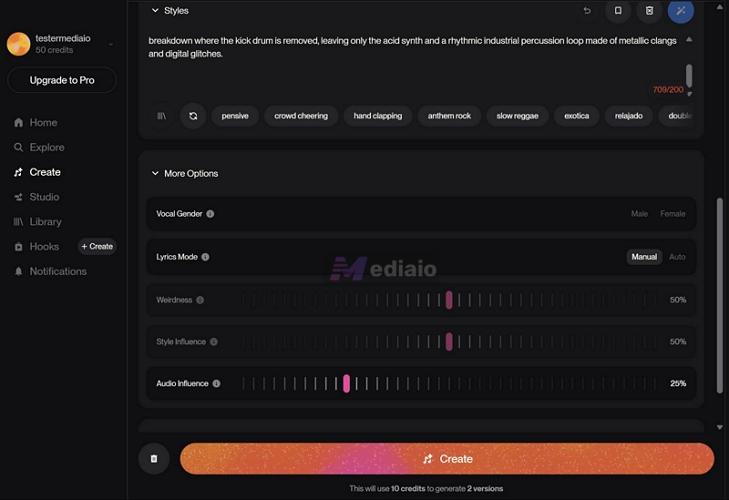
Suno will use your credits and generate two different variations of the extended track. These will appear in your workspace. You can preview them, save them, or push them further into Studio Mode if you want more detailed editing.
WAV + individual stems (drums, bass, vocals) available in paid plans
Studio grade (up to 48 kHz) — one of the cleanest outputs available
Strong consistency — mimics tone, accent, and even breathing patterns fairly well
*Some users have reported outputs reaching 20 minutes
Pro: US$10/month (2500 credits)
Premium: US$30/month (10,000 credits + Studio access)
2. MusicCreator AI Music Extender

MusicCreator AI adapts to your workflow, whether you want speed or precision. Built-in options like auto lyrics and one-click preset styles let you continue a track up to 8 minutes in just a few steps. And when you want more control, the same interface lets you shape the output yourself.
The way it handles vocals shows how much flexibility you get. You can either paste your own lines or have the AI generate them for the next section. And what sets it apart is that you can add structural tags like [Chorus], [Bridge], or [Interlude] directly in the text. So the engine can read these tags and align the vocal delivery and beat drops to match the timing exactly.
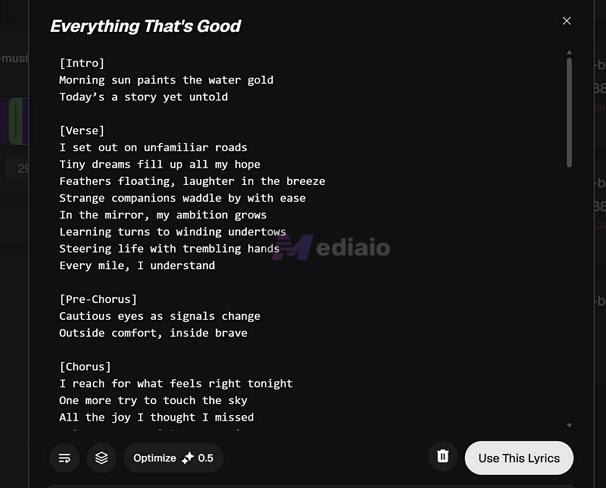
The same control applies to styling. You can describe the sound manually or choose from presets, then adjust sliders like style influence, audio influence, and creativity to control how closely it follows the original or how much it changes.
It also gets better with use. Your prompts and settings can be reused in future projects, which makes the tool feel faster and more personal over time.
Beyond the extender, MusicCreator AI is packed with tools — music generation, vocal removal, stem splitting, mastering, and even niche features like 8-bit creation or jingle tools. And no matter which feature you use, the audio engine keeps the output natural and avoids a robotic sound.
How to Extend Music with MusicCreator AI
Step 1. Click Local File under the Add Music section to upload your track.
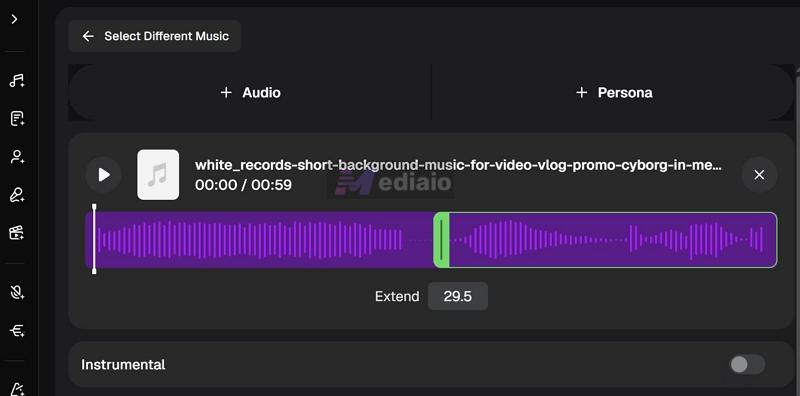
Step 2. Notice the + Persona tab at the top. This is optional. You can use it if you want the extension to follow a specific voice or identity (for example, a certain vocal style or character). If not needed, stay on + Audio and continue.
Step 3. Use the waveform to trim and select the exact part of the track you want the extension to continue from.
Step 4. Toggle Instrumental on or off depending on your track. If your song has vocals, leave it off and move to lyrics. If it’s purely instrumental, turn it on.
Step 5. In the Lyrics panel, paste the lyrics or generate them. You can use tags like [Verse], [Chorus], or [Bridge] to align the delivery.
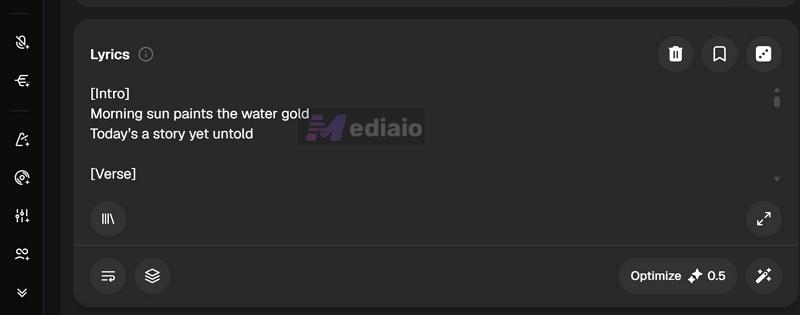
Step 6. Use the saved prompts option to quickly reuse previous inputs.
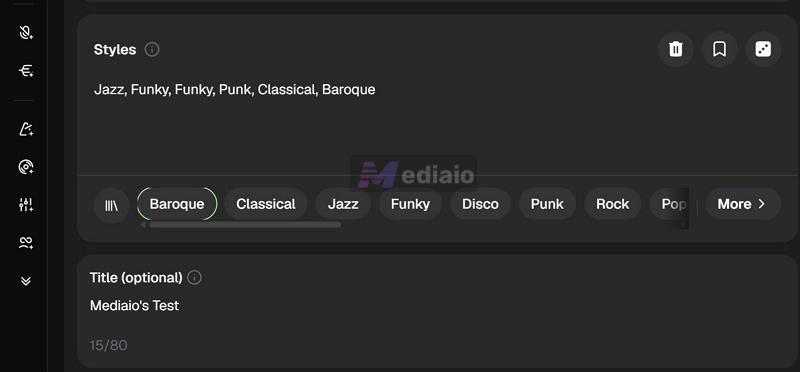
Step 7. Move down to Styles. Pick from the preset chips (like Classical, Jazz, Rock, etc.) or type your own description (genre, mood, feel).
Step 8. Enter a name in Title. Then choose the Vocal Gender (Random, Male, or Female).
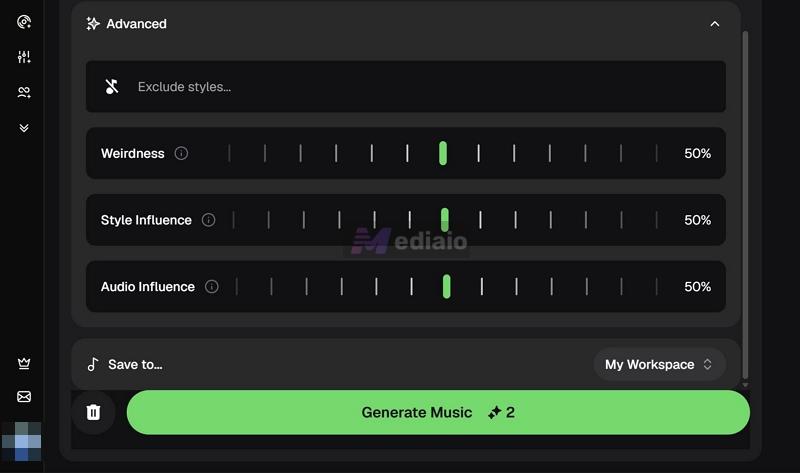
Step 9. Expand the Advanced section. Here you will find some useful options:
- Exclude styles: removes unwanted genres or sounds from the output.
- Weirdness: controls how experimental the result gets. Higher = more unpredictable.
- Style Influence: decides how strongly your style input is followed.
- Audio Influence: controls how close the extension stays to the original track.
Step 10. Click Generate Music and wait for the tool to create your extended versions.
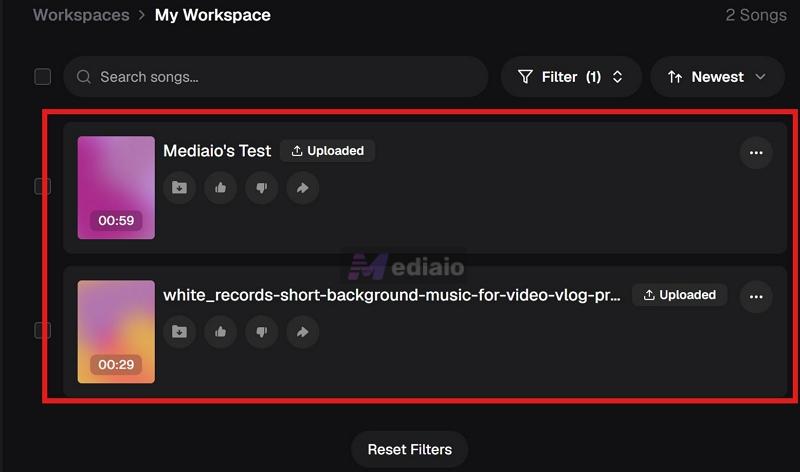
Step 11. After generation, head to your Workspace section. Preview each version, pick the one that fits best, and download it directly.
Export: MP3, WAV
However, the platform offers separate tools like vocal remover, stem splitter, MIDI conversion, and mastering.
Starter (US$10.49/month): 200 songs/month + access to tools like vocal remover, stem splitter
Hobby (US$20.99/month): 500 songs/month + advanced tools (music analyzer, AI mastering)
Professional (US$34.99/month): 1200 songs/month + full access to all features
3. Audjust Music Extender
Audjust takes a very different approach compared to any other tool in this list. It does not rely on generative AI to create new audio from scratch. Instead, it uses machine learning to analyze the structure of the uploaded track — things like recurring beats, choruses, and patterns. Then, it will simply rearrange those elements to match the duration you need. Because of this, the extended version will stay much closer to the original track. It will feel consistent, without sudden jumps or artificial additions, which sets it apart from most AI-powered tools.
You will also get some level of control here: you can guide the tool to focus on specific parts of the song or exclude sections you don’t want repeated. So the system can learn from the selection and build the extension around that.
Steps to Use Audjust Music Extender
Step 1. Go to Audjust’s extend tool page and upload your file, such as MP3 and WAV. No sign-up is required here.
Step 2. Pass the CAPTCHA check.

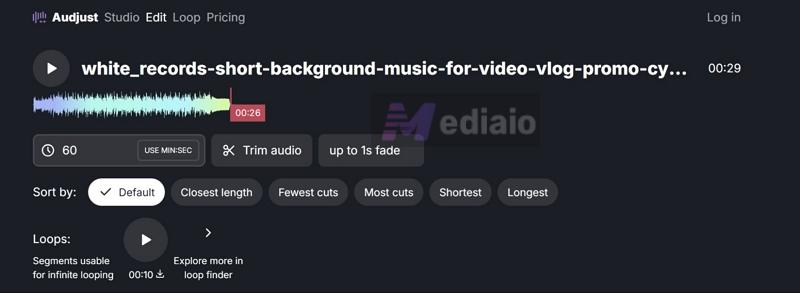
Step 3. You’ll see the Content editor at the top. You can refine those results instead of just picking from what it gives. For example:
- Use length input to define how long the final output should be.
- Click Trim Audio to select the exact portion of the track Audjust should learn from.
- Apply up to 1-second fade to smooth the ending of the rearranged track.
Step 4. Press Enter to generate the results. You can sort them using options like: Default, Closest length, Fewest cuts, etc. They will change how the tracks are stitched together. For instance, fewer cuts mean smoother transitions. So you can pick what feels most natural.
You can use loop options to isolate segments and download them. You use it for infinite looping.
Step 5. Preview any generated version directly from the list. Click Export next to the desired output. Select the format and quality in the pop-up to save it on your device.
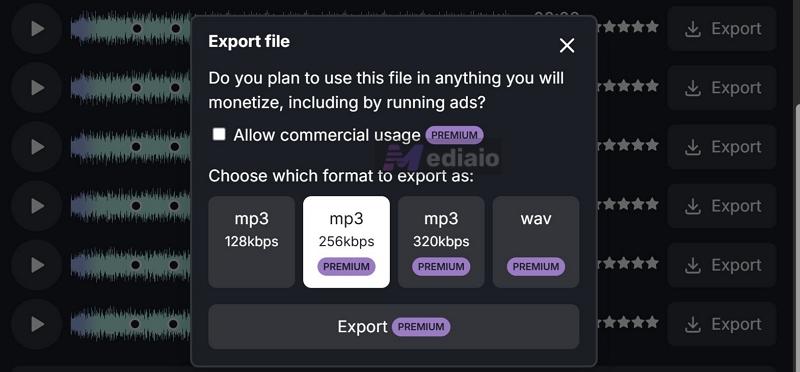
Up to 320 kbps MP3 + WAV.
Also includes studio-style tools for rearranging, pitch control, EQ, reverb, spatial adjustments (3D/8D audio)
Paid (US$7/month): unlimited exports, higher quality formats, commercial use, advanced options
4. Singify AI Music Extender

Singify AI Music Extender is easily the simplest tool in this list. It doesn’t try to behave like a full studio or give you too many controls. Instead, it focuses on one thing — extending your track by generating a continuation that matches the original style and feel.
The output stays fairly consistent with the source. It captures the overall vibe, instruments, and structure without sounding too artificial. But it also comes with limits. You can only extend up to 30 seconds at a time. And it just generates one result per run. If you want another variation, you’ll have to generate it again manually.
Use Singify AI Music Extender to Make a Song Longer
Step 1. Open the Singify AI Music Extender and upload your track.
Step 2. Once the file loads, click on Extend Music.
Step 3. Adjust the slider to set the length of the new section, up to 30 seconds.
Step 4. Click Generate and wait for the result.
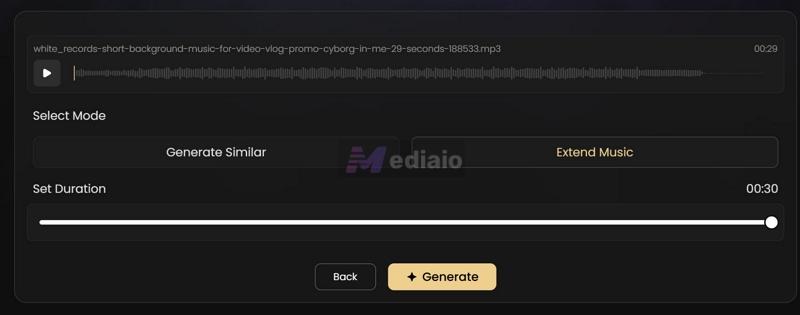
Step 5. You can play the generated track. Click the Download icon if you like it.
That’s it — there are no complex controls here.

Basic: US$5.99/month (30 credits)
Pro: US$8.33/month (100 credits)
Enterprise: US$20.99/month (200 credits)
5. ExtendMusic AI

ExtendMusic AI sits in the middle — it’s not as advanced or studio-like as Suno, but it also doesn’t feel overly limited like Singify.
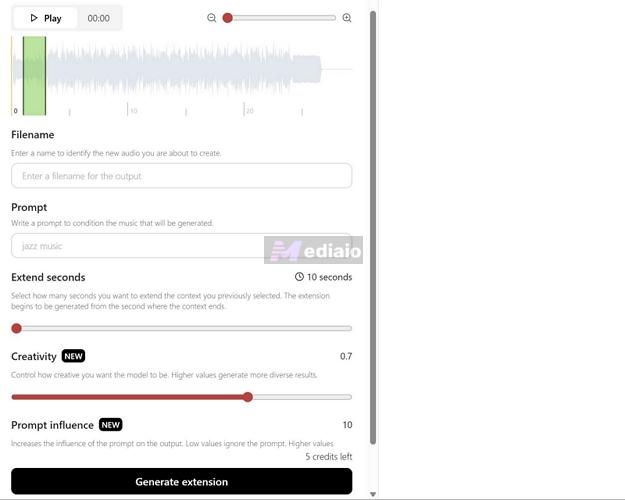
You can upload your own file and extend it up to around 100 seconds. While doing that, you will get some basic controls. You’re given a prompt to describe how you want the extension to sound, whether it should be EDM, synth-heavy, ambient, or something else. You will also get a couple of sliders to guide the result. You can decide how close the extension should stay to the original track or how much variation you want. You can control how strongly the prompt should influence the output.
The main limitation is that there are no presets or quick options to help you pick genres or styles. You have to describe everything yourself in text for it to work well.
Guide to Use ExtendMusic AI
Step 1. Open ExtendMusic AI and log in to your account.
Step 2. Click on Input file and upload your track. You can also try sample audio if available.

Step 3. Once the file loads, you’ll see the waveform. Select a portion of the track, which is the part the AI will use as context to generate the extension.
Step 4. Give your file a name and write a prompt describing how you want the extension to sound.
Step 5. Set the extension length using the Extend seconds slider (up to ~100 seconds).
Step 6. Adjust the key controls:
- Creativity (0–1): lower values stay closer to the original, higher values produce more variation.
- Prompt influence: controls how strongly your prompt affects the output.
Step 7. Click Generate extension and wait for the result. Once done, you can preview and download the track.
Output depends heavily on prompt; no manual editing tools
Premium: US$19.93/month (16 mins generation)
Advanced: US$47.26/month (166 mins)
Enterprise: US$96.56/month (500 mins)
6. MeloFlow AI Music Extender

MeloFlow opens up like a full control panel while you’re extending a song. You’ll find a lot of knobs to shape exactly how your extension should sound.
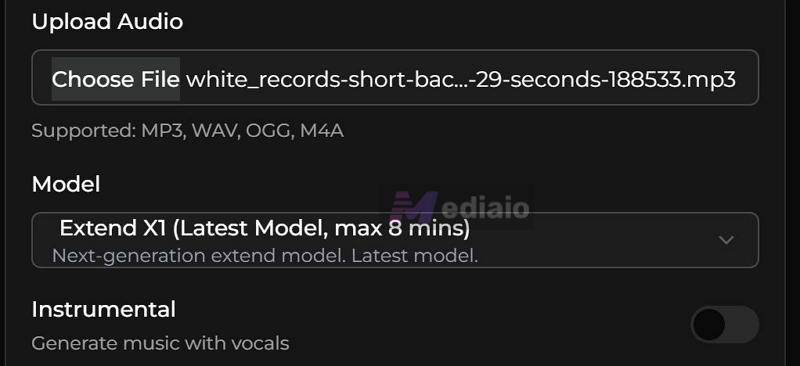
Right at the start, you choose the model. The Extend X1 model can stretch a track up to 8 minutes, which is far longer than most tools here. If you're working with vocals, older models like V2 or V3 can sometimes hold vocal tone a bit more naturally, but they come with shorter limits. Then, you can choose how consistent or creative the output should be and so on.
However, there's a clear drawback — this isn’t something you can casually try for free. The extension feature sits behind a paywall, so you’ll need at least the Lite plan to actually use it.
Here’s how the process flows with MeloFlow
Step 1. Sign in and subscribe. Choose Extend option from the side panel.
- Switch to the upload mode, then choose your audio file from your device. Once it loads, pick the model you want to work with — Extend X1, Melody V3, etc.
- You can also toggle between Instrumental and vocal-based generation, depending on your track.
Step 2. Scroll down to the Continue At (seconds) section and mark the exact point where the extension should begin. This is important, which decides where the AI takes over.
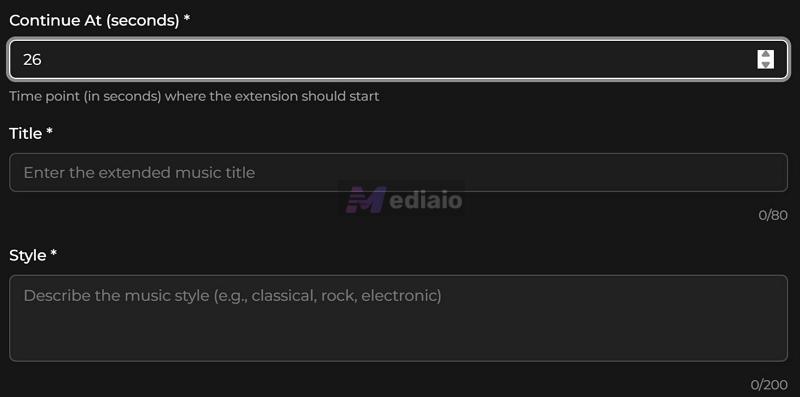
Give your track a Title and describe the Style in simple terms, like electronic, ambient, rock, or whatever fits your track.
Step 3. Move further down and add Lyrics if your track needs vocals. If not, you can leave it blank.

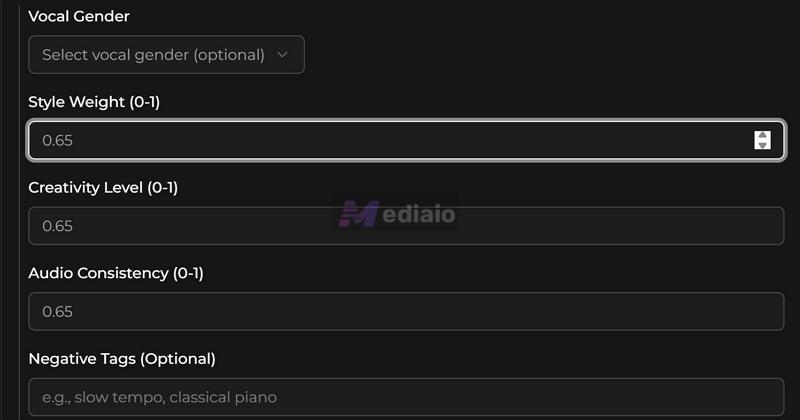
Step 4. Adjust the advanced parameters:
- Style Weight (0–1) controls how strongly the AI sticks to the style you described. Lower values give looser interpretation, higher values make it follow your style more strictly.
- Creativity Level (0–1) decides how experimental the output gets. Lower keeps it safe and similar, higher will make it more varied.
- Audio Consistency (0–1) keeps the extension close to the original track’s tone and structure. Higher values = smoother continuation.
- Negative Tags let you block certain elements. For example, you can write slow tempo or piano to avoid those in the extension.
Step 5. Once everything feels right, hit Extend. The track will get processed, and when it’s ready, you can preview and download it directly.
But no full studio editor unless on higher tiers (like Stem separator).
Lite: US$7.99/month (extend unlocked, 300 credits).
Pro: starts US$19.99/month, scales with usage
7. MelodyCraft AI Music Extender

MelodyCraft AI is one of those tools that makes a strong first impression with clean and modern design and the output it produces lives up to that first impression.
As for the extender itself, there’s one thing you should know upfront — it works best with songs that have vocals, not pure instrumentals like classical or background scores. You’ll actually need to add or generate lyrics to activate the extension and get results.
Once that’s in place, it can extend your track by up to two minutes. The controls are fairly basic, but enough to guide the output without overwhelming you.
Lengthen a Song with MelodyCraft AI
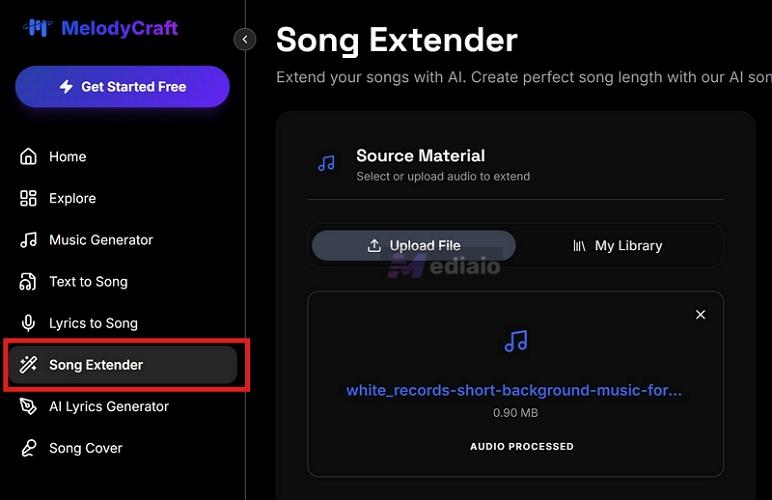
Step 1. Open MelodyCraft and select Song Extender from the left menu. Then hit Upload File and choose your audio. Once uploaded, let it process.
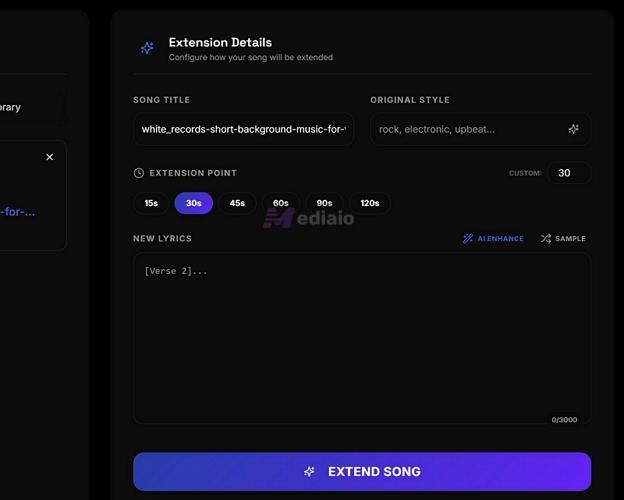
Step 2. In the Extension Details section:
- Rename the track or keep the default.
- Set the style by typing it in or by tapping Enhance to select from suggested options.
- For duration, pick from presets, like 15s, 30s, or 45s, or enter your own length.
Step 3. Choose or describe the style. You can either let the AI detect it or type something like rock, EDM, ambient to guide the extension.
Step 4. Add lyrics (write it or useEnhance button to generate using AI). It only works with vocal-based tracks, so this step matters more here than in other tools.
Step 5. Click Extend and wait for the result. Once generated, you can preview and download it directly.
Pro: US$6.16/month (1000 credits).
Premium: US$36/month (3000 credits)
Final Words
You can pick any of these AI music extenders, depending on your needs. The good thing is they all hold up, across different song genres while keeping the audio quality intact.
- Some tools like Audjust, Singify, and ExtendMusic AI are built for speed. You can use them when you just want quick, one-off extensions without much setup.
- Suno AI gives you the most control after generation.
- MusicCreator AI impressed us during testing with how smoothly it continued the tracks while allowing longer extensions. Plus, it improves with repeated use, making it easier to handle different music tasks (thanks to its 100+ tools).
There’s no “one tool” for everyone. So you can simply pick the one that fits your workflow and extend your tracks the way you want.