

8-bit music or chiptunes, as many people still call it, is the sound you probably remember from old games. If you’ve played those 80s and 90s consoles, such as Nintendo, Game Boy and old Commodores, you would recognize it instantly. Still need a reference? Think of what you hear while playing Super Mario, Tetris, or Pac-Man.
If you need that kind of sound for your projects, whether it’s for a retro-inspired game, intro for your YouTube video or Twitch stream, you can create one easily using simple 8-bit generators.
This guide presents the seven best 8-bit music generators that give you royalty-free chiptunes. Some are AI-based and work with simple text prompts. Others are built specifically for chiptune creation and come with ready presets. A few are manual tools too, but they are fairly simple to use.
What Is 8-Bit Music?
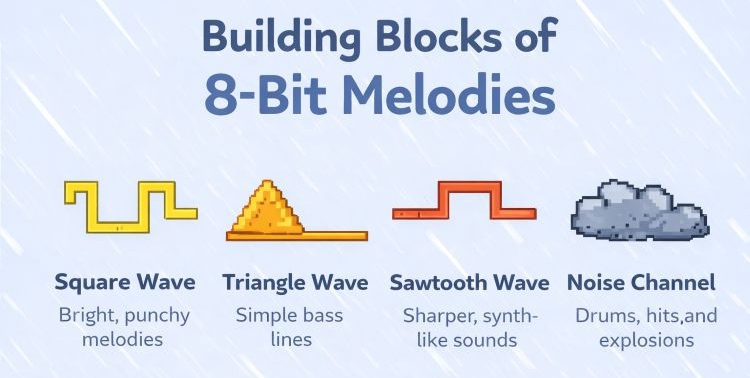
You already know how 8-bit music sounds. What makes them so memorable is how it feels — slightly frantic, melodic, and instantly recognizable. That “stuck in your head” quality comes from one simple idea: a very strict palette of raw sounds. 8-bit melodies rely on a small set of building blocks:
- Square waves — for bright, punchy melodies.
- Triangle waves — for simple bass lines.
- Sawtooth waves — for sharper, synth-like textures.
- Noise channels — used for drums, hits, or explosions.
To create richer harmonies with these limited channels, composers use rapid note patterns that cycle between tones. To the ear, this feels energetic and full, even though only a few notes are actually playing.
So where do we use it today?
You’ll still hear and many people still use — these sounds across all kinds of projects: retro-inspired games, YouTube videos, Twitch streams, or podcasts.
7 Top 8-Bit Music Generators (AI & Online)
All right, now coming to the list — here are the 7 tools.
Some of them are purely AI generators that work with text prompts. Others give you visual grids that are still easy to use and don’t come with a steep learning curve. A few even blend both (AI speed with manual controls). So you can pick what suits you and shape the chiptune sound exactly the way you want.
How We Select the Top 8-Bit Music Generator
Before jumping into the list, it helps to understand why these chiptune generators made the list and why they are worth your time.
We compared each tool across several practical factors to assess which one is good for which purpose and skill level. Here are the key aspects we considered:
Ease of Use
This was essential. We looked for tools that beginners can start using. The list also includes the ones that offer deeper control without demanding a steep learning curve.
Output (Quality and Formats)
Every tool here allows exporting in either MP3 and WAV. Some even deliver raw MIDI or JSON data.
We also checked whether the sound resembles classic console tones (like NES or Commodore 64). And we left out many platforms since their output felt like standard digital synth rather than true 8-bit style.
Price
Some options are completely free to use. Others follow a freemium or credit-based model. We considered whether the pricing feels fair for what you get, especially for indie creators.
Music Sharing
We noted how easily you can share your work. Many tools provide direct downloads, while some offer shareable links or URLs.
Rating and Real-world Usefulness
Beyond features, we looked at community feedback and practical value. We tested these tools ourselves by creating multiple tracks to see how they perform in real scenarios. The ratings reflect how helpful each tool feels for an average user.
Quick Look: Top 8-Bit Music Generators
Here’s how the tools stack up based on those criteria:
 Very easy (AI prompts & tags)
MP3, WAV
Freemium — 100% royalty-free
Direct download
Best for fast, reliable console audio
Very easy (AI prompts & tags)
MP3, WAV
Freemium — 100% royalty-free
Direct download
Best for fast, reliable console audio
 Easy (basic AI controls)
MP3, WAV
Free (limited)/ US$10.49+
Direct download
⭐⭐⭐
Easy (basic AI controls)
MP3, WAV
Free (limited)/ US$10.49+
Direct download
⭐⭐⭐Good for quick loops
 Easy (scenario-based inputs)
MP3
Free/ US$4.99+
Direct download
⭐⭐⭐⭐
Easy (scenario-based inputs)
MP3
Free/ US$4.99+
Direct download
⭐⭐⭐⭐ Great for contextual NES vibes
 Moderate (prompt-driven)
MP3, WAV, advanced
Free test/paid export
Direct download
⭐⭐⭐⭐
Moderate (prompt-driven)
MP3, WAV, advanced
Free test/paid export
Direct download
⭐⭐⭐⭐ Studio quality but pricey
 Hard (manual tracker)
WAV, MIDI
Free
Instant URL
Gold standard for manual control
Hard (manual tracker)
WAV, MIDI
Free
Instant URL
Gold standard for manual control
 Moderate (parameter tweaking)
WAV, JSON (Pro: MP3, OGG)
Free/US$3 Pro (Starter Plan)
Direct/JSON
Essential for game SFX
Moderate (parameter tweaking)
WAV, JSON (Pro: MP3, OGG)
Free/US$3 Pro (Starter Plan)
Direct/JSON
Essential for game SFX
 Easy (AI + grid hybrid)
WAV
Free manual/paid AI credits
URL sharing
Perfect hybrid workflow
Easy (AI + grid hybrid)
WAV
Free manual/paid AI credits
URL sharing
Perfect hybrid workflow
Here’s a look at each platform in detail.
1. Mediaio AI Music Generator
Mediaio AI Music Generator stands high on this list because of its dedicated focus on retro-style and console-style music generation capabilities. Its music engine can understand complex 8-bit prompts surprisingly well because it is trained on large datasets of chiptunes, classic game soundtracks, and a wide range of retro electronic patterns.
Using Mediaio is surprisingly simple too. You can guide the system with very specific directions, whether you want retro instrumental textures (like square wave, triangle wave, noise channel, pulse bass, etc.) or a broader arcade mood. This makes it easier to achieve both authentic console-style sounds or “retro-ish” music.
You can shape nearly every aspect of the track. Define emotions, describe a game scenario, set the tempo, adjust the duration, or simply explain the vibe in plain language. The output will come as a ready-to-use 8-bit audio.
Steps to Generate 8-bit Music with Mediaio
Step 1. Visit Mediaio and choose Login. Then select AI Music from the dashboard.
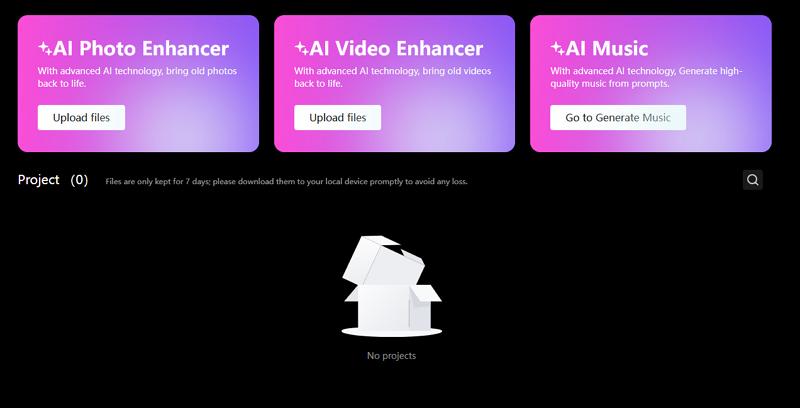
Step 2. In the AI Music Generator workspace, describe what you want. For example: “Fast-paced retro arcade racing theme at 140 BPM with bright square lead, punchy bass pulse, and noise drums.”
You can even submit complex and more detailed prompts — Mediaio is trained to understand them well. You can even use tags to refine the style further.
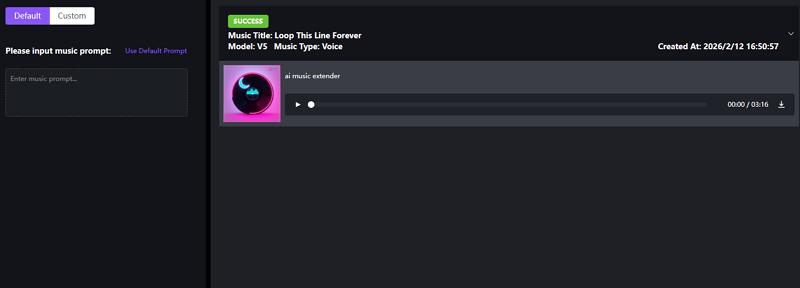
Step 3. After a short processing time, preview the track and export it in formats like MP3 or WAV.
👍Where Mediaio Fits Best
Mediaio works well for both beginners and experienced creators who want reliable 8-bit sounds without friction. You should just be able to describe your ideas in plain English and Mediaio will deliver high-quality chiptune characters.
It fits many use cases — game soundtracks, SFX experiments, loopable retro themes, console-style music, YouTube background tracks, or indie development projects.
2. OpenMusic AI 8-Bit Generator
OpenMusic AI is a good fit if you are willing to pay to generate 8-bit music.
Using it is simple: you describe an idea, and the system builds a track around it. If you feel stuck, the Get Inspired button can draft a prompt for you. Another helpful touch is the guidance tags — you can pick genre, vibe, or instrument to shape the result without overthinking.
The platform does not openly reveal the model behind the scenes, but it says the engine is trained on large music datasets. There is also a solid audio library where you can preview the kind of chiptunes it usually produces.
Where things become restrictive is pricing.
- The free plan is very limited — only one or two songs per month.
- The Starter plan (US$10.49/mo) offers up to 200 songs for music generations.
- Hobby and Professional (US$28.99 and US$34.99) — unlock heavier usage.
And the commercial rights sit behind paid plans, so the free tier is mostly for experimentation.
Steps to Generate 8-bit Music with OpenMusic AI
Step 1. Head over to the OpenMusic AI generator and continue with Google to enter the workspace.
Step 2. Inside the 8-bit generator page, describe your idea in the main prompt box, such as “fast-paced futuristic cyberpunk arcade loop.” You can also add a reference clip using the Add Audio button if you want stylistic guidance.
Step 3. Refine the direction using genre, vibe, or instrument tags. Switch on Instrumental only if you want a clean chiptune output.
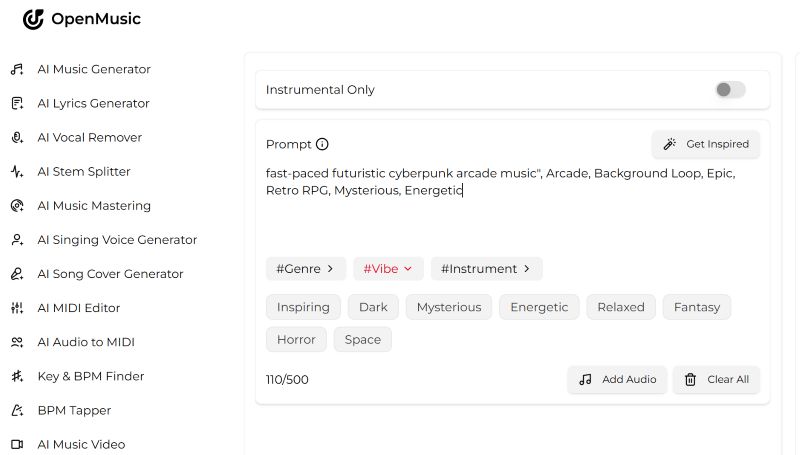
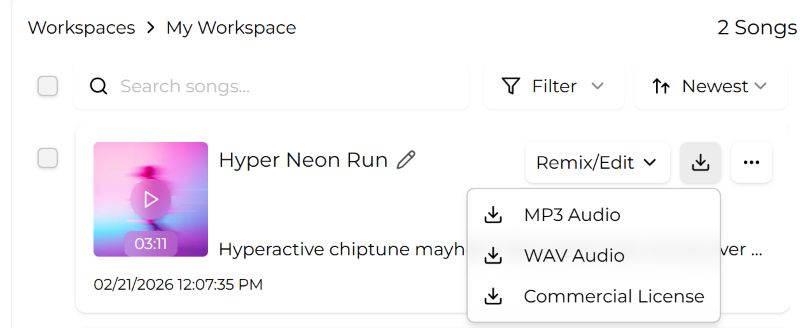
Step 4. Trigger the generation and wait while the system prepares your track. Processing can take a little time.
Once ready, preview and download the file as MP3 or WAV.
Note: Generation isn’t instant, expect a short wait before the audio appears.
👍When to Consider OpenMusic AI
No matter how much you experiment, OpenMusicAI will produce audio that feels similar to the examples you hear in its own library.
Because of that, it is most effective for light background use — explainer videos, light background use on social content, or short promos. The outputs still feel very AI-like and need a lot of training to match the character of classic game themes.
3. Musely 8-Bit Chiptune Generator
Musely leans strongly toward emulating classic console that sounds like NES, Game Boy, and C64. The interface stays simple, much like OpenMusic AI. But where Musely really stands out is the level of control.
Instead of only basic prompt input, Musely includes a dedicated Game Scenario selector. You can choose contexts, like town, village, boss battle, cutscene, or game over, which helps the generator understand the intended mood immediately. You can also define tempo, pacing, and dominant emotions, like mysterious, eerie, or tense.
Advanced settings go further. You can experiment with console styles, custom elements, and song structures. Whether you need a boss theme, world map loop, title screen cue, or small sound effects, Musely adapts surprisingly well.
Even its free tier is more generous than competitors like OpenMusic AI. The Pro plan (costs $4.99/month) unlocks unlimited usage under a fair-use policy. There are also higher tiers, but they’re only suitable if you need image and video generation credits.
Steps to Create chiptunes with Musely
Step 1. Head to Musely.ai. Choose Get Started Free from the sidebar. Then create an account using your preferred sign-in method.
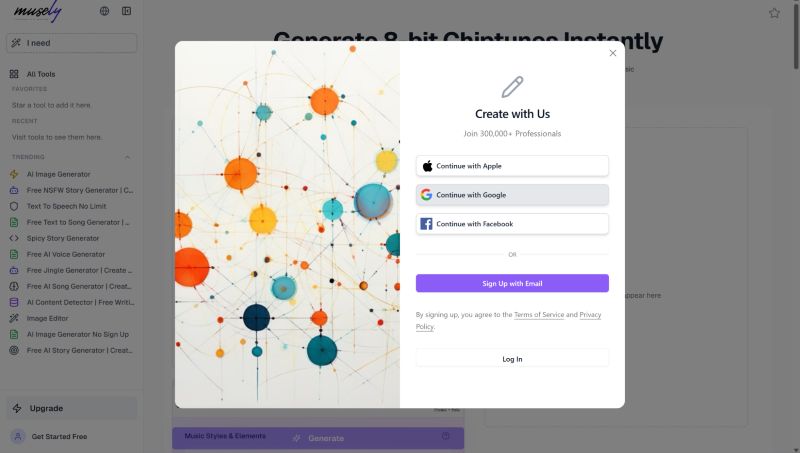
Step 2. Enter a prompt (up to 200 characters). Define the game scenario, tempo, pacing, and emotional tone.
Step 3. Explore advanced options if needed. You can select console styles, like Game Boy or RPG, adjust structure, or combine multiple tags.
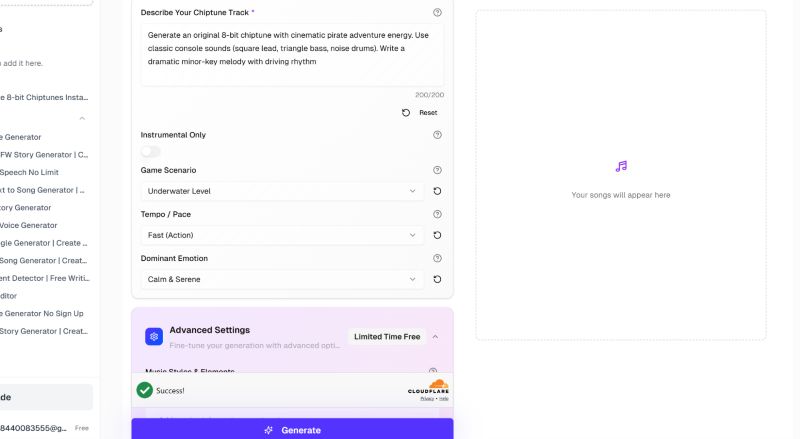
Step 4. Complete the CAPTCHA and start generation. Give the system a moment to process.

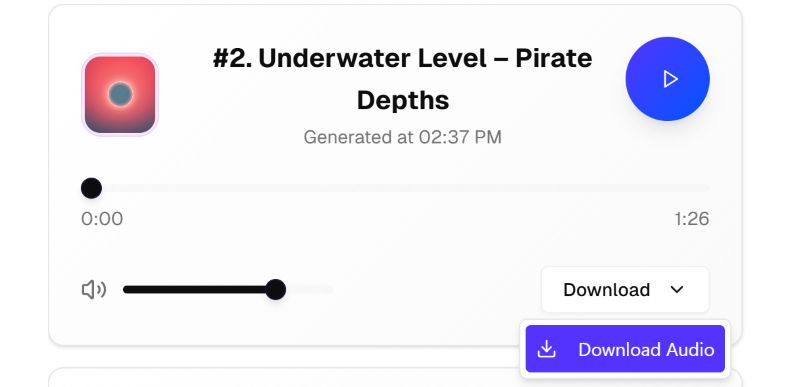
Step 5. Once ready, download the track as an MP3. The free version quality is modest but usable.
👍Who Will Benefit Most from Musely
Musely is a goldmine if you’re an independent game developer or streamer who needs quick, scenario-specific 8-bit music. Few generators understand prompts like “victory tune” or “eerie dungeon” with this level of context.
The console-focused styling is a big advantage if you want something that leans toward NES or Game Boy vibes rather than generic chiptune.
That said, purists looking for extremely authentic, handcrafted chiptune will still find it slightly synthetic. It’s best suited for fast production, background loops, or budget-friendly game audio.
4. ElevenLabs AI Music
ElevenLabs does not offer a dedicated 8-bit or chiptune mode. It still earns a spot in the list because of its advanced AI music engine and production-level workflow. And anything you generate (with the paid plans) is royalty-free and commercially usable. Choose ElevenLabs only if you are comfortable working through prompts (there are no presets). You have to guide the system clearly. The interface remains simple. You can control duration, request studio-quality output, and adjust generation settings.
Pricing is where things become restrictive.
- The free plan allows roughly 10–11 minutes of generation per month, only for testing. Export is not available there.
- The Starter plan offers similar minutes with more permissions and allows commercial use.
- Higher tiers — Creator, Pro, and Scale, expand monthly minutes and allow additional purchases if needed.
Steps to Create 8-bit Style Music with ElevenLabs
Step 1. Sign in to the ElevenLabs platform. Head to the Music section from the sidebar.
Step 2. Describe your idea carefully. You have to mention everything from your end:
- Tempo and context (for e.g. “fast-paced 8-bit retro racing”).
- Type of waveform and melodic focus (like “chiptune pulse lead”).
- Emotional tone and retro feel (e.g. “nostalgic arcade energy”).
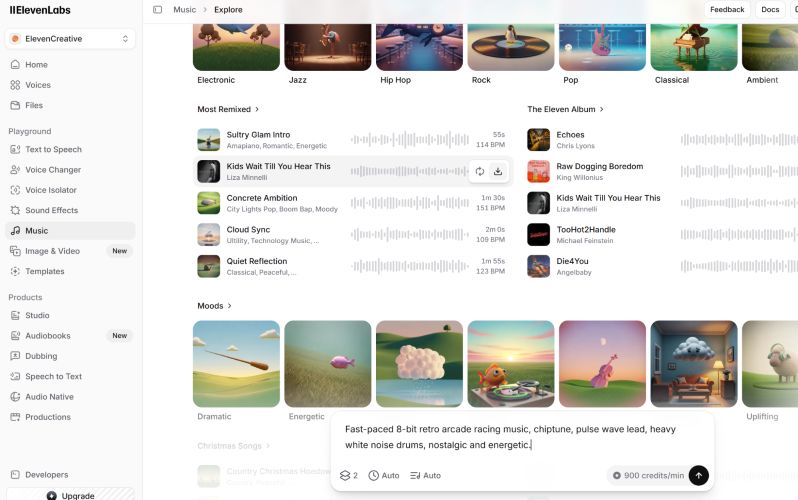
Step 3. Adjust settings. Choose instrumental if needed, select the number of variants, and set duration, from short clips to custom lengths.
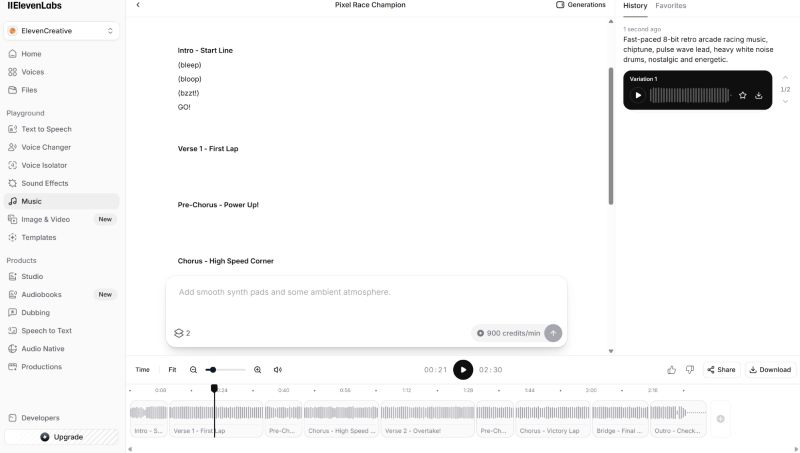
Step 4. Generate the track. After processing, preview the result. Export the song with options including MP3, WAV, or advanced formats, depending on your plan.
👍When ElevenLabs Is the Right Choice
ElevenLabs is good when you want highly customizable music. It works well for any purpose: videos, games, ads, or experimental projects, but you should be comfortable writing the prompts.
5. BeepBox
BeepBox is not an AI tool. It is a fully manual, browser-based chiptune studio built for one purpose — creating chip music note by note. BeepBox earns its place here because it gives you precise control over melodies, loops, and arrangement. You shape everything exactly how you want.
The biggest advantage is simple — it’s completely free. At first glance, though, the trade-off will be obvious. The interface can feel intimidating. You will see gray grids, bright numbers, and lots of technical controls that look unfamiliar at first.
How to Use BeepBox to Design Your Own Chiptune:
Step 1. Visit beepbox.co. You will see rows of gray blocks and pattern numbers at the bottom.
- Click anywhere on the grid to place notes.
- Drag horizontally to extend them, or move vertically to change pitch.
The numbers below represent patterns:
- “1” plays your first melody section.
- Changing it to “2” lets you create a new variation.
- “0” creates silence for that segment.
The purple bar controls which section loops — drag it to adjust playback.
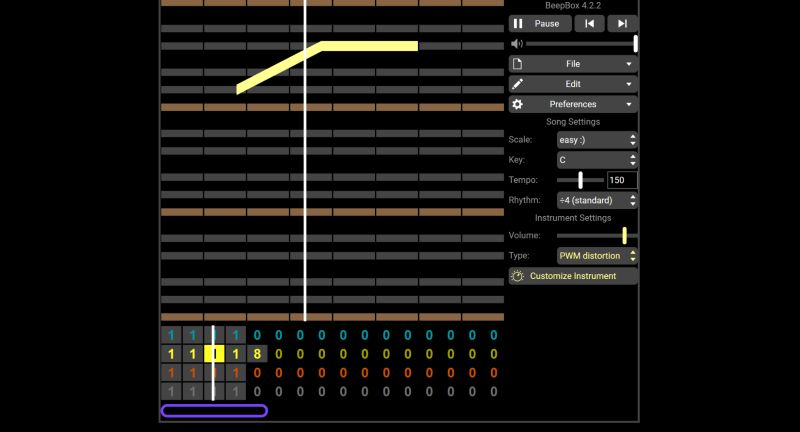
Step 2. Shape the musical foundation using the controls on the right:
- Scale — defines the note system
- Key — sets the root note
- Tempo — controls speed (such as, 150 BPM feels fast)
- Rhythm — adjusts beat division
These settings define the overall mood.
Step 3. Choose instruments. Options include chip wave, bright piano, softer digital tones, or thicker synth textures. You can refine further with controls, like fade, EQ, unison, and reverb.
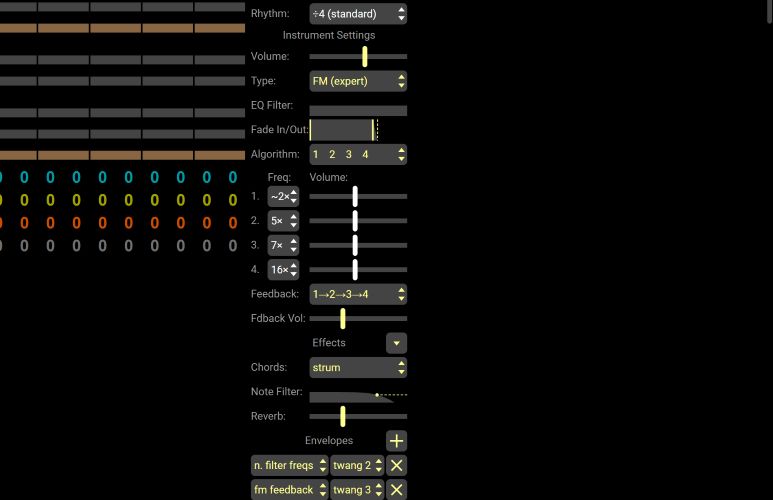
Step 4. Edit freely. Use shortcuts, like Z to undo or copy and paste patterns. The edit menu offers deeper adjustments if needed.
Step 5. After finishing, you can use the File menu to copy the song link. Or, you can export as WAV or MIDI.
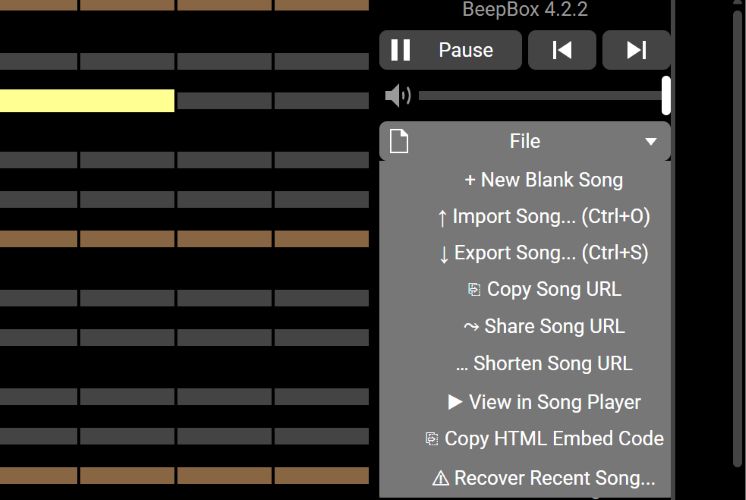
👍Best for Hands-on Creators
BeepBox is perfect for beginners who want to understand how chiptune is actually built. If you enjoy tweaking notes and hearing immediate feedback, it will become surprisingly addictive. It also suits indie developers or hobbyists who want authentic, loopable chip tracks with full control.
However, if you simply want a finished background track in seconds, this manual workflow will feel slow. In that case, AI tools like Mediaio will be a faster path.
6. Jsfxr
Like BeepBox, Jsfxr is another online, fully manual tool, but the purpose is different.
With BeepBox, you design melodies and sequences over time. Jsfxr, on the other hand, is built for something more specific: generating instant punchy sounds like “jabs,” “coins,” “jumps,” and “explosions” that bring retro games to life. Yes, Jsfxr is a focused sound-effect generator.
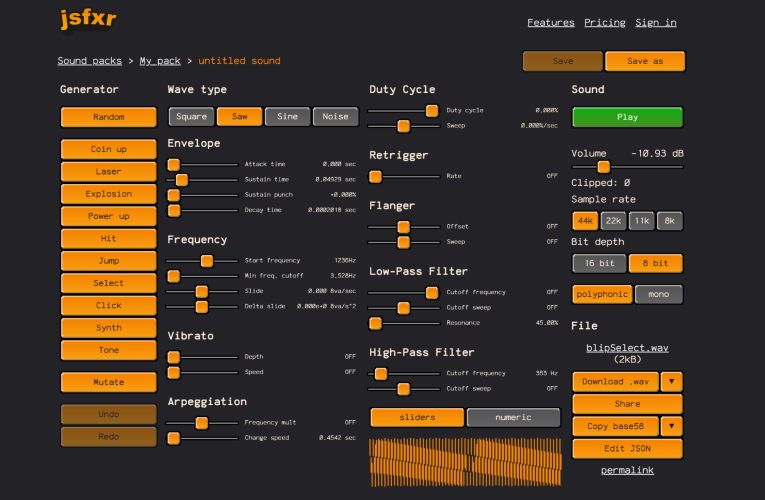
At first glance, the interface can feel confusing. The layouts between the free and pro versions also look different. Yet once you start clicking around, you will realize how quickly usable sounds can be created, even without musical knowledge.
The idea is simple. You are not composing music. You are just tweaking parameters to shape sound. For example, pressing a generator button instantly randomizes sliders to produce a crash or coin sound. If it doesn’t feel right, press again for a new variation.
Steps to Create 8-bit Sound Effects with Jsfxr (Free Version)
Step 1. You will see generator buttons on the left. Choose a preset:
- Coin
- Laser
- Explosion
- Power-up
- Jump
Pick the one that fits your need.
Tip: Each click generates a completely new random version of that sound. Keep clicking until something clicks with your ears.
Step 2. Fine-tune using the manual sliders in the middle:
- Envelope — controls how quickly the sound starts and fades.
- Frequency — adjusts pitch.
- Vibrato — adds subtle pitch wobble.
For instance, if a jump sounds too low, raise the start frequency. If an explosion feels too short, extend the decay.
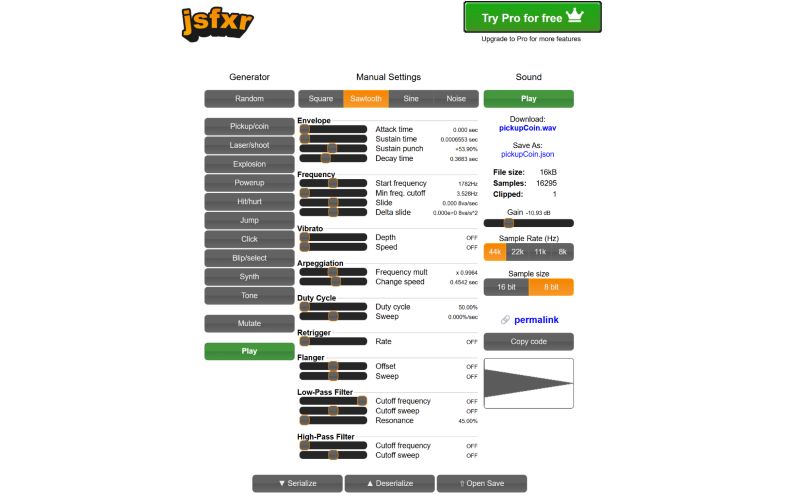
Step 3. Download your sound. At the top, near the play button, you will see a WAV file name (like coin.wav). Click it to save the created song. You can also export a JSON file for direct use in JavaScript projects.

About the Pro Version
You can try the Pro version freely and it starts at around US$3 per month. It adds additional sound packs and popular export options, like MP3 or OGG.
👍Who Should Keep Jsfxr Bookmarked
Jsfxr is practically a must-have bookmark if you’re a game developer, indie creator, or even a tinker with JavaScript projects.
Need a quick “coin collect” sound? A retro jump? A tiny UI click for a website? You can generate something usable in minutes.
Yes, it is easily one of the fastest ways to create authentic retro sound effects and more precise than relying on AI.
7. 8-Bit Composer
8-Bit Composer sits right in the sweet spot between the instant gratification of AI and the precision of a manual sequencer. Using 8-Bit Composer is simple, too. You will notice a template with over 20 ready-made starting points. There is also an AI prompt box (accessible after sign-in), powered by Claude Sonnet 3.7.
You can begin in several ways. Start a track from the manual grid. Load a template to understand how a jump or loop is structured. Or ask the AI to generate something, like a cheerful overworld theme, then tweak the notes yourself.
One important thing to note: the manual composition tools are completely free to use, edit, and export. AI generation, however, works on credits. You get a small starter pack (10 credits), after which you need to purchase more, such as 10 credits for US$1.99.
Steps to Use 8-Bit Composer (AI + Manual Workflow)
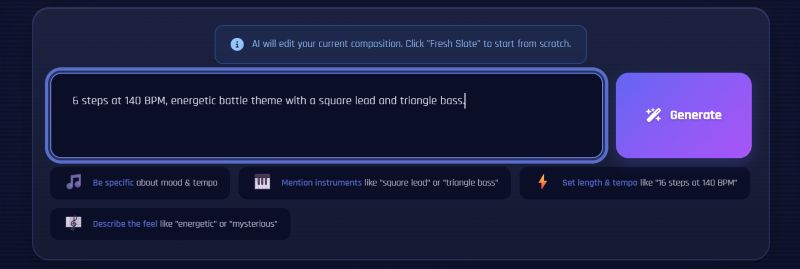
Step 1. Head to the 8-Bit Composer site and sign in to unlock AI features. Enter a detailed prompt in the AI box, such as “16 steps at 140 BPM, energetic battle theme with pulse lead and triangle bass.” Then trigger generation.
Step 2. The grid below fills automatically. Instead of a ready audio file, you get a visual sequence. Rows represent instruments, like square lead, pulse, or noise channels, with green blocks marking notes.
Click empty squares to add notes. Tap existing blocks to remove them. No theory needed, just listen and adjust.
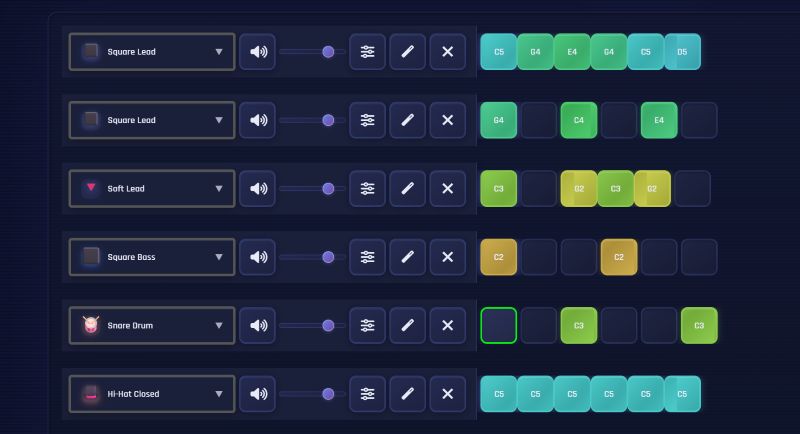
Step 3. Explore the instrument options. There are dozens of retro sounds and many channels available. Use the dropdown beside each row to swap instruments, for instance, turning a lead into a noise channel for drums. Volume, filters and mute controls are also available.
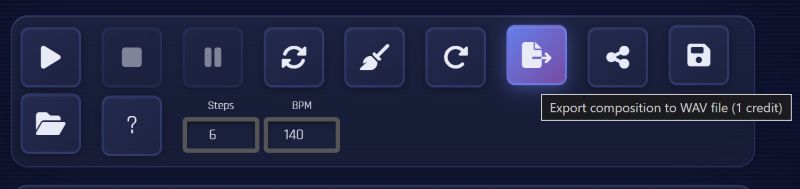
Step 4. When satisfied, click the Export button to save the project as a WAV file.
👍When to Use 8-Bit Composer
8-bit Composer is ideal if you want a balance between automation and hands-on control. The learning curve is small, yet you still shape the final sound yourself.
Conclusion
Many people still see 8-bit as a nostalgic relic from the 1980s. In fact, the reality is different — these sounds are widely used across games, videos, and creative projects even today. And no matter what you’re planning to use them for, this guide helps you find the right tool:
- For precise and polished results: go with Mediaio, ElevenLabs, or Musely.
- If you prefer hands-on control, BeepBox and JSFXR are excellent picks.
- 8-Bit Composer offers the best of both worlds.
All of them can recreate the spirit of classic console sounds, while some, like Mediaio, are tuned for richer, more melodic output.