

If you’re looking for a way to download Spotify to MP3 on Mac, you may have a personal reason for wanting local music files. For example, you might want to transfer your favorite Spotify songs to an MP3 player or another device that doesn’t support the Spotify app. While Spotify Premium lets you download music for offline listening, those downloads remain within the Spotify app rather than becoming regular MP3 files on your Mac. If you need local audio files, several third-party options are available, including dedicated desktop downloaders, online tools, and Telegram bots. In this guide, we’ll compare these three approaches and highlight a representative tool from each category, covering factors such as audio quality, download speed, supported formats, and ease of use.
3 Types of Spotify MP3 Downloaders
Spotify MP3 downloaders generally fall into three main categories: dedicated desktop downloaders, online tools, and Telegram bots. Each type works in a different way and comes with its own characteristics. Below, we’ll introduce each category and take a closer look at how these downloaders work.
- Desktop Downloaders: These programs are installed on your Mac and usually provide a more complete way to save Spotify music as local files. Many support batch downloads, playlists, multiple output formats, and complete song metadata. They also generally offer better audio quality and more control over output settings, making them a practical choice if you regularly download a large number of Spotify songs.
- Online Spotify MP3 Downloaders: These are web-based tools that work directly in a browser, so you don’t need to install a desktop program. They can be convenient for users who only need to download a few songs.
- Telegram Bots: These bots work within Telegram and can provide a convenient way to process Spotify music without installing a separate downloader. You interact with the bot through Telegram to request the music you want.
How to Download Spotify to MP3 on Mac with Desktop Software
Desktop downloaders generally offer more stable performance and a more consistent experience than online tools. Below, we’ll take a closer look at a popular Spotify to MP3 downloader for Mac - MedVioo Audio Converter.
MedVioo is a professional music converter that lets you save your music from Spotify into local MP3 files on your Mac and enables you to forever save them. It directly connects with Spotify web player for music conversion, allowing you to get 320kbps high-quality MP3. The embedded Spotify web player also makes saving music easy. Simply login the inbuilt Spotify browser, add songs to the conversion list and start the export. Besides ensuring a good sound quality for exported songs, MedVioo also ensures the complete metadata of each converted track, meaning that song title, artist name, covert art, etc., are all preserved during the conversion. And then there’s the speed. MedVioo takes care of that aspect well. It offers fast conversion speeds of up to 30x, enabling you to process multiple songs or playlists more quickly and save time when saving Spotify music on Mac.
More About MedVioo Audio Converter
How to Download Spotify to MP3 on Mac with MedVioo
Step 1. Begin by downloading and installing MedVioo Audio Converter on your Mac. After that, run the app and click the Spotify icon. You’ll be taken to the Spotify login page within MedVioo.

Step 2. Click Log in at the top-right and enter your Spotify credentials, free or premium. Once logged in, your entire library will appear as usual.
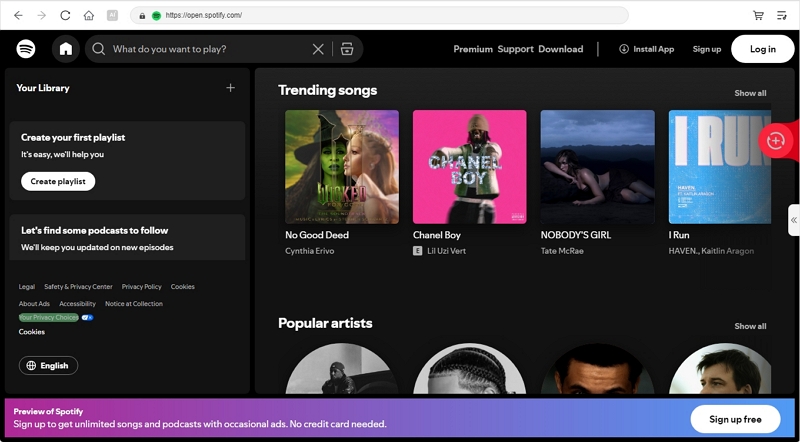
Step 3. Browse through your Spotify collection and decide what you want on your Mac device. Click Add to Convert next to the desired songs, playlists or albums.

All your added songs now sit neatly in the Converting window. Hit the Convert Now button to export Spotify to MP3.

After the process ends, switch to the Local Library tab from the top. Click on the folder icon to open the location of your newly converted tracks on your Mac.
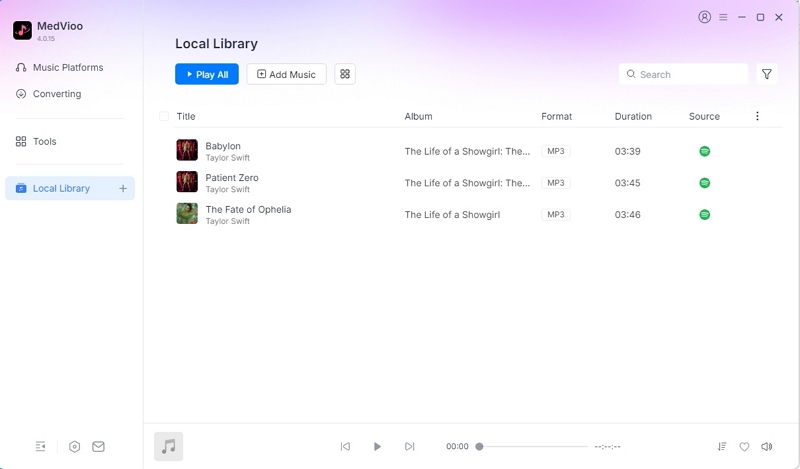
Now, you can double-click the MP3 file to play it in your default music app.

Performance
The built-in Spotify player makes it easy to select the songs I want to download. I don’t need to copy individual song links or switch back and forth between Spotify and the converter, which makes the whole process much more convenient. I was also impressed with the processing speed. I tested it with a playlist containing more than 100 songs, and the whole process took around five minutes. Of course, the actual speed also depends on your internet connection, and my connection may have allowed MedVioo to reach close to its maximum conversion speed. One thing I’d still like to see is a mobile version of MedVioo, which would make it even more convenient for users who mainly listen to music on their phones.
How to Download Spotify to MP3 on Mac Using Online Tool
If you don’t want to install another third-party tool to export Spotify music to MP3 files on your Mac, you can try an online downloader like SpotiDown(spotidown.app). It relies on external sources to fetch your tracks, so there’s no software to install. Using it is straightforward: simply paste your Spotify playlist link and the tool will process it and provide MP3 files for download.
SpotiDown supports MP3 output at up to 320 kbps. It also offers batch downloads, but the free option is limited to playlists with up to two songs. If you want to download more songs or process playlists in batches without these limits, you need to pay $20 per month.
The main downside, however, is the number of ads. After clicking the download button, you may be redirected to another page. You need to close that page and click the download button again before the file starts saving successfully.
Learn More About SpotiDown
How to Convert Spotify to MP3 with SpotiDown
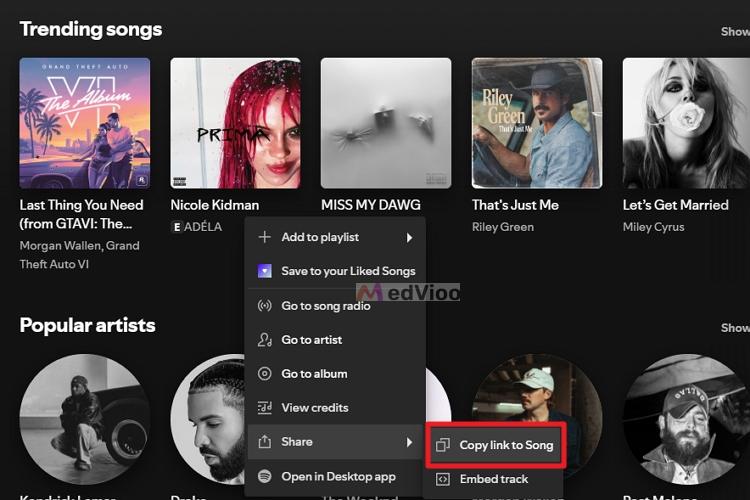
Step 1. Start by heading to Spotify and finding the track or playlist you want. Right-click on the playlist banner, choose Share, and then hit Copy link to song.
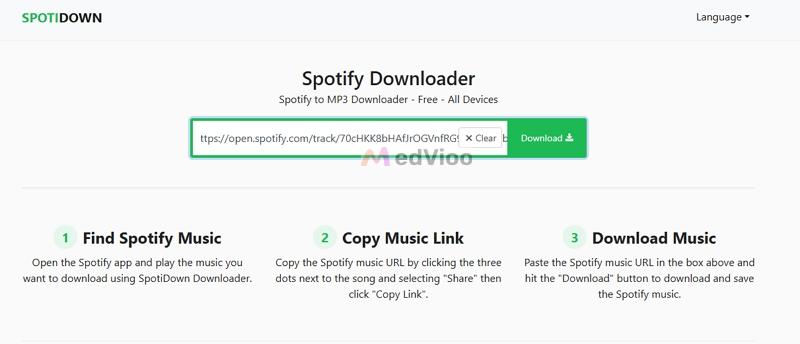
Step 2. Open a browser on your Mac. It is better to stick with Chrome, Brave, or Firefox for smooth compatibility. Go to spotidown.app, paste the copied song link into the search field and click the green Download button to proceed.
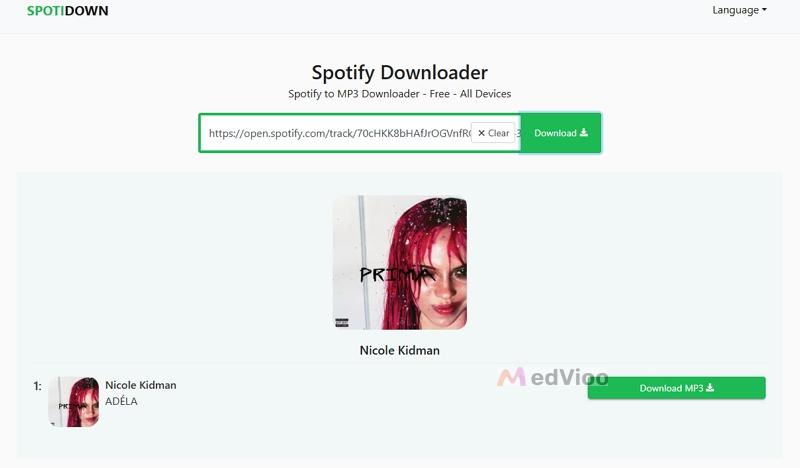
Step 3. The page will refresh, showing the song with its own download button. Click Download MP3 and you’ll be redirected to another page. Just close it.
Step 4. Go back to the song download page and click Download MP3 again.
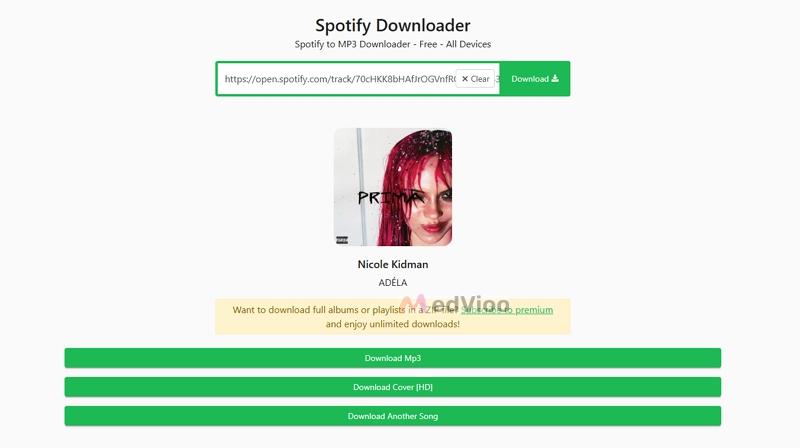
Step 5. The downloaded song will include the song title, artist name, and a watermark such as SpotiDown or YouTube. You’ll have to rename or edit them for a clean ID3 tag.
Experience
Overall, SpotiDown is fairly easy to use, especially if you only need to download a song or two and want 320 kbps MP3 files. The whole process is straightforward, although the ad redirects can be a little annoying. I also noticed that some songs come with cover art while others don’t. In addition, the metadata isn’t always clean, so you may need to edit it manually after downloading.
How to Download Spotify to MP3 on Mac via Telegram Bots
Have Telegram installed on your Mac? Great, you can use it to download songs from Spotify to MP3 and what you need is finding a workable Spotify to MP3 bots within Telegram.
Mind you! Bots like SpotifySaveBot@SpotifySaveaLotbot can’t access Spotify’s DRM-protected tracks directly. Instead, they rely on Spotify metadata (song titles, album names, artist details) to search for external sources for finding matches. Using tools like YouTube-DL, these bots fetch matching videos, extract their audio, and serve it up to you as an MP3 file, based on the song info you provide.
More Information About Telegram SpotifySaveBot
To Save Spotify to MP3 with Telegram Bots:
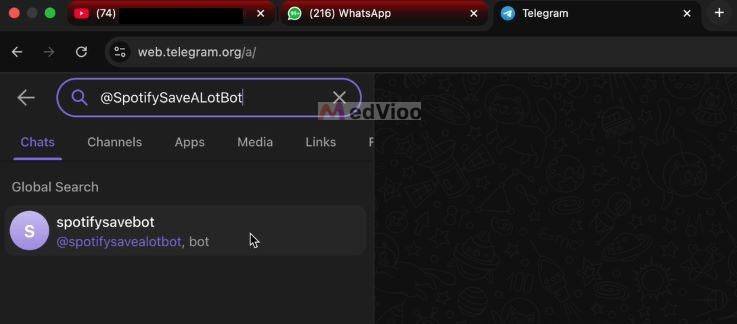
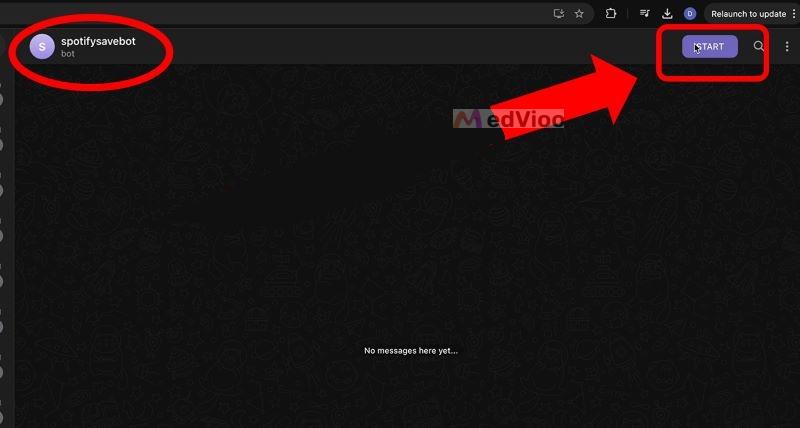
Step 1. Open Telegram. Type in @SpotifySaveALotBot in the global search bar at the top and wait for the results to populate. Once the bot appears, click on it to open its chat window.
Step 2. In the chat window, look for the Start button. It’s usually located at the top right corner of the interface or at the bottom if you’re using the Telegram desktop app on Mac. Press Start to connect to the bot.
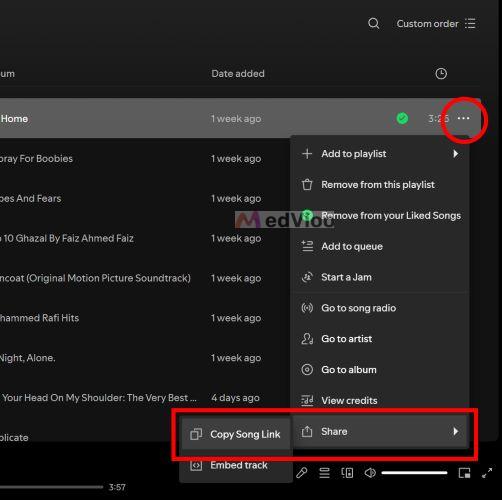
Step 3. Switch over to your Spotify app and choose a song you want on your Mac. Pull up the options menu for the track, select Share, and then tap Copy Song Link.
Note: SpotifySaveALot bot does not support batch processing, so you’ll have to repeat this step for each track you want.
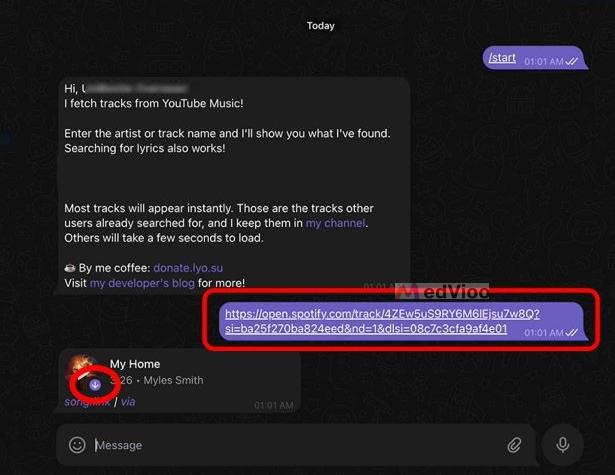
Step 4. Return to Telegram and paste the Spotify song link into the chat box. Hit Enter to send it. The bot will start processing the request. If the song is already in its library, the response will be instant. If not, it will take a few moments as the bot fetches the audio.
Step 5. Once the bot delivers the song, you’ll see it along with the Spotify cover art. Click the Download arrow to save it on your Mac. The downloaded file will typically be saved in your default download folder.
Feedback
I tried using it to download a 30-song Spotify playlist. After repeatedly copying and pasting links for about 10 songs, I started to lose patience and decided not to continue with the rest. The audio quality was also inconsistent—sometimes it was decent, while other times it was noticeably lower. Two out of ten songs was matched to the wrong track. Overall, Telegram bots can be a reasonable option if you only need to download a few songs as local files. They tend to have fewer ads than online tools and can feel like a more controlled option since you interact with the bot directly through Telegram.
How to Transfer Spotify Songs from Mac to Phone/MP3 Player
Exporting your downloaded Spotify songs from a Mac to other devices is refreshingly simple. The steps vary depending on whether you are using iPhone, Android, or MP3 player, but they are straightforward. For iPhones and most supported MP3 players, you won’t need any additional software. However, when transferring music to an Android device or unsupported MP3 player, you might require external tools. No worries, we will go over each method in the following part.
From Mac to iPhone
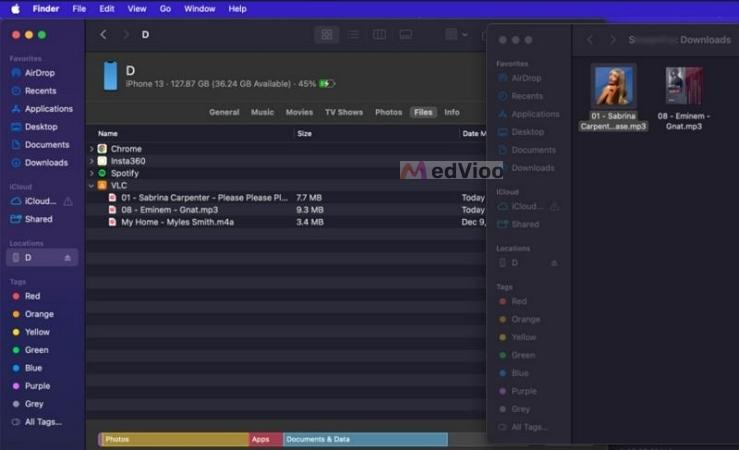
Step 1. Plug in your iPhone and select it when it appears under Locations in Finder. Head to the Files tab at the top. You’ll see a list of supported apps capable of storing media files. Get VLC if you don’t already have one.
Step 2. Then, click the downward arrow next to VLC Media Player (or any other media player listed) to open its file management section.
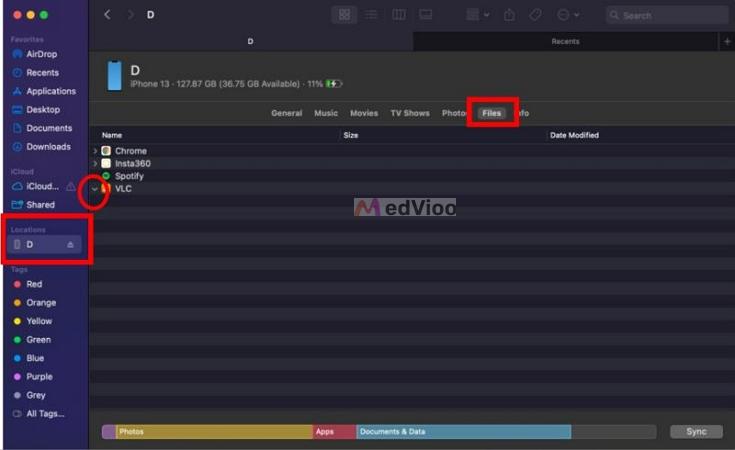
Step 3. Open a New Finder Window and locate the MedVioo song downloads. Then, drag and drop the songs from the MedVioo folder into the VLC section.
From Mac to Android
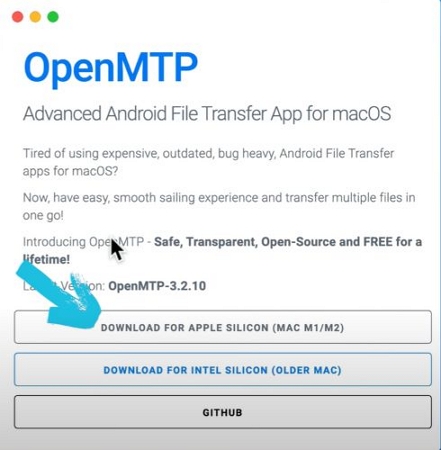
Mac doesn’t natively support connections with Android devices, but you can make music transfer work using an official tool called MTP (Media Transfer Protocol). It’s free, open source, and easy to use.
Step 1. Download MTP, choose the macOS version, and open it.
Step 2. With your Android device plugged in, the tool splits your screen: Mac folders on one side, your phone storage on the other.
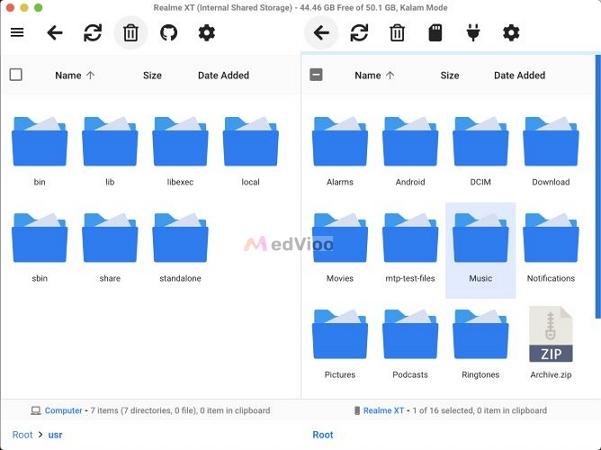
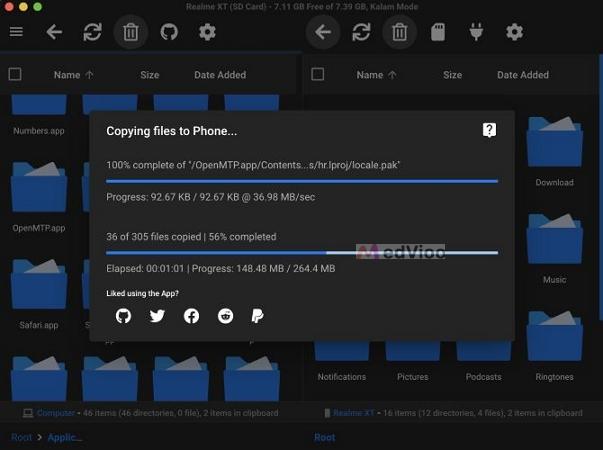
Step 3. Drag your tracks from Mac and drop them on Android storage.
From Mac to MP3 Player
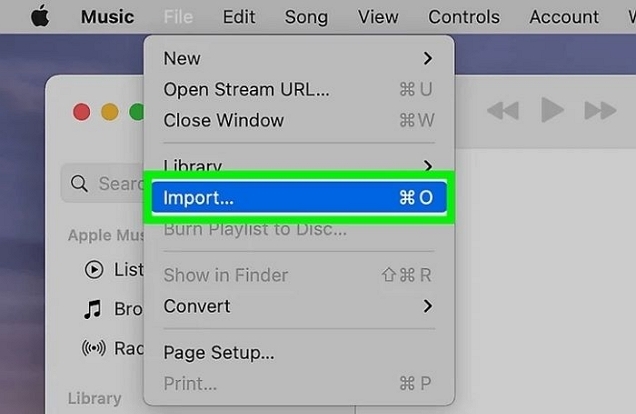
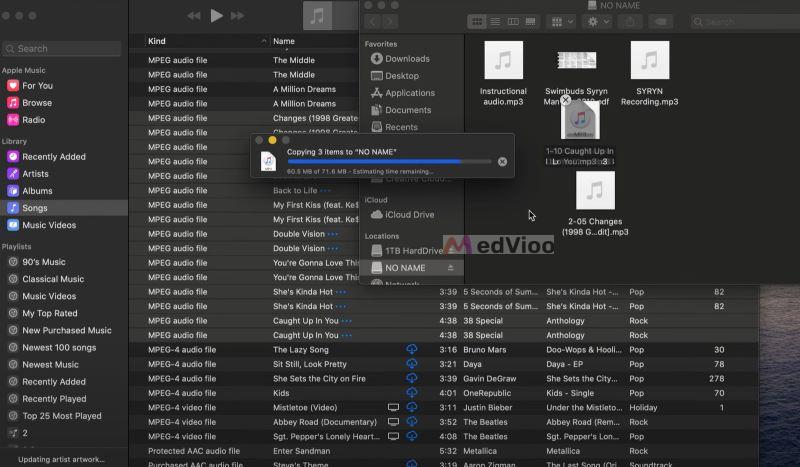
Step 1. Start by opening the Music app on your Mac. From the File menu at the top, select Add to Library, then import the MedVioo downloads from your Downloads folder.
Step 2. Once the tracks are added to your Music library, connect your MP3 player via USB. Drag the songs directly from the Music app onto the player’s storage via Finder.
Conclusion
We’ve covered 3 common Spotify MP3 downloaders to save Spotify songs as MP3 on Mac with full details. For the best option for Mac, we recommend MedVioo Audio Converter, because it preserves flawless quality and allows batch conversion at 30x speed. Most importantly, it keeps metadata intact, which allows your tracks to integrate seamlessly with apps like Apple Music.