

Sleep Timer is a powerful feature that automatically stops your music at a set time. It is useful if you like to fall asleep to relaxing music. You can find this option in several streaming music apps, including Spotify. If you want to set a sleep timer for your Spotify music, podcasts, or audiobooks, you can find the ways here, whether you are on mobile or desktop. If you want to set a Spotify sleep timer for longer than 1 hour, you can find instructions for that here as well.
How to Set Sleep Timer on Spotify PC/Mac [Up to 1 Hour]
Spotify makes it easy to manage playback time for songs, podcasts, or entire playlists. Durations range from five minutes to an hour. Additionally, you can sync it with End of Track. Once a sleep timer is set, Spotify music playback will halt and your screen will dim to black when time’s up.
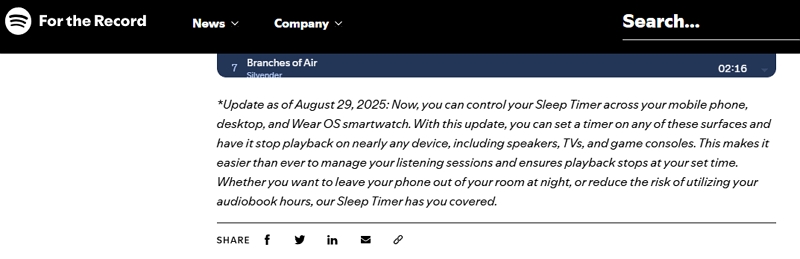
Spotify first introduced a Sleep Timer on its mobile app and now the desktop app also includes this feature! It’s still being rolled out, so update your app to see if it’s available. If it is, give it a try.
Set Sleep Timer on Spotify Audiobooks/Podcasts
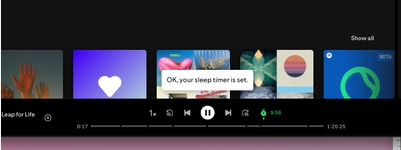
Step 1: Listen to the desired podcast or audiobook on the Spotify desktop app
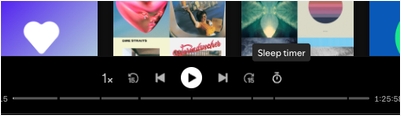
Step 2: Locate the playback controls panel and click the clock icon.
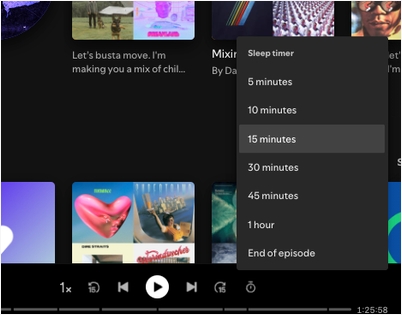
Step 3: Choose a time to stop the playback.
When the sleep timer is successfully made, you will see "Ok, your sleep timer is set".
Put Sleep Timer on Spotify Playlist
Step 1: Open Spotify app on your computer and access a playlist, album or artist page.
Step 2: Click the 3-dot icon of the want track and choose Sleep timer.
Step 3: Schedule when the music stops.
How to Set Sleep Timer on Spotify iPhone/Android [Up to 1 Hour]
The steps to set a Sleep Timer on Spotify mobile are similar to those on desktop. Here are the details.
Use Sleep Timer for Spotify Music
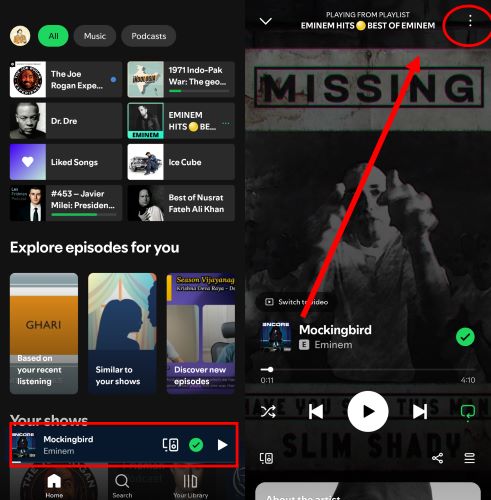
Step 1. Play any song or playlist on Spotify mobile and open the Now Playing screen by tapping the song banner at the bottom. At the top-right corner, tap the three dots (menu).
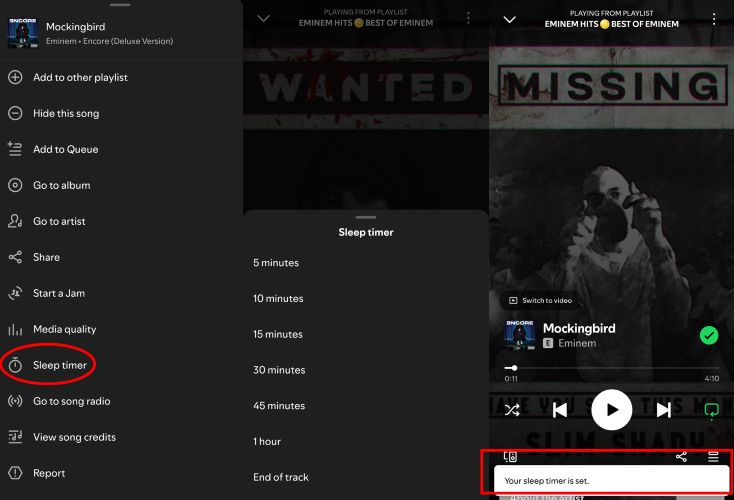
Step 2. Scroll through the menu and select Sleep timer. Pick your desired duration from the list: 5 minutes, 10 minutes, up to 1 hour, or End of Track. A confirmation will appear if you have successfully set asleep timer.
Set Sleep Timer for Audiobooks/Podcasts
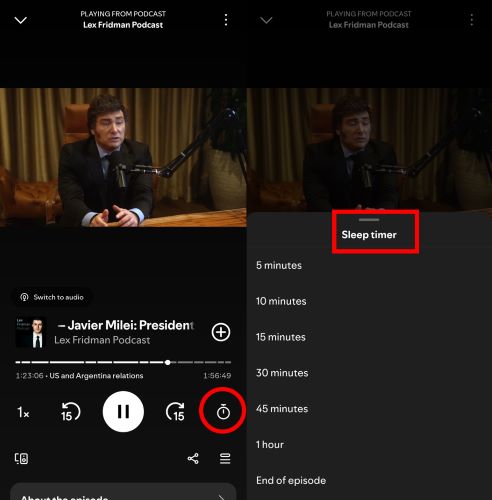
Step 1. Find a dedicated clock icon on the podcast’s Now Playing screen.
Step 2. Simply hit clock and choose the duration to set a timer.
How to Put Sleep Timer on Spotify Longer Than 1 Hour
The maximum duration of Spotify’s built-in Sleep Timer is 60 minutes, which may not be enough if you have difficulty falling asleep or for other reasons. To set a Spotify Sleep Timer for longer than one hour on your phone, you can use the Clock app on your iPhone or a third-party app on Android. Next, we will cover both methods.
Use iPhone Clock
For those craving control beyond Spotify's built-in timer, Apple's Clock app includes a stop playing option. Once the time runs out, it will halt all playback, not just Spotify but across all media apps. Plus, the Clock app doesn’t cost a thing and here’s how to use.
Step 1. Open the Clock app on your iOS device and head to the Timer tab.
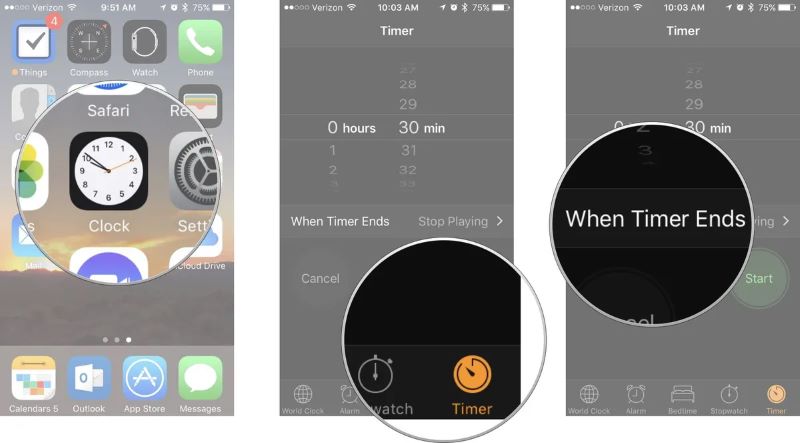
Step 2. Tap When Timer Ends. Then, scroll to the very bottom and select Stop Playing and tap Set in the top-right.
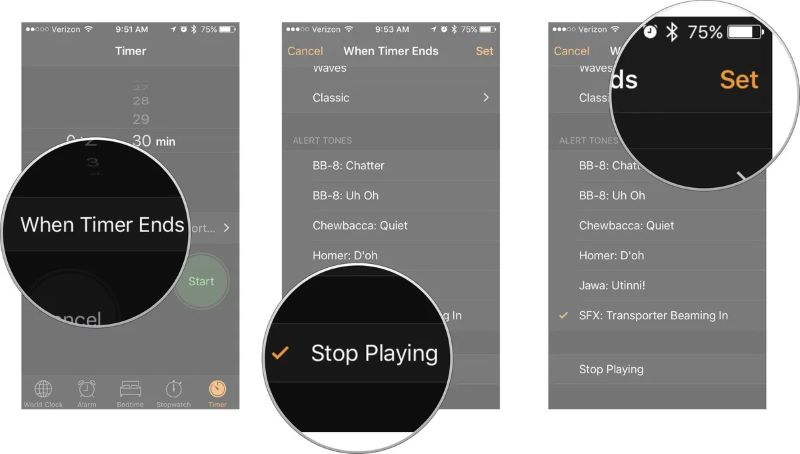
Step 3. Adjust the duration by scrolling through the hour, minute, and even second dials.
Step 4. Finally, hit the green Start button to activate the timer. When the time expires, playback will pause and the screen will dim.
Use Android Sleep Timer App
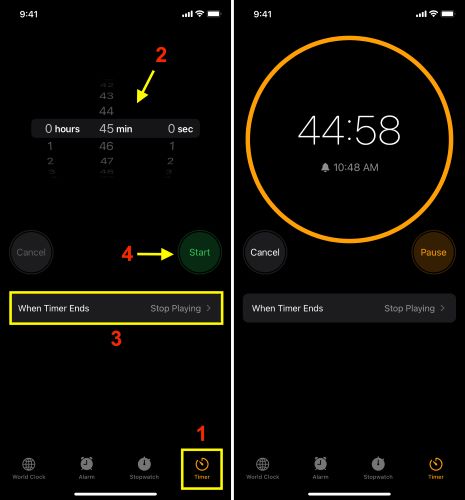
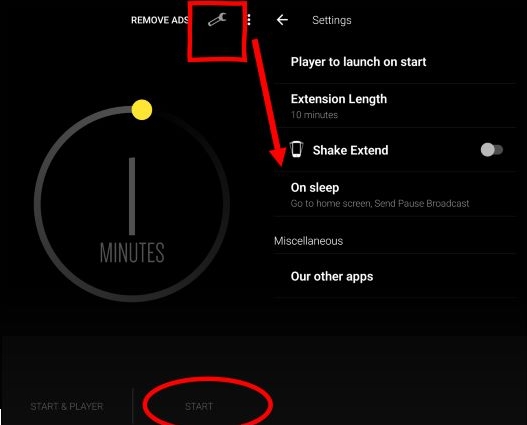
For Android users, the Sleep Timer app is the best free option for adding a sleep timer for Spotify or any audio playback service. Unlike the iOS Clock app, this tool goes beyond playback time control. It can turn off your screen, disconnect Wi-Fi, halt Bluetooth audio streams. The the coolest part is that it will fade out the music gently as the timer ends.
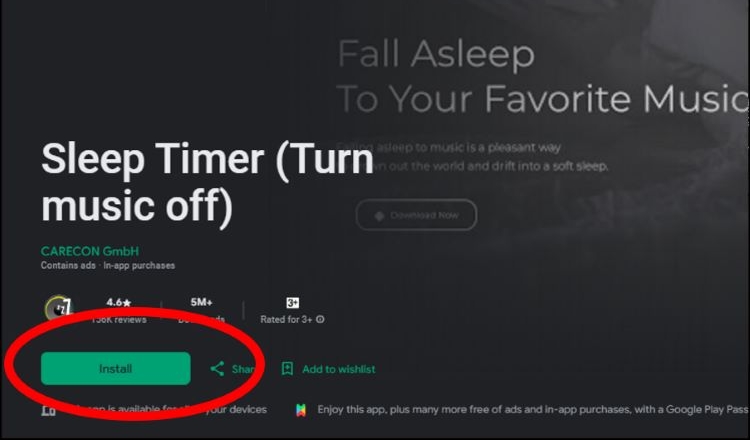
Step 1. Download and install the Sleep Timer (Turn Music off) app from the Google Play Store.
Step 2. Open the app and set the timer duration using the dialer.
Step 3. Hit Start to begin the timer. Once time runs out, the app will stop playback across all audio apps and perform any additional tasks you’ve configured.
Spotify Sleep Timer is Missing [Reasons and Fixes]
Can’t find the Sleep Timer option on your Spotify mobile? The issue happens due to hidden settings, compatibility challenges and even Spotify's design decisions. Let’s explore why the sleep timer functionality is not showing on Spotify and how you can fix it.
Reason 1: Spotify Connect Is Enabled
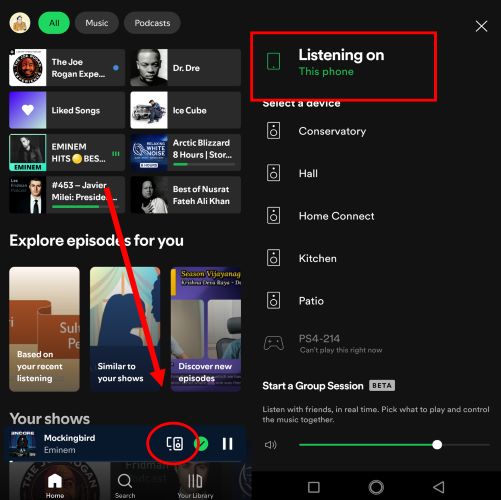
Spotify Connect complicates things further. When you choose to play music on external devices like your home stereo system, Spotify sleep timer doesn’t apply.
Fix: Redirect Spotify playback to your phone or tablet.
On Spotify’s mini player: tap the Connect to a Device icon. From the list, choose This iPhone or This Phone(Android) to bring playback to your device. This way, Sleep Timer will work seamlessly.
Reason 2: Repeat Is Turned On
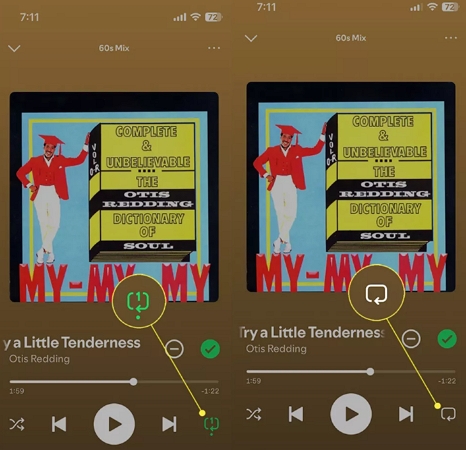
Some users have reported that disabling the Repeat feature on Spotify can make the Sleep Timer option reappear. If your Spotify song is set to loop, try turning off Repeat and see if the issue is resolved.
Fix: Disable Spotify Repeat Feature
Simply go to the Now Playing bar and click the repeat icon showing as two white arrows in a loop.
Reason 3: Spotify Feature Changes
Spotify frequently updates its features, so you may notice that your Spotify options differ from those of your friends. Features can also be removed and later reintroduced. Therefore, if you can’t find the Sleep Timer on your Spotify app, updating to the latest version is always a good first step.
Fix: Update Spotify
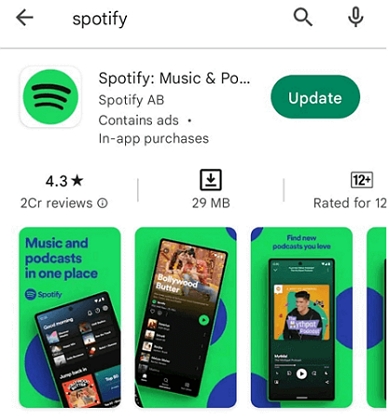
Step 1: Go to the App Store or Google Play Store on your phone.
Step 2: Search for Spotify and hit Update.
Reason 4: You Are Casting Spotify
Spotify should work when casting to a device like Chromecast or AirPlay. However, even Spotify’s tech team acknowledges that its performance is not guaranteed. On iOS, it will appear normally during casting sessions. On Android, make sure to enable Sleep Timer first and then cast your screen. Consider these alternatives if it doesn’t appear or work:
Fix 1: Use Tasker on Android
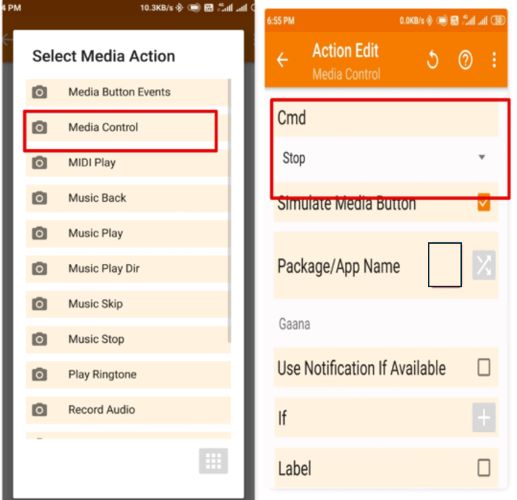
Tasker scripts allow you to create dedicated media actions easily. There is a dedicated one for stopping general playback. You can use its AutoCast plugin to control casting sessions directly.
Fix 2: Use Shortcut App on iOS
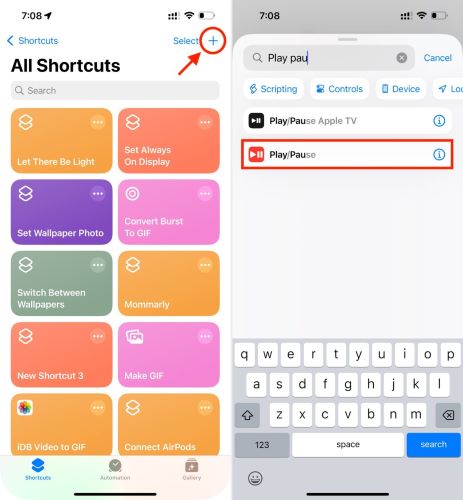
You can create Automations to stop playback after a specific duration. The good thing about iOS automations is you have a lot of customizations, you can either set it for Spotify alone or all media playback. Plus, it will auto-renew without any manual intervention daily.
How to Download Spotify Music Without Premium
If you want to save Spotify music as local files or play Spotify without the app, you need to download Spotify music without premium. Mediaio Audio Converter is a smart tool for you to download Spotify music locally using either a free or premium account. The music downloads will be at 320kbps and will retain song names, artist names, artwork and other ID3 tags.
You can use Mediao to download your full playlists, entire albums or individual songs as MP3, FLAC, WAV, etc. The entire download process will be completed within the embedded web player, with no need to copy song links. After downloading, you can move the local songs to your Android SD card for offline playback or to a USB drive for car playback without internet.
How to Download Spotify Music as Local MP3 Using Mediaio
Launch Mediaio Audio Converter on your computer after installation. At the home screen, you’ll see several streaming platforms. Pick Spotify among the music services.

Log into your Spotify account through Mediaio’s built-in interface. Once logged in, you’ll have full access to your library, whether you’re on a Free or Premium plan.
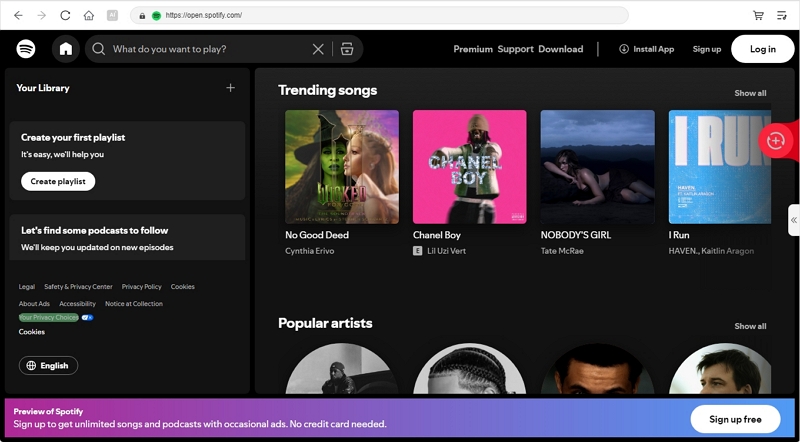
Drag and drop your chosen tracks, albums, or playlists to the red + icon or click Add to the conversion list next to the desired songs. This adds them to the Conversion tab.

Adjust the output configurations if needed. Then, hit Convert All to begin. Mediaio processes your files at 30X speed and fully tagged MP3s retaining complete song info like album art, track titles, and other details.

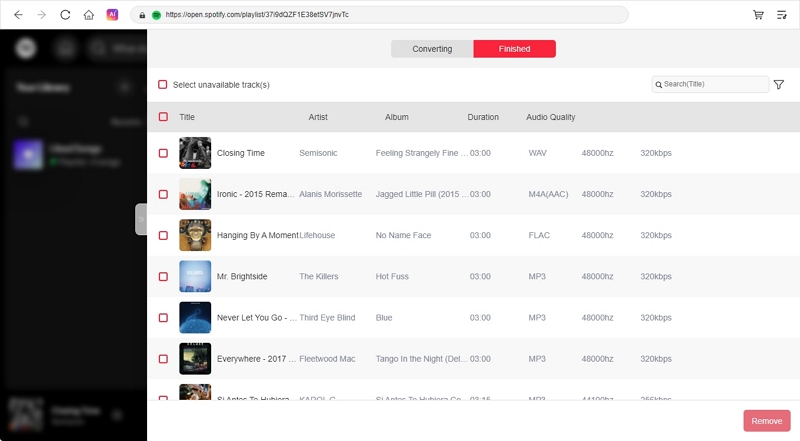
Once finished, head to the Finished tab and click View Output File to locate your saved MP3 files.
Conclusion
That’s every possible way to set a Spotify sleep timer for songs and podcasts. Whether on mobile, desktop, or Bluetooth-connected device, you can control your Spotify music playback exactly how you want.
For those seeking a way to download Spotify music without premium, you can use Mediaio Audio Converter that works well on exporting Spotify songs as local files without premium.