

Trying to recreate the Spotify look in a presentation—adding the play bar, album art, green accents, can take hours. And if you have tried AI, you already know it often produces basic designs that don't look very appealing. The shortcut is to start with a template designed by professionals.
This article points you to five of the best Spotify slide template sites. Every site listed here offers at least one free Spotify template without watermarks. So you can open the templates in PowerPoint, Canva, or Google Slides and build your professional-looking presentation fast.
5 Free Sites to Find and Download Spotify Slides Templates for PowerPoint/Google/Canva
We did not just pick a site because it carries Spotify templates. We opened the templates on each site and weighed them on what actually matters when you present. We looked at three things: Does the template meet basic presentation standards? Will it look good on a TV or conference-room screen? And what kind of presentation is it actually suited for?
Now, we will explain what each site does best, so you can find the template that fits your needs and get started in minutes.
1. Slidechef.net
https://slidechef.net/
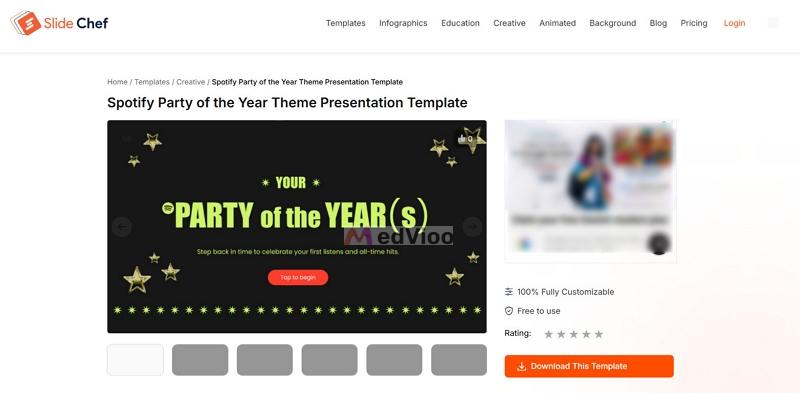
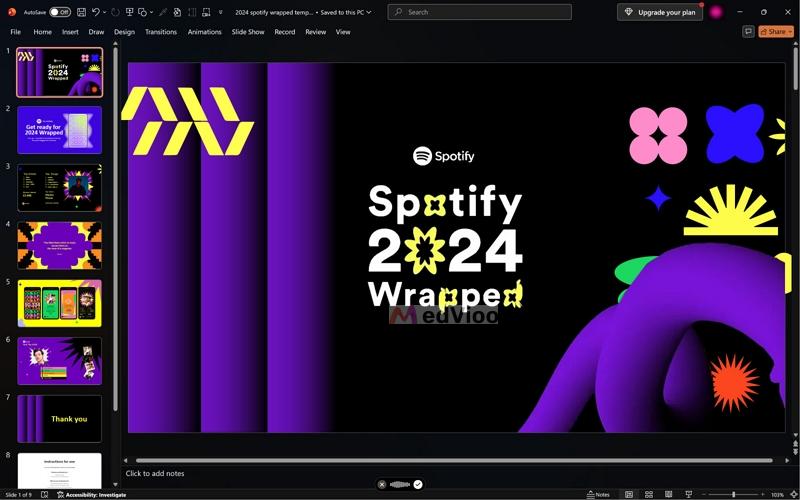
SlideChef carries more Spotify-themed slide templates than any other site on this list. You can find a version for almost any purpose, whether you want slides for Wrapped-style recaps, playlist layouts, or party and seasonal designs. Some layouts work even for a formal business talk. For instance, you can show how your Spotify API is performing in your app.
The good thing is that nearly all the slides in the Spotify collection are actually inspired by Spotify’s designs and black-and-green theme, which your audience can instantly recognize. Unlike many sites, SlideChef’s doesn’t group generic music templates under its Spotify category. Its collection is actually built around Spotify visuals.
Sometimes a short reel before the download works.
An optional donation note you can skip.
No reselling, renting, or redistribution.
How to Find and Download a Template on SlideChef
Step 1. Open slidechef.net and search “Spotify” in the search bar. From the results, open the template you want, then scroll through the previews on the left to review the slides.
Note: A tag near the button shows whether the template is free. When it says "Free to use," you can click "Download This Template" at no cost. Paid templates will first ask you to create an account and choose a plan.
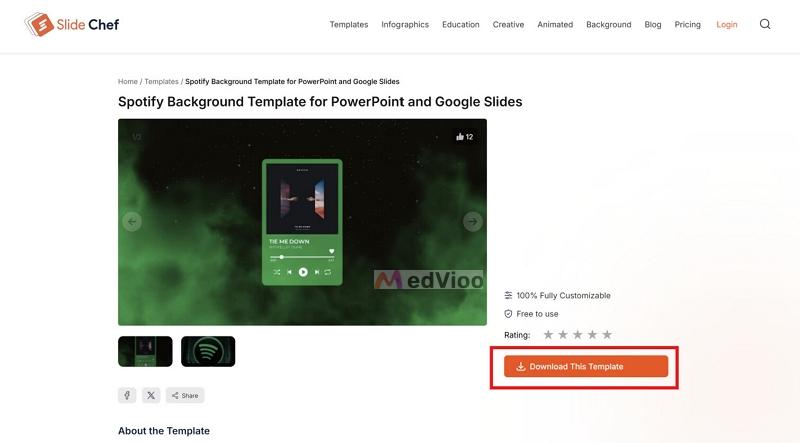
Step 2. A short ad reel may play before the buttons appear. After that, the template will give you PowerPoint and Google Slides download buttons, and some templates also include Canva.
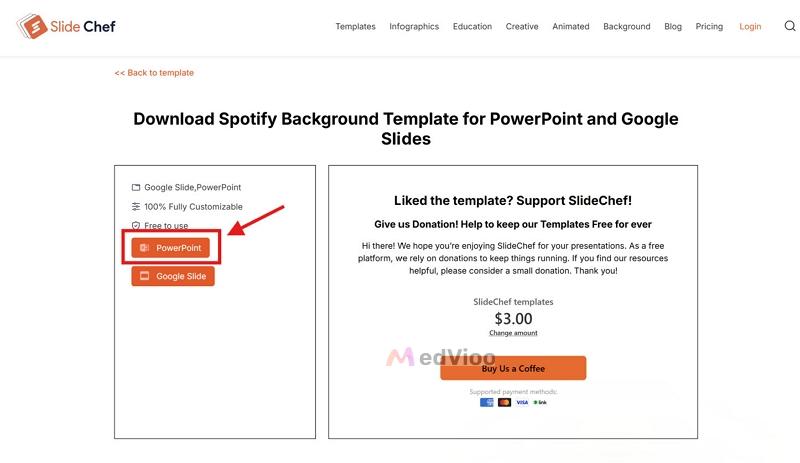
Step 3. Click the format you need.
- PowerPoint will arrive as a compressed folder, so you will extract it and open the .pptx inside. It opens in Protected View, and one click on Enable Editing frees it.
- Google Slides and Canva skip all of that and open in your browser, ready to edit.
Step 4. From here, you can change any element on it: the text, the images, the colors, and the layout.
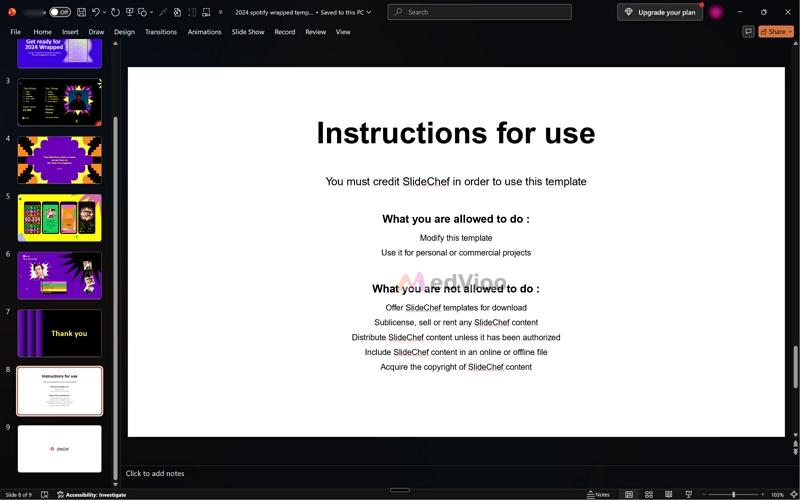
Note: One last thing before you present it or share it. Each download ends with an Instructions for use slide that lists what you can and cannot do. Most free templates ask you to credit SlideChef, so you will need to keep that credit somewhere your audience can see it. Read that slide and follow it before you send the deck.
2. Slidesgo.com
https://slidesgo.com/
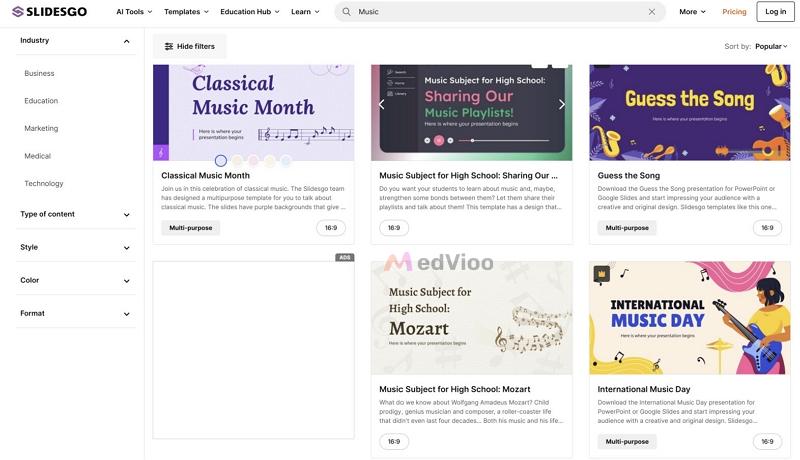
Slidesgo does not have a dedicated Spotify-branded template. It still earns second place on this list because its music collection gives you several polished designs that you can adapt for any purpose, like creating a marketing project, a classroom deck, or your year-in-review party. You just have to edit them a little bit to apply Spotify’s black-and-green look yourself. There’s even an AI feature that lets you easily build a dedicated Spotify-themed template from scratch.
Another useful feature on Slidesgo is the range of formats available. Most presentations are available in the standard 16:9 format, but you can even adapt them into an Instagram post or a YouTube story. This way, you can easily get slides that fit the mobile screen.
How to Search and Save a Template on Slidesgo
Step 1. Open Slidesgo and search for “Spotify.” Using the exact keyword gives you more relevant results. From the results, open a template and run through its slides in the preview.
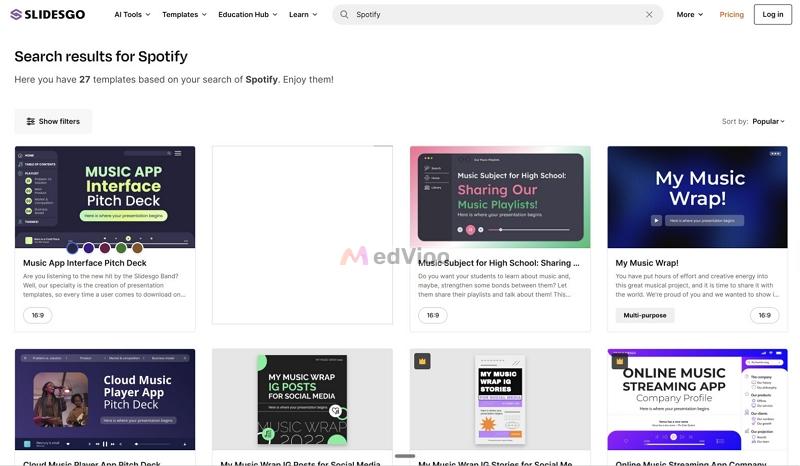
Step 2. Some templates offer color options and format variants, so choose the color and format that fit your screen: a presentation, an Instagram post, or a story.
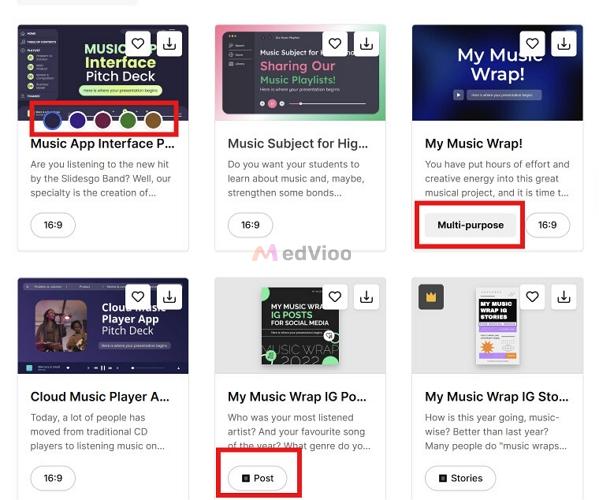
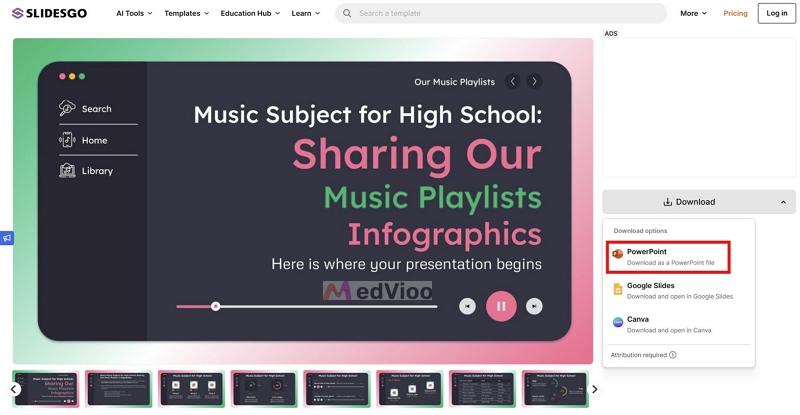
Step 3. Click Download and choose your tool: PowerPoint, Google Slides, or Canva.
Step 4. If you are not signed in, Slidesgo will ask you to log in first. After that, the file will download (PowerPoint) or open in a new tab (Google Slides or Canva), ready to edit.
3. Canva.com
https://www.canva.com/
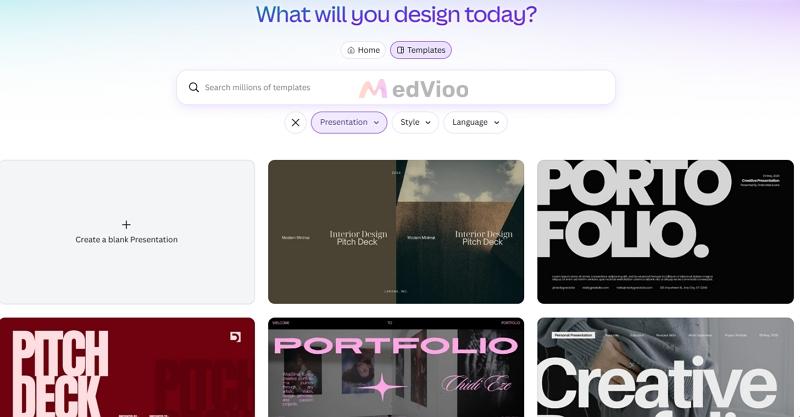
If you’re looking for Spotify-themed slides to edit in Canva, it makes sense to start in Canva itself. Yes, its Spotify-specific selection is limited, but its broader collection gives you plenty of music-themed designs to adapt. Plus, it allows you to recolor a template, replace its text and images, and add your own design elements to get the Spotify look you want.
You can also use Canva’s AI presentation tools to get the elements and background elements to get the initial design. Plus, the template open in Canva’s editor, so you don't need to download them and manage their elements in another presentation tool.
You have to work inside a Canva account.
30-day free trial.
Premium assets need a one-off license or Canva Pro.
How to Make a Spotify Slide on Canva
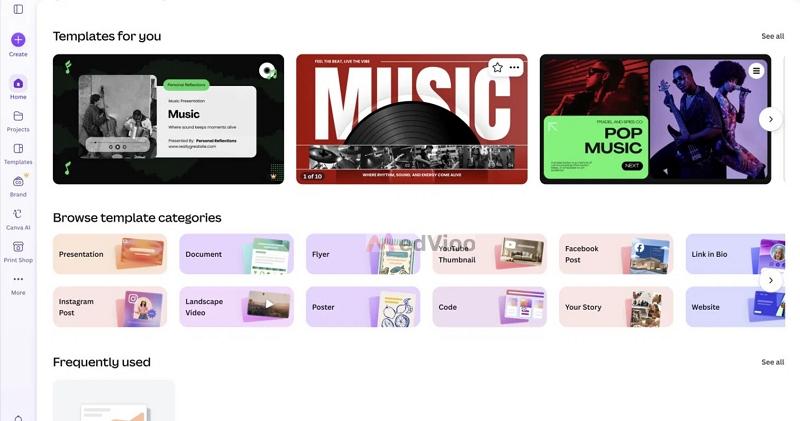
Step 1. Open Canva and search Spotify or music for a wider pool. From there, you can open a template or start on a blank page.
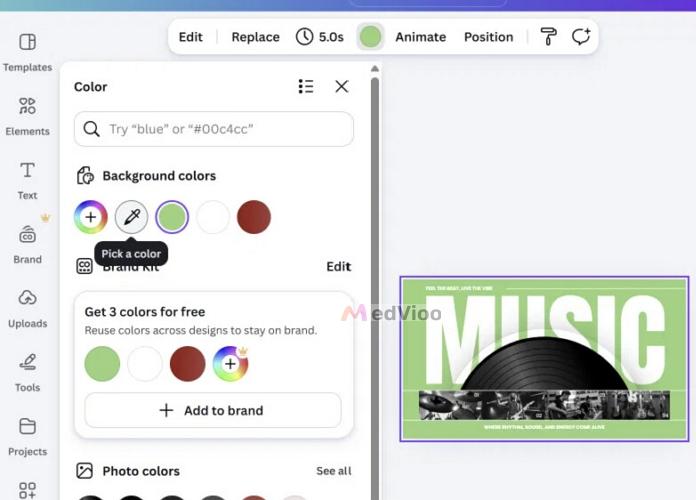
Step 2. You can choose the slide background and open the color panel on the left. The eyedropper lets you pick the exact Spotify green from any Spotify image on your screen, so you can turn a red slide to green in one click.
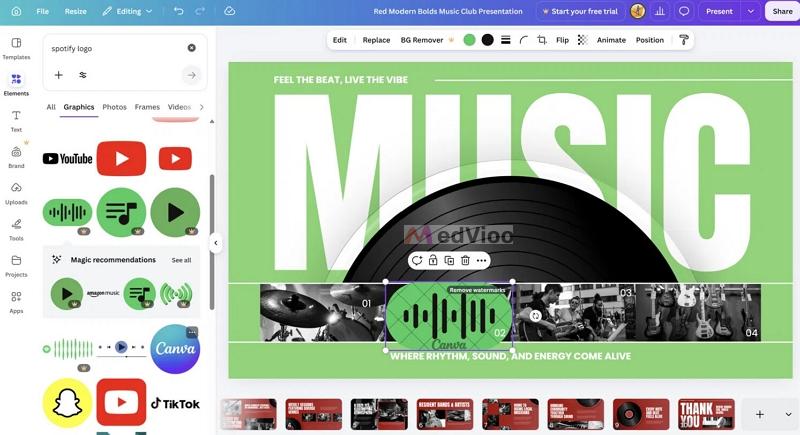
Step 3. You can even work on every aspect. For instance, in the Elements panel, search "Spotify logo" or a player bar, then drop it straight onto the slide. You can also swap the text, replace the images, and move things around until it reads like Spotify theme slides in your mind.
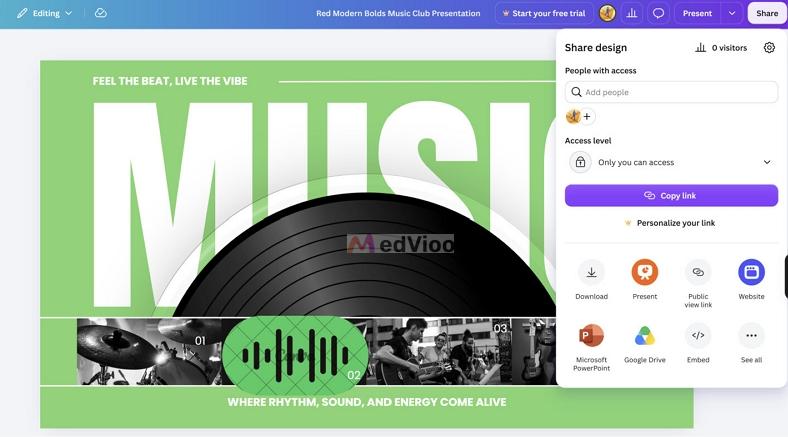
Step 4. Once it looks right, you will click Share, then Download. You can save it as a PowerPoint file, a PDF, or an MP4, or share a public view link to open it in a browser.
4. 24slides.com
https://24slides.com/
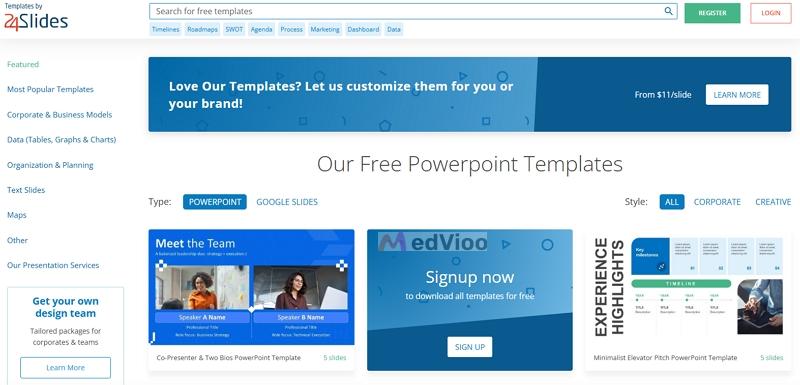
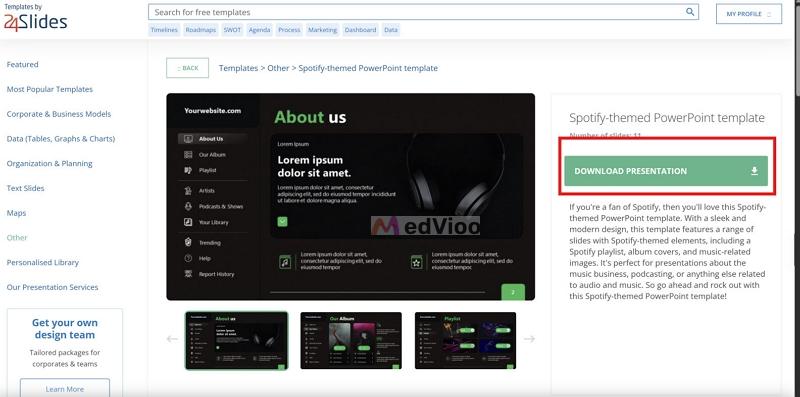
24Slides has a single 11-slide deck built on the Spotify interface. But that presentation differs from the Spotify-themed templates on other sites. Its slides are structured around the Spotify interface itself, with the dark background, bright green accents, left navigation rail, and sections for playlists, artist cards, podcasts, Trending, and Your Library. So if you want something that goes beyond the Spotify theme and truly represents the Spotify interface, it is the option to go with. For instance, it is particularly suited to artists or podcasters who want to put their own music or shows on screen.
If the existing deck isn't enough, 24Slides also offers a custom paid service. So you can brief its design team on what you want and have a Spotify-based presentation created for you.
How to Download Spotify Slide Template on 24Slides
Step 1. Open 24slides.com, click Resources in the main menu sections and pick Templates. In the search bar at the top, search for Spotify to find the single available slide.
Step 2. Open the template. Click Download Presentation. If you are not signed in, 24Slides will ask you to create a free account or sign in with Google first. Then, the slides will be saved as a .pptx.
Step 3. Open the file in PowerPoint and start editing. Or, if needed, you can upload the same file to Google Slides or Canva and edit it there.
5. Slidekit.com
https://www.slidekit.com/spotify-powerpoint-template/
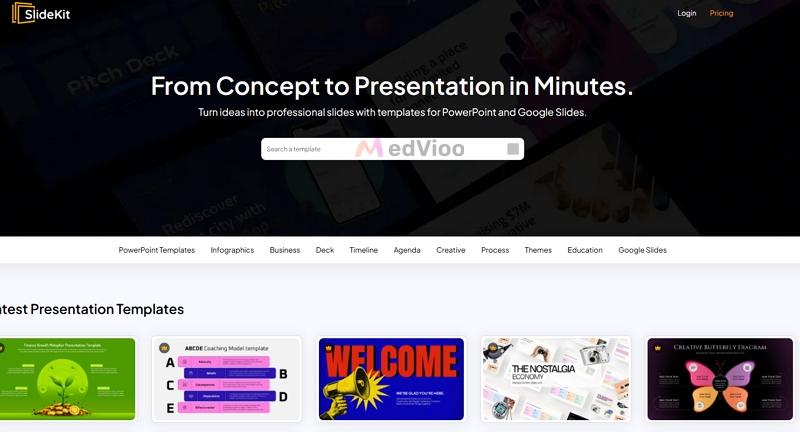
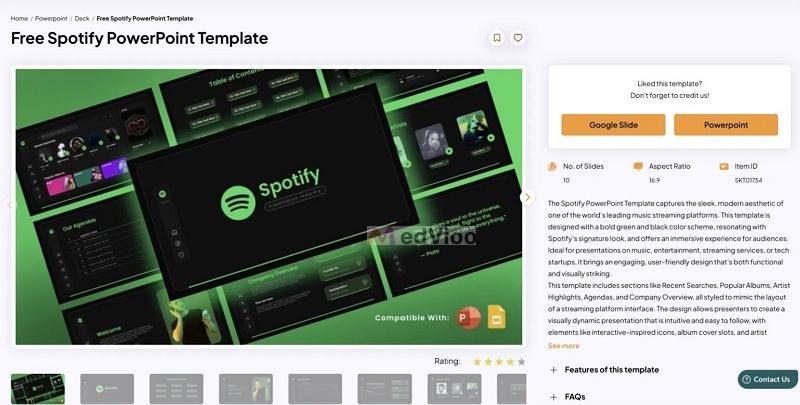
SlideKit runs close to 24Slides. It gives you another pure copy of the interface - a dedicated 10-slide, 16:9 Spotify interface deck. Its slides are built around Recent, Transition, Searches, Popular, Album, Artists, Highlights, Agenda, and Company Overview. It even includes slides for album covers and artist spotlights.
Overall, this deck isn't for a personal Wrapped recap or Year-in-Music reviews. It will suit you if you’re making a presentation about a music business, a streaming product you are building, or an app you are launching. The design gives you room to talk about something like that. Unlike 24Slides, it integrates directly with Google Slides, though there is still no dedicated Canva version.
How to Get SlideKit Spotify Deck into PowerPoint or Google Slides
Step 1. Go to the Free Spotify PowerPoint Template page on SlideKit and run through the ten slides in the preview.
Step 2. Click Download. SlideKit asks you to register or log in first, so you will sign in before it hands over the deck.
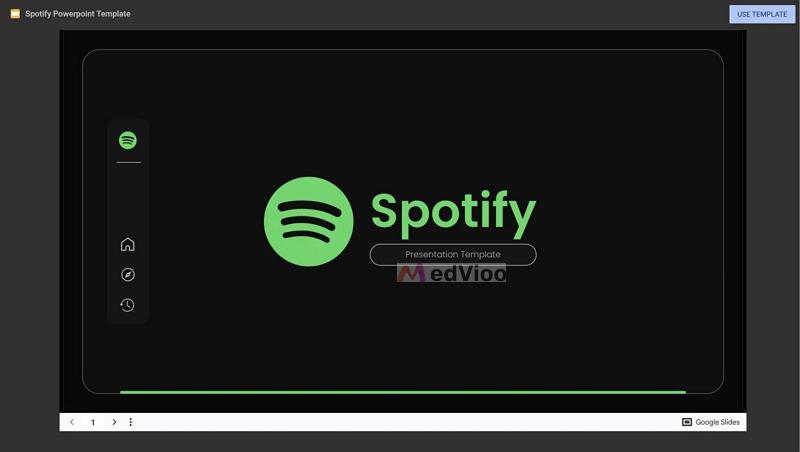
Step 3. From here, you will pick your tool. PowerPoint saves the file to your computer, and Google Slides opens the deck straight into an editable copy in your account.
Step 4. One last thing before it goes out. SlideKit asks for credit, so keep its name somewhere on the deck your audience can see.
3 Popular Spotify Slides Templates to Save You Time
So now you have seen sites where you can find Spotify slides. But if you already know the kind of presentation you want to create, you may not want to review every deck on the above sites.
So here are three ready-made Spotify templates that can save you that extra search. We have already discussed the dedicated Spotify decks from 24Slides and SlideKit. These three suit different presentation needs. All three come from SlideChef. Plus, these templates are suitable for presenting on any screen, from a big screen or TV to your phone.
Spotify Wrapped 2026 Template
https://slidechef.net/templates/spotify-wrapped-2026-template/
You can use this template if you just want the same structure as Spotify Wrapped for your presentation. It gives you ready-made sections for your listening type, top artists, and listening minutes, the tracks that defined your year, and even a “listening age” slide. Plus, it includes animated reveals. So the recap will feel more dynamic than a static presentation.
Free Spotify Christmas Playlist Template
https://slidechef.net/templates/spotify-christmas-template/
This one puts the Spotify layout in holiday dress. Across six slides, this festival slide allows you to create a presentation that features your Top Albums, Top Songs, and Top Artists of the season. It is free to use and fully editable, so you can drop in your own picks in a few minutes.
Billie Eilish Theme Template
https://slidechef.net/templates/free-billie-eilish-theme-template/
This is the artist-focused template. It is ideal for building a profile of your favorite musician. For instance, you can include their debut year, music, and your favorite song in a visually appealing way. You can adapt its structure for another artist by replacing the example content and imagery. Choose this when you want to create a presentation for a musician, not your own listening history.
How to Add Spotify Music to Your Spotify Slide Template
The easiest way to add Spotify music to a slide (PowerPoint/Google Slides/Canva) is to convert it to an MP3 file. Local Spotify songs avoids relying on Spotify URL’s or embeds during your presentation, with no ads or internet needed.
MedVioo Audio Converter can help you complete the Spotify-to-MP3 conversion. MedVioo includes an integrated Spotify web player, so you can log in to your own account and convert any songs, playlists and albums you want to use in your presentations. Your favorite songs can be live offline as plain MP3 or M4A files, so PowerPoint, Google Slides, and Canva all accept them.
Steps to Insert Spotify Songs into Your Slide
Step 1. Save Spotify Music Locally
Choose the Spotify icon in MedVioo Audio Converter, log in Spotify, find the songs you want and save them as MP3 or M4A files. Now, you will have a clean audio file ready for the deck.

Step 2. Add Spotify Music to Your Presentation
In PowerPoint or Google Slides:
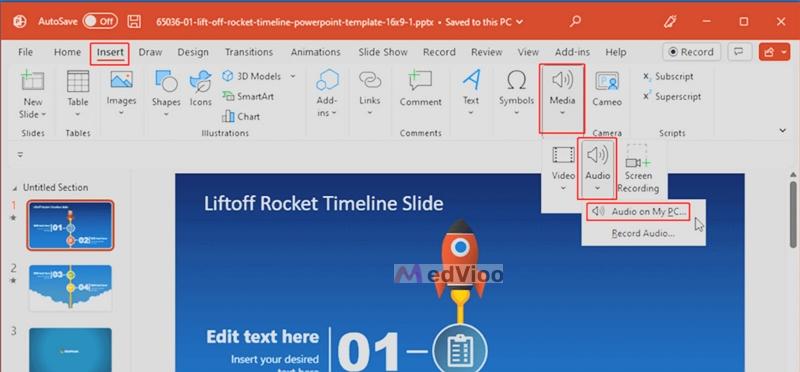
- Click the Insert tab and choose Audio.
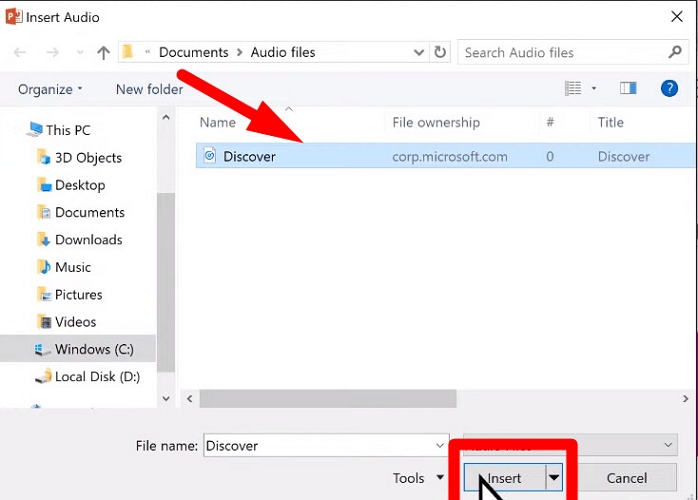
- Pick the track.
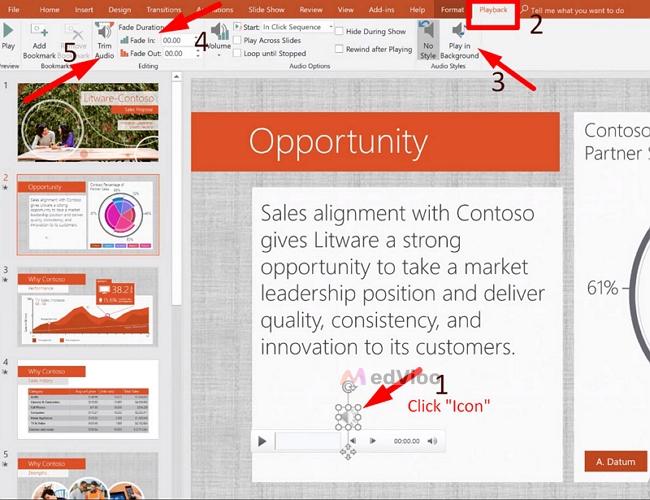
- You can apply how you want the audio to behave: like auto-play, background play from Slide 1 to Slide End, etc.
In Canva:
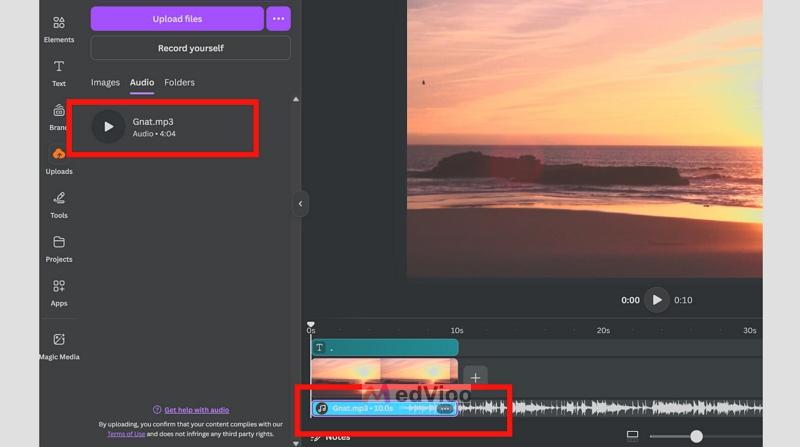
A free account lets you add up to 5 GB of personal content to Canva cloud and use it in your presentations. So you can easily upload a song. Here’s how:
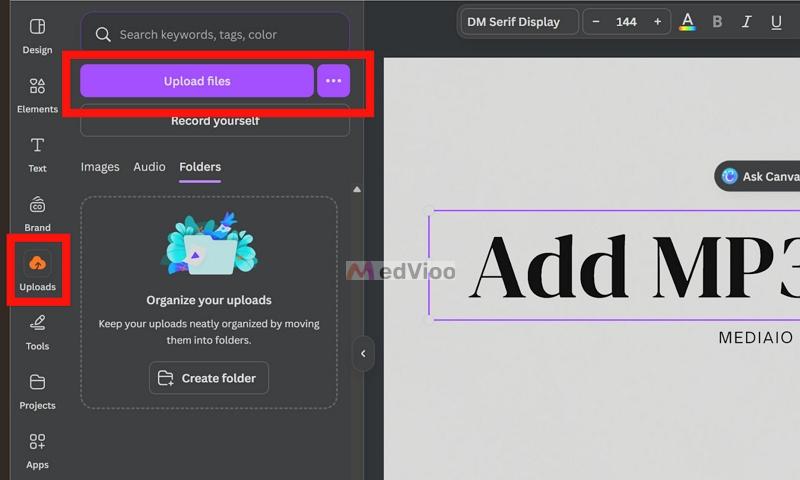
- Open your Canva project and click the purple Upload files button in the left sidebar.
- Choose your saved track from the window that opens.
- Wait for the audio to load.
- Drag the track onto the timeline.
- From there, you can trim the timing and the song will play automatically as the slides run.
To Sum Up
The sites and templates here earn their spot for one reason. Each gives you a consistent Spotify look, and they let you build almost any presentation you want. So you can choose what fits your needs.
And once the deck is set, you can add sound. The best way is to convert your track to MP3 with MedVioo Audio Converter, then drop it into PowerPoint, Canva, or Google Slides.