

If you’re wondering, “Where is my playlist on Apple Music?” or “Where did all of my Apple Music go?”, this article is for you. We'll cover what to do if your playlists have gone missing, songs are not showing up, your library is empty all of a sudden, as well as your Apple Music account menu is going missing.
Why Did My Apple Music Disappear? Quick Summary
1. Apple Music Playlist Missing
Playlists may disappear if you’re signed out, if iCloud Music Library is disabled, or if you switched Apple IDs.
Solution: Check Settings > Music > Sync Library and ensure you’re signed in with the correct Apple ID.
2. Songs Not Showing Up
Individual songs may not appear due to hidden purchases, regional restrictions, or deleted downloads.
Solution: Go to Account > Purchased > Music to restore missing tracks.
3. Apple Music Library Empty
This often happens after signing out, updating iOS, or turning off Sync Library.
Solution: Enable Sync Library in Settings and restart the device.
4. Apple Music Account Menu Missing
Missing menus can result from a temporary app glitch, outdated iOS, or subscription issues.
Solution: Update iOS, sign out and back in, or check your Apple Music subscription status.
Part 1: Where Are My Playlists on Apple Music? (All Devices)
Apple Music playlists are always stored inside your Library, but the exact location looks different on each device.
On iPhone / iPad
- Open the Apple Music app
- Tap Library at the bottom
- Select Playlists
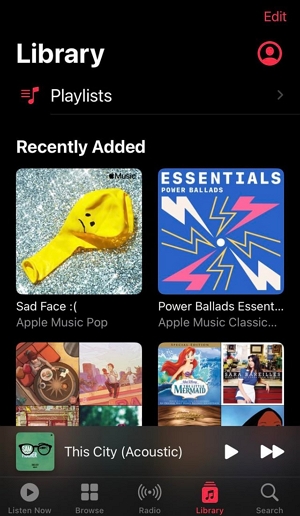
If the sidebar-style Library view is missing on iPad, rotate the screen or ensure you're in the Music app’s main browser.
On Android
Playlist location: Open the Apple Music app → tap the Library tab → choose Playlists.
Android uses the same Library structure as iPhone, but syncing may depend on whether Sync Library is enabled on your primary Apple device (iPhone/Mac).
On Mac (Apple Music App)
This is the default path if you're looking for “Where are my playlists on Apple Music on Mac?”
Step 1. Open the Music app
Step 2. In the left sidebar, locate the Library section
Step 3. Click Playlists
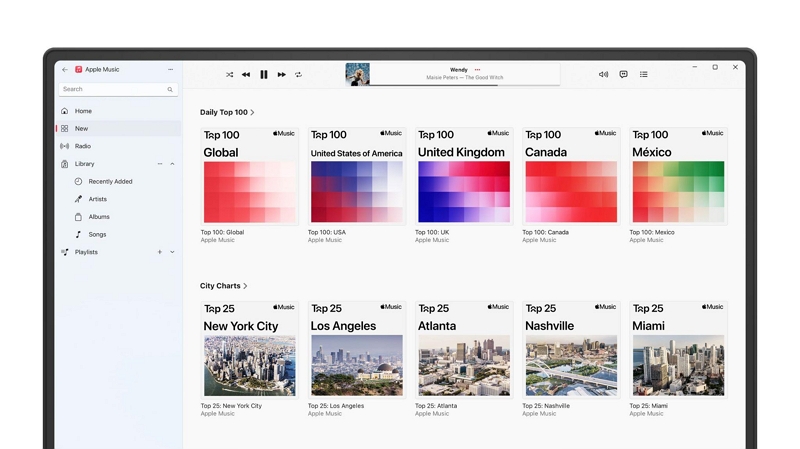
If the sidebar isn’t visible: Go to View → Show Sidebar.
On Windows (iTunes)
Open iTunes → make sure you’re in the Music section → look at the left sidebar under Library → click Playlists.
If you’re in Movies, TV Shows, or Podcasts mode, the Playlists section will not appear — switching to Music fixes this.
On Apple Music Web Player
How to find Apple Music playlists online
Go to the Apple Music web version → sign in → click Library on the left → choose Playlists.
If Playlists do not load immediately, refresh the page or re-log in.
If Your Playlists Suddenly Disappeared (All Devices)
If your playlists are missing across one or more devices, the issue is usually related to syncing or account settings. Check the following:
1. Apple ID mismatch
You may be logged into a different Apple ID on one device. Ensure all devices use the same Apple ID for Apple Music.
2. Sync Library is disabled
When Sync Library is OFF, playlists won’t appear across devices.
iPhone/iPad: Settings → Music → Sync Library
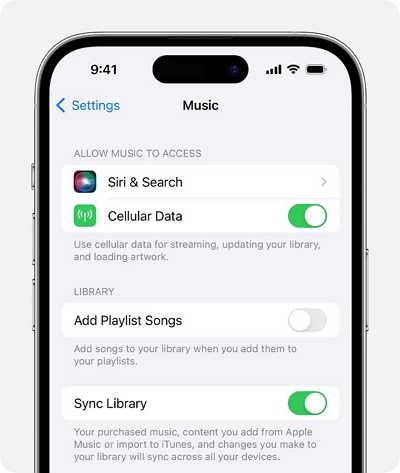
Mac: Music → Settings → General → Sync Library
3. Subscription expired
Expired Apple Music subscriptions temporarily hide playlists until renewal.
4. Region or country changed
Switching Apple ID regions can remove playlists with unavailable content.
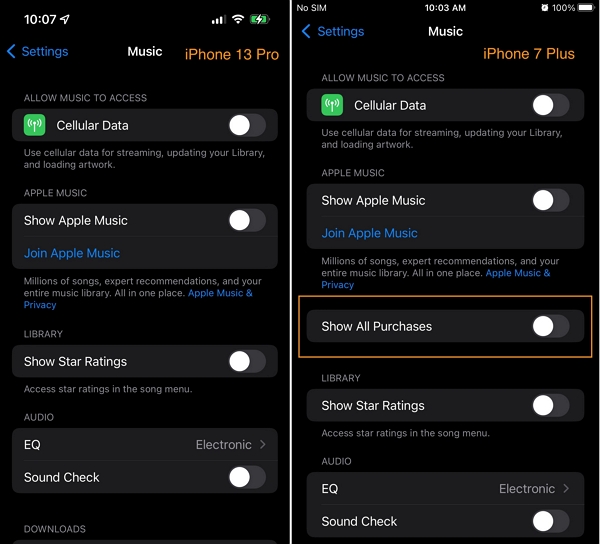
5. “Hide Music” or purchase visibility turned off
- iPhone: Settings → Music → Show All Purchases must be ON
- Mac: Check Preferences → General for any hidden items
6. After an iOS/macOS update
Playlists sometimes disappear temporarily after system updates.
A restart or toggling Sync Library OFF → ON usually resolves it.
7. Outdated app (Android only)
Update the Apple Music app to ensure proper syncing.
Part 2: Where to Find Apple Music Replay / Wrapped (2026 Updated)
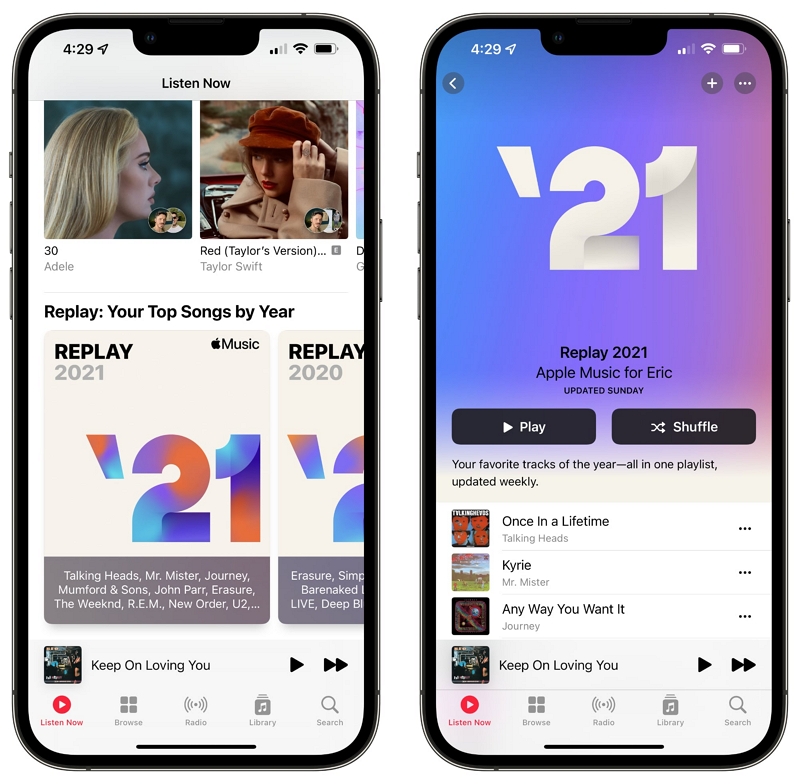
Apple Music Replay is Apple’s version of “Wrapped,” giving you a yearly summary of your top songs, artists, albums, and listening stats. Here’s where to find your Replay on different devices—and what to do if it’s not showing up.
1. What Is Apple Music Replay?
Apple Music Replay is an automatically generated year-in-review feature. It highlights:
- Your most-played songs
- Top artists and albums
- Total minutes listened
- Personalized Replay playlist for the year
2. Where to Find Replay (iPhone / Android / Mac)
Apple Music Replay isn’t inside the main Library like playlists—it lives in a special area of the app.
Find Replay On iPhone / iPad
- Open the Apple Music app
- Go to the Listen Now tab
- Scroll until you see Replay: Your Top Songs by Year
- Tap it to open the Replay playlist and annual stats.
Get Replay On Android
- Open Apple Music
- Tap Listen Now
- Scroll down to the Replay section
Android sometimes loads Replay later than iOS.
Open Replay On Mac (Music App)
- Open the Music app
- Click Listen Now on the left sidebar
- Scroll to find the Replay card
If you only see the Replay playlist but no stats, check the web dashboard (below).
3. Find Apple Music Replay Online (Web Replay Dashboard)
The official Replay dashboard provides the full Wrapped-style experience, including animated stats and detailed rankings.
To access it:
Step 1. Visit the Apple Music Replay website
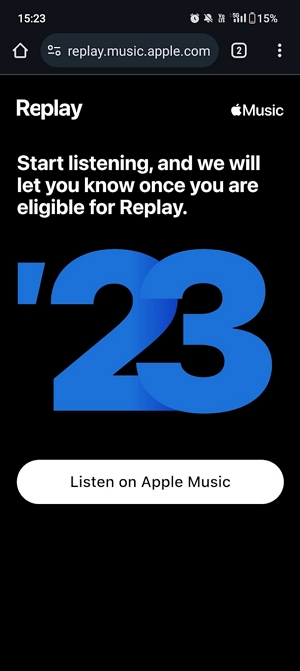
Step 2. Sign in with your Apple ID
Step 3. Your yearly stats and Replay playlist will appear
This is the most complete version of Apple Music Replay and updates throughout the year.
4. Replay Not Showing? Try These Fixes
If Replay isn’t appearing on your app or the website, the most common reasons include:
Subscription Not Active
Replay only works with an active Apple Music subscription. Renew your subscription to restore access.
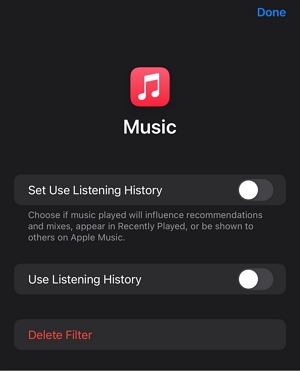
Listening History Disabled
- Apple Music needs listening data to calculate your stats.
- iPhone: Settings → Music → Use Listening History = ON
Low Playtime
Replay requires a minimum amount of listening before stats appear.
Even if you use Apple Music casually, just keep listening—stats unlock automatically.
Sync Issues
If your listening activity isn’t syncing across devices:
- Toggle Sync Library off and on
- Restart the app or device
- Update Apple Music or iOS/macOS
Part 3. Where Is the Account Menu on Apple Music?
When you need to check your subscription, manage your profile, or confirm your Apple ID, the first place you’ll look is the Account Menu. But depending on your device, the location is slightly different. Below are the exact paths, based on our tests across iPhone, Mac, Android, Windows, and iTunes.
On iPhone / iPad
In my tests on iPhone 15 Pro (iOS 18), the account menu consistently appears in the same place:
- Open the Apple Music app.
- Go to the Listen Now or Library tab.
- Tap your profile icon in the top-right corner.
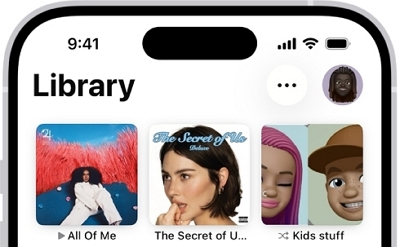
From here, you can view your subscription, manage notifications, see listening history, and check recommendations.
If your profile picture doesn’t appear, scroll slightly down—the icon may hide when the page is scrolled to the very top.
On Mac
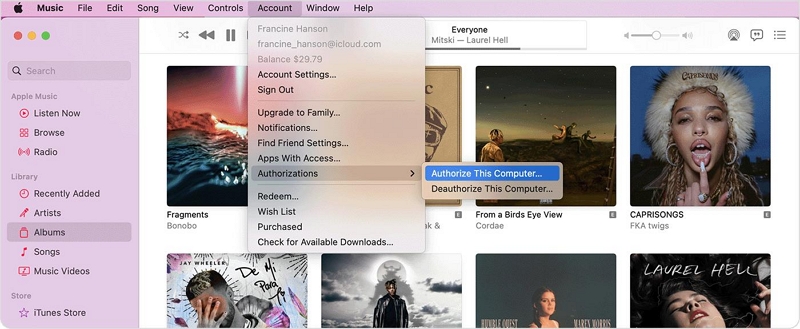
On macOS Sonoma & macOS 15, the account menu is located in a more “desktop-style” position:
- Open the Music app.
- In the menu bar at the top of the screen, click Account.
- Choose options like View My Account, Sign In, or Purchased.
On Android
On Android devices (tested on Samsung S22):
Step 1: Open Apple Music.
Step 2: Tap the three-dot menu (⋮) in the upper-right corner.
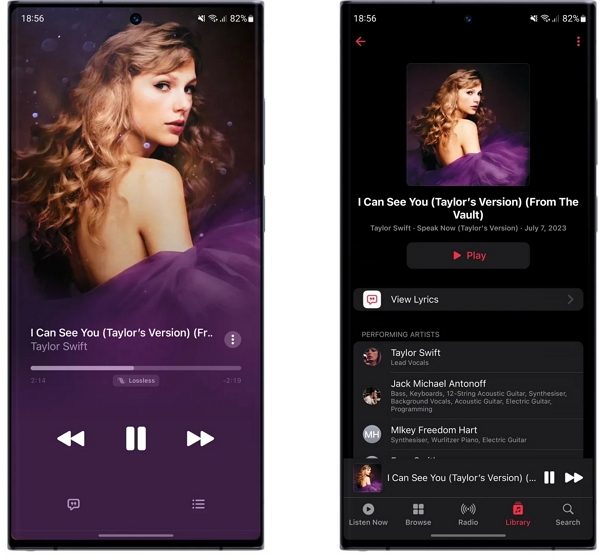
Step 3: Select Account or your profile name.
The options are slightly fewer compared to iOS, but key functions—subscription, profile, notifications—are accessible.
On Windows / iTunes
If you're still on iTunes (Windows):
- Open iTunes.
- In the top menu bar, click Account.
- Select Sign In, View My Account, or Authorizations.
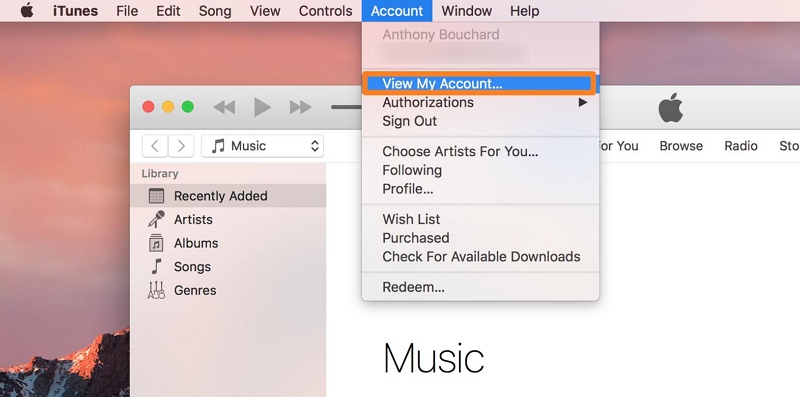
If the iTunes menu bar is hidden, press Ctrl + B to show it.
If the Account Menu Is Missing
If the Account section doesn’t appear at all, based on testing, the most common causes are:
1. App glitch / UI freeze
In our tests, Apple Music occasionally hides top UI elements during animation glitches.
Force-quit the app → reopen
2. Not signed in
If you're logged out, the system may not show the profile icon.
Sign in under:
- iPhone: Settings → Apple ID → Media & Purchases
- Android: In-app Settings → Account
3. Region issue
If your Apple ID was switched between countries, some UI modules “temporarily hide” until the region assets reload.
Restart Apple Music → reconnect to Wi-Fi → wait 20–30 seconds.
4. Child / restricted account
Screen Time, restrictions, or Family Sharing settings may hide content.
Check: Settings → Screen Time → Content & Privacy Restrictions
Part 4: Advanced Fixes for Missing Apple Music Playlists or Songs
If your Apple Music playlists or songs are still missing after verifying your Apple ID, enabling Sync Library, or restarting your device, the issue may be deeper—usually related to corrupted metadata, outdated caches, or an incomplete cloud sync.
Below are advanced solutions that work across iPhone, Android, Windows/iTunes, and macOS (Sonoma & macOS 15).
1. Reset the Apple Music App
Reset the Apple Music App on iPhone / iPad
- Delete the Apple Music app
- Restart your iPhone/iPad
- Reinstall Apple Music from the App Store
- Open Apple Music → Sign in → Sync Library reloads automatically
This fix helps when:
- Songs appear grayed out
- Playlists won’t refresh
- Artwork or metadata is incorrect
Reset the Apple Music On Android
- Go to Settings → Apps → Apple Music
- Tap Storage & Cache
- Clear Cache → Clear Storage
- Reopen the app and sign in again
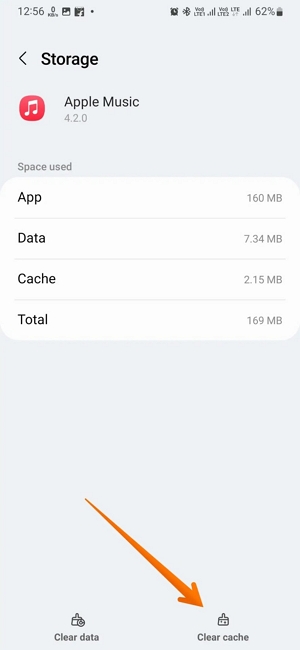
This forces a clean re-sync of your cloud library.
2. Re-enable iCloud Music Library (Sync Library)
Turning Sync Library off/on can force Apple Music to rebuild its metadata.
- iPhone/iPad: Settings → Music → Sync Library (OFF → ON)
- Mac: Music → Settings → General → Sync Library (toggle OFF → ON)
A forced refresh usually retrieves playlists within 30–60 seconds.
3. Re-download entire library
If songs show as “greyed out” or stuck loading:
- Open Music
- Go to Library → Songs
- Tap Download All (iOS) or File → Library → Update Cloud Library (Mac)
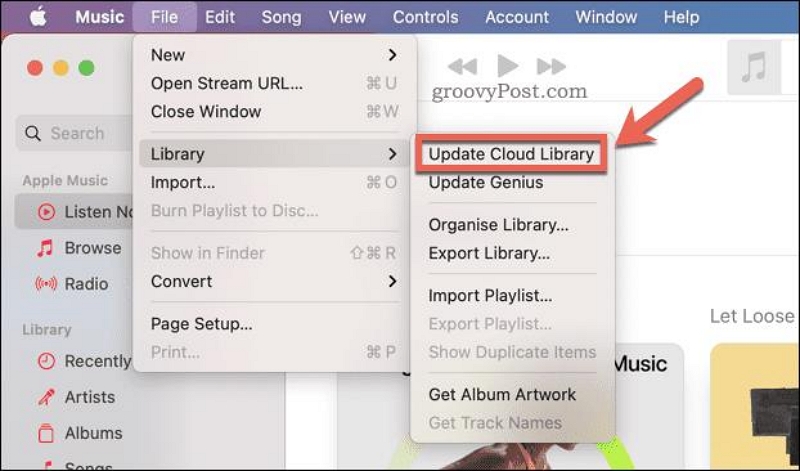
This is helpful after switching Apple ID regions or restoring a device.
4. Rebuild the Apple Music Library on Mac
Apple removed the old iTunes-style “Repair Library” button.
However, macOS still supports automatic library rebuilding — you just need to trigger it.
Rebuild macOS Local Library Database
Tested on macOS Sonoma & macOS 15.
- Quit the Music app
- Open Finder → Go to: ~/Music/Music
- Locate the file: Music Library.musiclibrary
- Move it to the Desktop (This makes macOS think the database is corrupted or missing.)
- Reopen the Music app
macOS will prompt you to rebuild the library and will automatically regenerate a clean database and re-sync all cloud content.
This fixes:
- Duplicate playlists
- Missing or mismatched artwork
- Ghost tracks that won’t play
- Correct songs showing incorrect metadata
- Library not updating
5. Restore from iPhone backup
If playlists disappeared after: iOS update, Device migration, iCloud sync failure
Then restoring a recent backup can bring back the playlist snapshot.
Methods:
- iCloud backup restore
- Finder backup restore (Mac)
After restoring → turn Sync Library ON again.
6. Use Apple’s “Sync Library Full Refresh” Method
A deeper reset Apple Support often recommends:
- Sign out of your Apple ID on your device
- Restart
- Sign back in
- Open Apple Music
- Enable Sync Library again
This forces a full re-index of your cloud music library—often the final fix for stubborn missing playlists.
Part 5: How to Prevent Apple Music From Losing Songs Again (2026 Tips)
Dealing with Apple Music's bugs and glitches can be a huge headache for people, especially if they are switching regions frequently. Thankfully, there is a way to avoid losing Apple Music songs again, and that is to create a permanent backup by converting them into MP3 or FLAC files using Mediaio Audio Converter.
Part 6: FAQs
Apple Music could automatically delete songs if your subscription has expired, if you change your region, or if your device is low on storage.
After signing in to Apple Music on a new device, you might have to use the Sync Library feature to see your playlist.
While Apple Music doesn't automatically delete music if your storage is low, it can prevent you from downloading new songs.
Apple Music could take a while to sync after an iOS update. In such a scenario, log in using your Apple ID credentials again, or sync your library again.
While it isn't possible to recover deleted playlists, you can restore a backup on your iPhone or Mac using iCloud or Time Machine. This way, you'll be able to reset the device itself to a time before the deletion, helping you regain access to the playlist.
The Account Menu on Apple Music can be found by tapping the three dots on the top right corner on Android, or the bottom left corner on Mac/PC.
Conclusion
Hopefully, now you have a clear idea of the answer to “Where are my Apple Music playlists” and “Where did all my music go on Apple Music.” What’s most important is to diagnose the root cause. After you’ve found out why Apple Music is acting up, you can choose the right course of action for your specific problem.