

Collaborative Playlists could be said as the most underrated social feature on Spotify. It lets friends and co-workers talk with their musical taste instead of text messages. In fact, most users actually don’t even know how to craft one. This is a missed opportunity because the feature is available to all Spotify users.
That is where this guide comes in. You’ll find everything regarding the Spotify Collaborative Playlist. You’ll learn how to make your playlist collaborative on Spotify, from creating one and inviting people to managing playlist and fix common issues. You will also see how to save the tracklist for offline listening.
What Is Spotify Collaborative Playlist
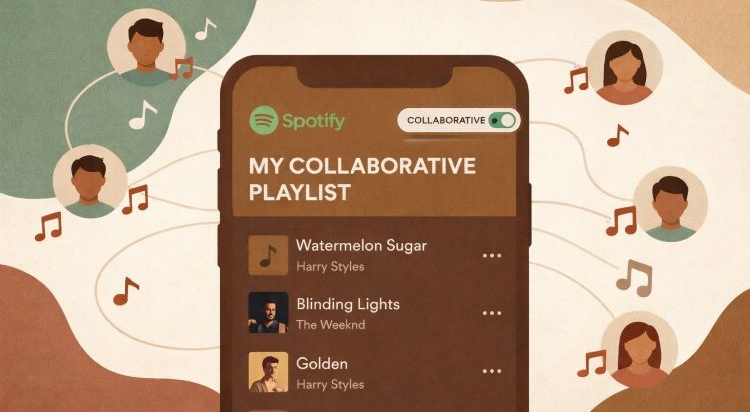
A collaborative playlist lets up to 1,000 Spotify users collaborate and manage a playlist together. Other than the fact that a collaborative playlist allows more than one person to edit it, there isn’t much difference between a collaborative playlist and a regular playlist.
There is also a hierarchy you have to understand. There are three roles:
- The Creator: The person who starts the collaboration. Only they can send invite links or edit the playlist details.
- The Collaborator: A person who has the permission to join and edit. They get a few extra permissions, though fewer than the Creator.
- The Listener: A person who can just join in, but doesn’t have edit permissions.
Here is the breakdown of all permissions:
Web Player: Usually supports everything. Note: Some users previously couldn't accept invite links here, but this is now resolved—just ensure your browser is updated.
Control Roles: Switch someone from "Collaborator" to just "Listener".
Edit Metadata: Change the playlist title, description, and cover image.
Playlist Deletion: Delete the entire playlist.
Remove Songs: Collaborators can definitely delete songs too.
Reorder: Move tracks up or down the queue.
How to Make Your Playlist Collaborative on Spotify
This section walks you through converting a personal playlist into a group one. You’ll see how to generate an invite link and understand what others need to do to start adding music alongside you.
Steps for You (Playlist Owner)
You can invite collaborators from either mobile or desktop. Note that you must be the owner of the playlist to invite collaborators.
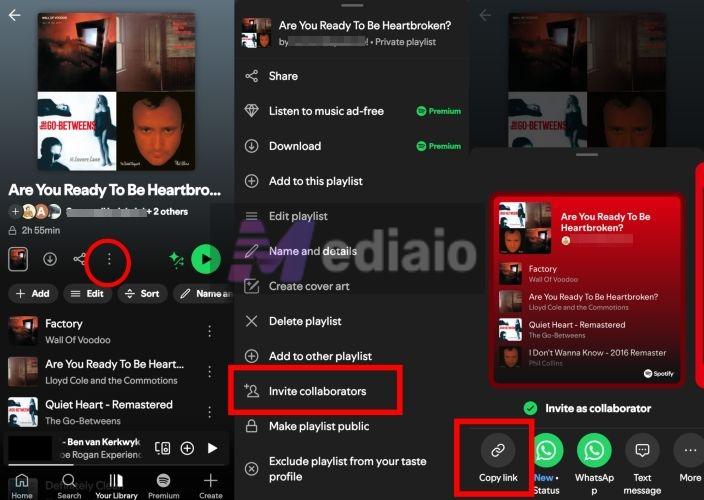
Step 1: Locate the Invite Option
- Open your own playlist.
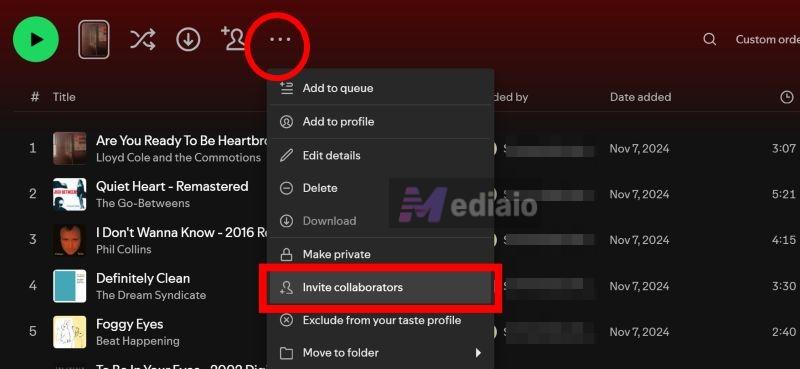
- Below the playlist title, open the three-dot menu.
- From the list, choose Invite collaborators.
Note: On desktop, you’ll usually see a person with a plus icon directly below the playlist title. Simply click it to copy the invite link immediately.
Step 2: Generate and Share the Invite Link
Spotify opens the share panel. From here, you can either copy the invite link and sent it to the user you want as collaborators or send the link directly using an app shown in the share sheet.
Important: The invite is only valid for 7 days.
Steps for Collaborators
Once the playlist link is shared, everything moves to the collaborator’s side. Here is how to guide them through it.
Join Spotify Collaborative Playlist
The joining behavior changes based on where they open the link—be it the mobile app, the desktop app, or the web player.
On Mobile:
Step 1. They tap the invite link. Then the link will open directly in the Spotify app.
Step 2. Spotify will show a clear invite message with two choices: Join playlist and Maybe later. Select Join playlist so that they can contribute.
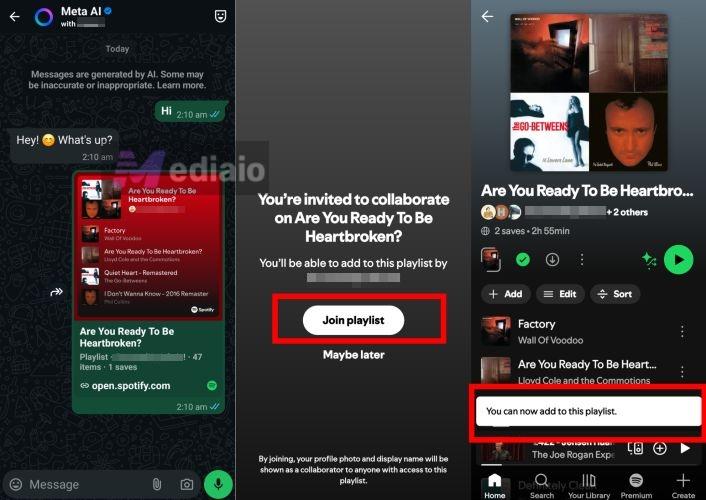
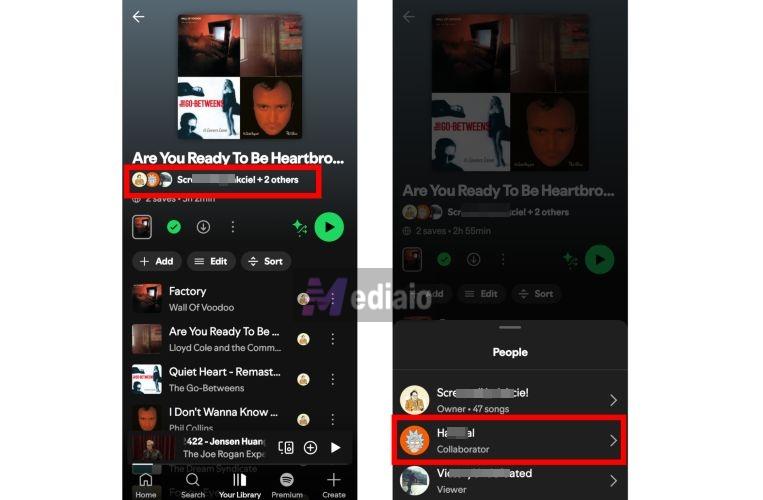
Once they join the playlist, their profile name will show up next to yours (the creator) and other collaborators. They’re officially part of the collaborative playlist now.
On Desktop:
Step 1. They open the invite link from email, WhatsApp, or a browser.
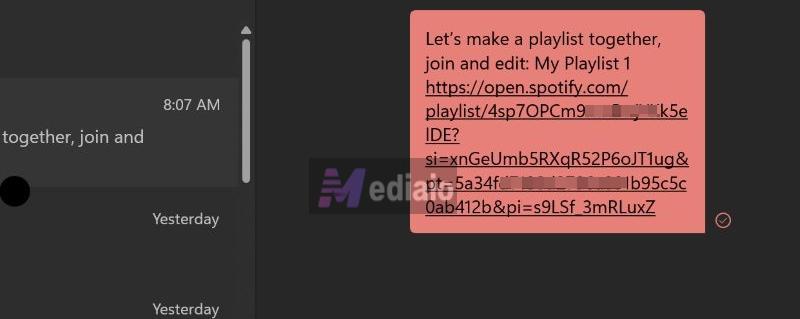
Step 2. They will be redirected to the Spotify desktop app if installed or be led to the web player.
That’s it! There’s no approval screen on the desktop. They will be added immediately. Their name will appear with the other collaborators, confirming successful access.
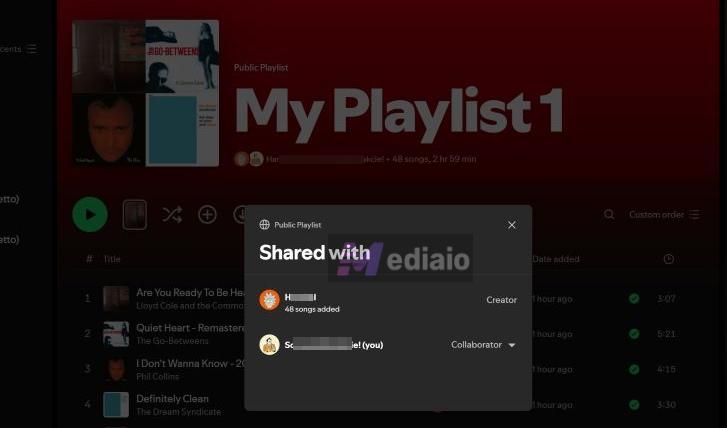
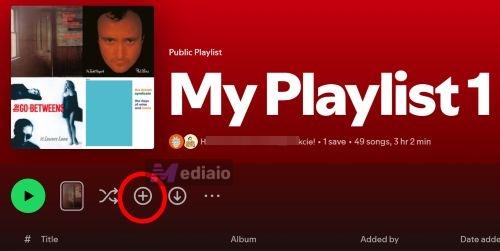
However, the collaborative playlist isn’t always saved to their library automatically. The members can add it manually via the Plus icon.
Add Songs to Spotify Collaborative Playlist
Once someone is a collaborator, there is no special rule or restriction when adding songs. Spotify treats the playlist like their personal playlists. There are multiple ways to add your favorite tracks and we will show them based on the device.
Option 1. Use the Add button inside the playlist:
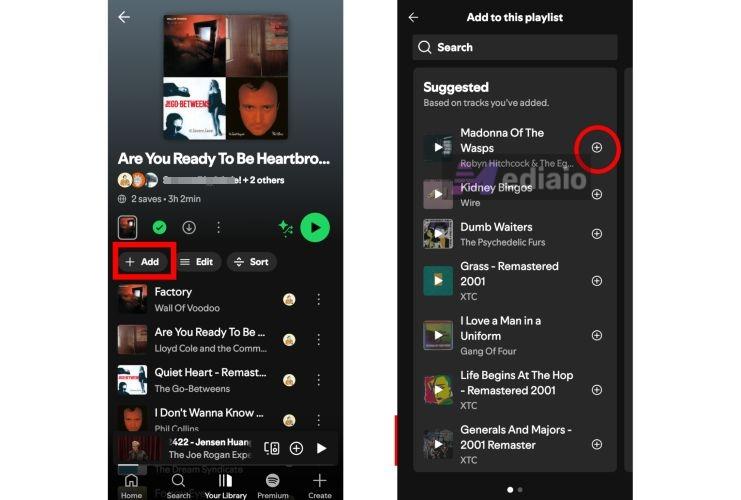
On mobile, collaborators will immediately see the Add button right below the playlist details.
- Tap Add. Spotify will open the song picker screen.
- Use search or suggestions to locate your desired tracks.
- Tap the plus (+) icon next to songs.
This method lets you and other collaborators add multiple songs in one go.
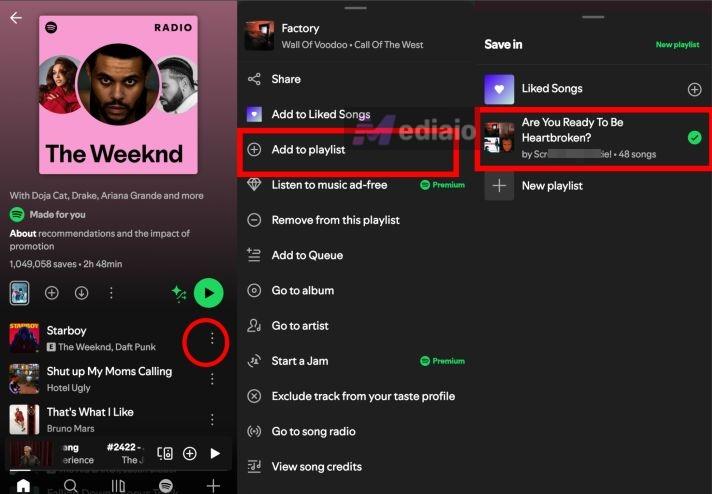
Option 2. Add songs wherever you find them
When you and other collaborators find a song while browsing or checking out an album:
- Hit the three dots beside the track and select Add to playlist.
- Find the collaborative playlist and tap the + next to its name.
The song will be added instantly. Besides the tracks, Spotify will label which collaborator added it.
Spotify desktop gives more ways for you and your collaborators to add and manage songs:
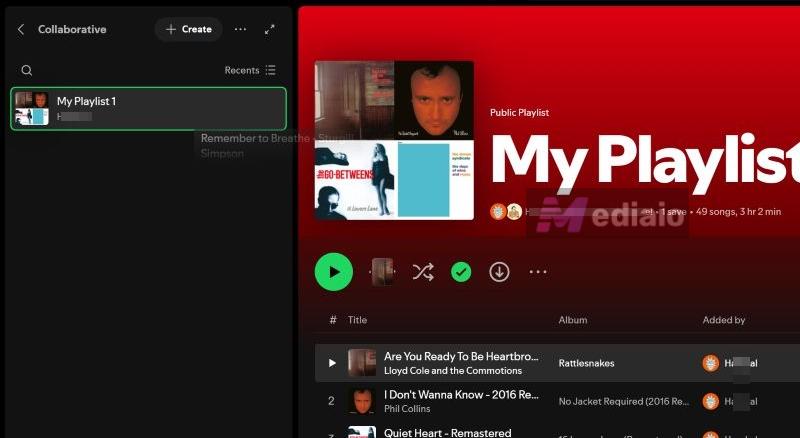
Path 1. Drag and Drop
Drag a song directly into the collaborative playlist in the left side. You can use Ctrl/Cmd to choose multiple songs or select everything using Ctrl/Cmd + A.
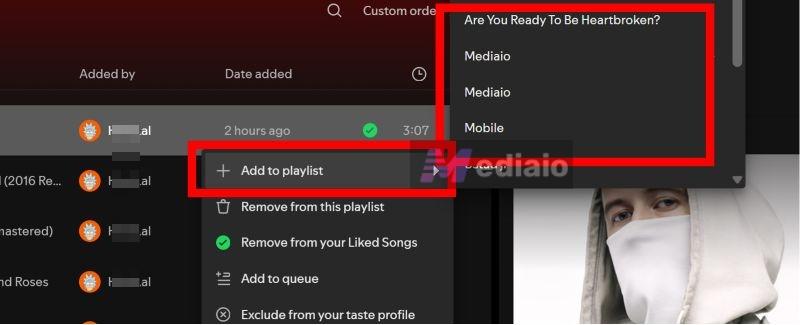
Path 2: Use Add Option
- Right-click a song to choose Add to playlist.
- Select the collaborative playlist from the list.
Remove Songs from Spotify Collaborative Playlist
As long as someone holds "Collaborator" status, they have an equal footing with the Creator when it comes to deletions. They aren't restricted to removing only the songs they added. They can delete the Creator's songs, their friend's songs, or the entire queue if they feel like it.
On Mobile:
- Hit the three-dot menu.
- Select Remove from this playlist.
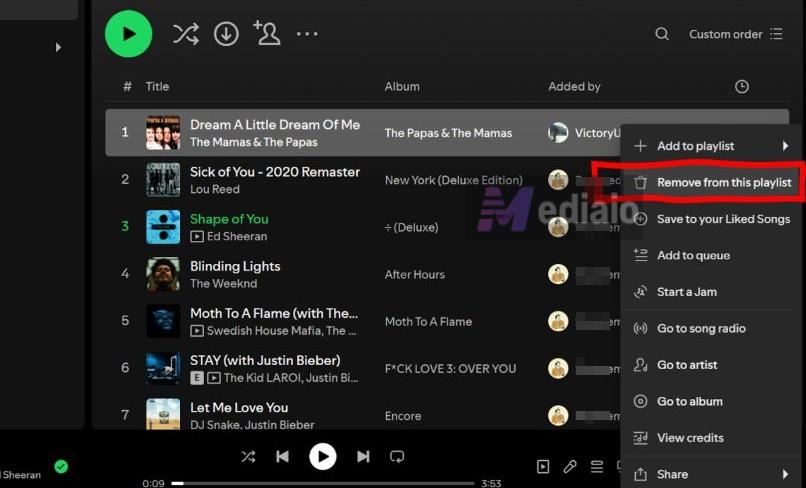
On Desktop:
You can bulk remove the songs:
- Hold Ctrl (or Cmd on Mac) and click the unwanted songs to highlight them.
- Right-click and choose Remove from this playlist option.
Spotify Collaborative Playlist Not Working
Technical hiccups are common with collaborative playlists. These problems usually appear in two forms. Let’s understand why they happen and how to fix them.
Issue 1: Spotify Collaborative Playlist Invitation Link Doesn’t Work
This typically shows up in one of these ways:
- Your friend clicks the link. The playlist opens, but they are not added as a collaborator.
- They only see an option to save the playlist but not collaborate.
Here’s why this happens:
Reason 1: Wrong link is shared
The most common cause is that the creator shares a normal playlist link, not the Invite collaborators link. In this case:
- The playlist opens normally
- The invite option never appears
- The person is not added as a collaborator at all
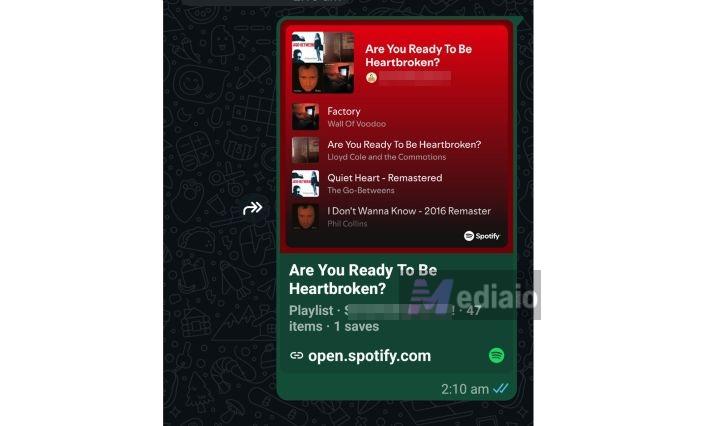
- Share-sheet integrations are unreliable
Sharing directly via WhatsApp, Messenger, or similar buttons inside Spotify’s share sheet can be buggy.
Reason 2: Collaborator limit already reached
If the playlist already has the maximum number of collaborators, new invite links will appear to “work” but won’t add anyone.
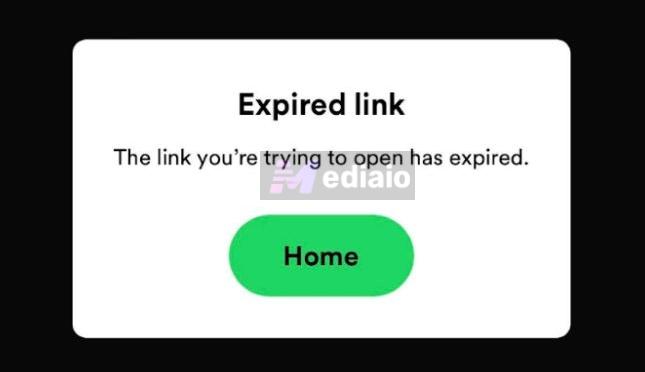
Reason 3: Invite link expired
If it’s been more than 7 days, the link will not work.
Fixes that work
Fix 1: Ask the creator to copy the link manually
Instead of using WhatsApp or Messenger buttons, ask the Creator to use the Copy link option and paste the link manually into the chat. This avoids share-sheet issues entirely.
Fix 2: Paste the link directly into Spotify
As the collaborator, copy the invite link and paste it into the Spotify search bar (inside the app).

If the link still doesn’t work, ask the creator to generate and send a new invite link.
Issue 2: Can't Add Songs to Spotify Collaborative Playlist
You have joined the playlist successfully, but the Add to playlist option is missing. This problem is usually status or sync related. Simply put, you are marked as a listener but not a collaborator or cached data is blocking permission updates.
Fix 1: Refresh or Restart Spotify
Close the Spotify app completely. Reopen it and try adding a song again.
Fix 2: Log out and Log back in
This will refresh your library and apply recent changes.
On mobile:
- Tap your profile icon.
- Open Settings and privacy.
- Scroll to the bottom and tap Log out.
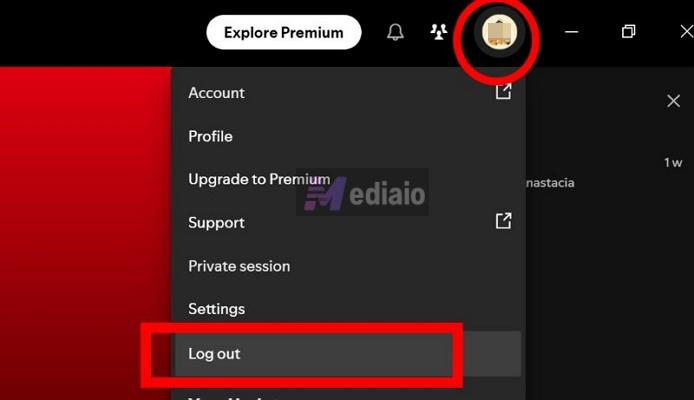
On desktop:
- Click your profile icon.
- Choose Log out from the menu.
After signing out of Spotify, login back in and check if the add option appears.
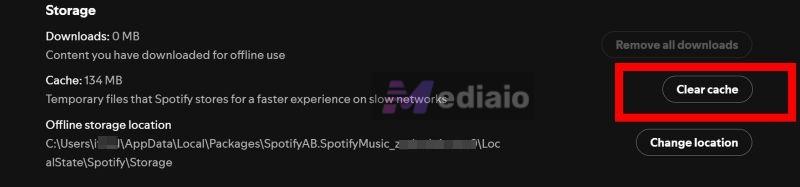
Fix 3: Clear Spotify Cache
Clearing the cache helps Spotify discard old permission data and register your collaborator status correctly.
How to Listen to Spotify Collaborative Playlist Offline
Just like any other Spotify playlists, you can download the collaborative playlist. There are two ways to do this.
- One method lets you save the playlists for offline listening inside the Spotify app.
- The other method lets you preserve the current version of a collaborative playlist by backing it up as local audio files.
Let’s go through both.
Method 1: Use Spotify Offline Downloads (Premium Required)
The download behavior stays the same. However, collaborative playlists update constantly. If someone adds or removes a song, those changes will sync automatically. The downloaded version updates as well when you go online.
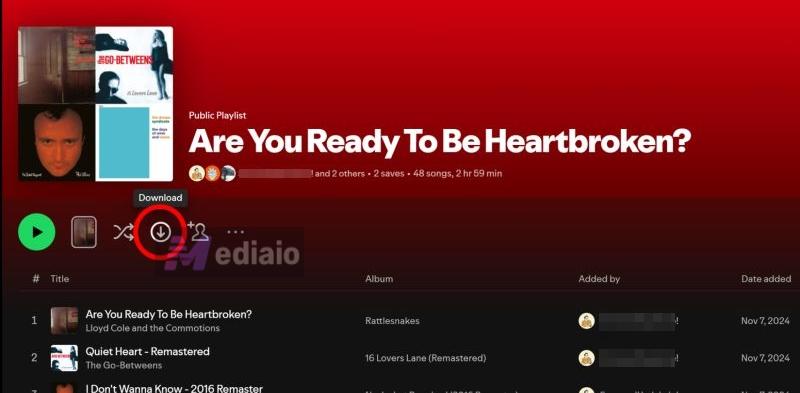
Step 1. Open the collaborative playlist. Click the Download icon below the playlist banner.
Step 2. Once downloaded, you will see a green download indicator next to each track.
You can now switch on Offline Mode. When you go online, any changes made to the list will reflect in the downloads. A deleted song will vanish from the downloads too, any additions will be automatically downloaded.
Method 2: Save the Playlist as Local Files
You can rely on Mediaio Audio Converter when you want to listen to a Spotify collaborative playlist with local media players.
Mediaio lets you save the collaborative playlist as MP3, AAC, or M4A files. So the collaborative playlist is stored directly on your computer. You can then enjoy them using music players like VLC or MP3 players like SanDisk. The key benefit here is stability. Even if the live playlist changes, your saved MP3 version remains untouched.
Final Words
So that’s really everything on collaborative playlists on Spotify, from inviting members to fixing common issues. Collaborative playlists are meant to evolve. If you ever want a version that doesn’t change—a fixed snapshot you can keep, you can back up the playlist as regular music files.