

You're playing music at a family dinner, in the car with kids, or as background at work—and an explicit track comes on. You knew the song but forgot it was the explicit version. It's a small thing that's immediately awkward.
Apple Music has clean versions of most popular songs, but finding them isn't always straightforward. The explicit version usually ranks higher in search results, the filter settings are buried in Screen Time, and some songs simply don't have a clean version at all—something most guides don't mention until you've already wasted ten minutes searching.
This guide covers how Apple Music's clean/explicit system actually works, three reliable methods to find or filter clean versions, and—most usefully—what to do when no clean version exists.
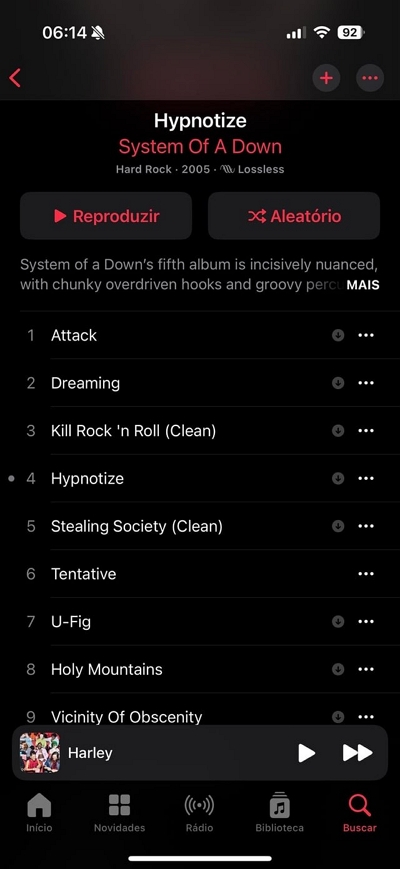
Part 1. What Is a Clean Version on Apple Music?
A clean version on Apple Music is an officially edited version of a song where profanity or adult content has been muted, reversed, or replaced. These versions are uploaded by the artist or label, not Apple.
Clean vs. Explicit vs. No Label — What Each Means
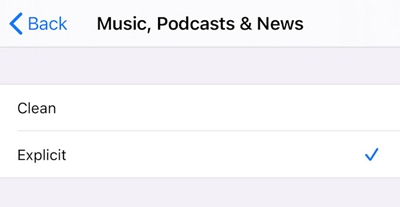
Key Things Users Should Know:
- Clean versions are uploaded by the artist or label—not Apple.
- Not every song has a clean version; it depends on the label's uploads.
- Some genres offer cleaner versions, but availability varies.
Why You Sometimes Can't Find a Clean Version
- The artist or label never released one — common among indie artists, mixtape releases, remasters, and older catalog music.
- The clean version exists but is uploaded separately – Sometimes it appears as a standalone single, or alternate album, or deluxe edition, instead of sitting next to the explicit track.
- Regional licensing differences - The clean version may be available in the US but not in India, the UK, or other regions due to distribution rights.
- Search ranking issues: Apple Music often surfaces the explicit version first, unless you’ve enabled the content filter, which can bury the clean version several rows down.
How Apple Music Displays Clean and Explicit Tracks
- On albums: Clean and explicit versions usually appear as separate tracks within the same album listing – often side-by-side.
- In search results: The explicit version typically ranks higher by default. Turning on the explicit filter forces Apple Music to prioritize clean versions.
- Clean version indicator: Look for (Clean) or (Clean Ver.) in the song or album title, or track metadata. If there’s no label at all, treat it as “unrated.”
Method 1: Enable the Explicit Content Filter System-Wide
Who this is for: parents setting up devices for children, or users who want all music to default to clean automatically
How it works: Apple’s Screen Time content restriction hides any track tagged "E" across the entire Apple Music catalog. When a clean version exists, Apple Music will surface it automatically.
iPhone and iPad
Settings → Screen Time → Content & Privacy Restrictions → Content Restrictions → Music, Podcasts & Fitness → select Clean
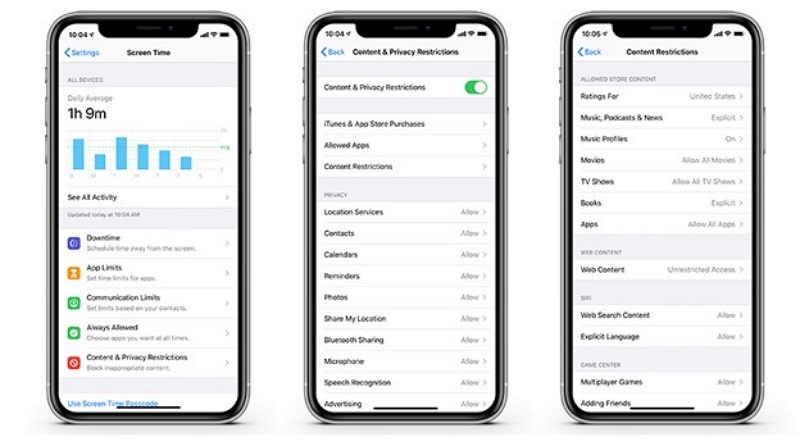
If Screen Time isn't set up yet, you'll be prompted to create a passcode. Set one if you're configuring a child's device—otherwise they can simply turn the filter off.
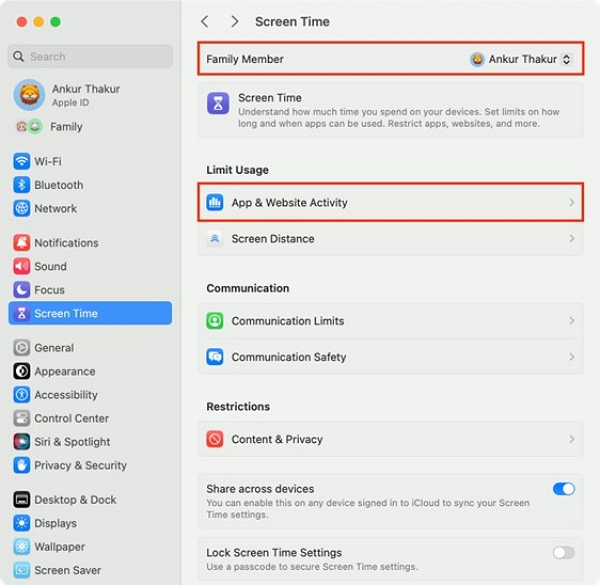
Mac (macOS Ventura and later)
System Settings → Screen Time → Content & Privacy → Content Restrictions → Music, Podcasts, News & Fitness → select Clean
On older macOS versions, this is in System Preferences → Screen Time.
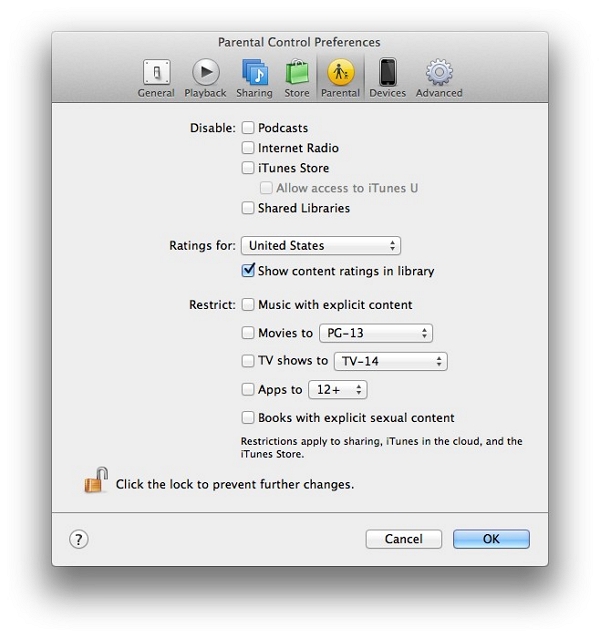
Windows (iTunes)
iTunes → Edit → Preferences → Restrictions → check "Restrict" → set Music to Clean
What the Filter Does—and Doesn't Do
The filter is useful but has real limitations worth knowing before you rely on it:
It does: Hide explicit tracks from search and browsing. Automatically surface clean versions when available. Apply to Apple Music radio and autoplay suggestions. Apply to HomePod if the HomePod was set up with the filtered iPhone.
It doesn't: Retroactively clean up existing playlists—explicit tracks you've already saved remain visible. Affect music already downloaded offline on the device. Catch unlabeled tracks that happen to contain explicit content. Make clean versions appear where none exist—those songs simply won't show up in results.
The last point is the most important practical limitation: if you're building a playlist and a song you want has no clean version, enabling the filter means that song is just gone from your search results. You'll need one of the workarounds in the section below.
Method 2: Search Manually for Specific Clean Versions
Best for: Listeners who normally prefer explicit music but need clean versions for specific playlists, events, or shared listening—without changing system-wide settings.
Search Techniques That Work
Add "clean" to your search query. Searching "Blinding Lights clean" or "Anti-Hero clean version" directly surfaces the clean track in most cases. This is faster than browsing album listings.
Search for "Radio Edit." Radio edits are produced for broadcast and are almost always clean, even when not labeled "Clean" in Apple Music. Many songs have radio edits available that don't appear in standard clean version searches.
Check the album listing when a clean version isn't in results. Sometimes the clean and explicit tracks coexist within the same album listing rather than appearing as separate search results. If you find the explicit version, open the album and scroll—the clean track may be immediately adjacent.
Search by lyrics for hard-to-title songs. If you know the song but not the exact title, searching distinctive lyrics + "clean" often works. Apple Music's search includes lyric matching.
Finding Clean Versions by Platform
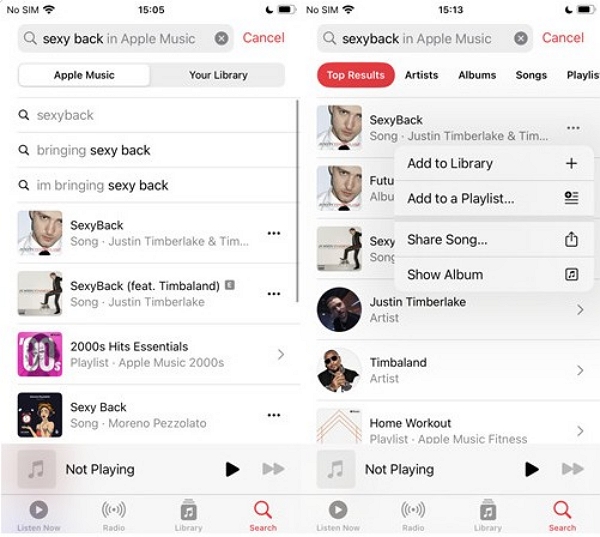
On iPhone or iPad: Music app → Search → tap "Apple Music" (not "Your Library") → type song name + "clean." Look for the track without the E badge. Tap ··· → Add to Library or Add to Playlist.
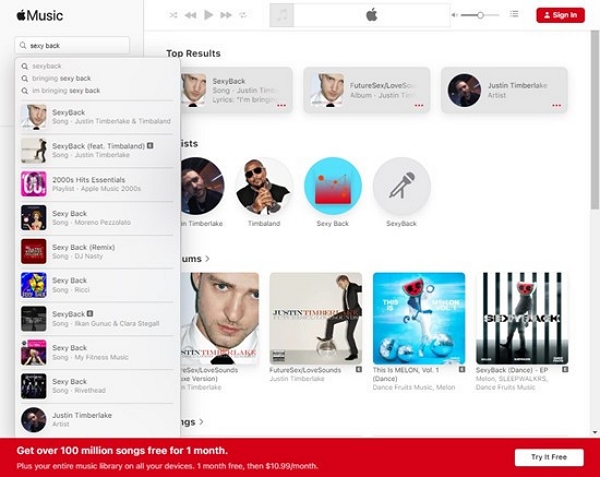
On the web (music.apple.com): Search → type song name + "clean version." The clean version typically appears near the top. Click ··· → Add to Library.
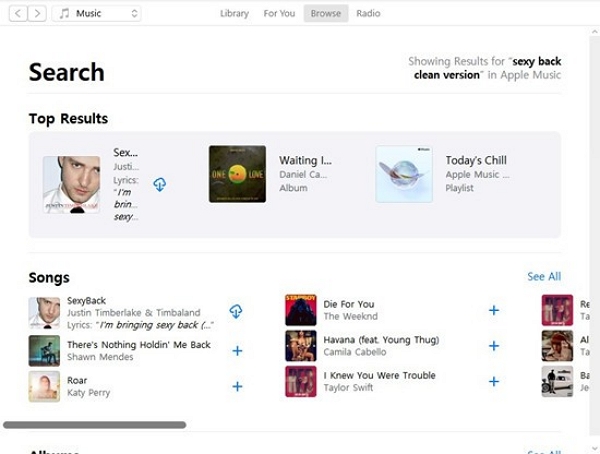
On Mac or Windows: Click the Search bar → select the "Apple Music" tab → type song name + "clean version." Filter results by Songs to narrow down quickly.
Via Siri: "Hey Siri, play the clean version of [song name]" works for individual track requests on iPhone, iPad, Mac, and HomePod. Siri searches Apple Music and plays the clean version directly if one exists—useful hands-free in the car.
Method 3: Build and Maintain a Clean Playlist
If you regularly need clean music for a specific context—kids in the car, a work playlist, family gatherings—building a dedicated clean playlist is more reliable than relying on the filter or searching each time.
Why You Need to Build It Manually
Apple Music's explicit filter is a playback setting, not a playlist tool. It doesn't automatically convert your existing playlists or guarantee that tracks you add later will be clean. The only way to have a guaranteed-clean playlist is to curate it intentionally.
Building the Playlist
Step 1: Create a new playlist with a clear name—"Family Road Trip," "Kids Party," "Office Background." The name helps you remember to maintain it.
Step 2: Add songs individually. For each track: search [song name] + "clean," confirm there's no E badge, then add it. Don't use "Add All" from an album—this can pull explicit tracks even when clean versions exist.
Step 3: After building the initial playlist, enable the explicit filter temporarily and play through it. Any track that disappears was either explicit or unlabeled-but-explicit. Replace those manually.
Protecting Your Playlist from Catalog Changes
Apple Music occasionally updates its catalog in ways that affect saved tracks—clean versions get replaced by explicit ones, tracks get removed, or metadata changes. This happens more often than most users realize, and it's particularly frustrating for carefully maintained clean playlists.
Music Library Tracker (iOS/iPadOS, free tier available) monitors your library and sends notifications when tracks are altered, removed, or replaced. For a clean playlist you've spent time curating, it's worth setting up.
Periodically sort your clean playlist by "Recently Added" and scan for any tracks that now show an E badge. If one appears, re-search the clean version and replace it manually.
Sharing Clean Playlists
Tap ··· on the playlist → Share Playlist → copy link or share via AirDrop/Messages. Recipients can follow the playlist on their Apple Music account.
The playlist content stays as you built it regardless of the recipient's filter settings. If you added the clean version of a track, recipients hear the clean version—even if they have explicit content enabled on their own account.
If you keep local music files instead of streaming-only tracks, converting them into Apple Music–friendly formats can make playlist management easier. Tools like Mediaio Audio Converter allow you to quickly convert audio into formats such as MP3, AAC, or WAV so they can be imported and organized alongside your existing music library.
When No Clean Version Exists: What Actually Works
This is the section most guides skip entirely. A meaningful percentage of songs—particularly from independent artists, older catalog, and mixtape culture—simply have no official clean version. When that's the case, you still have real options.
Check for Alternate Versions Within Apple Music
Live recordings and acoustic sessions are frequently cleaner than studio versions. Artists often naturally tone down explicit lyrics in live settings, and acoustic sessions recorded for radio promotion are almost always broadcast-safe. Search "[song name] live" or "[song name] acoustic" and check for E badges.
Radio edits exist for many songs released before clean/explicit labeling was standardized. These were produced for FM radio broadcast and cleaned for that purpose. They often don't appear when you search "clean" but surface when you search "radio edit."
Cover versions by other artists are often recorded clean, especially by indie artists, YouTube-origin performers, and vocalists doing acoustic covers for streaming. Search "[song name] cover" and check for E badges. The cover won't be the original, but for background listening or car playlists it's often a workable substitute.
Movie and TV soundtrack versions are frequently cleaned for broadcast standards. If a song appeared in a film or series, the soundtrack version is often the clean cut—and it's usually on Apple Music as part of the official soundtrack album.
Use AI Vocal Isolation for Background Use
For situations where you need the song as background music—events, workout classes, ambient listening—vocal isolation tools offer a practical workaround when no clean version exists.
Moises (iOS, Android, web) and Lalal.ai (web) can isolate and remove the vocal track from a song, leaving you with the instrumental version. This removes all lyrics, not just the explicit words—so it's not a clean version substitute for regular listening. But for background use where lyrics aren't the point, an instrumental of a song you like is often preferable to finding a completely different track.
Real experience note: Vocal isolation quality varies significantly by song. Tracks with dense production where vocals share frequency ranges with instruments come out muddy. Songs with clear separation between vocal and instrumental layers—much of pop, hip-hop, and electronic music—isolate well. Test the specific track before committing to it for an event.
Find a Similar Clean Song
Apple Music's "You Might Also Like" section (on any artist or album page) surfaces similar artists and tracks. Starting from a clean track in the same genre and using it as a seed for discovery often turns up clean alternatives you wouldn't have found by searching directly.
Search "clean" in the Playlists filter to find staff-curated clean collections. Apple maintains several genre-specific clean playlists that are regularly updated—useful for discovering clean tracks in a genre rather than hunting song by song.
Frequently Asked Questions
You cannot always tell from the song page directly. The fastest method is to search the song title followed by “clean” in Apple Music. If no version appears without an E badge, the artist or label has likely not uploaded a clean version to the platform.
Two common reasons exist. The track may be unlabeled, meaning it has no E badge but also no “Clean” tag, so it passes through the filter. Another possibility is that the Screen Time restriction was not saved correctly. Check Screen Time → Content & Privacy Restrictions → Content Restrictions → Music and confirm it shows “Clean.”
Only if you configure them to do so. Setting Music to “Clean” only affects playback within Apple Music. It does not automatically restrict Safari, other apps, or purchases unless those restrictions are configured separately.
No. Screen Time is currently the only native system-level option to filter explicit songs in Apple Music. If you prefer not to use Screen Time, you can manually search for a clean version by adding “clean” to your song search.
Apple Music occasionally updates its catalog. In some cases, a clean version may be replaced with the explicit version or metadata may change, which alters how the track is labeled. Tools like Music Library Tracker can help notify you when tracks in your library change.
Yes. HomePod inherits content restriction settings from the iPhone used during setup. If that iPhone has the explicit filter enabled, HomePod will apply the same restriction. Apple TV can also use similar restrictions through Screen Time settings in tvOS.
In that case, you can check other streaming platforms such as Spotify, YouTube Music, or Amazon Music. Because each platform has a slightly different catalog, a clean version unavailable on Apple Music may exist elsewhere. On YouTube, official audio uploads are often the radio or clean edit even when labeled as the standard version.
Summary
Apple Music gives you two reliable paths to clean listening: the Screen Time explicit filter for automatic system-wide filtering, and manual search with "clean" or "radio edit" added to your queries for targeted track selection.
The filter is the right tool for shared or children's devices. Manual search is better when you want control over specific tracks without changing system settings.
The most important thing most guides don't cover: not every song has a clean version. Knowing that upfront—and knowing to look for live versions, radio edits, covers, and soundtrack versions—saves real time and frustration when the standard search comes up empty.
For a clean playlist that stays clean, build it manually, use Music Library Tracker to catch catalog changes, and check it periodically for any tracks that have quietly flipped to explicit.