

You've found the perfect track in your Apple Music library. You drag it into Premiere Pro. Nothing happens—or worse, you get an import error and a grayed-out file. This is one of the most common frustrations in video editing, and the reason is specific: not all Apple Music files are the same, and Premiere Pro can only work with one type.
This guide explains exactly what's happening, which files you can use directly, and what your legitimate options are when the track you want isn't compatible.
Why Apple Music Files Don't Always Import into Premiere Pro
The DRM Explanation
Apple Music's streaming catalog—the 100+ million tracks you access through a subscription—is protected by Apple's FairPlay DRM (Digital Rights Management). This is Apple's technical enforcement of the licensing terms: you pay for access to stream music, not to own files you can use anywhere. FairPlay encrypts the audio data in a way that only Apple's authorized apps can decode.
Premiere Pro isn't an authorized Apple app, so it can't read these encrypted files. When you try to import a DRM-protected track, Premiere either shows an "unsupported format" error, grays out the file entirely, or simply ignores it. This isn't a bug in Premiere or a setting you can change—it's working as designed.

iTunes Purchases Are Different
Here's the distinction that most guides miss: songs you purchased from the iTunes Store before 2009, or that you've bought since, are stored as standard unprotected AAC files (.m4a). Apple removed DRM from iTunes Store purchases in 2009. These files play in any audio application, including Premiere Pro.
Apple Music subscription downloads are a completely different format (.m4p or DRM-locked .m4a). Even though they appear in the same library and look identical in Finder or File Explorer, Premiere Pro cannot import them.
How to tell the difference:
- In Finder or File Explorer, check the file extension: .m4a = purchased (usually importable), .m4p = Apple Music subscription (not importable)
- In the Music app, right-click any song → Get Info → look at the "Kind" field. "Purchased AAC audio file" means you own it. "Apple Music audio file" means it's subscription-only and DRM-protected.
What Premiere Pro Actually Supports
Premiere Pro imports any standard, unprotected audio format:
- MP3 — universally compatible, smaller file size
- WAV — uncompressed, highest quality for editing
- AIFF — Apple's uncompressed format, equivalent quality to WAV
- Unprotected AAC (.m4a) — works if it's an iTunes-purchased track
- FLAC — lossless compressed, supported on modern systems
- OGG — open-source compressed format
It cannot import DRM-protected files in any format, including .m4p files or encrypted .m4a subscription downloads.
Method 1: Import iTunes Purchased Songs Directly (Free, Works Immediately)
If you bought a song from the iTunes Store, you can import it into Premiere Pro directly—no conversion needed. These files are standard unprotected AAC, and Premiere treats them like any other audio file.
Step 1: Find your purchased files
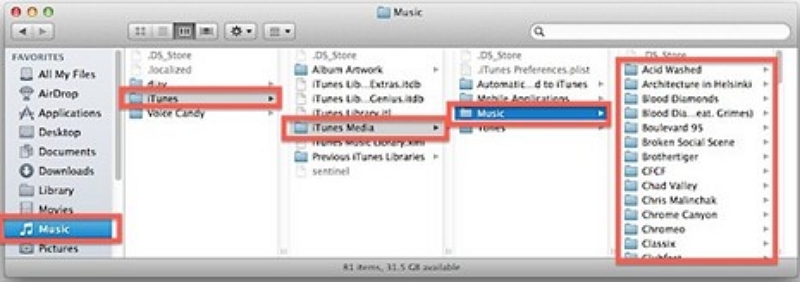
On Mac: Open Finder → navigate to Music → iTunes → iTunes Media → Music. Your purchased tracks are organized by artist and album here.
On Windows: Open File Explorer and go to C:\Users\[YourName]\Music\iTunes\iTunes Media\Music.
Alternatively, in the Music app, right-click any purchased track → Show in Finder (Mac) or Show in Windows Explorer to jump directly to the file location.
Step 2: Verify the file is unprotected
Before importing, confirm the file extension is .m4a, not .m4p. Right-click the file → Get Info (Mac) or Properties (Windows) and check that "Kind" says "Purchased AAC audio file."
If it says "Apple Music audio file" or the extension is .m4p, it's DRM-protected and won't import. See the alternatives section below.
Step 3: Import into Premiere Pro
Go to File → Import and navigate to your .m4a file, or drag it directly from Finder/File Explorer into the Project panel. The file appears in your Project panel like any other audio asset.
Step 4: Add to your timeline
Drag the track from the Project panel to an audio track in the Timeline. It behaves exactly like any other audio clip—trim, adjust volume, add effects.
If You Need Apple Music Subscription Tracks: Understanding Your Actual Options
This is where most guides either mislead you or point you toward legally problematic tools. The honest situation:
Apple Music subscription tracks cannot be used in Premiere Pro without removing their DRM protection. Removing DRM from Apple Music files violates Apple's Terms of Service and, in most jurisdictions, copyright law (including DMCA Section 1201 in the US and equivalent laws elsewhere). Tools marketed as "Apple Music converters" that remove DRM exist, but using them creates real legal exposure—particularly if you're producing commercial content.
This isn't a technicality. If you're editing video professionally or creating content for clients, using DRM-circumvention tools introduces risk that most professional editors avoid.
The practical alternatives that don't carry this risk: Mediaio Audio Converter
Method 2: Use Royalty-Free Music Built for Video Production
The most reliable long-term solution for Premiere Pro editors is building a workflow around music that's licensed for video use from the start. The quality of royalty-free music has improved dramatically—the gap between major label tracks and dedicated production music libraries has largely closed for most video contexts.
Artlist is widely used by YouTube creators and professional video editors. Tracks are licensed for unlimited use across platforms with a single annual subscription (~$199/year). The catalog focuses on production-quality music across genres, and licenses cover commercial use, monetized YouTube content, and client work.
Epidemic Sound operates on a subscription model (~$15/month for personal, ~$49/month for commercial) and offers a catalog built specifically for video. Individual tracks and sound effects are available, and the license covers YouTube monetization, social platforms, and commercial projects. It integrates directly with some editing tools.
Musicbed is a premium option favored by film and advertising editors. Licensing is per-project rather than subscription, which works better for high-value commercial work where track selection is curated rather than volume-based.
YouTube Audio Library is free and includes tracks cleared for YouTube use. Quality varies, but there are genuinely good tracks in the library, and for YouTube-specific projects it removes all licensing concerns.
For a single Premiere Pro project, these services are often more practical than trying to use Apple Music tracks—you get direct file access, clear licensing terms, and no import issues.
Method 3: Use Apple Music Through Screen Recording (For Personal, Non-Commercial Projects Only)
If you have a personal, non-commercial project—a family video, a personal reel you won't publish commercially—and you want to use a specific Apple Music track, screen recording or audio capture is sometimes used. This captures the audio as it plays through your system, bypassing the DRM issue entirely because you're recording the output, not copying the protected file.
Important caveats:
- This is for personal, non-commercial use only. Publishing content commercially with Apple Music audio—on YouTube for monetization, for client work, for any paid project—is a different matter legally and practically. Apple Music's licensing doesn't cover commercial use regardless of how the audio was obtained.
- Audio quality from screen recording is limited by your system audio settings and introduces potential quality loss compared to the source file.
- On Mac: use QuickTime Player's audio recording function or a system audio capture tool. On Windows: the Game Bar (Win+G) or a DAW with ASIO driver support can capture system audio.
This is a workaround, not a production workflow. For anything you're publishing or sharing commercially, the royalty-free music approach is cleaner.
Working with Audio in Premiere Pro: Pro Tips
Once you have your audio files imported—whether purchased iTunes tracks, royalty-free music, or any other compatible format—these techniques help them sit well in your edit:
Set appropriate loudness levels. Background music typically sits at –25 to –30 LUFS in a mixed project. Dialogue should land around –23 LUFS. Use the Loudness Radar effect (Effects panel → search "Loudness Radar") to monitor levels across your sequence rather than guessing by ear.
Use the Essential Sound panel for fast mixing. Assign your music track to the "Music" category in the Essential Sound panel (Window → Essential Sound). Premiere applies optimized EQ and compression presets automatically—a significant time saver for editors who aren't audio engineers.
Enable Auto Ducking. With your music track assigned as "Music" and your dialogue assigned as "Dialogue" in the Essential Sound panel, Premiere can automatically lower music volume during speech. This is genuinely useful for interview-style content and saves substantial manual keyframing.
Add Constant Power crossfades. For clean fade-ins and fade-outs, right-click at the start or end of an audio clip → Apply Default Transition. Premiere applies a Constant Power crossfade, which sounds more natural than an abrupt cut.
Use beat markers for rhythm editing. Press M to place markers on your timeline at musical beats before starting your video cuts. This makes rhythm-based editing—where cuts align with musical hits—much faster than estimating by feel.
Preview audio before committing to a track. In the Media Browser (Window → Media Browser), you can hover over audio files to preview them before importing. For royalty-free music selection, this saves repeatedly importing and deleting tracks while you find the right fit.
Frequently Asked Questions
Older iTunes purchases (pre-2009) were sold with DRM and may still be protected. Check the file extension—if it's .m4p, it was purchased during the DRM era. Consider repurchasing the track from the iTunes Store (Apple now sells DRM-free versions for most songs) or using a royalty-free music alternative for your project.
Not directly. Apple Music subscription tracks are DRM-protected and Premiere Pro cannot import them. Your options are to use a royalty-free music service for production work, or—for personal non-commercial projects only—capture system audio as described in Method 3.
For the best quality, use WAV or AIFF because they are uncompressed and maintain full audio fidelity during editing. If you need smaller file sizes with acceptable quality, MP3 at 320kbps or AAC at 256kbps is recommended. Avoid highly compressed formats such as MP3 at 128kbps or lower, as the quality loss can become noticeable in a mixed project.
It depends on how the track was obtained and how the YouTube video will be used. Even if the file imports successfully, Apple Music tracks used in YouTube videos—especially monetized ones—can trigger Content ID claims that mute audio or claim revenue. Using royalty-free music from platforms like Artlist, Epidemic Sound, or the YouTube Audio Library avoids these issues.
This depends on the specific license. Artlist's standard license generally covers commercial use, while Epidemic Sound's commercial plan allows usage for client projects. Always verify the exact license terms for the tracks you use, because "royalty-free" does not automatically mean it can be used for all commercial purposes.
Yes. Premiere Pro supports FLAC files on most modern systems. FLAC is a good option when you want lossless compression while keeping high-quality audio. If playback or compatibility issues occur, converting the file to WAV is a reliable alternative.
Summary
The simplest path to adding music to Premiere Pro from your Apple ecosystem:
- iTunes purchased tracks (.m4a): Import directly. No conversion needed.
- Apple Music subscription tracks: Cannot be legitimately used in Premiere Pro for commercial work. Use royalty-free alternatives for production projects.
- Personal non-commercial projects: System audio capture is a workaround, with the caveats described above.
For video editors doing this regularly, the most practical long-term solution is subscribing to a royalty-free music service. The licensing clarity, direct file access, and production-ready catalog quality make the workflow substantially cleaner than working around platform restrictions.