

When Apple introduced Crossfade in Apple Music, I was genuinely excited. On paper, it sounds perfect: no more awkward silence between songs, no more broken flow during workouts or long listening sessions.
But after actually using it for a while, I noticed something frustrating — sometimes Crossfade works beautifully, and sometimes it doesn’t work at all, even when the setting is clearly turned on.
If you’re here because you’ve enabled Crossfade but still hear gaps between songs, or you’re not even sure where the option is on your device, you’re not alone.
In this guide, I’ll walk you through:
- How to turn on Crossfade on iPhone, Android, Windows, and Mac
- What Crossfade really does in daily use (and where it has limitations)
- And what you can realistically try if Crossfade refuses to work on certain songs or playlists
Everything here is based on real-world usage and common issues, not just what the settings menu suggests.
Part 1: What is Apple Music Crossfade and Why Use It?
In daily use, Crossfade is most noticeable when you listen to playlists, workout mixes, or background music — anywhere silence between songs feels awkward.
Instead of letting one song fully stop and the next one start, Crossfade slightly overlaps them: the current track fades out while the next one fades in. When it works well, your music feels continuous rather than “track-by-track”.
This is especially useful for:
- Parties or background music
- Workout or running playlists
- Long listening sessions where you don’t want constant breaks in the flow
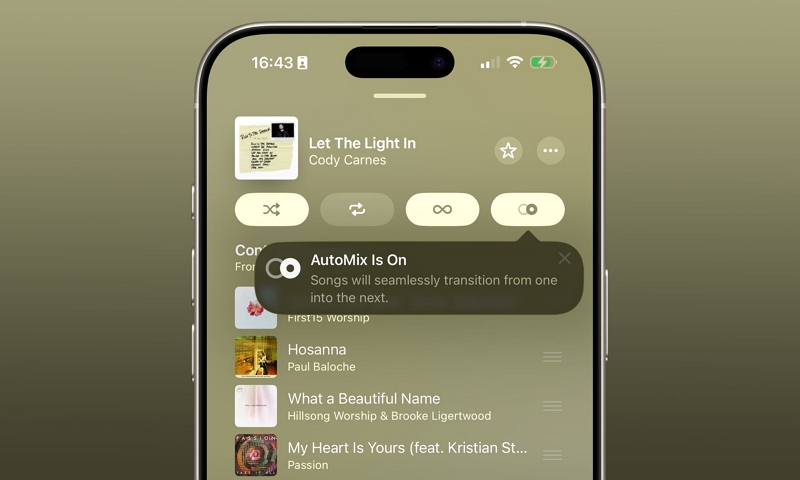
Apple has also started adding smarter mixing features (like AutoMix in newer systems), but in practice, Crossfade is still the basic setting most people rely on for smoother transitions.
Part 2: A Few Things to Know Before You Use Crossfade
Before turning Crossfade on, it helps to know a few practical limitations. These aren’t obvious from the settings menu, but they explain most of the “why doesn’t this work?” situations.
1. Your system and app version matter
Crossfade only works on newer versions of Apple’s software:
- On iPhone and iPad, you need iOS 17 or later
- On Mac, Windows, and Android, you need a recent version of the Apple Music app
If you don’t see the Crossfade option at all, the first thing to check is your system or app version.
2. Your Apple Music plan is not the problem
You don’t need a special subscription tier. As long as you’re using Apple Music and your app supports Crossfade, the feature is available.
In other words, if Crossfade isn’t working, it’s almost never because of your plan.
3. How you play music can disable Crossfade
This one catches a lot of people by surprise:
- Crossfade often does not work when you’re playing music via AirPlay to external speakers
- Crossfade is designed mainly for music played directly inside the Apple Music app on your phone or computer
So if you’re testing Crossfade and nothing seems to happen, make sure you’re playing music locally in the app first.
Important note: You can't use crossfading if you're sending music over AirPlay to a speaker. It is solely for music played directly on the Apple Music app on your phone or computer.
Part 3: How to Turn On Crossfade on Apple Music on Any Device
Before following the steps below, a quick tip: after you turn Crossfade on, start playing a playlist and listen for the transition between songs. If you still hear silence, jump ahead to Part 4 — it usually means you’re hitting one of the limitations, not that you missed a switch.
On iPhone / iPad
If your iPhone or iPad is running iOS 17 or later, here’s where the setting lives:
Step 1: Open “Settings” on your iPhone/iPad.
Step 2: Scroll down and select “Apps.”
Step 3: Find the “Apple Music” app icon and tap on it.
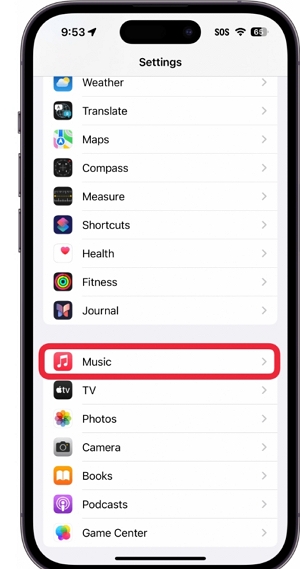
Step 4: Navigate to the “Audio” section and turn on the “Crossfade” toggle. Then, drag the slider to adjust the duration of the fade.
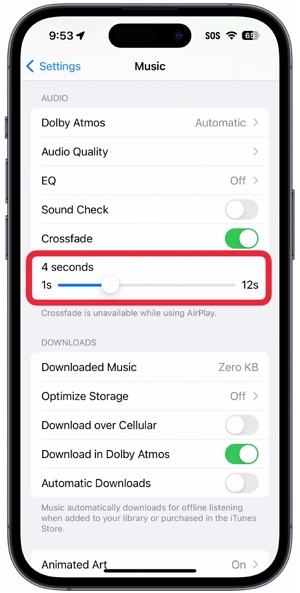
If you don’t see the Crossfade option here, your iOS version is likely too old.
On Mac
Step 1: Launch the “Apple Music” app.
Step 2: Click on “Music” from the top-left corner and select “Settings” from the drop-down.
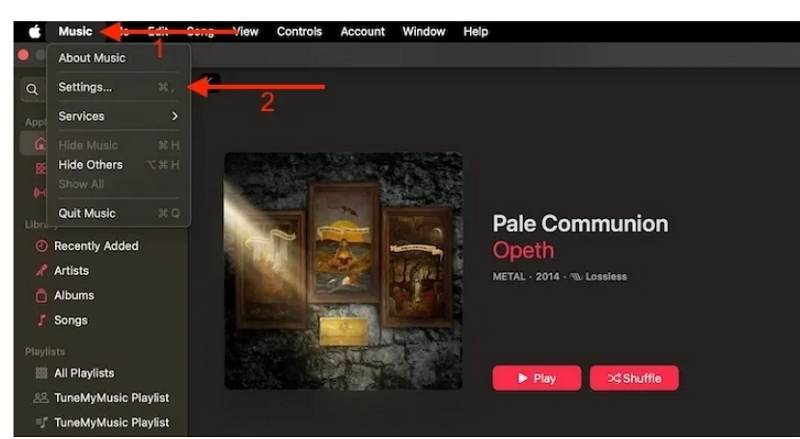
Step 3: Navigate to the “Playback” tab and check the box next to “Crossfade songs.”
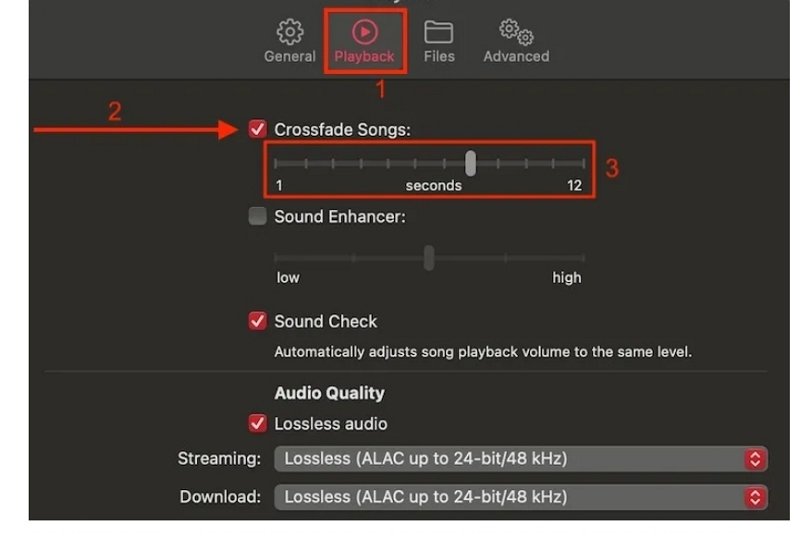
After that, adjust the music fade duration using the slider.
On Windows
Step 1: Make sure you have the Apple Music app installed from the Microsoft Store
Step 2: Open the app and click the three-dot menu in the sidebar, then choose Settings”
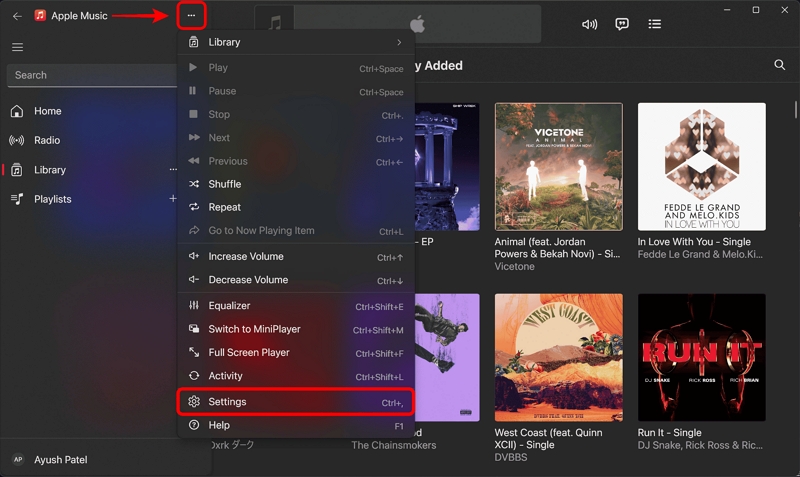
Step 3: Open Playback settings
Step 4: Turn on Crossfade and adjust the duration slider
Android
Step 1: Open the Apple Music app
Step 2: Tap on the “three-dot horizontal icon” at the top-right corner and select “Settings.”
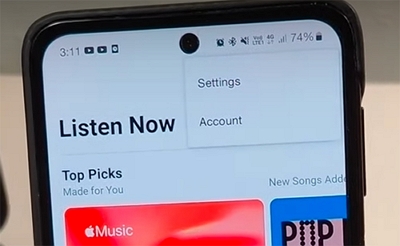
Step 3: Scroll to “Audio” and choose “Crossfade.”
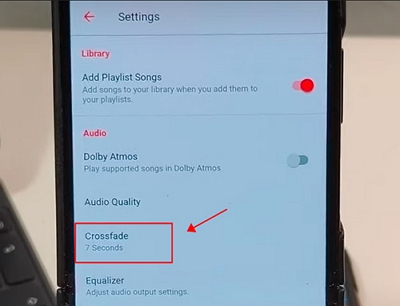
Step 4: Choose between “Manual” and “Automatic” crossfade.
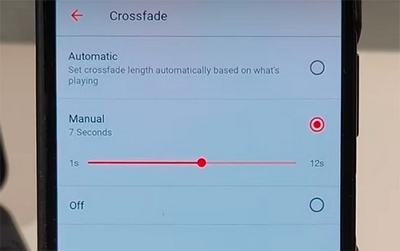
- Manual lets you set the fade length yourself
- Automatic lets Apple Music decide based on the songs
Part 4: How to Fix Apple Music Crossfade Not Working
- In most cases, Crossfade works once it’s properly enabled and your system is up to date. But if you’ve already turned it on and still hear silence between tracks, the problem usually comes down to one of three things:
- The system or app isn’t fully up to date
- A temporary app or system glitch
- The way certain songs are sourced or played
Here’s a simple, practical way to check each one.
Step 1: Check the Basics First (This Solves Most Cases)
- Before trying anything complicated, make sure:
- Your device is running iOS 17 (or newer), or the latest version of the Apple Music app on Mac, Windows, or Android
- You fully close and reopen the Apple Music app
- You restart your device (this surprisingly fixes Crossfade issues more often than you’d expect)
In my own testing, simply updating the system and restarting the Music app fixed Crossfade on a device where it had suddenly stopped working.
Update your system:
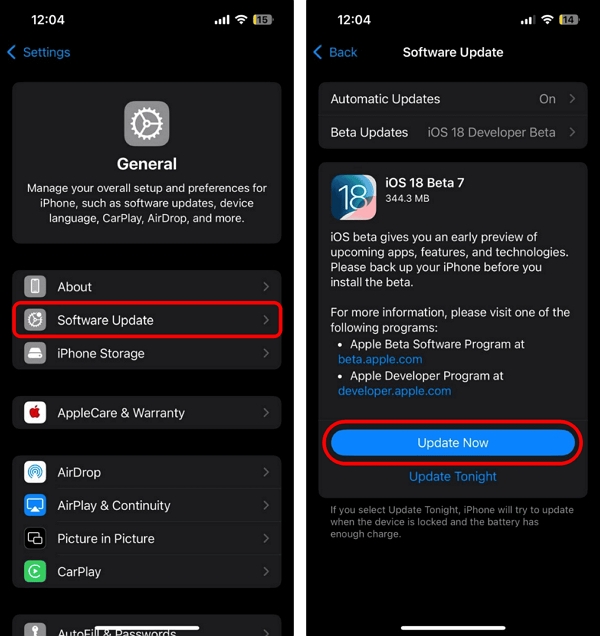
On iPhone / iPad:
- Open Settings → General → Software Update
- Install any available update
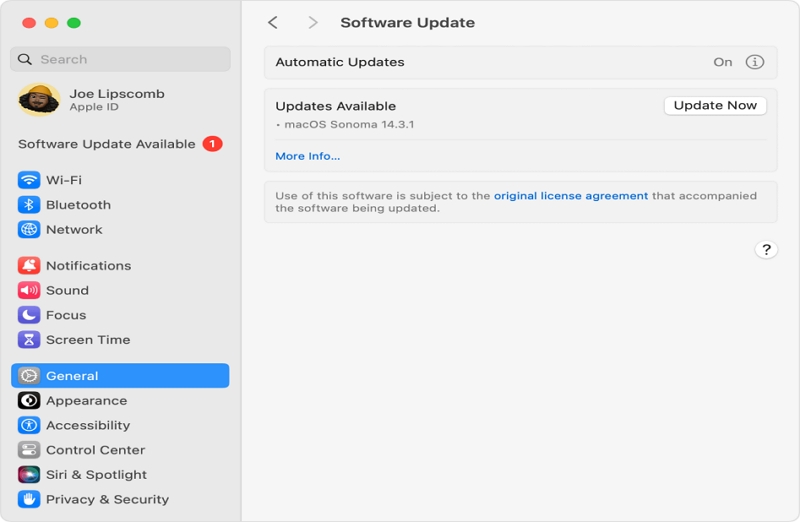
On Mac:
- Open System Settings → General → Software Update
- Install the latest macOS update if available
Step 2: Check How You’re Playing the Music
This part is easy to overlook, but it matters a lot:
- Crossfade does not work when you’re playing music via AirPlay to some speakers
- Crossfade may not apply to songs that are imported, locally added, or come from outside Apple Music
To test this, try:
- Playing a playlist made entirely of songs streamed or downloaded directly from Apple Music
- See if Crossfade works there
If it works on Apple Music tracks but not on your own files, the issue isn’t your settings — it’s the file source.
Step 3: Accept the Current Limitations
Right now, Crossfade in Apple Music is not a “works in every situation” feature. It depends on:
- The type of song
- The playback method
- And sometimes the way the track is encoded
If it still doesn’t work after all the checks above, you’re likely running into one of these limitations rather than doing anything wrong.
A Practical Workaround for Special Cases (Optional)
To be clear: if Crossfade works normally for you, you don’t need anything else. The built-in Apple Music feature is always the best and simplest solution.
However, in some edge cases — especially if you rely on:
- Locally managed playlists
- Imported tracks
- Or a mix of files from different sources
Crossfade may simply refuse to apply, no matter how you tweak the settings.
If you’re preparing music for a long offline session, a party, or background playback where seamless transitions really matter, one practical workaround is to use standard audio files that any music player can crossfade smoothly.
Tools like Mediaio Audio Converter can help you prepare local copies of your Apple Music tracks for personal offline playback, so they behave like normal audio files in any player that supports crossfade.
This is not a replacement for Apple Music, and it’s not necessary for most users. It’s simply an option if you’ve already confirmed that the official Crossfade feature doesn’t work for your specific playlist setup.
In simple terms, what it helps with:
- Lets you play your music in players that have more reliable crossfade behavior
- Makes your library easier to manage for offline or device-to-device use
- Avoids the weird “works for some songs but not others” problem in certain setups
Important:
- This is meant for personal playback and library management only.
- Always try Apple Music’s built-in Crossfade first.
- Back up your music library before making any changes.
Conclusion
The Crossfade feature has been a game-changer for users who enjoy uninterrupted listening. Whether you’re an iPhone/iPad/Android/Windows/Mac user, the article on this page outlines the steps to use the Crossfade feature without complications. And if the Crossfade feature isn’t working as expected, we shared several solutions you can use to fix the problem.