

You imported an MP3 into Apple Music and want to see lyrics as the song plays—ideally line-by-line, the way songs from the Apple Music catalog display. The short answer is: true synced (karaoke-style) lyrics aren't officially supported for personal uploads. But there are several things you can do, and understanding which approach fits your situation saves a lot of frustration.
This guide explains what's actually possible, how to add static lyrics to any local file, and what your best options are when synced lyrics matter.
Part 1: Understanding Lyrics in Apple Music
Before adding lyrics to local songs, there are certain things you need to understand about lyrics in Apple Music.
Static lyrics are plain text attached to a song's metadata. They appear as a scrollable block while the song plays, but don't highlight or move with the music automatically. You can add these to any local file.
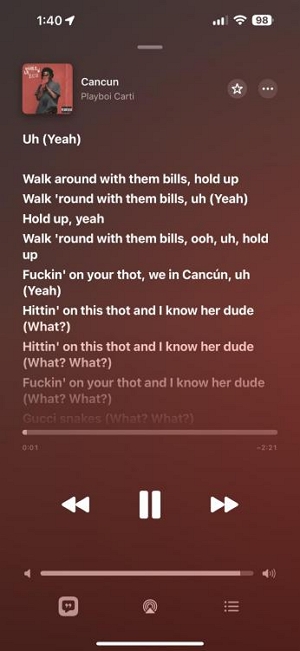
Synced lyrics are time-coded—each line is tied to a specific timestamp in the song, so the correct line highlights in real time as the music plays. This is the karaoke-style display you see on songs from the Apple Music catalog.
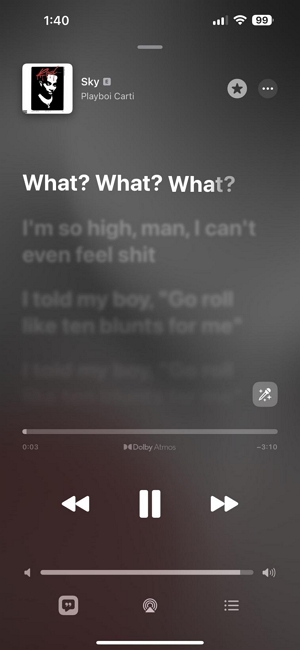
For local files you've imported yourself, Apple Music only supports static lyrics. Synced lyrics are delivered from Apple's servers during playback and are only available for songs in the official catalog.
Why Local Files Don't Get Synced Lyrics
Apple Music's synced lyrics come from Musixmatch, a licensed lyrics provider. The data is hosted server-side—not stored inside the audio file—and is only delivered for tracks in Apple's official catalog.
When you import a personal MP3 or AAC file, Apple treats it as personal media rather than catalog content. Even if the same song exists in the Apple Music catalog, your imported version doesn't automatically receive the licensed lyric data. The sync happens at the song level in Apple's catalog, not at the audio file level.
There's also a technical workaround some users try: adding LRC files (timestamped lyric files used by many music players) to local tracks. Apple Music doesn't read LRC timing data—it either ignores the file entirely or strips the timestamps and displays the text as static lyrics.
The practical result: for personal uploads, you can add static lyrics manually, or you can use workarounds to connect the track to Apple's catalog version.
Method 1: Add Static Lyrics to a Local File (Official, Works Everywhere)
This is the straightforward, supported method. Static lyrics won't animate line-by-line, but they appear in Apple Music's lyrics panel and sync across your devices via iCloud Music Library.
On Mac (Apple Music app)
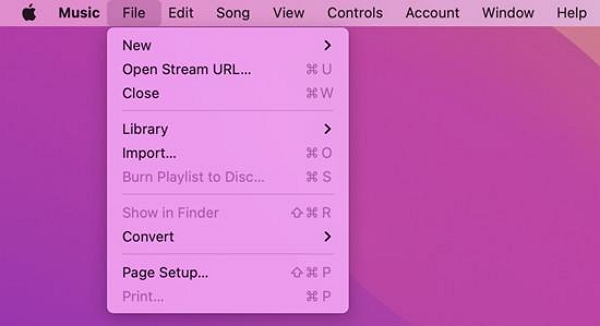
1. Open Apple Music → File → Import → select your audio file → Open
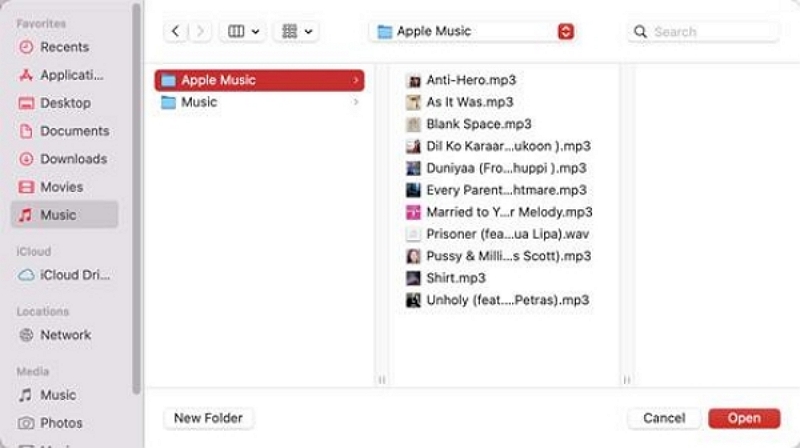
2. Once imported, right-click the track → Get Info
3. Click the Lyrics tab
4. Paste your lyrics into the text field → click OK
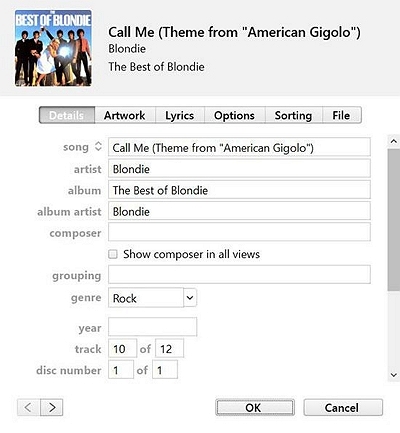
The lyrics save to the file's metadata. When Sync Library is enabled, they'll appear on your iPhone and iPad within a few minutes.
Where to find lyrics to paste: Genius.com has lyrics for most songs in plain text. AZLyrics is another reliable source. Copy the full text and paste it directly into the Lyrics field.
Real experience: Adding static lyrics this way works reliably for personal archives—cover songs, live recordings, music not in any streaming catalog. The scrollable text panel isn't as visually polished as synced lyrics, but it's functional for following along. For a library of 50+ songs, using a tag editor like Mp3tag (see Method 2) is much faster than adding lyrics one at a time through Apple Music's Get Info dialog.
On Windows (iTunes)
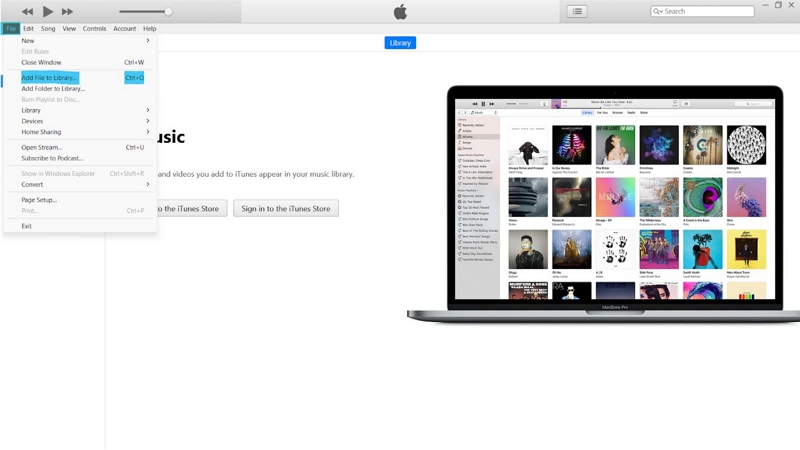
1. Open iTunes → File → Add File to Library (or Add Folder to Library) → select your file
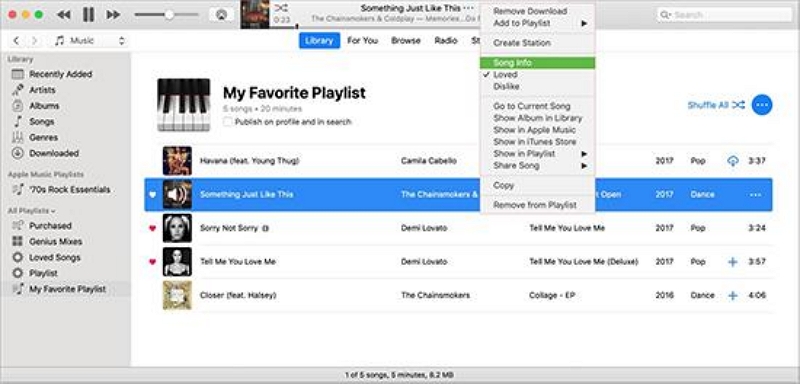
2. Right-click the track → Song Info
3. Click the Lyrics tab → paste your lyrics → click OK
Method 2: Batch Add Lyrics Using a Tag Editor (Faster for Multiple Files)
For adding lyrics to many files at once, a dedicated tag editor is significantly faster than the Apple Music/iTunes Get Info dialog.
Mp3tag (free for Windows and Mac) lets you edit any ID3 tag field, including lyrics, across multiple files simultaneously. It reads and writes the same LYRICS field that Apple Music displays.
- Open Mp3tag and drag your audio files into the window
- Select a track → find the UNSYNCEDLYRICS field in the tag panel
Paste the lyrics text → save
After editing tags externally, Apple Music should reflect the changes immediately when you re-import or rescan the files. If changes don't appear, right-click the track in Apple Music → Get Info → OK to force a metadata refresh.
Mp3tag writes to the UNSYNCEDLYRICS ID3 field, which is the standard field Apple Music reads for the Lyrics tab. Some tools use different field names—if lyrics aren't showing up in Apple Music after editing, confirm the field name in Mp3tag matches UNSYNCEDLYRICS.
Method 3: Match to Apple Music Catalog (Gets True Synced Lyrics)
When you enable Sync Library, Apple Music uses audio fingerprinting to check whether your imported track matches a song in its catalog. If a match is found, Apple may serve the catalog version's metadata—including synced lyrics—when you stream the track.
Enable Sync Library:
- Mac: Apple Music → Music menu → Settings → General → toggle on Sync Library
- iPhone/iPad: Settings → Music → toggle on Sync Library
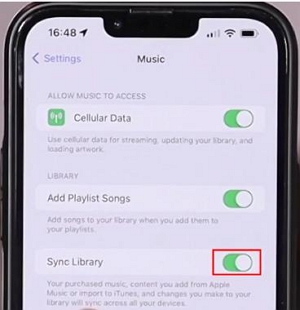
What this actually does: If your imported file matches a catalog track, the streaming version (with synced lyrics) may play instead of your local file. Your local file stays in your library, but the lyric data comes from Apple's servers.
Why it's unreliable: Matching depends on accurate metadata (title, artist, album) and exact audio fingerprint matches. Tracks with inconsistent metadata, live versions, remixes, or anything not in the catalog will be uploaded rather than matched—and uploaded tracks don't get synced lyrics. There's no way to force a match or check whether a specific track was matched vs. uploaded.
Method 4: Add the Catalog Version Instead of the Local File
If the song exists in Apple Music's catalog, the simplest way to get synced lyrics is to add the catalog version to your library directly, rather than importing your local file.
- Search for the song in Apple Music
- Tap or click + (Add to Library)
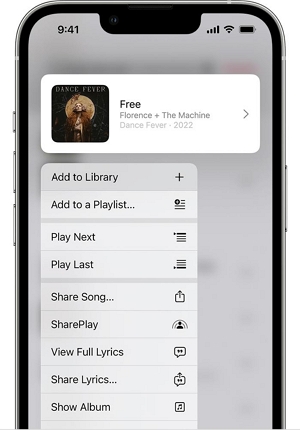
Catalog tracks have synced lyrics enabled by default. The trade-off is that you're streaming Apple's version rather than playing your local file—quality differences, alternate versions, or remixes won't carry over.
When this makes sense: For standard commercial releases where you want the lyrics experience and don't have a specific reason to use your local copy (different mix, higher quality rip, etc.).
Method 5: Use a Third-Party Player That Supports LRC Files
If synced lyrics are important to you and your local files aren't in Apple's catalog, a third-party music player that supports LRC (timestamped lyric) files is the most reliable solution. Apple Music doesn't support LRC, but several dedicated players do.
What LRC files are: Plain text files with timestamps on each line in the format [mm:ss.xx] lyric line here. Many music players read these files and use the timestamps to display lyrics in sync with playback.
Players that support LRC on Mac/iOS:
Vinyls (iOS, paid) — a well-designed local music player that reads LRC files placed in the same folder as the audio file. Actively maintained, good iOS integration.
Doppler (iOS, paid) — similar LRC support, strong local library management.
Foobar2000 (Mac/Windows, free) — long-standing audiophile player with LRC support via plugins. More configuration required but powerful.
Plexamp — if you run a Plex server, Plexamp supports synced lyrics via the Plex lyrics agent.
How to get LRC files:
- LRClib.net — free, open, community-maintained LRC database. Largest free source.
- Megalobiz.com — another LRC file repository
- Synced.moe — smaller but includes many niche tracks
Workflow: Download the .lrc file for your song → place it in the same folder as the audio file with the same filename (e.g., track.mp3 and track.lrc). The player reads both files automatically.
Real experience: LRC playback in players like Vinyls or Doppler is noticeably smoother than Apple Music's synced lyrics in some cases—the timing on community-sourced LRC files varies, but popular songs typically have well-timed files. The limitation is that you're outside Apple Music's ecosystem, which means no iCloud sync, no Apple Watch integration, and no Siri control.
Troubleshooting: When Lyrics Don't Show Up
Lyrics added on Mac not appearing on iPhone: Confirm Sync Library is enabled on both devices. Wait a few minutes for iCloud to propagate the metadata change. If lyrics still don't appear, toggle Sync Library off and back on to force a sync refresh.
Lyrics tab missing in Get Info: This usually means the selected track is a catalog track managed by Apple (not a personal upload). Look for the version in your library tagged as "Apple Music" in the source. Catalog tracks can't have manually edited lyrics—you'd need the local file version.
"No Lyrics" displayed even though you added them: The lyrics may not have saved properly to the metadata. Reopen Get Info → confirm the lyrics text is still there → click OK again. If it persists, try removing the track from your library, re-importing the file, and re-adding the lyrics.
iCloud Music Library stuck updating: Restart the Music app or iTunes. If the sync remains stuck, sign out of your Apple ID in the Music app and sign back in—this usually resets the sync state.
Static lyrics displaying with unwanted line breaks or formatting: Apple Music preserves line breaks from the pasted text. If lyrics look garbled, re-paste from a clean source (Genius.com copy usually has clean formatting). Remove extra blank lines between verses.
FAQ
No. Apple Music only displays karaoke-style synced lyrics for songs in its official streaming catalog. Personal MP3 or AAC files support static (plain text) lyrics added manually. For synced lyrics on local files, a third-party player that supports LRC files is required.
No. Apple Music's synced lyrics are delivered server-side from Apple's catalog. Even downloaded catalog tracks may not show synced lyrics offline—the data is pulled during playback. Static lyrics added to local files do work offline.
No. Apple Music doesn't read LRC format or its timestamps. You can paste LRC content as plain text into the Lyrics field (stripping the timestamps), but it displays as static text without synchronization.
Yes, if Sync Library (iCloud Music Library) is enabled on both devices. The lyrics are saved to the track's metadata and synced via iCloud. Allow a few minutes for the sync to complete.
No. Lyrics are stored as text in a separate metadata field and have no effect on the audio data in the file.
Genius.com for most popular songs—lyrics are community-verified and usually accurate. AZLyrics is another reliable option. For LRC files with timestamps, LRClib.net has the largest free database.
Conclusion
Getting synced lyrics on Apple Music for local files can be confusing at first, especially since the platform treats personal uploads differently from songs in its streaming catalog. In this article, we’ve discussed the most effective methods to add lyrics manually to your uploaded songs on Apple Music without complications.
Also, if you’re wondering how to download Apple Music songs locally without restrictions, we shared the best way to do that using Mediaio Audio Converter software.