
 Official Guide & Support Center
MedVioo Audio Converter User Guide
Convert online audio to MP3, WAV, FLAC, M4A, and more in high quality at up to 30x speed.


 100% Secure & Ad-Free Official Release

Download & Installation Guide
Get MedVioo Audio Converter installed safely on your operating system
To ensure you are downloading the 100% genuine and safe release, always download MedVioo Audio Converter through our official guide download buttons or landing pages.
 For Windows OS
Supports Windows 11, 10, 8, and 7 (64-bit). Click "Download for Windows" to fetch the installer (.exe). Double-click the file and accept the security prompt to launch the clean installation wizard.
 For macOS
Compatible with macOS 10.15 and higher (Intel & Apple Silicon M1/M2/M3 chips). Double-click the downloaded .dmg disk image and drag "MedVioo Audio Converter" to your Applications folder.

macOS "Unidentified Developer" warning?
If Gatekeeper warns that the app can't be opened, go to System Settings > Privacy & Security, scroll down to the Security section, and click "Open Anyway" to verify installation.

Upgrade to the Full Version
Unlock 30x faster conversion speeds and unlimited conversions.
The free version of MedVioo Audio Converter lets you test audio extraction with limited conversions: up to 3 songs per supported platform and 2 Audible audiobooks. Purchasing the full version removes all restrictions instantly.
To purchase the full version of MedVioo:
Click the menu button in the top-right corner and select "Purchase."
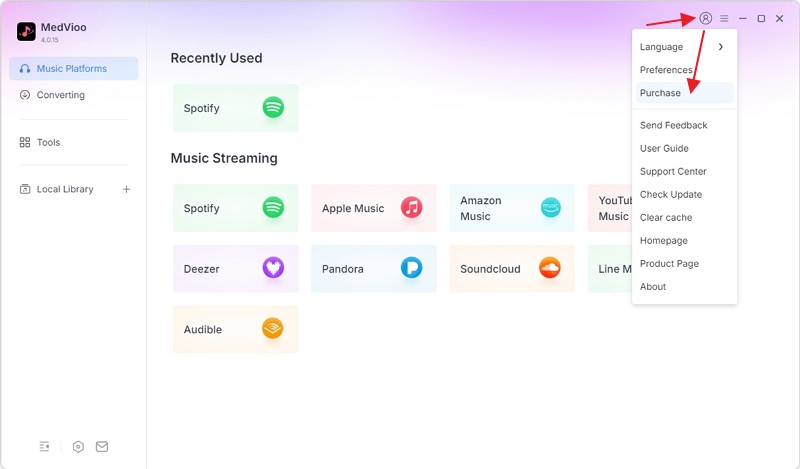
Then, choose your preferred subscription plan, click "Buy Now" and complete the payment.
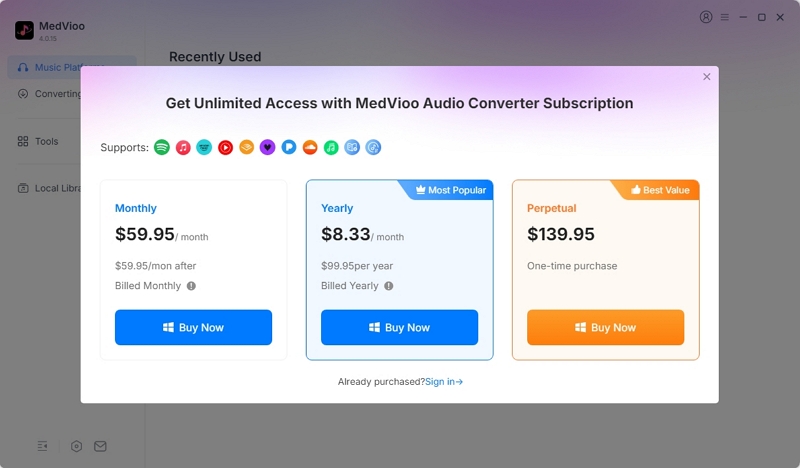
After your purchase, the email address you used during checkout will be authorized and automatically signed in to MedVioo, unlocking the full features. At the same time, you’ll receive an email containing a registration code. You can use this code to sign back in to MedVioo Audio Converter and regain access to the full features if you’ve signed out.
If you’ve signed out of your subscription account, follow the steps below to sign back in and regain access to the full features.
Copy the unique registration code received in your order confirmation email. (Make sure you don't copy any extra trailing blank spaces).
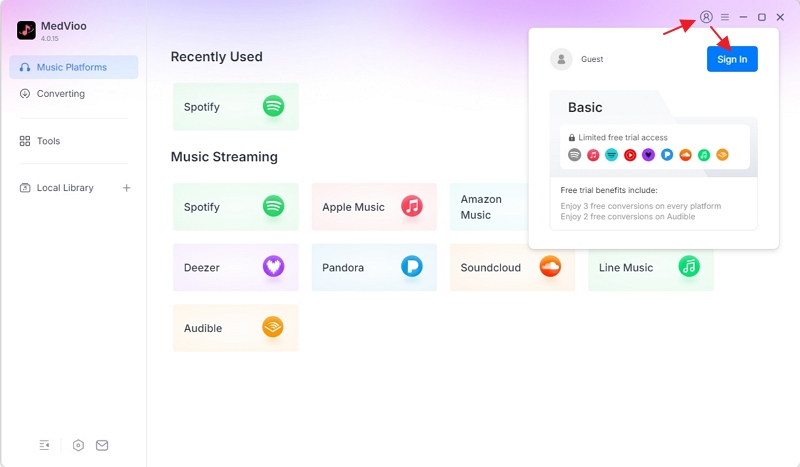
Launch MedVioo Audio Converter and click the "user icon" at the upper-right corner. In the pop-up window, click "Sign in" in the upper-right corner.
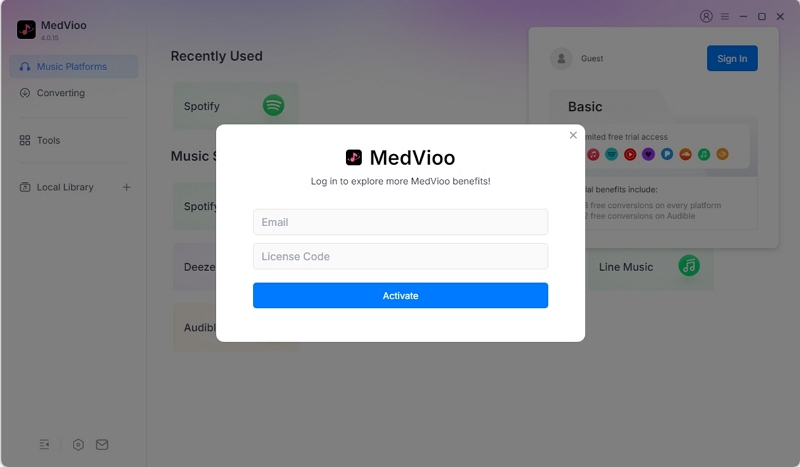
Enter your Registered Email Address and paste the License Code into the input fields, then click "Activate".

Activation Success Confirmation
Once activated successfully, you will see a validation pop-up showing your plan state. All conversion batch constraints are immediately lifted and you have lifetime free software upgrades!

How to Convert Online Songs
Step-by-step process of converting track sources into lossless audio formats
Our advanced audio decoding engine can smoothly fetch online audio streams. Follow the quick steps to convert anything:
Select a Music Platform
In the MedVioo Audio Converter interface, select the music platform that hosts the songs you want to convert.

Log in to Your Selected Platform
Click the login button and enter your credentials. You’ll then be taken to your library.
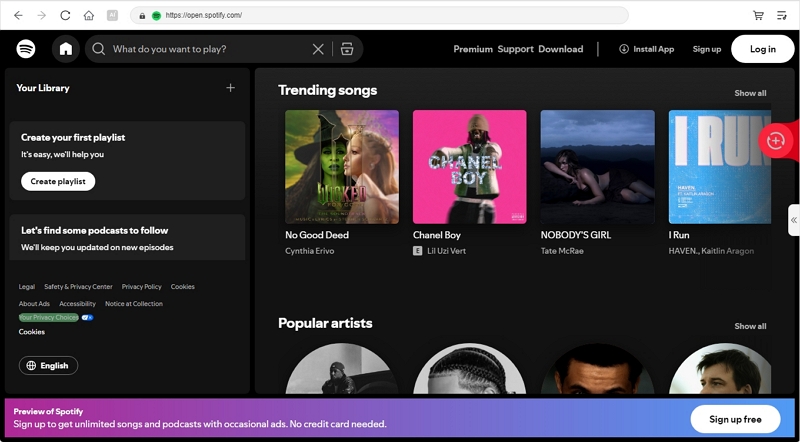
Add Music to Convert
Find the song you want to convert, hover over it, and click "Add" to add it to the conversion list. To add an entire album or playlist, simply open it and click the "Add" button in the bottom-right corner.

Select Output Format, Quality and Location
In the pop-up conversion window, you can set your preferred output format, audio quality, and save location.

Start the Music Conversion
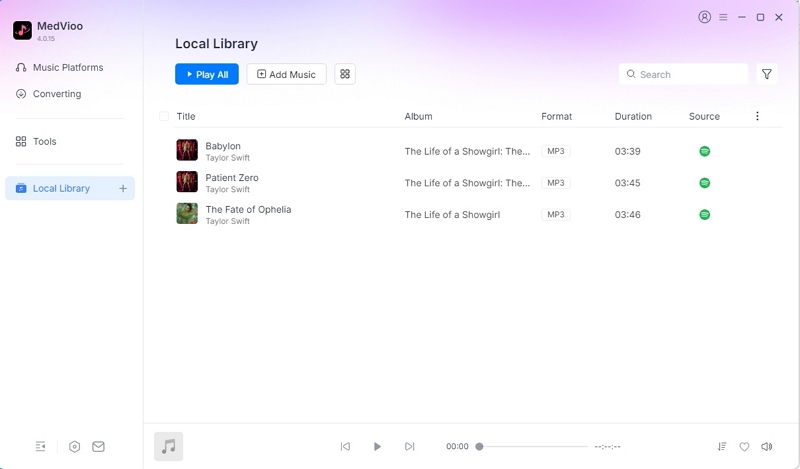
Hit the "Convert Now" button. MedVioo Audio Converter will execute concurrent multi-threaded audio decoding at up to 30x extreme acceleration speed. After conversion, click "Local Library" on the left to view your converted songs.

Configure Your Preferences
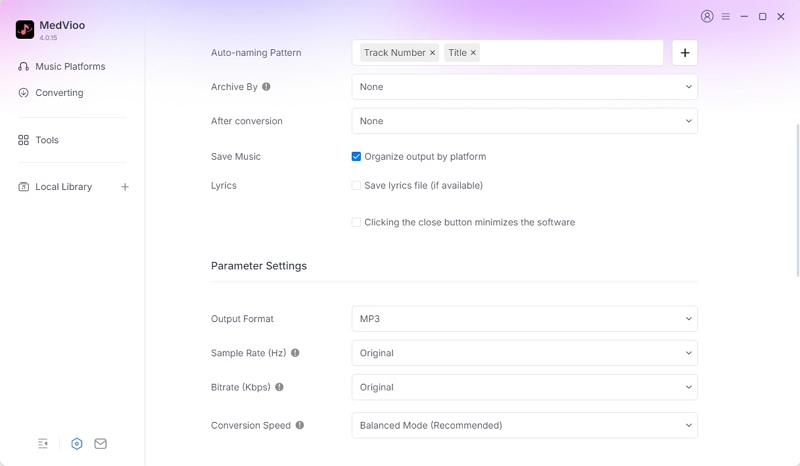
Customize your software preferences, including the interface language and theme, and preset music conversion settings such as output format and audio quality.
To access the settings, click the settings icon in the bottom-left corner of the software:
1. Output Directory
By default, converted files are exported to your user directory folder. You can custom specify any destination folder, such as an external SSD and local desktop.
2. Hardware Acceleration
Toggle GPU acceleration to utilize NVIDIA, AMD, or Intel hardware chips to offload decoding calculations. This allows the application to achieve 30x faster conversions without dragging down CPU resource metrics.
3. Metadata & ID3 Tags
You can choose which metadata to save, including song titles, artist names, track numbers, playlist names, and more, making it easier to organize and identify your music. Album artwork is saved by default for all tracks.
4. Concurrency Settings
Change conversion parameters from 1 file to up to 3 files simultaneously. Higher concurrency speeds up bulk audio conversion, while lower values protect network and account stability.
 Got Questions?
Frequently Asked Questions
Find quick answers to common troubleshooting questions and configuration queries about MedVioo Audio Converter.
Still have questions or run into issues?
Contact our customer happiness team for immediate tech support, license recovery, or feature ideas.