

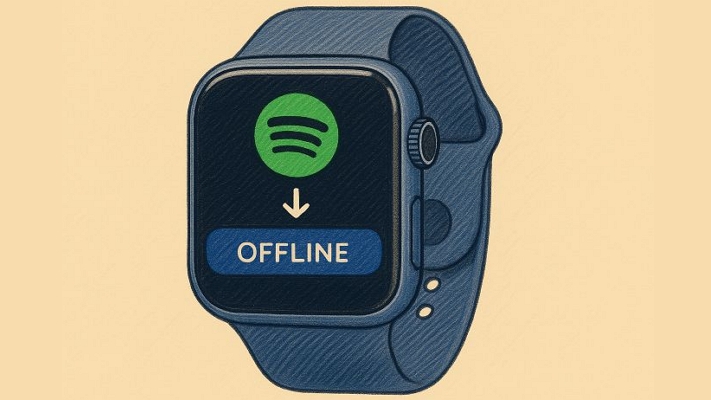
Downloading Spotify songs on Apple Watch comes with real benefits. For instance, you can step out for a run without your phone while still enjoying your favorite songs. Spotify provides an inbuilt feature for you to download Spotify music offline on your Apple Watch, though there are requirements and drawbacks. We’ll explain all of them while walking you through how to use Spotify built-in download feature to get music on your Apple Watch. Beyond that, we’ll also show you how to save Spotify songs on any Apple Watch model without the app by using Mediaio Audio Converter. Mediaio exports Spotify songs as local files and sync them to the Apple Watch via your phone.
How to Download Spotify Songs on Apple Watch Without Phone [Apple Watch Series 3 or Newer]
You can use Spotify directly on the Apple Watch. However, Spotify is only compatible with certain Apple Watch models and watchOS versions. In this section, we will discuss the compatibility and explain everything you need, along with the steps.
What You Need
Make sure the following things are ready. These are required for downloading and playing Spotify directly on your Apple Watch.
1. Spotify Premium Account
Playing or downloading Spotify songs on Apple Watch is a Premium-only feature. Free users can install the app on their watch, but they can only use it as a remote control (via Spotify Connect) to manage playback on other devices.

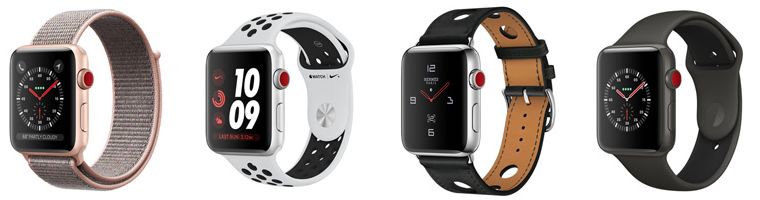
2. Apple Watch Series 3 or Later
Spotify lists Apple Watch Series 3 as the minimum for direct playback and downloads, such as:
- Series 3: 8–16 GB models
- Series 4: 16 GB
- Series 5, 6, SE, 7, 8, 9: 32 GB
- Apple Watch Ultra: 32 GB
All of these work well with Spotify.
3. watchOS 8 or Newer
Make sure your Apple Watch is updated to the latest watchOS version.
4. Wi-Fi or Cellular
You’ll need an internet connection to download songs on the Apple Watch. After making the songs offline, you can listen to them off the grid.
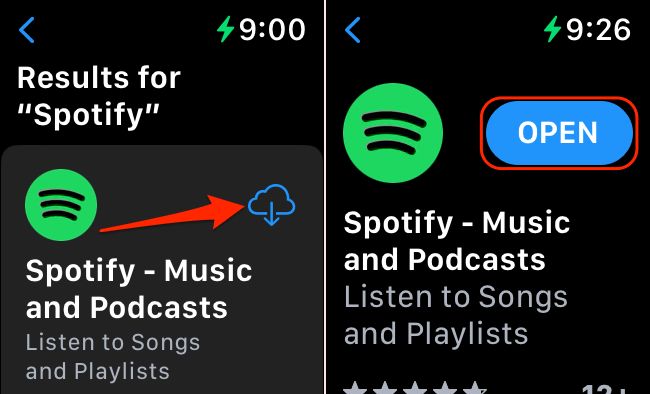
Step 1. Get Spotify on Your Apple Watch
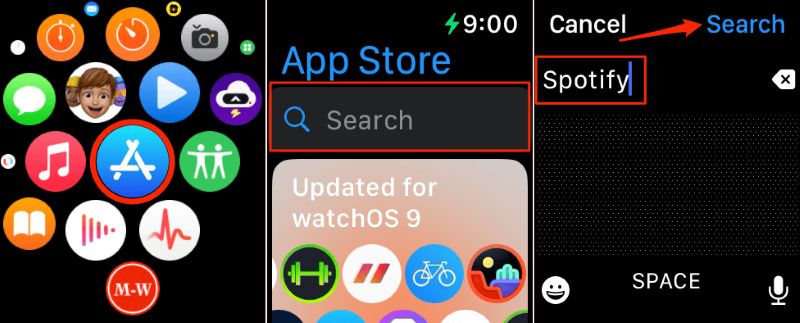
- Open the App Store on the watch.
- Search for Spotify.
- Tap the Get/Install button.
- Hit Open once it completes.
Step 2: Download Spotify Songs Directly on Apple Watch
Spotify’s rule of allowing only playlists, albums, or podcast episodes to be downloaded applies on the Apple Watch too. You cannot download single songs. That limitation stays the same.
1. Connect the Apple Watch to Wi-Fi or turn on Cellular data on the watch if available. Then, open Spotify.
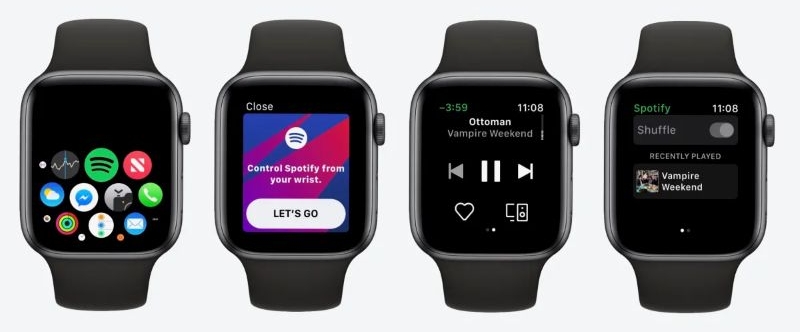
2. Pick the playlist, album, or episode. Tap the download icon (a downward arrow) below the title banner. Keep the watch awake while it saves everything.
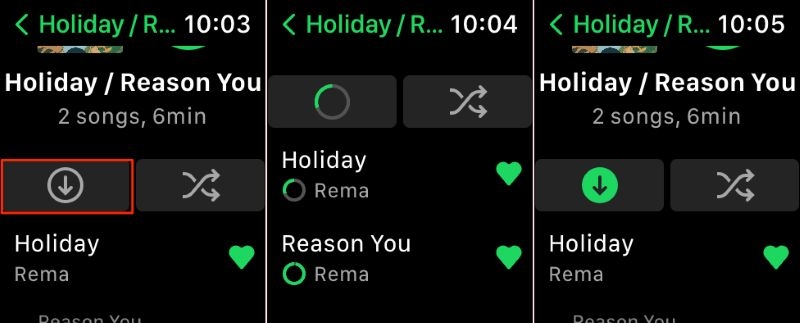
Once it finishes, go to Your Library > Downloads. Your offline music stays there and works without the phone.
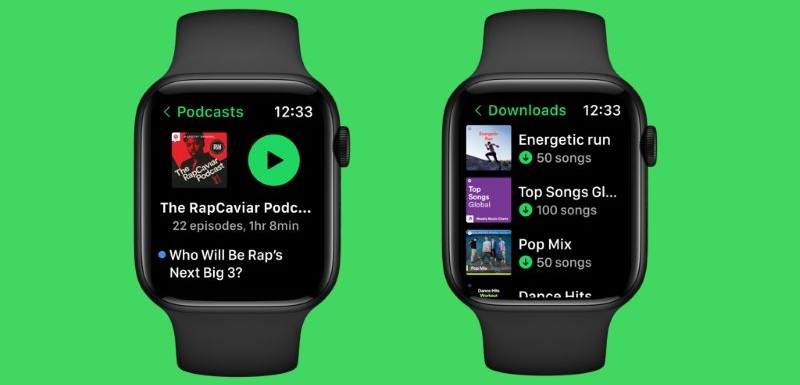
Spotify caps offline content on the watch at roughly 10 hours. Storage varies by model, so older watches will hold less. In practice, expect about 100 tracks per playlist on the watch.
Step 3: Play Spotify on Apple Watch Without Phone
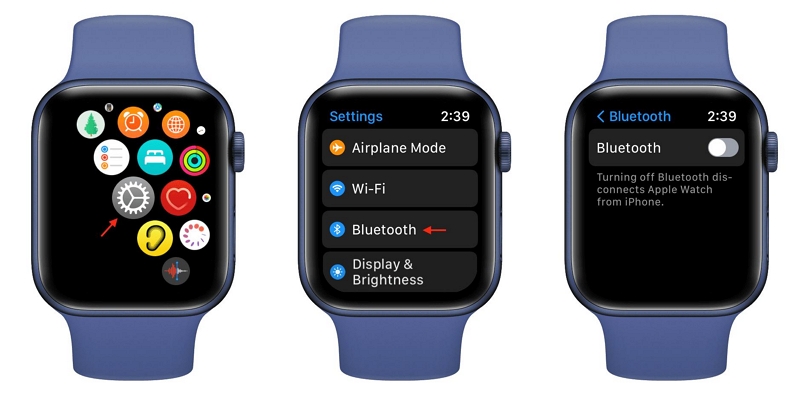
First, connect your earphones. Spotify needs a Bluetooth device to play on Apple Watch. For this: go to Settings on Apple Watch > turn on Bluetooth > pair your AirPods, Beats, or any earbuds.
To play the offline songs:
- Now, open Spotify on the Apple Watch.
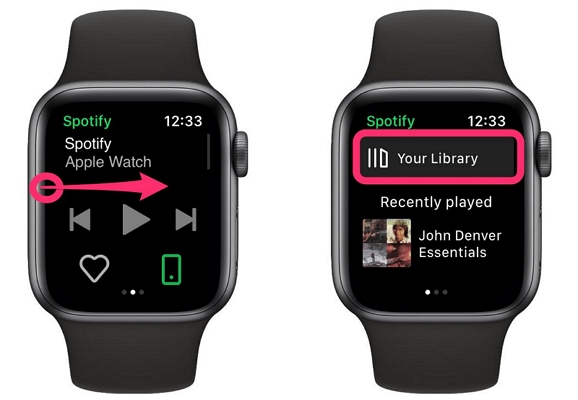
- Swipe right to reach Your Library.
- Open Downloads.
- Select the playlist you saved. That’s it, your Apple Watch will play everything offline on its own.
Can You Play Spotify on Apple Watch Speaker?
No. Apple blocks third-party music apps from using that tiny speaker, which protects sound quality and battery life. The watch speaker isn’t meant for music playback at all.
So, the watch will not output any Spotify downloaded songs unless you connect headphones. You can pair AirPods, Beats, or any Bluetooth earbuds, only then the Spotify music will be played.
How to Download Spotify Songs on Apple Watch With Phone
With a paired iPhone, you can enjoy Spotify on any Apple Watch model, with or without the Spotify app. You can even download Spotify music to your Apple Watch without premium.
For Any Apple Watch Series
This method is helpful when your Apple Watch doesn’t support the Spotify app. Or, when you don’t want to buy Spotify Premium but still want its music on your Watch.
Preparation
- A computer — Windows or Mac.
- Internet connection.
- A good USB-C or Lightning cable.
- Mediaio Audio Converter, which converts Spotify songs to MP3, FLAC, or M4A.
- Apple Watch app on the paired iPhone.
Step 1. Convert Spotify Songs to Local MP3
Mediaio Audio Converter lets you save Spotify music on your local computer. You can use Mediaio to export individual songs, playlists, or albums as MP3, M4A, FLAC, and others, move them to your Apple Watch via the phone and play them without the internet. Mediaio even doesn’t require a Premium plan to stream and download Spotify music in 320kbps.
The song name, artist name, cover art and song order stay exactly the same for the music downloads. So, when these songs appear on your Apple Watch, they look just like they do on Spotify. The download process is simple too. You can download as many Spotify songs as you want all within the Mediaio interface.
Steps to Convert Spotify Songs for Apple Watch
Launch Mediaio Audio Converter on your computer. Choose the Spotify icon.

Then, sign in with your free account.
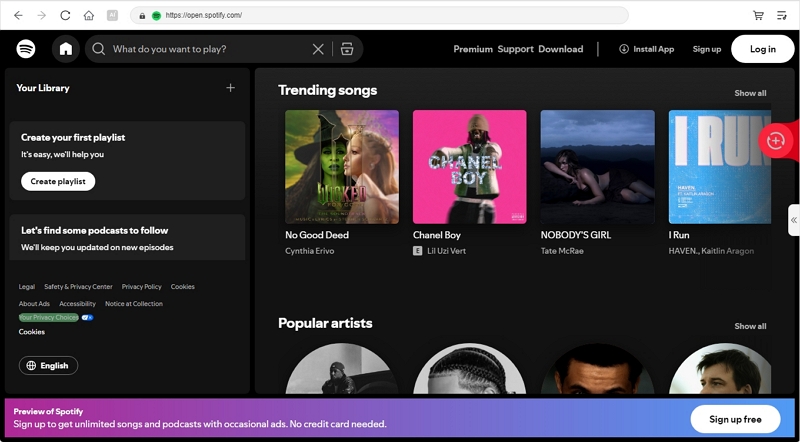
Navigate to the playlist page or album page you want for Apple Watch. Drag them to the + icon or click Add to the conversion list button next to them. As Apple Watch doesn’t allow you to sync single tracks one by one, it’s better to save the playlist or album as they are.

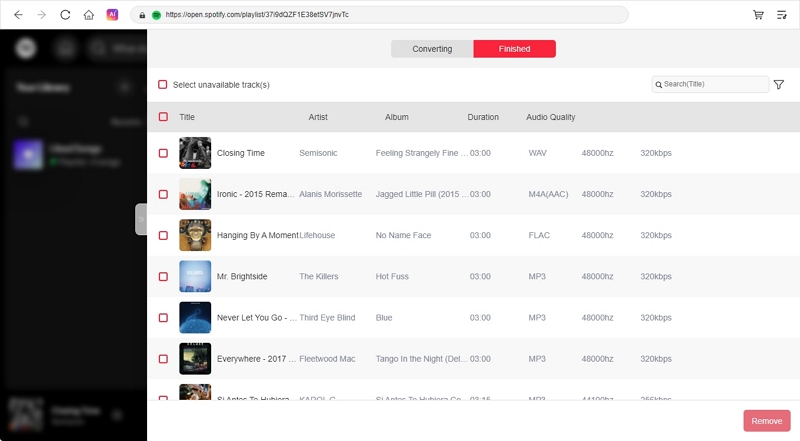
Click the left arrow to expand the conversion window. Pick your output format: MP3, M4A, FLAC or others you prefer. We use MP3 here.

Click Convert All at the bottom right. Your songs will be converted and saved to your computer.
Step 2: Transfer Local Spotify MP3 to iPhone
It is impossible to copy local files from a desktop directly to an Apple Watch using iTunes. You must first transfer the music files to the paired iPhone and then sync them to the Apple Watch via the phone.
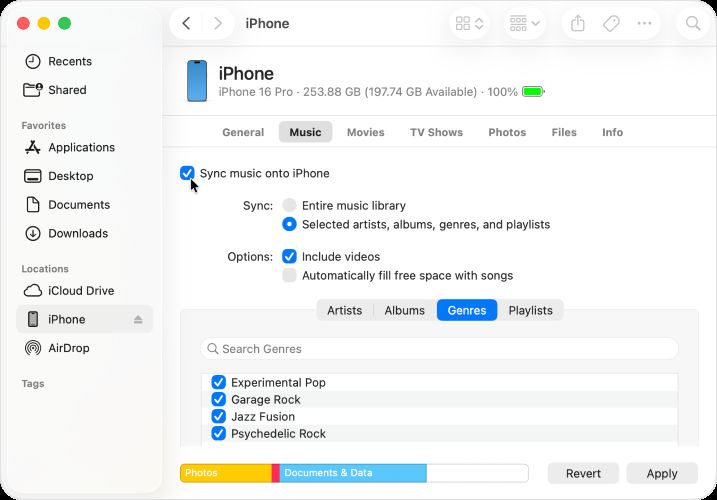
- Attach your iPhone to the computer using the cable. Start iTunes or Finder.
- Choose your iPhone from the sidebar. Head to the Music section.
- Add the Mediaio songs to your library and then enable Sync Music.
- Click Apply to start exporting local Spotify tracks to your iPhone. You will find the exported songs in the Apple Music app on your iPhone.
Step 3: Sync Spotify Songs from iPhone to Apple Watch
You can now sync the saved Spotify playlists to the Apple Watch with the Watch app on the paired iPhone. For this:
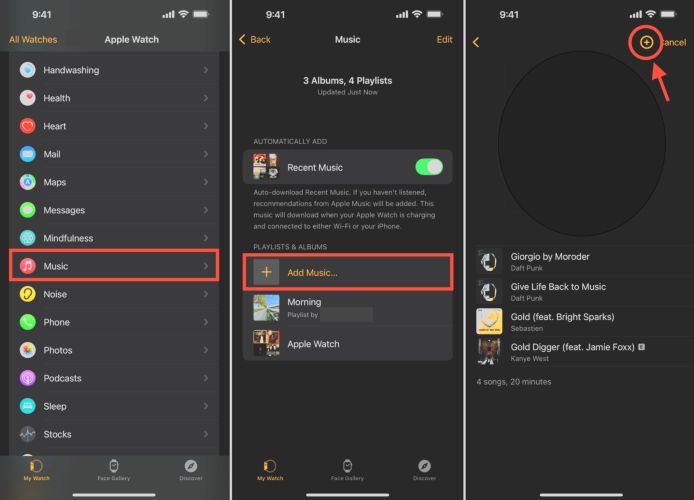
- Put your Apple Watch on the magnetic charger.
- Open the Watch app on the iPhone. On the My Watch tab, select Music.
- Turn on the Recent Music toggle to auto-sync whatever you add. Or tap Add Music, choose the local Spotify playlists or albums you imported earlier and sync them to the watch.
For Apple Watch Series 3 or Later
If Spotify is compatible with your Apple Watch models, as mentioned in the first section, then you can follow this alternate way to download Spotify music on it. You will still need a Spotify Premium for this to work. Here’s how the entire process works.
Requirements:
- Apple Watch Series 3 or later, running watchOS 8.0 or later
- Spotify Premium
- Internet access on both Apple Watch and paired iPhone
Step 1: Install Spotify on Apple Watch via iPhone
You can use the Apple Watch app on the iPhone to download the Spotify app to the watch remotely.
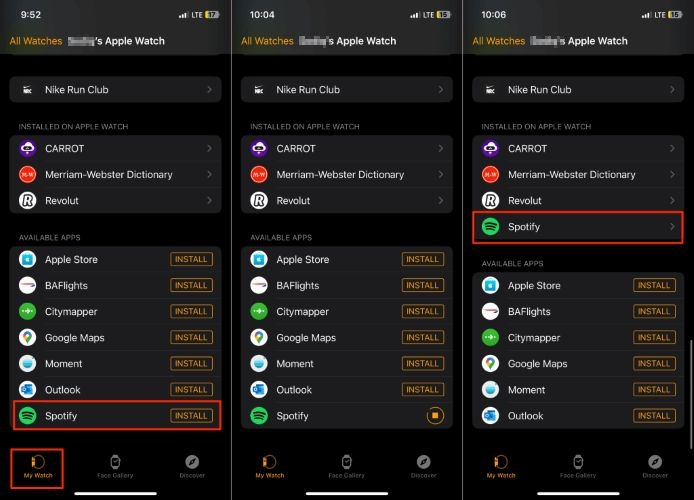
- Run Apple Watch app on the iPhone, tap My Watch and go to Available Apps.
- Tap Install next to Spotify.
- You will see Spotify move into the Installed on Apple Watch section.
- Check your Apple Watch and the Spotify icon will be there.
Step 2: Download Spotify Songs from iPhone to Apple Watch
Charge your Apple Watch and keep it close to your iPhone. Then follow these steps:
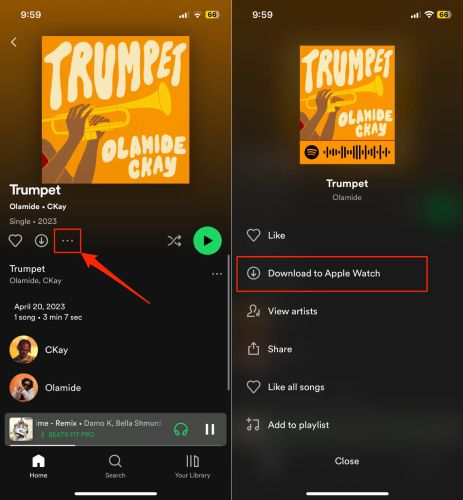
1. Launch Spotify on iPhone. Go to the wanted playlist or album.
2. Tap the three-dot menu under the banner. Select the Download to Apple Watch option or Download to other devices > Apple Watch.
Fixed: “Download to Apple Watch” Not Showing
Some users report that Download to Apple Watch doesn’t appear or it stays grayed out in the menu. If you are also stuck on the issue, try these fixes to solve it.
Fix 1. Make Sure You’re Downloading a Playlist or an Album
The option won’t appear under certain auto-generated collections. It shows only on playlists, albums or podcasts.
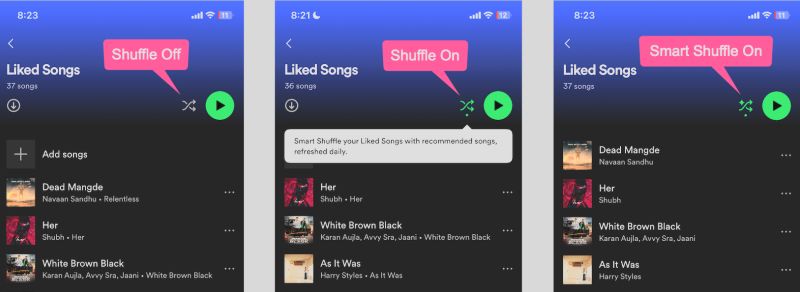
Fix 2. Turn off Smart Shuffle
Smart Shuffle can hide the download options. Disable it, return to the playlist, and check again.
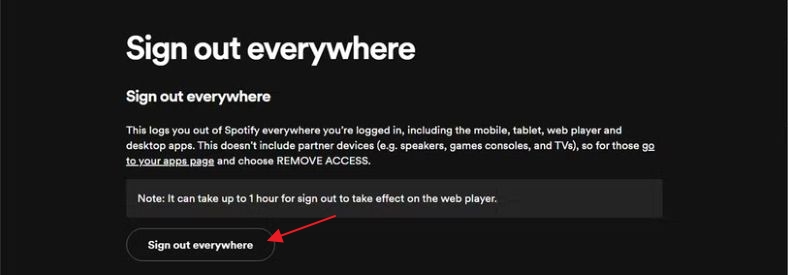
Fix 3. Log out and Reconnect
Sign out of Spotify on all your devices. Then sign in again. It refreshes the link between the iPhone and the Apple Watch, which will make “Download to Apple Watch” appear again.
Fix 4. Reinstall Spotify
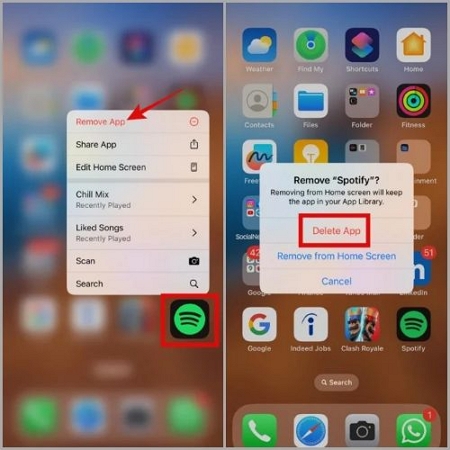
Most users say the option returns after a clean Spotify reinstall. Here’s how to remove the app from your iPhone and Apple Watch.
- Long press Spotify icon on the iPhone Home Screen.
- Tap Remove App.
- Then, select the Delete App.
- Confirm by tapping Delete.
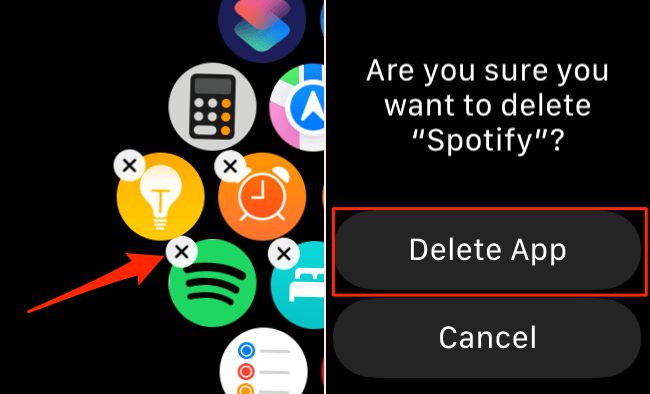
- Unlock your Apple Watch and long-press the Spotify icon on your Watch’s app grid.
- Tap the small “X” to delete it.
- Install Spotify on your iPhone and Apple Watch again.

Fix 5. Update Spotify and Your Devices
Keeping your Spotify app, iOS, and watchOS on the latest versions.
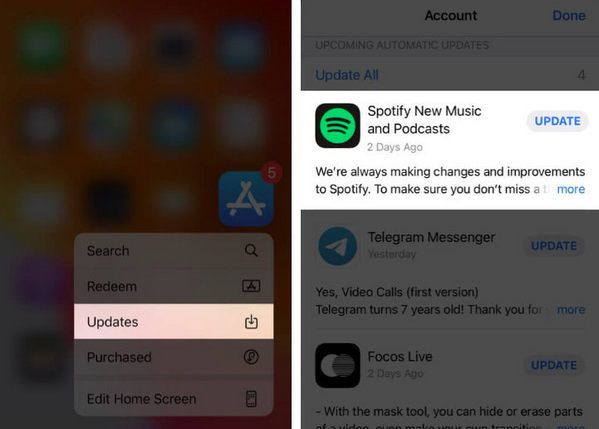
To Update Spotify App:
- Long press the App Store icon. Select Updates.
- Search for Spotify.
- Hit Update.
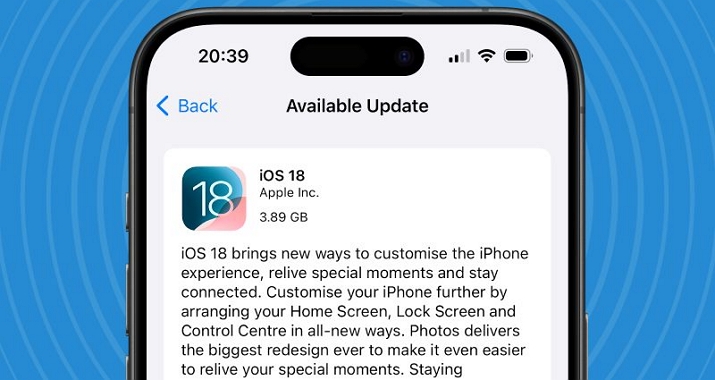
To Update iPhone Software:
- Head into iPhone Settings.
- Enter General, then move to Software Update.
- Press Download and Install.
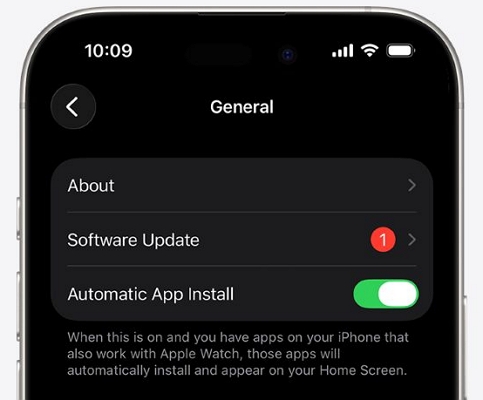
To Update Apple Watch Software:
- Open the Watch app on iPhone.
- Choose General.
- Continue to Software Update and confirm the installation.
Finally, restart both devices and the Download on Apple Watch button will work again.
Final Words
Downloading Spotify songs directly on the Apple Watch only works when you have Premium and plan to keep it. The moment your Premium ends, every downloaded playlist will disappear from your watch. If you’re fine with that cycle, we’ve shown you the path to follow.
If you don’t want to maintain Premium, you can go with Mediaio Audio Converter. It lets you bring your Spotify music as local MP3 files and sync them to the Apple Watch like regular audio. It doesn’t need a Premium plan to download Spotify songs.